概述
Azure 队列存储在应用程序组件之间提供云消息传送。 在设计规模应用程序时,应用程序组件通常会分离,以便可以独立缩放。 队列存储在应用程序组件之间提供异步消息传送,无论是在云中、桌面、本地服务器上还是在移动设备上运行。 队列存储还支持管理异步任务和生成进程工作流。
关于本教程
本教程演示如何使用 Azure 队列存储为某些常见方案编写 .NET 代码。 涉及的方案包括创建和删除队列以及添加、读取和删除队列消息。
估计完成时间: 45 分钟
先决条件
什么是队列存储?
Azure 队列存储是一项服务,用于存储大量可以通过 HTTP 或 HTTPS 通过经过身份验证的调用从世界上任何地方访问的消息。 单个队列消息的大小最多可为 64 KB,队列可以包含数以百万计的消息,消息总量取决于存储帐户的容量上限。 队列存储通常用于创建积压工作以异步处理。
队列服务概念
Azure 队列服务包含以下组件:
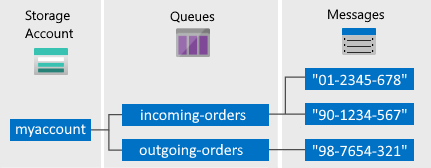
存储帐户: 对 Azure 存储的所有访问都通过存储帐户完成。 有关存储帐户的详细信息,请参阅存储帐户概述。
队列:一个队列包含一组消息。 所有消息必须位于相应的队列中。 请注意,队列名称必须全部小写。 有关命名队列的信息,请参阅 命名队列和元数据。
消息: 一条消息(无论哪种格式)的最大大小为 64 KB。 消息可以保留在队列中的最长时间为 7 天。 在 2017-07-29 或更高版本中,最大生存时间可以是任何正数,或者是 -1(表示消息不会过期)。 如果省略此参数,则默认的生存时间为 7 天。
URL 格式: 队列可以使用以下 URL 格式进行寻址:http://
<storage account>.queue.core.windows.net/<queue>以下 URL 指向图示中的队列:
http://myaccount.queue.core.windows.net/incoming-orders
创建 Azure 存储帐户
创建第一个 Azure 存储帐户的最简单方法是使用 Azure 门户。 若要了解更多信息,请参阅 创建存储帐户。
还可以使用 Azure PowerShell、Azure CLI或用于 .NET的 azure 存储资源提供程序创建 Azure 存储帐户。
如果目前不想在 Azure 中创建存储帐户,也可以使用 Azurite 存储模拟器在本地环境中运行和测试代码。 有关详细信息,请参阅 使用 Azurite 模拟器进行本地 Azure 存储开发。
设置开发环境
接下来,在 Visual Studio 中设置开发环境,以便可以尝试本指南中的代码示例。
创建 Windows 控制台应用程序项目
在 Visual Studio 中创建新的 Windows 控制台应用程序。 以下步骤演示了如何在 Visual Studio 2019 中创建控制台应用程序。 在其他版本的 Visual Studio 中,这些步骤是类似的。
- 选择 文件>新建>项目
- 选择 平台>Windows
- 选择 控制台应用(.NET Framework)
- 选择“下一步”
- 在 “项目名称 ”字段中,输入应用程序的名称
- 选择 创建
本教程中的所有代码示例都可以添加到您的控制台应用程序的 Program.cs 文件内的 Main() 方法中。
可以在任何类型的 .NET 应用程序中使用 Azure 存储客户端库,包括 Azure 云服务或 Web 应用,以及桌面和移动应用程序。 在本指南中,我们使用控制台应用程序来简单起见。
使用 NuGet 安装所需包
需要引用项目中的以下四个包才能完成本教程:
- 适用于 .NET 的 Azure.Core 库:此包为新式 .NET Azure SDK 客户端库提供共享基元、抽象和帮助程序。
- 适用于 .NET 的 Azure.Storage.Common 客户端库:此包提供由其他 Azure 存储客户端库共享的基础结构。
- 适用于 .NET 的 Azure.Storage.Queues 客户端库:此包支持使用 Azure 队列存储来存储客户端可能访问的消息。
- 适用于 .NET 的 System.Configuration.ConfigurationManager 库:此包提供对客户端应用程序的配置文件的访问权限。
可以使用 NuGet 获取这些包。 执行以下步骤:
- 在 解决方案资源管理器中右键单击项目,然后选择 管理 NuGet 包。
- 选择 “浏览”
- 请在线搜索
Azure.Storage.Queues,然后选择安装以安装 Azure 存储客户端库及其依赖项。 这还将安装 Azure.Storage.Common 和 Azure.Core 库,这些库是队列库的依赖项。 - 在线搜索
System.Configuration.ConfigurationManager,然后点击 安装 以安装 Configuration Manager。
确定目标环境
有两个用于运行本指南中的示例的环境选项:
- 可以针对云中的 Azure 存储帐户运行代码。
- 可以针对 Azurite 存储模拟器运行代码。 Azurite 是一种本地环境,用于模拟云中的 Azure 存储帐户。 Azurite 是一个免费选项,用于在应用程序开发期间测试和调试代码。 模拟器使用已知的帐户和密钥。 有关详细信息,请参阅 使用 Azurite 模拟器进行本地 Azure 存储开发和测试。
注释
可以使用存储模拟器,以避免产生与 Azure 存储相关的任何费用。 但是,如果选择以云中的 Azure 存储帐户为目标,则执行本教程的成本将微不足道。
获取存储连接字符串
用于 .NET 的 Azure 存储客户端库支持使用存储连接字符串来配置用于访问存储服务的终结点和凭据。 有关详细信息,请参阅管理存储帐户访问密钥。
从 Azure 门户复制凭据
示例代码需要授权访问存储帐户。 若要授权,请以连接字符串的形式向应用程序提供存储帐户凭据。 若要查看存储帐户凭据,请执行以下步骤操作:
导航到 Azure 门户。
找到自己的存储帐户。
在存储帐户概述的 设置 部分中,选择 访问密钥。 此时会显示帐户访问密钥,以及每个密钥的完整连接字符串。
在 key1 下找到连接字符串值,然后单击“复制”按钮复制连接字符串。 在下一步中,将向环境变量添加连接字符串值。

有关连接字符串的详细信息,请参阅 配置 Azure 存储的连接字符串。
注释
存储帐户密钥类似于存储帐户的根密码。 请始终小心保护存储帐户密钥。 避免将其分发给其他用户、对其进行硬编码或将其保存在其他人可访问的纯文本文件中。 如果认为密钥可能已泄露,请使用 Azure 门户重新生成密钥。
维护存储连接字符串的最佳方法是在配置文件中。 若要配置连接字符串,请在 Visual Studio 中的解决方案资源管理器中打开 app.config 该文件。 添加此处所示元素 <appSettings> 的内容。 用从门户中的存储帐户复制的值替换connection-string。
<configuration>
    <startup>
        <supportedRuntime version="v4.0" sku=".NETFramework,Version=v4.7.2" />
    </startup>
    <appSettings>
        <add key="StorageConnectionString" value="connection-string" />
    </appSettings>
</configuration>
例如,配置设置如下所示:
<add key="StorageConnectionString" value="DefaultEndpointsProtocol=https;AccountName=storagesample;AccountKey=GMuzNHjlB3S9itqZJHHCnRkrokLkcSyW7yK9BRbGp0ENePunLPwBgpxV1Z/pVo9zpem/2xSHXkMqTHHLcx8XRA==EndpointSuffix=core.windows.net" />
若要针对 Azurite 存储模拟器,您可以利用映射到已知帐户名称和密钥的快捷方式。 在这种情况下,连接字符串设置为:
<add key="StorageConnectionString" value="UseDevelopmentStorage=true" />
添加 using 指令
在 Program.cs 文件的顶部添加以下 using 指令:
using System; // Namespace for Console output
using System.Configuration; // Namespace for ConfigurationManager
using System.Threading.Tasks; // Namespace for Task
using Azure.Identity;
using Azure.Storage.Queues; // Namespace for Queue storage types
using Azure.Storage.Queues.Models; // Namespace for PeekedMessage
创建队列存储客户端
使用该 QueueClient 类可以检索存储在队列存储中的队列。 下面是创建服务客户端的一种方法:
//-------------------------------------------------
// Create the queue service client
//-------------------------------------------------
public void CreateQueueClient(string queueName)
{
    // Get the connection string from app settings
    string connectionString = ConfigurationManager.AppSettings["StorageConnectionString"];

    // Instantiate a QueueClient which will be used to create and manipulate the queue
    QueueClient queueClient = new QueueClient(connectionString, queueName);
}
小窍门
使用 QueueClient 类发送的消息必须采用可以包含在采用 UTF-8 编码的 XML 请求中的格式。 (可选)可以将 MessageEncoding 选项设置为 Base64 以处理不符合的消息。
现在,你已准备好编写从队列存储读取数据并将数据写入队列存储的代码。
创建队列
此示例演示如何创建队列:
//-------------------------------------------------
// Create a message queue
//-------------------------------------------------
public bool CreateQueue(string queueName)
{
    try
    {
        // Get the connection string from app settings
        string connectionString = ConfigurationManager.AppSettings["StorageConnectionString"];

        // Instantiate a QueueClient which will be used to create and manipulate the queue
        QueueClient queueClient = new QueueClient(connectionString, queueName);

        // Create the queue
        queueClient.CreateIfNotExists();

        if (queueClient.Exists())
        {
            Console.WriteLine($"Queue created: '{queueClient.Name}'");
            return true;
        }
        else
        {
            Console.WriteLine($"Make sure the Azurite storage emulator running and try again.");
            return false;
        }
    }
    catch (Exception ex)
    {
        Console.WriteLine($"Exception: {ex.Message}\n\n");
        Console.WriteLine($"Make sure the Azurite storage emulator running and try again.");
        return false;
    }
}
在队列中插入消息
若要将消息插入现有队列,请调用 SendMessage 该方法。 消息可以是字符串(采用 UTF-8 格式)或字节数组。 以下代码创建队列(如果队列不存在),并插入消息:
//-------------------------------------------------
// Insert a message into a queue
//-------------------------------------------------
public void InsertMessage(string queueName, string message)
{
    // Get the connection string from app settings
    string connectionString = ConfigurationManager.AppSettings["StorageConnectionString"];

    // Instantiate a QueueClient which will be used to create and manipulate the queue
    QueueClient queueClient = new QueueClient(connectionString, queueName);

    // Create the queue if it doesn't already exist
    queueClient.CreateIfNotExists();

    if (queueClient.Exists())
    {
        // Send a message to the queue
        queueClient.SendMessage(message);
    }

    Console.WriteLine($"Inserted: {message}");
}
查看下一条消息
可以通过调用 PeekMessages 该方法来查看队列中的消息,而无需将其从队列中删除。 如果未传递 maxMessages 参数的值,则默认值是查看一条消息。
//-------------------------------------------------
// Peek at a message in the queue
//-------------------------------------------------
public void PeekMessage(string queueName)
{
    // Get the connection string from app settings
    string connectionString = ConfigurationManager.AppSettings["StorageConnectionString"];

    // Instantiate a QueueClient which will be used to manipulate the queue
    QueueClient queueClient = new QueueClient(connectionString, queueName);

    if (queueClient.Exists())
    {
        // Peek at the next message
        PeekedMessage[] peekedMessage = queueClient.PeekMessages();

        // Display the message
        Console.WriteLine($"Peeked message: '{peekedMessage[0].Body}'");
    }
}
更改排队消息的内容
可以直接在队列中更改消息内容。 如果消息表示工作任务,则可以使用此功能更新工作任务的状态。 以下代码使用新内容更新队列消息,并将可见性超时设置为再延长 60 秒。 这会保存与消息关联的工作状态,并给客户端另一分钟以继续处理消息。 可以使用此方法跟踪队列消息上的多步骤工作流,而无需从头开始,如果处理步骤因硬件或软件故障而失败。 通常,你也会保留重试计数,如果消息重试次数超过 n 次,则会将其删除。 这可以防止消息在每次处理时触发应用程序错误。
//-------------------------------------------------
// Update an existing message in the queue
//-------------------------------------------------
public void UpdateMessage(string queueName)
{
    // Get the connection string from app settings
    string connectionString = ConfigurationManager.AppSettings["StorageConnectionString"];

    // Instantiate a QueueClient which will be used to manipulate the queue
    QueueClient queueClient = new QueueClient(connectionString, queueName);

    if (queueClient.Exists())
    {
        // Get the message from the queue
        QueueMessage[] message = queueClient.ReceiveMessages();

        // Update the message contents
        queueClient.UpdateMessage(message[0].MessageId,
                message[0].PopReceipt,
                "Updated contents",
                TimeSpan.FromSeconds(60.0)  // Make it invisible for another 60 seconds
            );
    }
}
从队列中取出下一条消息
在两个步骤中从队列中取消消息排队。 调用 ReceiveMessages 时,将得到队列中的下一条消息。 对从此队列读取消息的任何其他代码而言,从 ReceiveMessages 返回的消息将不可见。 默认情况下,此消息保持 30 秒不可见。 若要完成从队列中删除消息,还必须调用 DeleteMessage。 删除消息的这两个步骤可确保如果代码由于硬件或软件故障而无法处理消息,则代码的另一个实例可以获取相同的消息,然后重试。 代码在处理消息后会立即调用 DeleteMessage。
//-------------------------------------------------
// Process and remove a message from the queue
//-------------------------------------------------
public void DequeueMessage(string queueName)
{
    // Get the connection string from app settings
    string connectionString = ConfigurationManager.AppSettings["StorageConnectionString"];

    // Instantiate a QueueClient which will be used to manipulate the queue
    QueueClient queueClient = new QueueClient(connectionString, queueName);

    if (queueClient.Exists())
    {
        // Get the next message
        QueueMessage[] retrievedMessage = queueClient.ReceiveMessages();

        // Process (i.e. print) the message in less than 30 seconds
        Console.WriteLine($"Dequeued message: '{retrievedMessage[0].Body}'");

        // Delete the message
        queueClient.DeleteMessage(retrievedMessage[0].MessageId, retrievedMessage[0].PopReceipt);
    }
}
将 Async-Await 模式与常见的队列存储 API 配合使用
此示例演示如何将 Async-Await 模式与常见的队列存储 API 配合使用。 此示例调用每个给定方法的异步版本,如 Async 每个方法的后缀所示。 使用异步方法时,Async-Await 模式将挂起本地执行,直到调用完成。 此行为允许当前线程执行其他工作,这有助于避免性能瓶颈并提高应用程序的整体响应能力。 有关在 .NET 中使用 Async-Await 模式的更多详细信息,请参阅 Async 和 Await(C# 和 Visual Basic)
//-------------------------------------------------
// Perform queue operations asynchronously
//-------------------------------------------------
public async Task QueueAsync(string queueName)
{
    // Get the connection string from app settings
    string connectionString = ConfigurationManager.AppSettings["StorageConnectionString"];

    // Instantiate a QueueClient which will be used to manipulate the queue
    QueueClient queueClient = new QueueClient(connectionString, queueName);

    // Create the queue if it doesn't already exist
    await queueClient.CreateIfNotExistsAsync();

    if (await queueClient.ExistsAsync())
    {
        Console.WriteLine($"Queue '{queueClient.Name}' created");
    }
    else
    {
        Console.WriteLine($"Queue '{queueClient.Name}' exists");
    }

    // Async enqueue the message
    await queueClient.SendMessageAsync("Hello, World");
    Console.WriteLine($"Message added");

    // Async receive the message
    QueueMessage[] retrievedMessage = await queueClient.ReceiveMessagesAsync();
    Console.WriteLine($"Retrieved message with content '{retrievedMessage[0].Body}'");

    // Async delete the message
    await queueClient.DeleteMessageAsync(retrievedMessage[0].MessageId, retrievedMessage[0].PopReceipt);
    Console.WriteLine($"Deleted message: '{retrievedMessage[0].Body}'");

    // Async delete the queue
    await queueClient.DeleteAsync();
    Console.WriteLine($"Deleted queue: '{queueClient.Name}'");
}
使用其他选项从队列中移除消息
可通过两种方式自定义队列中消息的检索。 首先,可以获取一批消息(最多 32 条)。 其次,你可以设置更长或更短的不可见性超时,从而给予代码更多或更少的时间来完整处理每条消息。
以下代码示例使用 ReceiveMessages 方法在一个调用中获取 20 条消息。 然后,使用 foreach 循环处理每条消息。 它还将每条消息的不可见超时时间设置为 5 分钟。 请注意,所有消息的五分钟同时开始,因此在调用 ReceiveMessages后 5 分钟后,任何尚未删除的消息都将再次可见。
//-----------------------------------------------------
// Process and remove multiple messages from the queue
//-----------------------------------------------------
public void DequeueMessages(string queueName)
{
    // Get the connection string from app settings
    string connectionString = ConfigurationManager.AppSettings["StorageConnectionString"];

    // Instantiate a QueueClient which will be used to manipulate the queue
    QueueClient queueClient = new QueueClient(connectionString, queueName);

    if (queueClient.Exists())
    {
        // Receive and process 20 messages
        QueueMessage[] receivedMessages = queueClient.ReceiveMessages(20, TimeSpan.FromMinutes(5));

        foreach (QueueMessage message in receivedMessages)
        {
            // Process (i.e. print) the messages in less than 5 minutes
            Console.WriteLine($"De-queued message: '{message.Body}'");

            // Delete the message
            queueClient.DeleteMessage(message.MessageId, message.PopReceipt);
        }
    }
}
获取队列长度
您可以获取队列中消息数量的估计值。
GetProperties 方法返回包括消息计数在内的队列属性。
ApproximateMessagesCount 属性包含队列中的大致消息数。 此数字不低于队列中实际消息数,但可能更高。
//-----------------------------------------------------
// Get the approximate number of messages in the queue
//-----------------------------------------------------
public void GetQueueLength(string queueName)
{
    // Get the connection string from app settings
    string connectionString = ConfigurationManager.AppSettings["StorageConnectionString"];

    // Instantiate a QueueClient which will be used to manipulate the queue
    QueueClient queueClient = new QueueClient(connectionString, queueName);

    if (queueClient.Exists())
    {
        QueueProperties properties = queueClient.GetProperties();

        // Retrieve the cached approximate message count.
        int cachedMessagesCount = properties.ApproximateMessagesCount;

        // Display number of messages.
        Console.WriteLine($"Number of messages in queue: {cachedMessagesCount}");
    }
}
删除队列
若要删除队列及其中包含的所有消息,请对队列对象调用 #D0 方法。
//-------------------------------------------------
// Delete the queue
//-------------------------------------------------
public void DeleteQueue(string queueName)
{
    // Get the connection string from app settings
    string connectionString = ConfigurationManager.AppSettings["StorageConnectionString"];

    // Instantiate a QueueClient which will be used to manipulate the queue
    QueueClient queueClient = new QueueClient(connectionString, queueName);

    if (queueClient.Exists())
    {
        // Delete the queue
        queueClient.Delete();
    }

    Console.WriteLine($"Queue deleted: '{queueClient.Name}'");
}
后续步骤
了解队列存储的基础知识后,请按照以下链接了解更复杂的存储任务。
- 查看队列存储参考文档,了解有关可用 API 的完整详细信息:
- 查看更多功能指南,了解有关在 Azure 中存储数据的其他选项。
- 通过 .NET 开始使用 Azure 表存储 来存储结构化数据。
- 通过 .NET 开始使用 Azure Blob 存储 来存储非结构化数据。
- 使用 .NET (C#) 连接到 SQL 数据库 以存储关系数据。
- 了解如何使用 Azure WebJobs SDK 简化编写以使用 Azure 存储的代码。
有关使用已弃用的 .NET 版本 11.x SDK 的相关代码示例,请参阅使用 .NET 版本 11.x 的代码示例。