Note
Access to this page requires authorization. You can try signing in or changing directories.
Access to this page requires authorization. You can try changing directories.
Applies to: ✔️ SMB file shares
Azure Files offers two industry-standard protocols for mounting Azure file share: the Server Message Block (SMB) protocol and the Network File System (NFS) protocol. Azure Files enables you to pick the file system protocol that is the best fit for your workload. Azure file shares don't support accessing an individual Azure file share with both the SMB and NFS protocols, although you can create SMB and NFS file shares within the same storage account. For all file shares, Azure Files offers enterprise-grade file shares that can scale up to meet your storage needs and can be accessed concurrently by thousands of clients.
This article covers SMB Azure file shares. For information about NFS Azure file shares, see NFS Azure file shares.
Common scenarios
SMB file shares are used for many applications including end-user file shares and file shares that back databases and applications. SMB file shares are often used in the following scenarios:
- End-user file shares such as team shares and home directories
- Backing storage for Windows-based applications, such as SQL Server databases or line-of-business applications written for Win32 or .NET local file system APIs
- New application and service development, particularly if that application or service has a requirement for random IO and hierarchical storage
Features
Azure Files supports the major features of SMB and Azure needed for production deployments of SMB file shares:
- SMB Continuous Availability (CA)
- AD domain join and discretionary access control lists (DACLs)
- Integrated serverless backup with Azure Backup
- Network isolation with Azure private endpoints
- High network throughput using SMB Multichannel (SSD file shares only)
- SMB channel encryption including AES-256-GCM, AES-128-GCM, and AES-128-CCM
- Previous version support through VSS integrated share snapshots
- Automatic soft delete on Azure file shares to prevent accidental deletes
- Optionally internet-accessible file shares with internet-safe SMB 3.0+
SMB file shares can be mounted directly on-premises or can also be cached on-premises with Azure File Sync.
Windows SMB support and Azure Files features
The following table shows Windows support for SMB version, SMB Multichannel1, and SMB channel encryption when mounting Azure file shares. Use this table to determine feature support and security requirements for the client operating systems that access your Azure file share. We recommend taking the most recent KB for your version of Windows.
| Windows version | SMB version | SMB Multichannel (SSD only) | Maximum SMB channel encryption |
|---|---|---|---|
| Windows Server 2025 | SMB 3.1.1 | Yes | AES-256-GCM |
| Windows 11, version 24H2 | SMB 3.1.1 | Yes | AES-256-GCM |
| Windows 11, version 23H2 | SMB 3.1.1 | Yes | AES-256-GCM |
| Windows 11, version 22H2 | SMB 3.1.1 | Yes | AES-256-GCM |
| Windows 10, version 22H2 | SMB 3.1.1 | Yes | AES-128-GCM |
| Windows Server 2022 | SMB 3.1.1 | Yes | AES-256-GCM |
| Windows 11, version 21H2 | SMB 3.1.1 | Yes | AES-256-GCM |
| Windows 10, version 21H2 | SMB 3.1.1 | Yes | AES-128-GCM |
| Windows 10, version 21H1 | SMB 3.1.1 | Yes, with KB5003690 or newer | AES-128-GCM |
| Windows Server, version 20H2 | SMB 3.1.1 | Yes, with KB5003690 or newer | AES-128-GCM |
| Windows 10, version 20H2 | SMB 3.1.1 | Yes, with KB5003690 or newer | AES-128-GCM |
| Windows Server, version 2004 | SMB 3.1.1 | Yes, with KB5003690 or newer | AES-128-GCM |
| Windows 10, version 2004 | SMB 3.1.1 | Yes, with KB5003690 or newer | AES-128-GCM |
| Windows Server 2019 | SMB 3.1.1 | Yes, with KB5003703 or newer | AES-128-GCM |
| Windows 10, version 1809 | SMB 3.1.1 | Yes, with KB5003703 or newer | AES-128-GCM |
| Windows Server 2016 | SMB 3.1.1 | Yes, with KB5004238 or newer and applied registry key | AES-128-GCM |
| Windows 10, version 1607 | SMB 3.1.1 | Yes, with KB5004238 or newer and applied registry key | AES-128-GCM |
| Windows 10, version 1507 | SMB 3.1.1 | Yes, with KB5004249 or newer and applied registry key | AES-128-GCM |
| Windows Server 2012 R22 | SMB 3.0 | No | AES-128-CCM |
| Windows Server 20122 | SMB 3.0 | No | AES-128-CCM |
| Windows 8.13 | SMB 3.0 | No | AES-128-CCM |
| Windows Server 2008 R23 | SMB 2.1 | No | Not supported |
| Windows 73 | SMB 2.1 | No | Not supported |
1Azure Files supports SMB Multichannel on SSD file shares only.
2Regular Microsoft support for Windows Server 2012 and Windows Server 2012 R2 has ended. You can purchase additional support for security updates only through the Extended Security Update (ESU) program.
3Microsoft support for Windows 7, Windows 8, and Windows Server 2008 R2 has ended. We strongly recommend migrating off of these operating systems.
SMB protocol settings
Azure Files offers multiple settings that affect the behavior, performance, and security of the SMB protocol. These are configured for all Azure file shares within a storage account.
SMB Continuous Availability
Azure Files supports SMB Continuous Availability (CA) to help applications remain available during transient infrastructure events. Continuous availability is a capability of the SMB protocol that allows open file handles to survive brief interruptions, such as server failovers or short network disruptions. All SMB Azure file shares are continuously available by default. This setting can't be disabled.
What continuous availability provides
Continuous availability provides the following benefits:
- Persistent file handles that survive transient failures
- Transparent recovery of I/O operations after failover
- Data consistency during infrastructure transitions
- Reduced risk of application disruption
If a brief connectivity interruption occurs, SMB clients automatically retry operations and reestablish access to open files without requiring the application to reopen them. This behavior is particularly important for workloads that maintain long-running file sessions.
How continuous availability works
Continuous availability relies on persistent SMB handles. During a transient interruption, which typically lasts up to several minutes, the following statements apply:
- Open file handles remain valid.
- The SMB client retries pending I/O operations.
- Azure Files transparently resumes operations once connectivity is restored.
Because Azure Files prioritizes correctness and durability, the client waits and retries instead of immediately failing the operation.
Timeout behavior during connectivity loss
Due to the retry behavior that continuous availability requires, SMB operations might take longer to time out during network interruptions.
For example, you might experience the following:
- Windows SMB clients might retry operations for several minutes before returning an error.
- Applications might appear to pause temporarily while the connection is reestablished.
This behavior is by design because it helps preserve handle integrity and prevent data corruption. Workloads that frequently disconnect, such as roaming laptops or unstable network connections, might observe longer wait times before failures are returned.
SMB Multichannel
SMB Multichannel enables an SMB 3.x client to establish multiple network connections to an SMB file share. Azure Files supports SMB Multichannel on SSD file shares. For Windows clients, SMB Multichannel is now enabled by default in all Azure regions.
To view the status of SMB Multichannel, navigate to the storage account containing your SSD file shares and select File shares under the Data storage heading in the storage account table of contents. You should see the status of SMB Multichannel under the File share settings section. If you don't see it, make sure your storage account is of the FileStorage account kind.
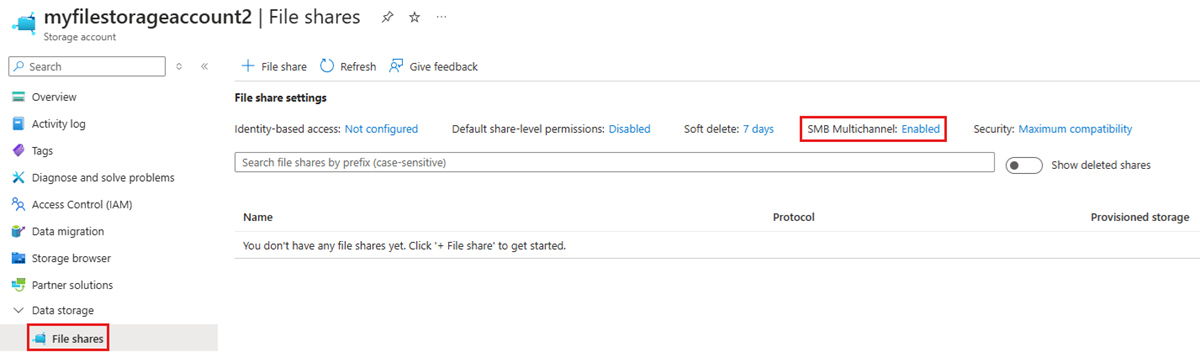
To enable or disable SMB Multichannel, select the current status (Enabled or Disabled depending on the status). The resulting dialog provides a toggle to enable or disable SMB Multichannel. Select the desired state and select Save.

Enable SMB Multichannel on older operating systems
Support for SMB Multichannel in Azure Files requires ensuring Windows has all the relevant patches applied. Several older Windows versions, including Windows Server 2016, Windows 10 version 1607, and Windows 10 version 1507, require additional registry keys to be set for all relevant SMB Multichannel fixes to be applied on fully patched installations. If you're running a version of Windows that's newer than these three versions, no additional action is required.
Windows Server 2016 and Windows 10 version 1607
To enable all SMB Multichannel fixes for Windows Server 2016 and Windows 10 version 1607, run the following PowerShell command:
Set-ItemProperty `
    -Path "HKLM:\SYSTEM\CurrentControlSet\Policies\Microsoft\FeatureManagement\Overrides" `
    -Name "2291605642" `
    -Value 1 `
    -Force
Windows 10 version 1507
To enable all SMB Multichannel fixes for Windows 10 version 1507, run the following PowerShell command:
Set-ItemProperty `
    -Path "HKLM:\SYSTEM\CurrentControlSet\Services\MRxSmb\KBSwitch" `
    -Name "{FFC376AE-A5D2-47DC-A36F-FE9A46D53D75}" `
    -Value 1 `
    -Force
Security
All data stored in Azure Files is encrypted at rest using Azure storage service encryption (SSE). You can also choose to encrypt data in transit.
Encryption at rest
Storage service encryption works similarly to BitLocker on Windows: data is encrypted beneath the file system level. Because data is encrypted beneath the Azure file share's file system, as it's encoded to disk, you don't have to have access to the underlying key on the client to read or write to the Azure file share.
Encryption in transit
Azure Files provides a dedicated Require Encryption in Transit for SMB setting that lets you independently control whether encryption is required for SMB access to Azure file shares. This per-protocol setting gives more granular control than the storage account-level Secure transfer required setting, which now applies only to REST/HTTPS traffic. For new storage accounts created by using the Azure portal, Require Encryption in Transit for SMB is enabled by default, so only SMB mounts using SMB 3.x with encryption are allowed. Mounts from clients that don't support SMB 3.x with SMB channel encryption are rejected when encryption in transit is enabled. Storage accounts created by using Azure PowerShell, Azure CLI, or the FileREST API set Require Encryption in Transit for SMB as Not selected to ensure backward compatibility.
For existing storage accounts, Require Encryption in Transit for SMB initially appears as Not selected. While not selected, the Secure transfer required setting continues to govern SMB encryption behavior. Once you explicitly configure Require Encryption in Transit for SMB, that setting takes precedence for SMB access, regardless of the Secure transfer required value.
Azure Files supports AES-256-GCM with SMB 3.1.1 when used with Windows Server 2022 or Windows 11. SMB 3.1.1 also supports AES-128-GCM and SMB 3.0 supports AES-128-CCM. AES-128-GCM is negotiated by default on Windows 10, version 21H1 for performance reasons.
You can disable encryption in transit for an Azure file share. When encryption is disabled, Azure Files allows SMB 2.1 and SMB 3.x without encryption. The primary reason to disable encryption in transit is to support a legacy application that must be run on an older operating system, such as Windows Server 2008 R2 or older Linux distribution. Azure Files only allows SMB 2.1 connections within the same Azure region as the Azure file share; an SMB 2.1 client outside of the Azure region of the Azure file share, such as on-premises or in a different Azure region, can't access the file share.
SMB security settings
Azure Files exposes settings that let you toggle the SMB protocol to be more compatible or more secure, depending on your organization's requirements. By default, Azure Files is configured to be maximally compatible, so keep in mind that restricting these settings might cause some clients not to be able to connect.
Azure Files exposes the following settings:
- SMB versions: Which versions of SMB are allowed. Supported protocol versions are SMB 3.1.1, SMB 3.0, and SMB 2.1. By default, all SMB versions are allowed, although SMB 2.1 is disallowed if Require Encryption in Transit for SMB is enabled (or if the Secure transfer required setting governs SMB behavior), because SMB 2.1 doesn't support encryption in transit.
- Authentication methods: Which SMB authentication methods are allowed. Supported authentication methods are NTLMv2 (storage account key only) and Kerberos. By default, all authentication methods are allowed. Removing NTLMv2 disallows using the storage account key to mount the Azure file share. Azure Files doesn't support using NTLM authentication for domain credentials.
- Kerberos ticket encryption: Which encryption algorithms are allowed. Supported encryption algorithms are AES-256 (strongly recommended) and RC4-HMAC.
- SMB channel encryption: Which SMB channel encryption algorithms are allowed. Supported encryption algorithms are AES-256-GCM, AES-128-GCM, and AES-128-CCM. If you select only AES-256-GCM, you'll need to tell connecting clients to use it by opening a PowerShell terminal as administrator on each client and running
Set-SmbClientConfiguration -EncryptionCiphers "AES_256_GCM" -Confirm:$false. Using AES-256-GCM isn't supported on Windows clients older than Windows 11/Windows Server 2022.
You can view and change the SMB security settings using the Azure portal, Azure PowerShell, or the Azure CLI. Select the desired tab to see the steps on how to get and set the SMB security settings. Note that these settings are checked when an SMB session is established and if not met, the SMB session setup fails with the error STATUS_ACCESS_DENIED.
To view or change the SMB security settings using the Azure portal, follow these steps:
Sign in to the Azure portal and search for Storage accounts. Select the storage account for which you want to view or change the SMB security settings.
From the service menu, select Data storage > File shares.
Under File share settings, select the value associated with Security.

You can explicitly enable or disable Require Encryption in Transit for SMB. For new storage accounts created by using the Azure portal, this setting is enabled by default.
Under Profile, select Maximum compatibility, Maximum security, or Custom. Selecting Custom allows you to create a custom profile for SMB protocol versions, SMB channel encryption, authentication mechanisms, and Kerberos ticket encryption.
Important
Selecting Maximum security or using custom settings might result in some clients not being able to connect. For example, AES-256-GCM was introduced as an option for SMB channel encryption starting in Windows Server 2022 and Windows 11. This means that older clients that don't support AES-256-GCM won't be able to connect. If you select only AES-256-GCM, you need to tell Windows Server 2022 and Windows 11 clients to only use AES-256-GCM by opening a PowerShell terminal as administrator on each client and running
Set-SmbClientConfiguration -EncryptionCiphers "AES_256_GCM" -Confirm:$false.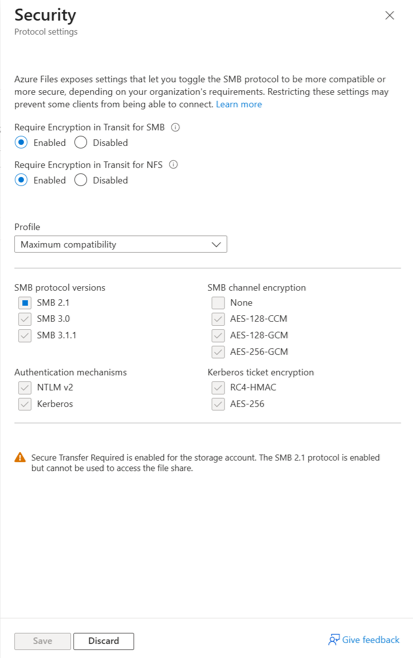
After you've entered the desired security settings, select Save.
Limitations
SMB Azure file shares support a subset of features supported by SMB protocol and the NTFS file system. Although most use cases and applications don't require these features, some applications might not work properly with Azure Files if they rely on unsupported features. The following features aren't supported:
- SMB Direct
- SMB directory leasing
- VSS for SMB file shares (this enables VSS providers to flush their data to the SMB file share before a snapshot is taken)
- Alternate data streams
- Extended attributes
- Object identifiers
- Hard links
- Soft links
- Reparse points
- Sparse files
- Short file names (8.3 alias)
- Compression
Regional availability
SMB Azure file shares are available in every Azure region, including all public and sovereign regions. SSD file shares are available in a subset of regions.
Next steps
- Plan for an Azure Files deployment
- Create an Azure file share
- Mount SMB file shares on your preferred operating system: