Hello Elaine Graham-Leigh1,
Good day! Thank you for reaching out to the Microsoft Community for support.
I understand how frustrating it can be when an app you rely on, such as the new Outlook, stops responding. Based on your detailed description, you've already taken several important troubleshooting steps. Let's summarize your issue and explore further solutions.
You are currently unable to open the new Outlook on your Windows 11 Home device, even though the old version of Outlook and Outlook on the web are functioning fine. There are no visible errors or processes in Task Manager, and you've already tried:
- Multiple restarts.
- Uninstalling and reinstalling the new Outlook.
- Repairing and resetting Microsoft Office.
- Checking for and applying the latest Windows updates.
You are running Windows 11 Home with Business Premium Office apps.
I can see you've taken the time to perform a range of troubleshooting steps, including reinstalling the app and ensuring your system is up to date, which is great to hear. You've covered several essential bases that often resolve issues with Outlook, so thank you for your proactive efforts so far.
To better understand and investigate your issue,may I get some more detailed information from your side:
- Will you please share me your Office version details? Since the New Outlook version could not be opened, please check the old version following the article: What version of Outlook do I have? - Microsoft Support.
- Are you using Microsoft365 business account(******@xxx.onmicrosoft.com/******@yourdomain.com) or personal account (which is ended with outlook.com/hotmail.com/live.com/msn.com) or some other 3rd party pop/imap account?
- Will you please share me your Windows 11 build number?
- Will you please share with me Screenshots of error message.
Please here are some detailed workaround steps to solve this issue:
Run Outlook in Safe Mode
- Press Windows Key + R to open the Run dialog box.
- Type in
outlook /safe (ensure there is a space before "/safe") and press Enter.
- If the new Outlook opens in Safe Mode:
- It indicates that there might be an issue with your add-ins or Outlook settings.
- Restart Outlook in normal mode and see if it works.
Check for Conflicting Add-ins
- Open the old version of Outlook that is still working.
- Go to the top left and click on File.
- From the left-hand menu, select Options.
- In the Outlook Options window, click on Add-ins from the list on the left.
- At the bottom of the window, you’ll see a dropdown next to Manage. Ensure it says COM Add-ins, then click Go.
- In the COM Add-ins window, uncheck all non-essential add-ins (e.g., third-party tools you don’t need immediately).
- Click OK and close the old Outlook.
- Now, attempt to open the new Outlook to see if it launches correctly.
Clear Outlook Cache
- Press Windows + E to open File Explorer.
- In the address bar at the top, type the following path and press Enter:
C:\Users\[Your Username]\AppData\Local\Microsoft\Outlook
- You can also navigate there manually:
- Go to This PC.
- Click on Local Disk (C:).
- Go to Users and then your specific username folder.
- Enter AppData (you may need to enable "Show hidden items" from the View tab).
- Go to Local > Microsoft > Outlook.
Reset View Settings
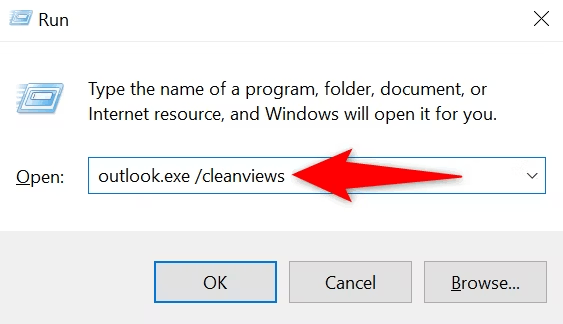
Sometimes, view settings can cause issues with launching Outlook. To reset these settings:
- Press
Windows + R, type outlook.exe /cleanviews, and hit Enter.
Check for Conflicts with Office Business Premium Apps
- Open any Microsoft Office app (e.g., Word or Excel).
- Click on File > Account.
- Under User Information, ensure that you are signed in with the correct account associated with your Business Premium Office subscription.
- If you're signed in with a different account, try signing out and then signing back in with the correct account.
- Once done, try opening the new Outlook again.
Disable Background Apps or Antivirus Software
- Press Windows + R to open the Run dialog box.
- Type
msconfig and press Enter.
- In the System Configuration window, go to the Services tab.
- Check the box that says Hide all Microsoft services (to ensure you don’t disable critical system services).
- Click Disable all to disable non-Microsoft services.
- Go to the Startup tab and click Open Task Manager.
- In Task Manager, disable any non-essential startup programs by right-clicking and selecting Disable.
- Restart your computer and try opening new Outlook again.
- If it works, the issue may have been caused by one of the disabled services or programs. You can re-enable them one by one to isolate the problematic software.
Create a New Outlook Profile
- Open the Control Panel (press Windows Key + S and type "Control Panel").
- In the Control Panel, search for Mail using the search bar at the top-right corner and click Mail (Microsoft Outlook).
- In the Mail Setup window, click on Show Profiles.
- Click Add to create a new profile.
- Enter a name for the new profile and proceed to configure it with your email account credentials.
- Once the new profile is created, select Always use this profile, and choose the newly created profile from the dropdown menu.
- Click OK and try opening the new Outlook again.
**Note:**If all else fails, consider completely uninstalling Office again, ensuring all remnants are removed (use a tool like Microsoft’s Support and Recovery Assistant), and then reinstalling.Download Microsoft Support and Recovery Assistant from Official Microsoft Download Center.
Check Event Viewer for Errors:
- Press Windows Key + X and choose Event Viewer.
- In Event Viewer, go to Windows Logs > Application and look for any error messages related to Outlook.
- This could provide more insight into what’s causing the issue.
If these steps do not resolve the issue, I would recommend reaching out to your Microsoft 365 admin (if applicable) or contacting official Microsoft support for further diagnostics..Contact Us - Microsoft Support or Get support - Microsoft 365 admin | Microsoft Learn
Let us know how these steps work for you, and feel free to reach out again if you need further assistance. We're here to help!
Please understand that our initial response may not always resolve the issue immediately. However, with your help and more detailed information, we can work together to find a solution.
Appreciate your patience and understanding and thank you for your time and cooperation. Have a great day!
Sincerely,
Microsoft Community Moderator
' cx='32' cy='32' r='32' /%3E%3Ctext x='50%25' y='55%25' dominant-baseline='middle' text-anchor='middle' fill='%23FFF' %3EA%3C/text%3E%3C/svg%3E)
