Note
Access to this page requires authorization. You can try signing in or changing directories.
Access to this page requires authorization. You can try changing directories.
Network admins and corporate communicators deploy the Engage Copilot adoption community to directly support adoption of Microsoft 365 Copilot and Copilot Chat. This community is available to all tenants that run Viva Engage, and it doesn't require Viva Suite or Copilot licensing.
You don't need Copilot in Viva Engage to set up or use this community, and your own Copilot settings don't affect its operation.
The Copilot adoption community is a prebuilt community that makes it easier for users to ask questions, seek support from peers and IT admins, and learn best practices for Copilot. It supports your organization's unique needs with customizable features, including the ability to pin important resources, suggest content and members, and designate experts. The community also includes a setup checklist to help you get started and maintain engagement.
Copilot adoption community discovery points
Network and Engage admins, AI admins, and corporate communicators access configuration settings through a discoverable banner in their home feed. If you're a network admin or corporate communicator of an eligible tenant and don't see the banner, find the configuration settings in the Viva Engage Admin center.
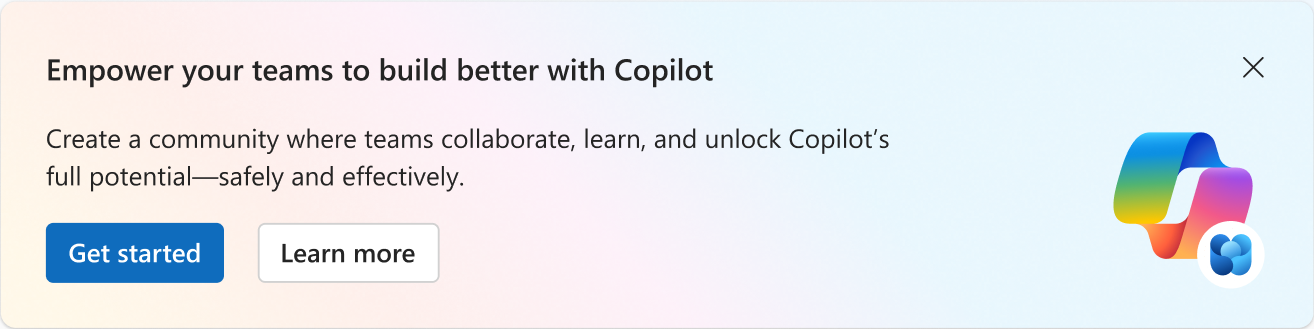
Engage shows a Copilot banner in two locations:
- The Viva Engage admin homepage.
- The Admin center.
After you enable an official Copilot adoption community for your company, the banner highlights the community, and a single-click takes you there.
- Select the blue Get started button in the banner to create a new Copilot adoption community or to apply the Copilot adoption features to an existing community.
- For more details, select the white Learn more button. A landing page appears that describes the features of this prebuilt community, and the reasons to use it.

Explore tools to build membership, content, and engagement
After you enable the Copilot adoption community, you see a set-up panel that includes the following onboarding checklist to drive engagement and support your organization's unique needs:

Pin resources: Add links to important or useful information in a pane on the right side of the page.
Review Suggested content: Offers a quick way to introduce Copilot capabilities and best practices with quick tips and tricks available for members. You can edit any content before posting.
- Discover suggested content in the
(...)menu on the top right of the Copilot adoption community page.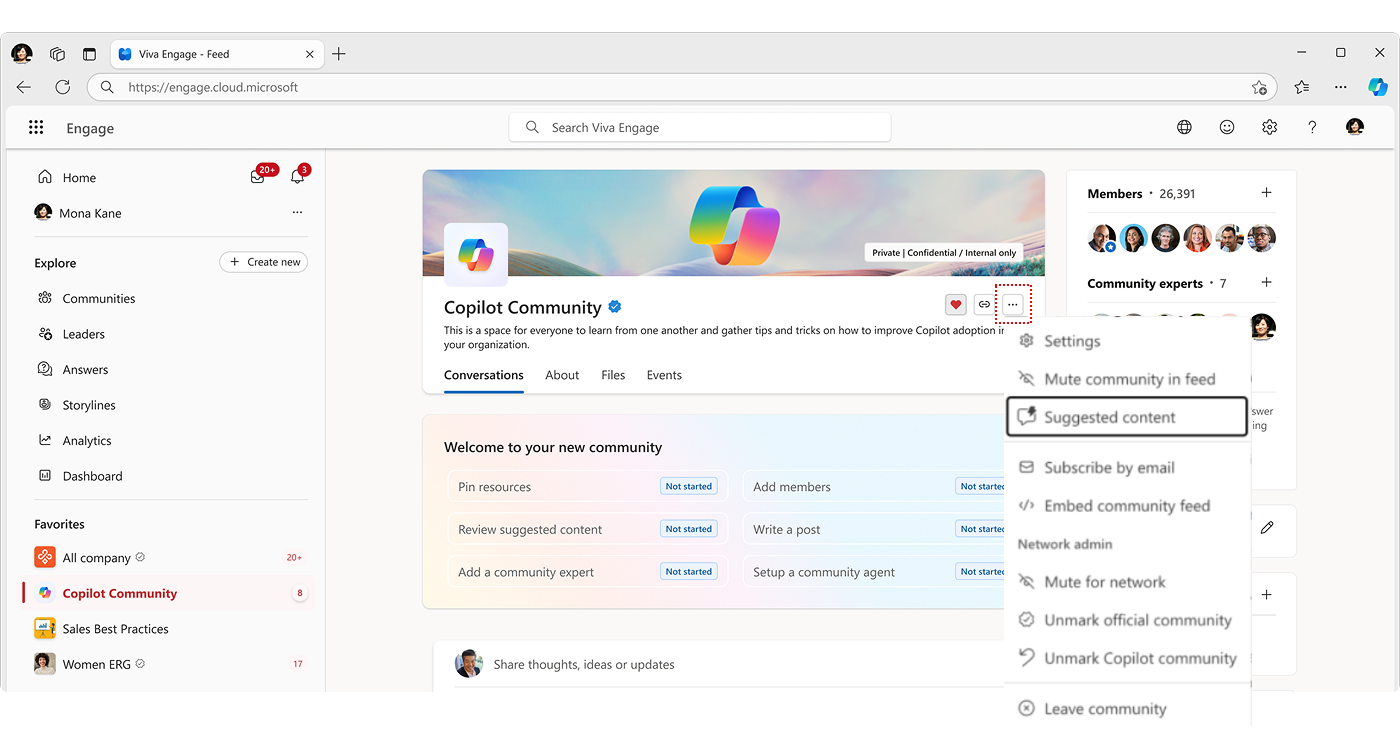
- Microsoft regularly curates suggested content aligned to new Copilot capabilities, and admins can edit or remove as needed.
- Discover suggested content in the
Add a community expert: Set community members as experts for the community, searchable by their name. A pane on the right side of the community page enables additions when the community is live.
Add members: Dynamically grows your community by suggesting new members as your organization allots or assigns Microsoft 365 Copilot licenses.

Write a Post: This feature helps members write their posts. Admins control access to the Copilot writing assistant at the network level.
Set up a community agent: Create a bot that answers questions in the community using content from the community itself. Pull content from pinned resources, suggested content, or Q&A pairs generated by the intelligent importer. Content comes from the community's SharePoint site and other network resources to which the community has permissions.
If you have a community that already focuses on Copilot, designate it as your official Copilot adoption community and get access to all features described in this article. If you don't have an existing community, create a new one with the Copilot adoption community configuration.
Apply the collective intelligence of your organization
The Copilot adoption community enables members to apply their organization's knowledge to find answers and connect with experts. When they enter a question, members see Similar questions from across the network, including from Answers and from other communities to which they have access.

The process helps users find what they need and prevents duplicate queries. The resulting efficiency allows community admins and subject matter experts to pursue other efforts while community members get the information they seek. It also promotes more accurate and detailed questions.
Apply Microsoft-curated suggested content to your community
Note
Community admins receive emails when new suggested content is available. The email includes a direct link to the content, where admins can review and post it to the community.
Community admins can address present and future questions, and build their community's knowledge base through the following tools:
Suggested content: The preceding image shows an example of suggested content. It can be any content that's appropriate for the community; not just a Copilot tip. Microsoft regularly curates suggested content, and admins can edit or remove as needed. Select Repost this suggested article to push the content to the community.

Import: Upload informational documents, like FAQs or useful technical documents, through the Answers Intelligent Importer. The Importer generates question-and-answer pairs from the imported content. Admins can review and edit the output before posting.
Select the import tool in the Intelligent Importer pane, and load a PDF, .doc file, or text file. The AI model analyzes the imported document and produces a set of question-answer pairs.

The following table describes the features available by Viva Engage role:
| Role | Features |
|---|---|
| Network admins and AI admins |
|
| Corporate communicators |
|
| Community admin |
|
| Community members |
|
Configure the Copilot adoption community
Use one of the following methods to create an Engage Copilot adoption community:
Create a brand-new Copilot Community: Accept the configuration presets to create a new community. The new community type includes onboarding prompts, a setup checklist, and a community template.
Apply adoption features to an existing community: This option adds the Copilot features (setup checklist, suggested members and content, pinning resources, and adding experts) to your existing community without affecting current content and customizations.
If you already have a Copilot adoption community, the banner takes you to the community landing page.
Create the new Copilot adoption community
In the Engage admin homepage, select Get started in the Empower your teams to build better with Copilot banner to start the community creation flow.
Select Create new.
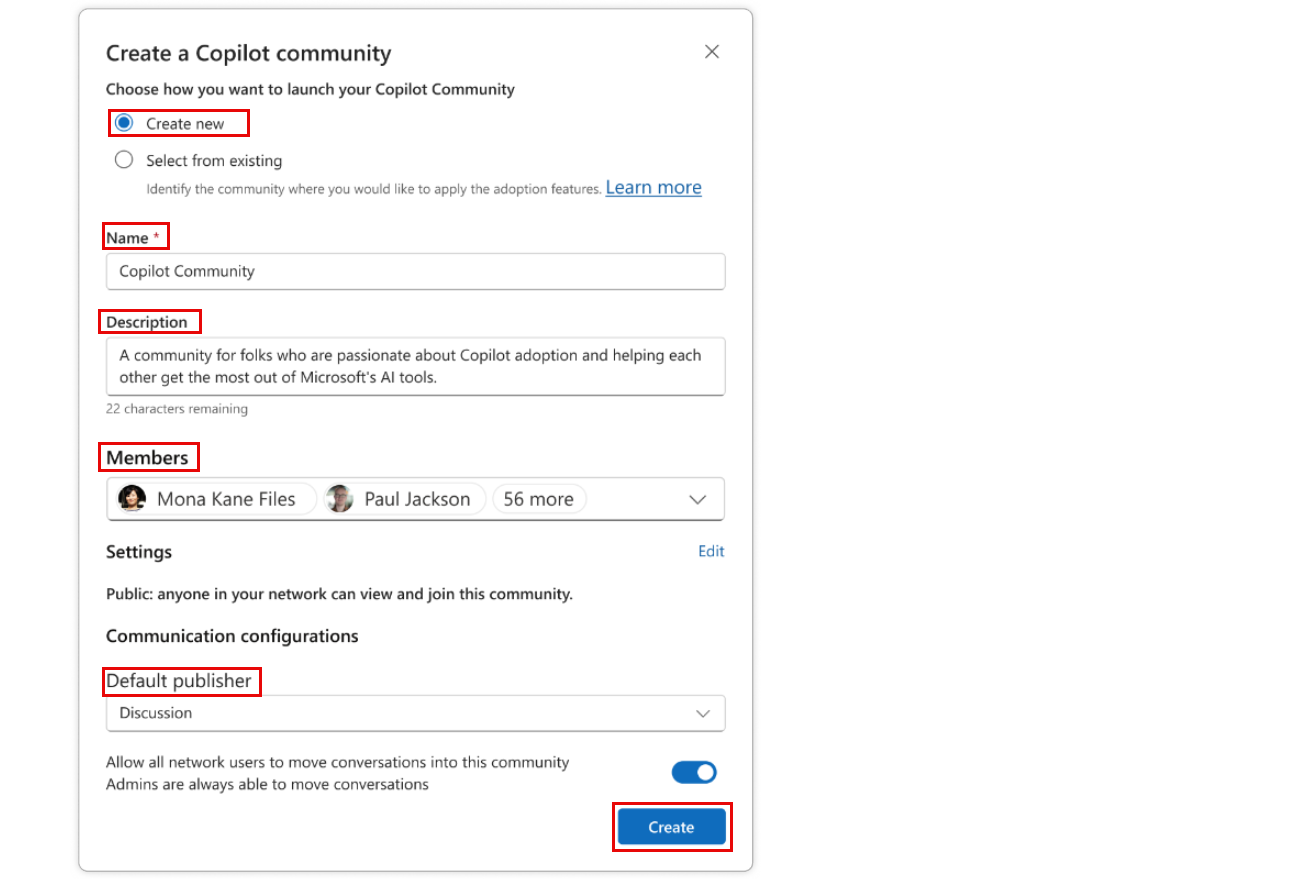
Name the community, add a description, and select the first members from the dropdown list.
Choose your privacy settings and the default publisher. You can make the community public or private. If it's private, only community members can access and engage with community content. If it's public, all enterprise users can access, engage with, and discover community content.
Select Create.
Copilot community setup looks like any other community. The Copilot community template reduces setup work and ongoing community management. After setup completion, the community includes a cover photo, description, and an onboarding checklist that's specific to this community. Admins can add customization.
Set an existing community as the Copilot adoption community
As noted, you run a single community in your network as a Copilot community.
If you don't have the Copilot adoption community set, select Get started in the banner to apply Copilot features to an existing community.
Select Apply to existing.
Choose the community you want to set as your Copilot adoption community from the dropdown list. Communities that aren't currently set as the Copilot adoption community appear in the dropdown list.
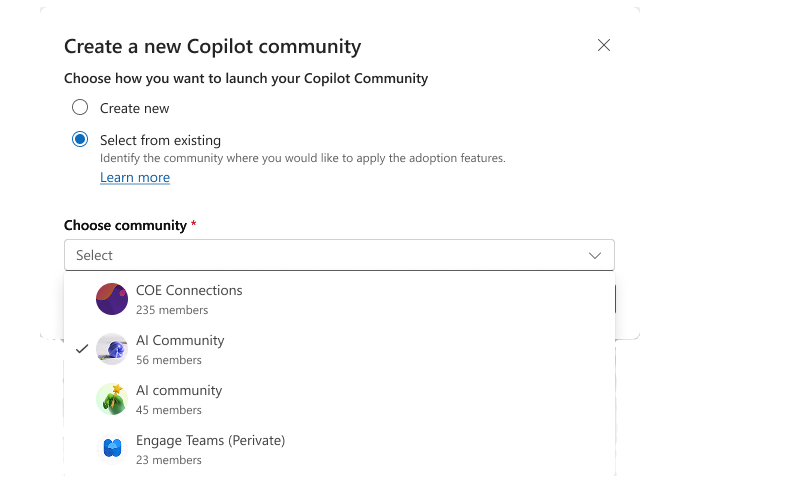
Update the community name, if necessary.
The community likely has its own existing set of members. Add more if necessary.
Choose the privacy settings and the default publisher if necessary.
Select Create.
Note
If you want to designate an existing community as the Copilot community, and you already have one, select Unmark Copilot community from the overflow menu (...) in the current Copilot community header.
Regularly check for new members
The Copilot adoption community dynamically grows your community by suggesting new members as your organization allots or assigns Copilot licenses. The process is called dynamic membership. The Copilot adoption community enables it by default. We recommend that admins regularly check the community's Members pane to keep the community updated with new members who receive Copilot licenses.
Learn more about dynamic membership here.

Mute the Copilot adoption community
Admins can mute the Copilot adoption community. Select the ellipses (...) menu on the right side of the community header and choose Mute this community.
Individual members can mute the Copilot adoption community if they don't want to receive notifications or community updates. Muting a community doesn't remove members from the community, and they can still access the community and its content.
Select the ellipses (...) menu on the right side of the community header and choose Mute community in feed. If at some point you want to unmute the community, follow the same steps and select Unmute community in feed.
FAQ
Does this feature appear in my network?
The banner in the home feed appears for all network admins and corporate communicators in Viva Engage tenants.
What if we already have a Copilot community?
The Copilot adoption community complements what you run in Viva Engage. You have two choices:
- Keep your existing space and convert it into your official Copilot community
- Stand up a brand-new Copilot Adoption Community as a structured, Microsoft-curated 'living AI playbook' layer that helps standardize guidance and scale learning across the organization.
What if we need multiple communities?
It’s a common enterprise reality. Many organizations start with one flagship adoption community, get the playbook and cadence right, and then extend into role- or region-specific communities once the operating rhythm is working.
Today, Copilot adoption community ships as an official, out-of-box, prebuilt community designed for so organizations can support multiple AI communities while preserving governance, consistency, and ease of management. One instance is allowed for any Engage network.
The banner in the home feed appears for all network admins and corporate communicators in Viva Engage tenants.
How do I add expert users after I start the Copilot community?
After you start the community, go to the Community experts pane, which shows the complete list of community members. For members you want to designate as Copilot experts, select Mark as expert.
Does this feature appear for other communities?
It doesn't. The ability to customize communities based on business objectives is being considered. Check the public roadmap for further updates.
Can I have more than one Copilot adoption community?
You can configure only one Copilot adoption community using this community type.
Can I use dynamic membership with the Copilot adoption community?
You can use dynamic membership with this community. The Copilot adoption community supports a Suggested members feature. Learn more about dynamic membership here.
Who can participate in the Copilot adoption community?
You can make this community public or private. If private, only members can access and engage with the community content. If it's public, all users can access, engage with, and discover the community content.
I dismissed the onboarding checklist during setup. Where can I find the suggested content?
Find these resources under the ellipses (...) menu on the right side of the community header, under Suggested content.
We have no plans to adopt Copilot on our network. Can we remove access to creating the Copilot adoption community?
You can't remove access to the community configuration settings, but only network admins and corporate communicators see the discoverable banner in their home feed and admin center.
Note
Admins can delete the Copilot adoption community from community settings. Select the ellipses (...) menu for the Copilot adoption community, select Settings, and choose Delete this community at the bottom of the page.