Note
Access to this page requires authorization. You can try signing in or changing directories.
Access to this page requires authorization. You can try changing directories.
Microsoft Store Web Installer - Introduction and user flow
The Microsoft Store Web Installer is a standalone installer for Store applications. It helps you download and install apps from websites such as apps.microsoft.com and the Microsoft Store badge on developers' websites.
This system creates a stub .exe-based installer for your app, securely generated by the Microsoft Store online service. You download this installer locally when you select the target button on a webpage. It's lightweight, containing only the necessary, most basic information rather than the full app binary.

When you activate this file, the installer verifies the prerequisites (such as system architecture, age of the user, and availability in the user's market) and then initiates installation of the product by using the same API as the Store application. The installer also tracks any campaign IDs supplied by the source. If the app doesn't meet the prerequisites, the installer launches the Store application so that users can view additional information.
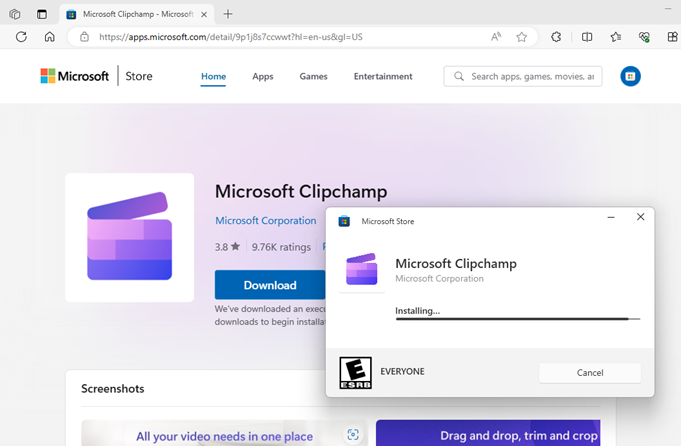
Once installation is done, the installer automatically launches the application and then closes.
Feature availability
This functionality is available for the following web-hosted content types:
- Free packaged MSIX content published on the Microsoft Store
- Win32 apps published on the Microsoft Store
This functionality isn't currently available for the following content types:
- MSIXVC apps published on the Microsoft Store
- Paid content published on the Microsoft Store
- Content rated above Everyone/ESRB (or equivalent) while signed in to Windows using a School account
Enable this feature for your app
To enable the Store Web Installer for your app, set the following parameters in the calling URL:
On apps.microsoft.com: You don't need to make any changes to enable the Store Web Installer for your app, as long as the app is covered within the Feature availability section and you don't override this feature by using the mode=full URL parameter.
- The Store Web Installer is the default installer on apps.microsoft.com. The mode parameter helps you launch the Store PDP instead for that user.
On your website: Follow these steps to switch to the Web installer on your website badge:
- Go to apps.microsoft.com/badge.
- Enter the right data for your app.
- Set Launch mode as Direct to ensure the required code is generated for your app.
- Copy the code, and insert the new badge within your website.
Key notes for enterprise administrators
- If you use the ApplicationManagement/RequirePrivateStoreOnly MDM policy, the Only display the private store within the Microsoft Store app group policy, or set the RemoveWindowsStore DWORD value in the registry to 1 to block local or domain joined devices from accessing the Store, remember that these settings are for disabling the Store application. This policy doesn't block installation or updates of apps available on the Store.
- To better control the types of apps that domain-joined PCs can install, including apps from the Store and from the Microsoft Store Web Installer, visit AppLocker - Windows Security. Use this policy in combination with RequirePrivateStoreOnly and RemoveWindowsStore, or use it independently.
- To specifically block installations from the Microsoft Store Web Installer, you can domain block the following URL -
get.microsoft.com. This action blocks the installer from being downloaded and executed from either the Microsoft Store website, or from various developer websites distributing apps through this mechanism. Blocking this URL doesn't affect the Microsoft Store app on Windows or already installed apps. These apps continue to operate unless you combine this action with the above policies.
Collaborate with us on GitHub
The source for this content can be found on GitHub, where you can also create and review issues and pull requests. For more information, see our contributor guide.

Windows developer