Note
Access to this page requires authorization. You can try signing in or changing directories.
Access to this page requires authorization. You can try changing directories.
Viva Engage supports several types of users. Each user type requires a different management method.
- Users with a Microsoft Entra ID (the most common use case)
- Users without a Microsoft Entra ID
- Guests
As a Microsoft 365 User Administrator, you control the lifecycle for Viva Engage users through the Microsoft 365 admin center, and through Viva Engage.
You manage all communities and groups from Viva Engage networks through these admin centers. Microsoft 365 management capabilities for communities, group members, and users include:
- Add or remove community or group members
- Manage community or group ownership
- Delete a community or group
- Restore a community or deleted group
- Rename the community or group
- Update the community or group description
- Change the community's or group's privacy setting
When you create users in Microsoft 365, they can sign in to Viva Engage with their Microsoft 365 credentials. When a user is deleted from Microsoft 365, they're automatically deactivated or suspended in Viva Engage. When a user is restored in Microsoft 365, they're reactivated in Viva Engage.
A user's profile properties (such as name and department) from Microsoft Entra ID appear in the user's Viva Engage profile.
If users have a Microsoft 365 account, they can't update their information directly in Viva Engage. If users want to change their information, such as photos, phone numbers, and other data, they must update it through their Microsoft 365 profile as they would with other Microsoft 365 apps. All apps show a consistent profile identity.
If the organization permits it, users can update through Microsoft Delve. A user might need to ask their IT administrator to assist.
Important
If a user had a customized profile prior to April 2020, it will be overwritten with their Microsoft Entra identity to create a single source of truth.
When a user's Viva Engage account is activated, Viva Engage takes the language setting in Microsoft 365. If the user or admin changes their language setting in Microsoft 365 or Microsoft Entra ID, Viva Engage doesn't pick up this change. The user can change their Viva Engage language settings through the user settings experience (accessed through the settings gear).
User photos management
If new users in your network already have the correct user photo from Microsoft Entra ID, it continues to work after this change.
If your organization usually uploads photos from Viva Engage, you can follow these steps:
- Export the list of users.
- Use that list of users to export their photos via a script.
- Upload them with Microsoft Graph to add the photo to the rest of Microsoft 365.
Create a user
The user creation process varies depending on when the Viva Engage network was created.
Networks created before March 2019
Beginning in March 2019, we changed how Viva Engage users are created. The process differs for existing Microsoft 365 users versus new Microsoft 365 users.
Pre-March 2019: Viva Engage users are created when they use Viva Engage for the first time.
The process of creating a user requires these steps:
The Microsoft 365 User administrator creates a user in Microsoft 365.
The user signs in to Microsoft 365 using the identity provider configured for the tenant.
The user selects the Viva Engage tile in Microsoft 365 Copilot to go to Viva Engage.
A new Viva Engage user is created for the Microsoft 365 user. The user's profile properties and language setting from Microsoft Entra ID are automatically populated in the user's Viva Engage profile.
New networks, Native Networks, and Enforced Microsoft 365 Identity Networks
When Enforce Office 365 identity is selected in Viva Engage (including when in Native Mode), as Viva Engage-eligible users are added to Microsoft 365, they're automatically added as pending users in Viva Engage. Their status changes from Pending to Active the first time they use Viva Engage.
The process follows these steps:
The Microsoft 365 User administrator creates a user in Microsoft 365.
A pending user is created in Microsoft 365. The first time the user uses Viva Engage, the pending user becomes an active user.
During transition: Different actions are taken for different user categories:
- New users added to your Microsoft 365 tenant: If Enforce Office 365 identity is selected, users are automatically added as pending users in Viva Engage.
- Existing users in your Microsoft 365 tenant: If Enforce Office 365 identity is selected, Microsoft 365 users must use Viva Engage to be added as a Viva Engage user.
Delete a user
To delete a user from Viva Engage, follow the instructions to remove a user in Manage GDPR data subject requests for Viva Engage users.
Restore a user
When an administrator restores a Viva Engage–eligible user in Microsoft 365, the user is reactivated in Viva Engage. The following diagram shows how this works:
The process follows these steps:
The Microsoft 365 administrator can restore a deleted user in Microsoft 365, as shown in the following screenshot:

This action flows into Viva Engage as well, and the previously deactivated user in Viva Engage is reactivated.
User profile information
The user profile experience differs depending on whether or not the account is connected to Microsoft Entra ID.
For Microsoft Entra connected accounts
Microsoft 365 uses the cloud-based service Microsoft Entra ID to manage users. In an on-premises environment, you can manage users in the cloud, or create and synchronize users, communities, or groups in Microsoft 365 and Microsoft Entra ID.
When Microsoft 365 users who are new to Viva Engage access Engage with their Microsoft Entra credentials, a new Viva Engage user is created. The Engage user profile populates with the user's Microsoft Entra properties. When you edit the user's profile properties in Microsoft Entra ID, they update in the user's Engage profile. For example, if the user's department changes in Microsoft Entra ID, it also changes in Viva Engage.
User profiles that they see in Viva Engage are their Microsoft 365 profile, if their organization uses Microsoft Entra ID to manage user credentials.
To view their profile in Microsoft 365, users can select their profile picture and choose My account.

My account displays a user's account information for Microsoft 365. If the organization allows editing personal information, then users can select Personal Info, and add the information they want. If the organization doesn’t allow editing, then the settings aren't editable and users see a Why can’t I edit link they can select for more information.
User photos are synced from Microsoft. To prepare for this change, make sure your organization’s photos are available in one of the following places:
- Go to the All users list in the Microsoft Entra admin center and then select the desired user for picture.
- Confirm the My account page in the Microsoft portal has the photo.
- Get the Photo API using the Microsoft Graph preview.
- Use the Get-UserPhoto Exchange Online cmdlet, if applicable.
To view their profile in Viva Engage, users can choose Edit Settings > Profile.
For non-Azure AD accounts
If your Viva Engage users aren't in Microsoft Entra ID, they can update their Engage profiles by selecting Edit Settings > Profile.

The Microsoft 365 User administrator can edit user properties from the Microsoft 365 admin center.
Edit user properties in Microsoft 365
In the Microsoft 365 admin center, go to the Users section, and select or search for a user, as shown in the following screenshot.

Select the user and choose Edit to change the properties, such as username or contact information.
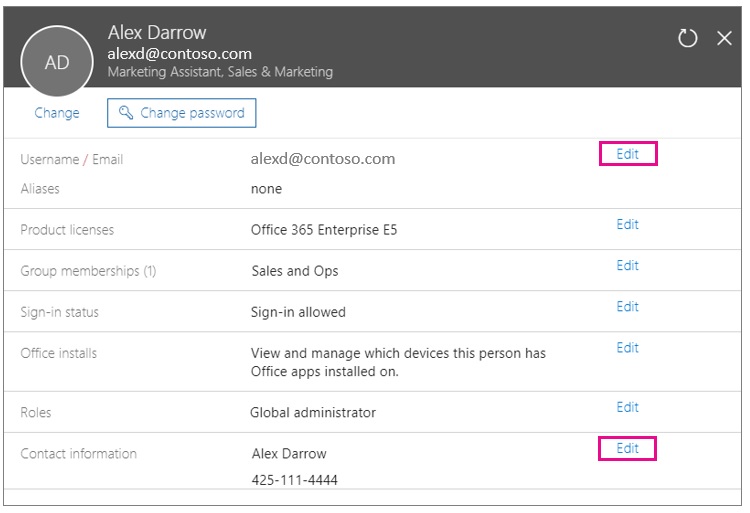
Microsoft Entra ID updates the following Viva Engage properties:
- Email address → Email
- Display Name → Display Name
- Job Title → Job Title
- Department → Department
- Office → Location
- Office phone → Work phone
- Mobile phone → Mobile phone
- Description → About Me
In Microsoft 365, you can see the user properties that are updated for Viva Engage in the following dialog boxes:
Edit email addresses dialog box
Edit contact information dialog box

FAQ
Are user profile pictures updated from Microsoft 365 to Viva Engage?
Yes. The profile is updated with the user's Microsoft 365 profile picture. The update starts when the user selects the Viva Engage tile from Microsoft 365 or logs in to Viva Engage. Changes appear in the Viva Engage profile within a few hours. If the user later updates their profile picture, the profile updates after the user uses Viva Engage again.
When an email address is changed in Microsoft 365, does it trigger an email address change in Viva Engage?
Yes, it does.
What happens when a user leaves the company?
When a user leaves the company and Microsoft Entra ID is updated, their Viva Engage profile content is replaced with their start and end dates, and their title is changed to Former member. All the messages and files they posted remain in Viva Engage.

My company has a configuration where not all Viva Engage users are yet in Microsoft 365. How does life cycle management work in this case?
The users who sign in Viva Engage with Microsoft 365 credentials can be managed in Microsoft 365. You can continue to manage the users who don't use their Microsoft 365 credentials the same way you manage them today. After you move everyone to Microsoft 365, you have one place to manage all your users.