Note
Access to this page requires authorization. You can try signing in or changing directories.
Access to this page requires authorization. You can try changing directories.
GitHub Copilot acts as an AI-powered pair programmer, automatically offering inline suggestions to complete your code, comments, tests, and more. Copilot provides two kinds of inline suggestions, both of which take your existing code into account: completions and next edit suggestions.
Copilot next edit suggestions (NES) use your recent edits to anticipate the next edit that you might want to make, and the location of that edit.
Inline completions are great at autocompleting a section of code. NES helps you stay in the logical edit flow by suggesting changes that are relevant to your current work. You can use the Tab key to quickly move through and accept suggestions. Suggestions might span a single symbol, an entire line, or multiple lines, depending on the scope of the potential change.
Prerequisites
Visual Studio 2026 or Visual Studio 2022 version 17.14 (with the latest servicing release recommended for the most up-to-date features)
Sign in to Visual Studio by using a GitHub account with Copilot access.
If you don't yet have a Copilot subscription, you can use Copilot for free by signing up for the Copilot Free plan and get a monthly limit of inline suggestions and chat interactions.
Enable NES
To get started with Copilot NES, enable the feature in Tools > Options > All Settings > Text Editor > Code Completions > General, and select Copilot Next Edit Suggestions (Next-edit predictions from Copilot) in Code Completions Providers.
To get started with Copilot NES, enable the feature in the Tools > Options > GitHub > Copilot and select Enable Next Edit Suggestions in Copilot Completions.
Start using NES
To start getting suggestions from NES, start coding. When the feature suggests a code edit, you can move to it by using the Tab key, and then accept it by using the Tab key again. You save time by quickly jumping to the next relevant edit, without needing to manually search through files or references yourself. An arrow in the gutter indicates whether an edit suggestion is available.
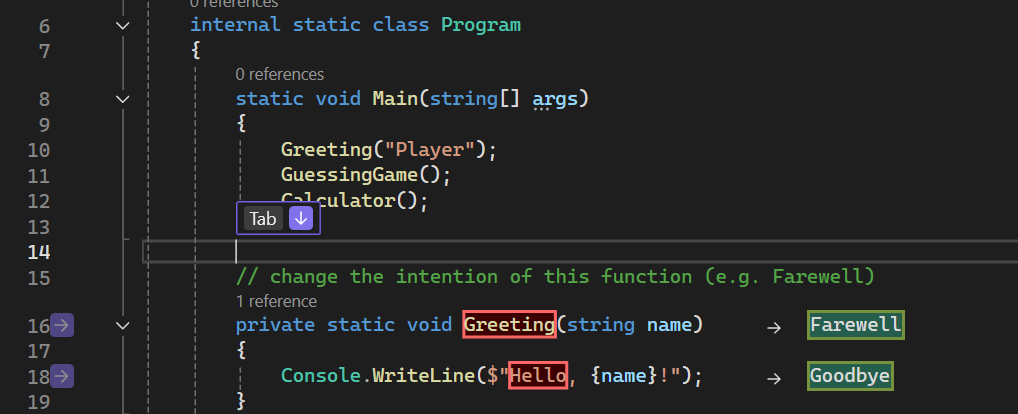
Select the arrow to explore the edit suggestion menu, which includes keyboard shortcuts.
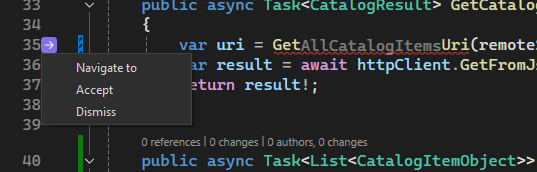
If an edit suggestion is below the current editor view, the arrow points down instead of right. Scroll past an edit suggestion, and the arrow hints the location of the next edit suggestion by pointing up or down, based on where you are in the file.

Understand use cases
NES is helpful in various scenarios by suggesting not only obvious repetitive changes, but also logical changes. Here are some examples.
Catch and correct mistakes
NES helps with mistakes like typos; for example, if you wrote bol instead of bool.

The feature can also help with more challenging mistakes in logic, like an inverted ternary expression or a comparison that should use || instead of &&.

Match a change in intent
NES suggests changes to the rest of your code that match a change in intent. The following example shows suggestions after the refactoring of a Point class to Point3D.

Update code syntax
NES helps with repetitive changes, such as updating code syntax to modern C++ by using the Standard Library (STL). For example, when you update all printf() instances to std::cout, you also need to update syntax such as fgets().

Refactor
If you rename a variable once in a file, NES suggests updating it throughout the file. If you introduce a new name or naming pattern, the feature suggests updates to subsequent code to match.

After you paste some code, NES suggests adjustments to match it with the style of the surrounding code.
Hide NES
You can hide suggestions from NES in Visual Studio and review them only when you choose.
To disable automatic completions, go to Tools > Options > All Settings > Inline Suggestions > General, and select Manual from the Inline Suggestions Invocation. You can then manually trigger suggestions with Alt+, or Alt+.
To manage when suggestions are displayed, go to Tools > Options > GitHub > Copilot > Copilot Completions, and select Collapse Next Edit Suggestions.
Your edits still trigger NES, but when a suggestion is available, only the margin indicator appears in the gutter. This indicator points to the relevant line. The suggestion itself remains hidden until you choose to view it.

To view a hidden suggestion, select the margin indicator or select the Tab key. The suggestion then appears. You can select the Tab key again to accept the suggestion or select the Esc key to dismiss it. After you accept a suggestion, any related suggestions appear automatically. Unrelated new suggestions remain hidden until you choose to view them.
In the following example, after a change from Point to Point3D, an NES suggestion becomes available but doesn't appear immediately. The margin indicator and hint bar highlight a suggestion on line 4, which appears after selection of the indicator.
