Note
Access to this page requires authorization. You can try signing in or changing directories.
Access to this page requires authorization. You can try changing directories.
In this tutorial, you use Visual Studio to connect to a repository, or repo, for the first time, clone it, and then open a project from it.
In this tutorial, you learn how to:
- Open a project from a GitHub repo
- Browse to an Azure DevOps repo
Prerequisites
- If you don't have Visual Studio yet, go to Visual Studio downloads to install it for free.
Open a project from a GitHub repo
Visual Studio makes it easy to open a project from a repo. You can do so when you start Visual Studio, or you can do so directly from within the Visual Studio IDE.
Here's how.
Use the start window
Open Visual Studio.
On the start window, select Clone a repository.
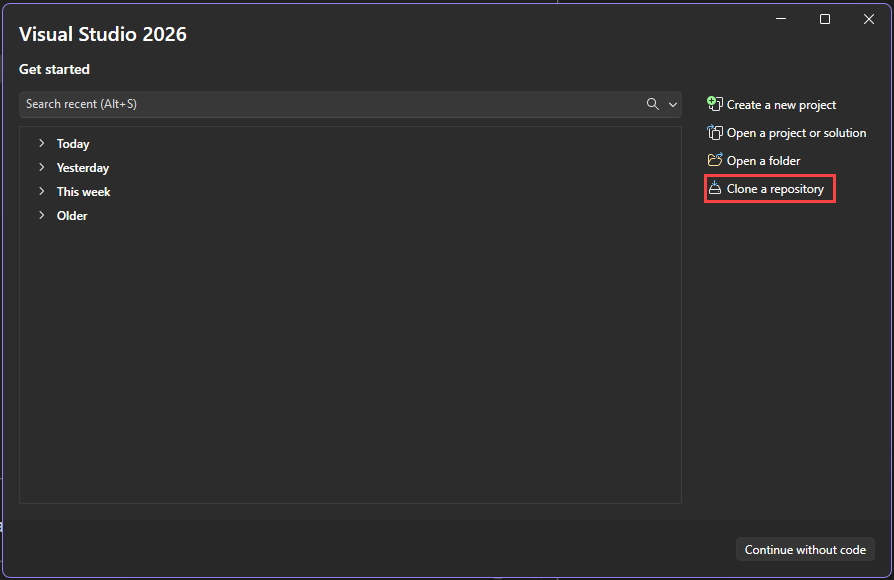
Enter or type the repository location, and then select Clone.

If you're not already signed in, you might be prompted to sign into Visual Studio or your GitHub account.
Tip
For more information about signing in to Visual Studio, see Sign in or switch Visual Studio user accounts. For specific information about how to use your GitHub account to sign in, see Add your GitHub accounts to your Visual Studio keychain. You might receive a trust notification. For more information, see Configure trust settings for files and folders.

View files in Solution Explorer
Visual Studio loads the solutions from the repository by using the Folder View in Solution Explorer.
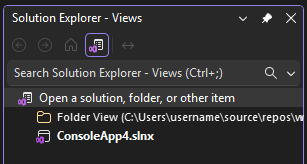
You can view a solution in Solution View by double-clicking its .sln file.
You can select Switch Views to switch between folder view and solution view.

Tip
You can change from the default Folder View to Solution View from the Git menu. Select Settings > Source Control > Git Global Settings > Automatically load the solution when opening a Git repository.
Open a project locally from a previously cloned GitHub repo
Open Visual Studio.
On the start window, select Open a project or solution.
Visual Studio opens an instance of File Explorer, where you can browse to your solution or project, and then select it to open it.

Tip
If you opened the project or solution recently, select it from the Open recent section.
Start coding!
Use the IDE
You can also use the Git menu or the Select Repository control in the Visual Studio IDE to interact with a repository's folders and files.
Here's how.
To clone a repo and open a project
In the Visual Studio IDE, select the Git menu, and then select Clone Repository.
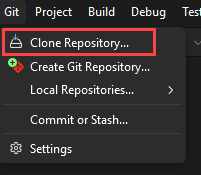
Follow the prompts to connect to the Git repository that includes the files that you're looking for.
To open local folders and files
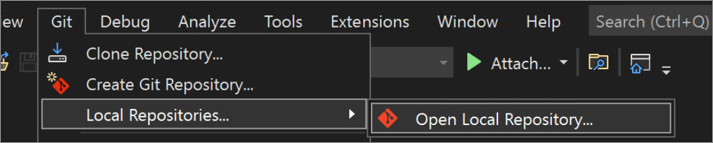
In the Visual Studio IDE, select the Git menu, select Local Repositories, and then select Open Local Repository.
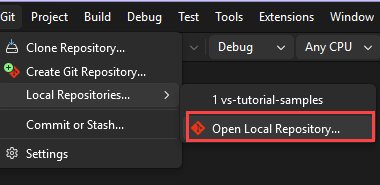
Follow the prompts to connect to the Git repository that has the files that you're looking for.
Browse to an Azure DevOps repo
Here's how to browse to and clone an Azure DevOps repo by using Visual Studio.
Open Visual Studio.
On the start window, select Clone a repository.
In the Browse a repository section, select Azure DevOps.
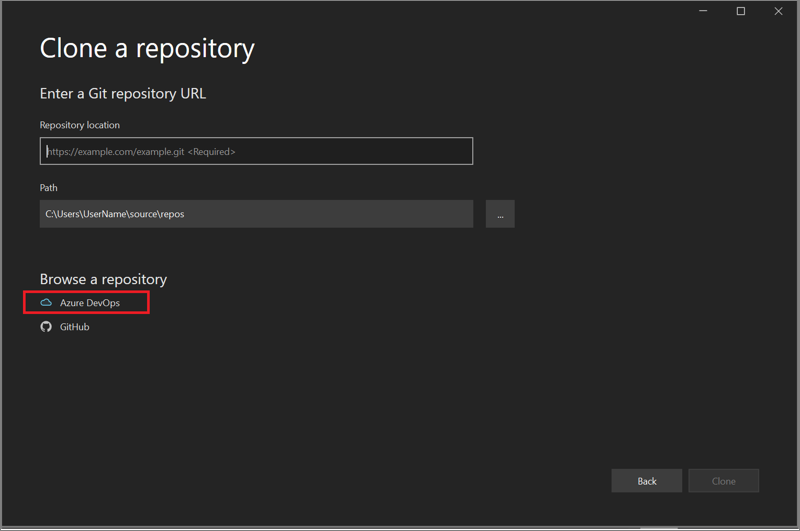
Follow the prompts to clone an Azure DevOps repo that includes the files that you're looking for, and then open your project.
Open a project from a GitHub repo
Visual Studio makes it easy to open a project from a repo. You can do so when you start Visual Studio, or you can do so directly from within the Visual Studio IDE.
Here's how.
Use the start window
Open Visual Studio.
On the start window, select Clone a repository.
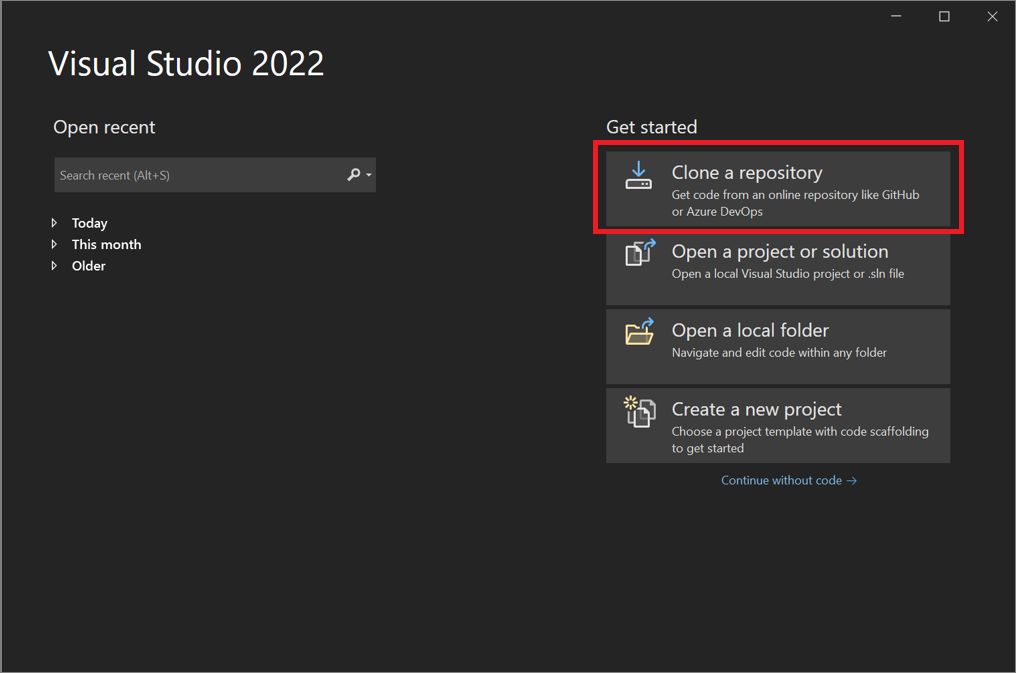
Enter or type the repository location, and then select Clone.
If you're not already signed in, you might be prompted to sign into Visual Studio or your GitHub account.
Tip
For more information about signing in to Visual Studio, see Sign in or switch Visual Studio user accounts. For specific information about how to use your GitHub account to sign in, see Add your GitHub accounts to your Visual Studio keychain. You might receive a trust notification. For more information, see Configure trust settings for files and folders.
View files in Solution Explorer
Visual Studio loads the solutions from the repository by using the Folder View in Solution Explorer.
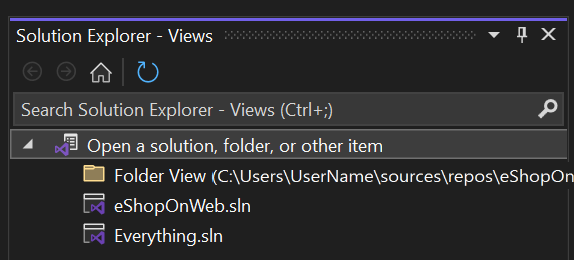
You can view a solution in Solution View by double-clicking its .sln file.
You can select Switch Views to switch between folder view and solution view.
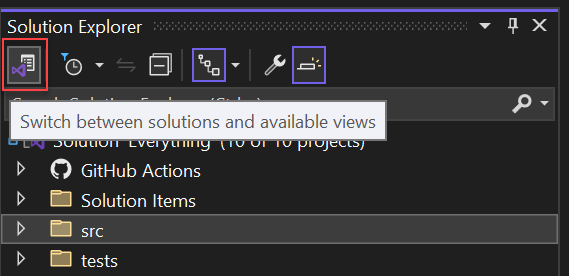
Tip
You can change from the default Folder View to Solution View from the Git menu. Select Settings > Source Control > Git Global Settings > Automatically load the solution when opening a Git repository.
Open a project locally from a previously cloned GitHub repo
Open Visual Studio.
On the start window, select Open a project or solution.
Visual Studio opens an instance of File Explorer, where you can browse to your solution or project, and then select it to open it.

Tip
If you opened the project or solution recently, select it from the Open recent section.
Start coding!
Use the IDE
You can also use the Git menu or the Select Repository control in the Visual Studio IDE to interact with a repository's folders and files.
Here's how.
To clone a repo and open a project
In the Visual Studio IDE, select the Git menu, and then select Clone Repository.

Follow the prompts to connect to the Git repository that includes the files that you're looking for.
To open local folders and files
In the Visual Studio IDE, select the Git menu, select Local Repositories, and then select Open Local Repository.
Follow the prompts to connect to the Git repository that has the files that you're looking for.
Browse to an Azure DevOps repo
Here's how to browse to and clone an Azure DevOps repo by using Visual Studio.
Open Visual Studio.
On the start window, select Clone a repository.
In the Browse a repository section, select Azure DevOps.
Follow the prompts to clone an Azure DevOps repo that includes the files that you're looking for, and then open your project.
Related content
Feel free to dive into any of the following language-specific tutorials:
- Visual Studio tutorials | C#
- Visual Studio tutorials | Visual Basic
- Visual Studio tutorials | C++
- Visual Studio tutorials | Python
- Visual Studio tutorials | JavaScript, TypeScript, and Node.js
For more information, see: