Note
Access to this page requires authorization. You can try signing in or changing directories.
Access to this page requires authorization. You can try changing directories.
Windows Update error 0x800f0831 (CBS_E_STORE_CORRUPTION) typically occurs if an update doesn't install the required package files correctly. This article helps you understand the root cause of the issue and the necessary steps to resolve it effectively.
Prerequisites
Before you troubleshoot, follow the steps in Back up an Azure VM from the VM settings to back up the OS disk.
Symptoms
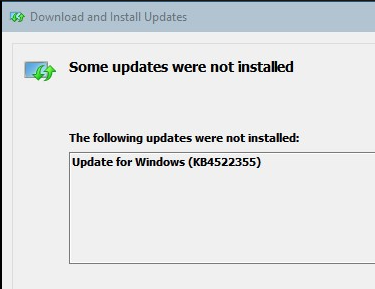
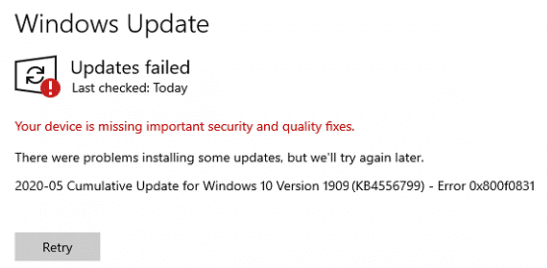
When you try to install any update by using the standalone installer (.msu), or you try to install a Windows update, you receive one of the following error messages:
Some updates were not installed
Updates failed
Cause
This error can occur for one of the following reasons:
- The update was never installed.
- The update is installed but some packages aren't applied to the registry.
To locate the installation packages in the system, search for the following registry subkey:
output HKEY_LOCAL_MACHINE\SOFTWARE\Microsoft\Windows\CurrentVersion\Component Based Servicing\Packages
To investigate the cause further, examine the CBS.log file (C:\windows\logs\CBS). For more information on how to collect these logs, see Fix Windows Update corruptions and installation failures
Info CBS Store corruption, manifest missing for package: Package_123_for_KB3192392~31bf3856ad364e35~amd64~~6.3.1.4

Error CBS Failed to resolve package 'Package_123_for_KB3192392~31bf3856ad364e35~amd64~~6.3.1.4' [HRESULT = 0x800f0831 - CBS_E_STORE_CORRUPTION]

Info CBS Mark store corruption flag because of package: Package_123_for_KB3192392~31bf3856ad364e35~amd64~~6.3.1.4. [HRESULT = 0x800f0831 - CBS_E_STORE_CORRUPTION]

Info CBS Failed to resolve package [HRESULT = 0x800f0831 - CBS_E_STORE_CORRUPTION]
Note
The package and error details may vary depending on the OS version and the KB update. However, when this error is logged, the recommended solution in this article will apply.
Note
For more information about how to collect the CBS.log file, see Fix Windows Update corruptions and installation failures. For more information on how to use TroubleshoortingScript (TSS) tool version 2, see Introduction to TroubleShootingScript toolset (TSS)
Resolution
If the update is installed, remove and reinstall it. If the update is not installed, install it.
Here are the steps to remove and install the update:
Reproduce the issue by trying to install the update or feature that's experiencing issues. This action logs the latest data into the CBS log.
Verify that you have the correct update after you identify the package that the CBS process is calling out.
Navigate to Microsoft Update Catalog, and search for the KB number that you identified.
Select the appropriate KB version for the OS version and architecture, and then download the file to a temporary folder ("temp") on drive C.
Open an administrative Command Prompt window, and run the following command on the folder:
cd \
cd temp
expand -F:* windows10.0-kb4462937-x64_9e250691ae6d00cdf677707e83435a612c3264ea.msu C:\temp
Note: In this command, substitute the actual name of the downloaded file.
In the expanded packages, locate the .cab file that uses the following format, depending on the OS version:
windows 10.0-KBxxxxxxx-x64.cab
Run the following command at an administrative command prompt:
Dism /online /remove-package /packagepath:C:\temp\windows10.0-kb4462937-x64.cabNote: In this command, substitute the actual name of the .cab file.
Restart the computer if you're prompted to do that.
Run the following command at an administrative command prompt:
Dism /online /add-package /packagepath:C:\temp\windows10.0-kb4462937-x64.cabRestart the computer.
Try again to install the update or feature.
If the update isn't installed
Navigate to the Microsoft Update Catalog, and download the update to a temporary folder ("temp") on drive C.
At an administrative command prompt, run the following command on the folder:
cd \
cd temp
expand -F:* windows10.0-kb4462937-x64_9e250691ae6d00cdf677707e83435a612c3264ea.msu C:\temp
Note: In this command, substitute the actual name of the downloaded file.
In the expanded packages, locate the .cab file that uses the following format, depending on the OS version:
windows 10.0-KBxxxxxxx-x64.cab
At an administrative command prompt, run the following command:
Dism /online /add-package /packagepath:C:\temp\windows10.0-kb4462937-x64.cabNote: In this command, substitute the actual name of the .cab file.
Restart the computer.
Try again to install the update or feature.
In-place upgrade process
Note
For virtual machines running in Azure encountering this specific Windows update error, this error has been reviewed, and it is strongly suggested to do an In-place upgrade (IPU) as a simple and effective solution to recover the VM. When the IPU completes, the machine’s OS will be reinstalled while retaining the current configuration of the machine which is the ideal situation. For additional information, see In-place upgrade for supported VMs running Windows in Azure