Note
Access to this page requires authorization. You can try signing in or changing directories.
Access to this page requires authorization. You can try changing directories.
This article describes how to install Windows Package Manager to troubleshoot the issue in which Modern, Inbox, and Microsoft Store Apps fail to start.
Prerequisites
- A computer running Windows 10 or Windows 11.
- Administrator privileges.
- A network connection.
Note
The WinGet client requires Windows 10, version 1809 (build 17763), or later versions. Windows Server 2019 isn't supported because Microsoft Store and other dependencies aren't available for Windows Server.
If you're already running Windows 10, version 1809, or later versions, the client may already be available on your system. Check if the winget tool is available by invoking the winget command at the command prompt or Windows PowerShell.
Open the Start menu, enter PowerShell, and press Enter.
In PowerShell, run the
wingetcmdlet to check if the app is installed.
In the above example, invoking the cmdlet states that winget isn't recognized, which means it isn't installed on the system.
How to install the winget tool
There are two ways to install the winget tool:
- From Microsoft Store.
- Manually, using a package installer from GitHub.
Method 1: Install the winget tool from Microsoft Store
Follow the steps to install the winget tool from Microsoft Store:
Open the Start menu, enter store, and press Enter to open the Microsoft Store app.
In the search bar, enter winget and press Enter. Select the App Installer application in the results.
Note
The WinGet client is distributed within the App Installer package.
Select Get to install the app on the App Installer page, and wait for the installation to finish.
Verify the installation by invoking the
wingetcommand at the command prompt or in Windows PowerShell. The output shows the program version, syntax, and available options as follows: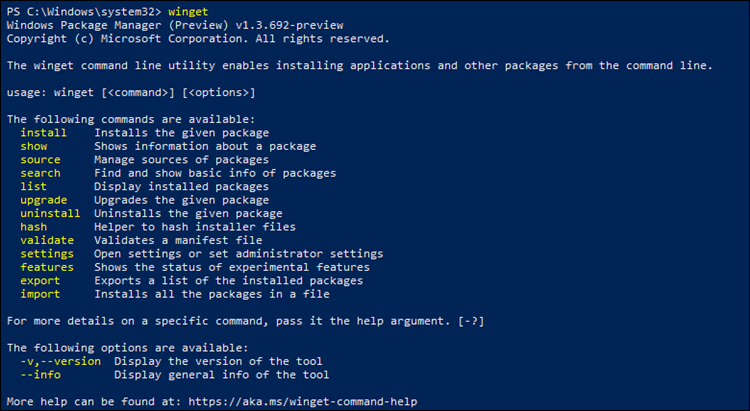
Method 2: Install the winget tool from GitHub
Follow the steps to install the winget tool by downloading the installer from GitHub:
Go to the winget GitHub page.
Under the Releases section, select the latest available release.
On the version page, scroll down to the Assets section and select the .msixbundle file to start the download.

Run the downloaded file and select Update. Wait for the installation process to finish. The app may automatically install other dependencies required for the winget tool to work.
Verify the installation by running the
wingetcommand at the command prompt or in Windows PowerShell.