Note
Access to this page requires authorization. You can try signing in or changing directories.
Access to this page requires authorization. You can try changing directories.
Symptoms
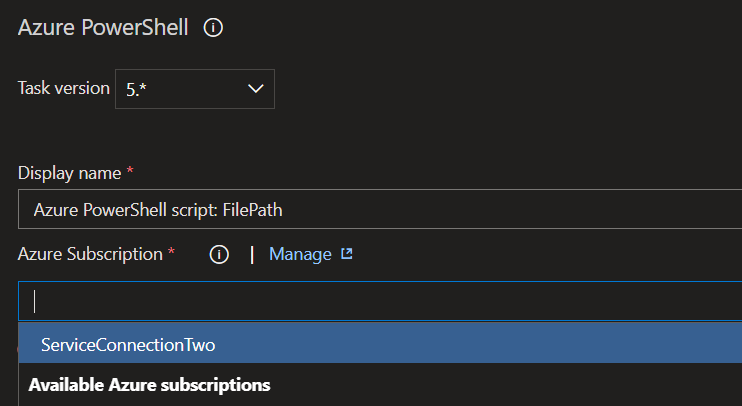
When you try to load the Azure Resource Manager (Azure RM) service connection in a pipeline task, such as Azure App service deploy or Azure App service manager, the service connection doesn't appear in the list. However, when you check the Service Connection tab under Project Settings, the service connection is available.
The Settings / Service connections screen shows that the Azure RM Service connection is listed.

The Azure PowerShell task screen shows that the Azure RM Service connection is not listed.
Debugging steps
Go to the service connection page, and then select the affected service connection.
Select the Edit button.
Press F12, and then open the network trace window. If possible, enable the Disable cache check box in the panel under the Network tab.
Select the verify button.
You receive the following error message:
Failed to obtain the Json Web Token(JWT) using service principal client ID. Exception message: AADSTS700016: **Application with identifier 'xxxxxxf9-xxxx-xxxx-xxxx-c05xxxxxxxxx' was not found in the directory 'Microsoft'. This can happen if the application has not been installed by the administrator of the tenant or consented to by any user in the tenant**. You may have sent your authentication request to the wrong tenant. Trace ID: xxxxxx2c-xxxx-xxxx-xxxx-e04xxxxxxxxx Correlation ID: xxxxxx72-xxxx-xxxx-xxxx-244xxxxxxxxxx Timestamp: 2022-05-19 09:08:53ZYou will see the following response for the POST call in the trace:
{"result":[],"statusCode":400,"errorMessage":"Failed to obtain the Json Web Token(JWT) using service principal client ID. Exception message: AADSTS700016: **Application with identifier 'xxxxxxf9-xxxx-xxxx-xxxx-c05xxxxxxxxx' was not found in the directory 'Microsoft'. This can happen if the application has not been installed by the administrator of the tenant or consented to by any user in the tenant**. You may have sent your authentication request to the wrong tenant.\r\nTrace ID: xxxxxx31-xxxx-xxxx-xxxx-32bxxxxxxxxx\r\nCorrelation ID: xxxxxx49-xxxx-xxxx-xxxx-725xxxxxxxxx\r\nTimestamp: 2022-05-19 09:11:35Z"}For more information, see Get the API response of GET endpoints.
In the API response, check the
isReadystatus. If the value isfalse, this indicates that the service connection is in a bad state.
Resolution
Open Project settings > Service connections, and then select the faulty service connection.
Select Manage Service Principle.
Note
This command redirects the connection to the Azure portal and displays the SPN (App) that was created as part of service connection creation.
Check whether the SPN (App) still exists. (It was likely deleted.)
If this is an automated service connection, create a new service connection. If this is a manual service connection, follow the steps in the Create an Azure Resource Manager service connection to update the service connection by using the new SPN (App) details.