Define optimization schedules
An optimization schedule defines when records should be optimized. For example, you can define a schedule that runs on weekdays at 1:00 AM.
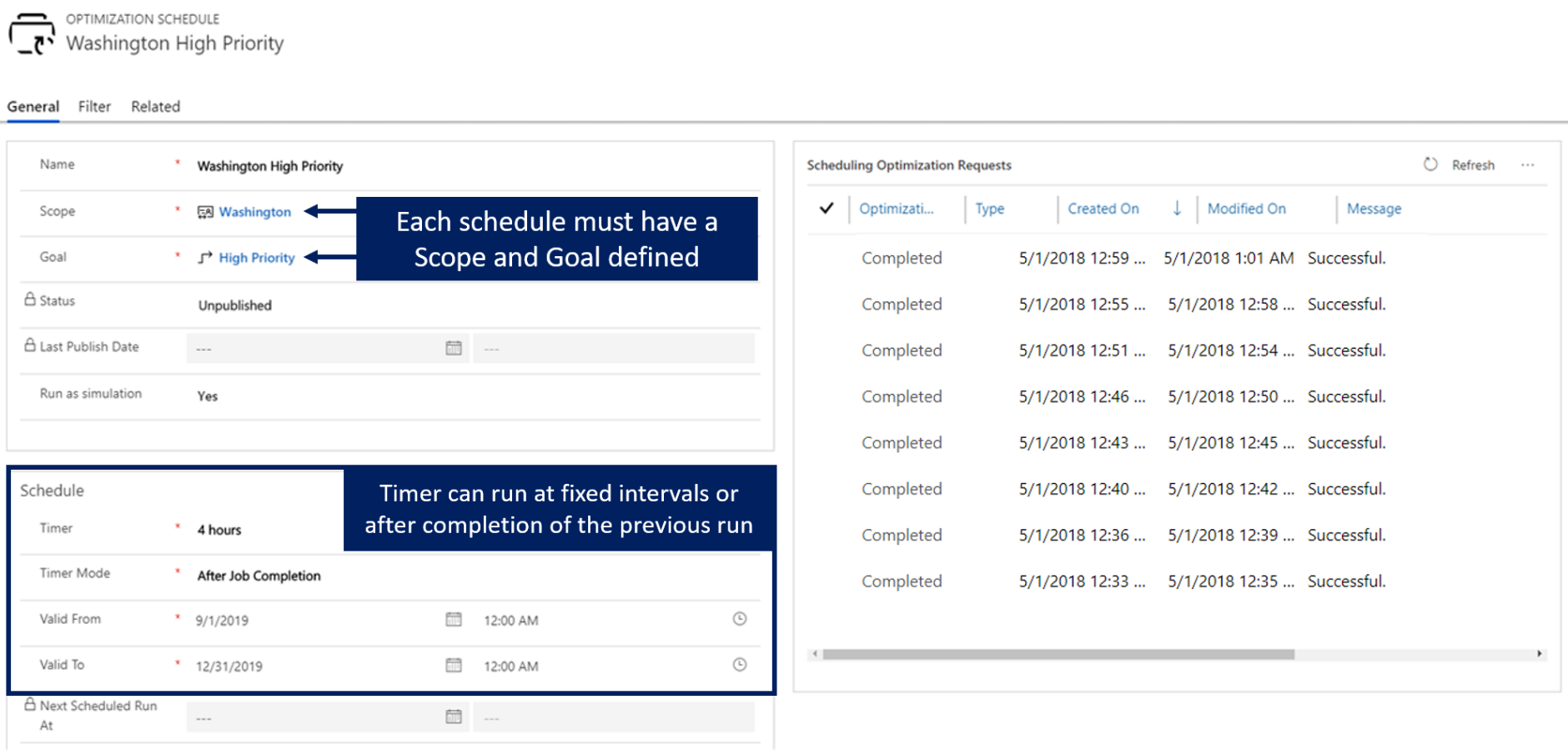
When creating an optimization schedule, you need to define the following parameters:
Name - Provide a logical name that expresses which requirements, bookings, and resources are optimized.
Scope - Defines the scope to use.
Goal - Defines the goal to use.
Timer - Defines how often this schedule runs.
Timer Mode - Defines the point when the schedule starts the timer.
For example, if a timer is set to 30 minutes, the first run starts 30 minutes from the publish date/time.
Fixed mode - The optimization runs every 30 minutes.
After Job Completion mode - The optimization runs 30 minutes from the end of the last RSO job run.
Valid From and Valid To - The first/last date and time when this schedule is valid for implementation.
Define filter options
Often, different jobs might need to run at different times. For example, the schedule runs at 1:00 AM and 7:00 PM every Monday through Friday. In these instances, you can use the filter feature to define when the job runs. The filter section of the schedule is an advanced feature. The Filter window allows for various combinations to be selected, such as:
You can filter by month, numerical day, weekday, hour, and minute, and refer to a configured time zone.
Leaving all filters blank means no filters are applied.

How timers work with filters
If you configure your timer and filter, RSO runs every 30 minutes after the previous job is completed, from 12/3/2016 at 9:00 AM to 12/4/2018 at 9:00 AM, except on Saturdays and Sundays.
For more information, see Defining optimization schedules.
Publish schedules
A schedule exists in one of many statuses throughout its lifecycle. A schedule doesn't begin to optimize resources, requirements, and bookings until they're published. Schedules are published by selecting a schedule(s) to publish and then selecting the Publish button in the upper left. It's possible to publish all schedules by selecting the Publish All button.
The following list defines the different states that an RSO job can exist in:
Unpublished - Default status when a schedule is created or after a reset.
Publishing - The system is trying to publish schedules.
Published - The system published a schedule, and it's good to run.
Out of Sync - Changes made against the schedule require it to be published again.
Under Maintenance - Indicates that someone is upgrading the RSO to a newer version.
Failed - The system failed to publish schedules for various reasons.
The user can see the error details on the form of the schedule.
A typical error would be that the SAS Key wasn't configured, meaning that RSO Azure resources aren't set up correctly.
After a schedule is published, it begins to optimize items based on the schedule. RSO schedules can be manually run on demand at any time by selecting the Run Now button. If an RSO schedule needs some large-scale changes, or something isn't working, you can select the Reset Resource Scheduling Optimization button, which cancels all pending RSO jobs and unpublish the schedule.
For more information, see Publishing schedules.
Monitor optimization requests
After a schedule is published, you can open it and monitor the scheduling optimization requests (RSO jobs). You can drill into each of these requests to see the bookings that are associated with the RSO job run.
From the optimization schedule, you can see:
Which resources are being optimized and which are not (and for what reason).
Booking details and analytic charts that show how many hours of travel time versus how many work hours are scheduled for this run.

For more information, see Monitoring optimization requests.