Best practices
Agents are a powerful tool for increasing customer interaction with your solution. A solution architect must ensure that the agents are correctly built and meet the requirements.
This section contains recommendations around designing and deploying agents.
Plan an agent
When planning an agent, the solution architect should:
Define the agent's scope.
Define the agent's purpose.
Define which channels the agent will be deployed to.
Define the key metrics and success criteria.
Verify the topics, entities, and conversational flows.
An agent supports three different types of topic:
Informational
Tasks
Troubleshooting
A good Microsoft Copilot Studio agent will have a high business impact; that is, a high level of traffic, a low level of integration complexity, and a high level of conversation completion that's achieved without the need for escalation to a live agent.
A well-designed agent will have a clearly defined set of goals, where each topic is linked to a business process and has trigger events, a clear set of rules, a set of documents, and a series of tasks that will be performed.
The solution architect might need to provide guidelines for creating topics and trigger phrases for agent authors to follow.
Escalations
With Microsoft Copilot Studio, you can hand off conversations to live agents seamlessly and contextually.
When handing off a conversation, you're sharing the full history of the conversation (the context) and all user-defined variables. Having access to this context means that live agents who are using a connected engagement hub can receive notification that a conversation requires a live agent, see the context of the prior conversation, and resume the conversation.
Important
You need to have an engagement hub that live agents are using, such as Omnichannel for Customer Service, and you need to configure the connection.

The solution architect should determine when escalation should occur and how escalation will be handled.
Microsoft Copilot Studio agents come with telemetry already built in so that you can monitor how your agents are being used. Key KPIs are the rates of abandonment and escalation to a live agent. You should monitor your agents and then change them to increase effectiveness.
Variables
Variables let you save responses from your users in a conversation so that you can reuse them later in other conversations.
The response for each question that is asked in a conversation is stored as a variable. You can then pass the variable to a Power Automate flow or use the variable later in the topic, or even in other topics, to control the questions that are being asked. For example, you can use a variable to decide to skip a question if you have the information that you need at that point.
Variables can be defined as:
Topic: The variable can only be used within its topic.
Global: The variables can be used by any topic.
Solution architects should encourage agent authors to use variables to help improve conversational flow.
Authentication
You can enable user authentication directly within a Microsoft Copilot Studio agent conversation. User authentication means that you can get a user's basic properties, such as their name and ID, in agent variables. However, you can also prompt a user to sign in by using an authentication node, retrieve a user token for that user, then use that token to retrieve the user's information from an operating system.
Microsoft Copilot Studio supports the following authentication providers:
Microsoft Entra ID
Any identity provider that is compliant with the OAuth2 standard, Microsoft account, or Facebook
Microsoft Copilot Studio supports single sign-on (SSO), which means that agents can sign the user in if they're on the page where the agent is deployed. You'll need to register the web app in Microsoft Entra ID to enable SSO.

Note
SSO is only supported on the live website publication channel and the Teams channel.
Solution architects should determine if authentication is required for agents and the identity provider to use. In many situations, the organization might already have identity providers configured in Microsoft Entra ID. If you're creating agents for Microsoft Teams, it's simple to configure with the Only for Teams option; however, if you're creating agents for customers, you might need to consider Azure B2B and Azure B2C for authentication.
Capacity
When you purchase a Microsoft Copilot Studio license, you'll gain capacity for the specified number of billed sessions. Microsoft Copilot Studio will pool this capacity across the entire tenant.
You can monitor how many billed sessions have been used from the Analytics tab in the Microsoft Copilot Studio portal.
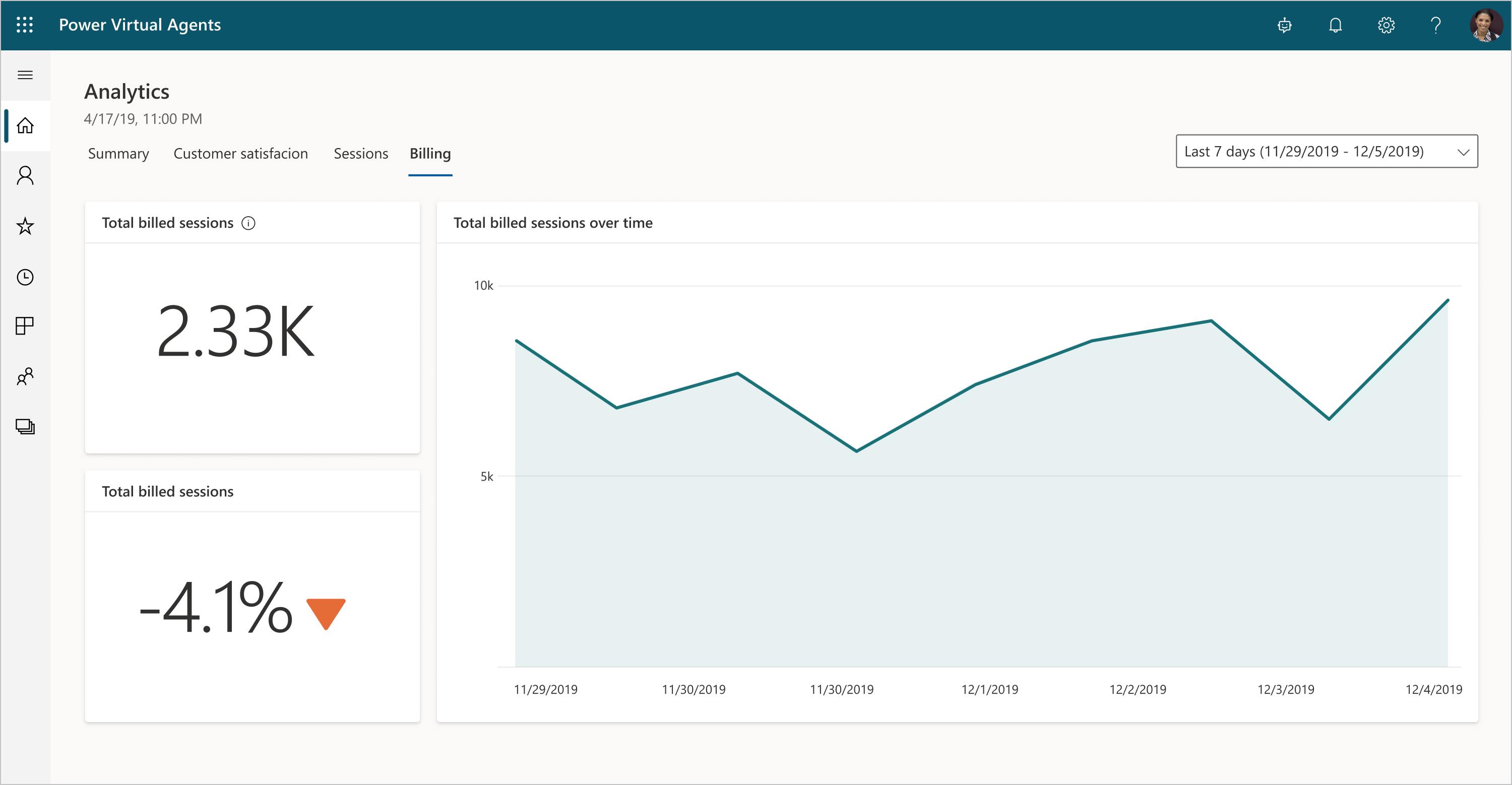
The solution architect will need to estimate the number of sessions that are required, then ensure that monitoring is implemented to track agent usage and costs.
Rate limits
Quotas are applied to agents to limit how often messages can be sent to the agents. The purpose of quotas is to throttle the service load and protect the service from being overloaded.
Quotas for Microsoft Copilot Studio agents are defined as requests per minute (RPM). A request is a message from the user to the agent, or a message from an Azure Bot Framework Skill, in a single chat session.
The Quota is 600 RPM in the North America region and 800 RPM for the rest of the world.
Solutions
Microsoft Copilot Studio is solution-aware and can be included in solutions and application lifecycle management (ALM) processes.
Important
Agents contain many subcomponents, such as Topics, that must be exported and imported together. You should consider segmenting your solution and having agents with their subcomponents in a separate solution from other components.
Note
You can only import and export agents with the Microsoft Copilot Studio web app. The feature is not available in the Microsoft Copilot Studio app in Microsoft Teams.
Deployment
Microsoft Copilot Studio is created in a selected environment. You should ensure that you're using the correct environment for development, test, and production purposes when creating agents.
If you're using Skills, then you need to define environment variables for each skill.
After deploying your agent through a solution, you might need to perform certain manual tasks:
Power Automate cloud flows: Configure connections for the first time, then go to the Microsoft Copilot Studio portal and select the agent.
Skills: Add the values for the skills’ environment variables.
User authentication: Configure user authentication in the agent so it can take actions on the user’s behalf.
Escalations: Configure external services that hand off Copilot agent escalations to a live agent.
Multichannel: Configure external channels such as Facebook and internal non-Microsoft Copilot Studio services such as Microsoft Teams.
The solution architect should ensure that these steps are included in the deployment plan for the solution.