Note
Access to this page requires authorization. You can try signing in or changing directories.
Access to this page requires authorization. You can try changing directories.
With Visual Studio Connected Services, you can connect to Azure SQL Database, a local emulator (for example, during development), or an on-premises SQL Server database. For on-premises SQL Server, see Connect to a database.
With Visual Studio, you can connect from any of the following project types by using the Connected Services feature:
- ASP.NET Core
- .NET Core (including console app, WPF, Windows Forms, class library)
- .NET Core Worker Role
- Azure Functions
- .NET Framework console app
- ASP.NET Model-View-Controller (MVC) (.NET Framework)
- Universal Windows Platform App
The connected service functionality adds all the needed references and connection code to your project, and modifies your configuration files appropriately.
Prerequisites
- Visual Studio with the Azure workload installed.
- A project of one of the supported types
- An Azure account. If you don't have an Azure account, activate your Azure benefits for Visual Studio subscribers or sign up for a free trial.
Connect to Azure SQL Database using Connected Services
Access the connection string
Learn how to store secrets safely by following Safe storage of app secrets in development in ASP.NET Core. In particular, to read the connection string from the secrets store, you can add code as in Read the secret via the configuration API. See also Dependency injection in ASP.NET Core.
Entity Framework migrations
It might be convenient to work with a local data store during early development, but with Entity Framework Core, when you're ready to move to the cloud, you can use Visual Studio's support for Entity Framework migration to move your database, or merge changes with a remote data store. See Migrations overview.
On the Connected Services tab, you can find the migration commands by clicking on the three dots, as shown in the screenshot:
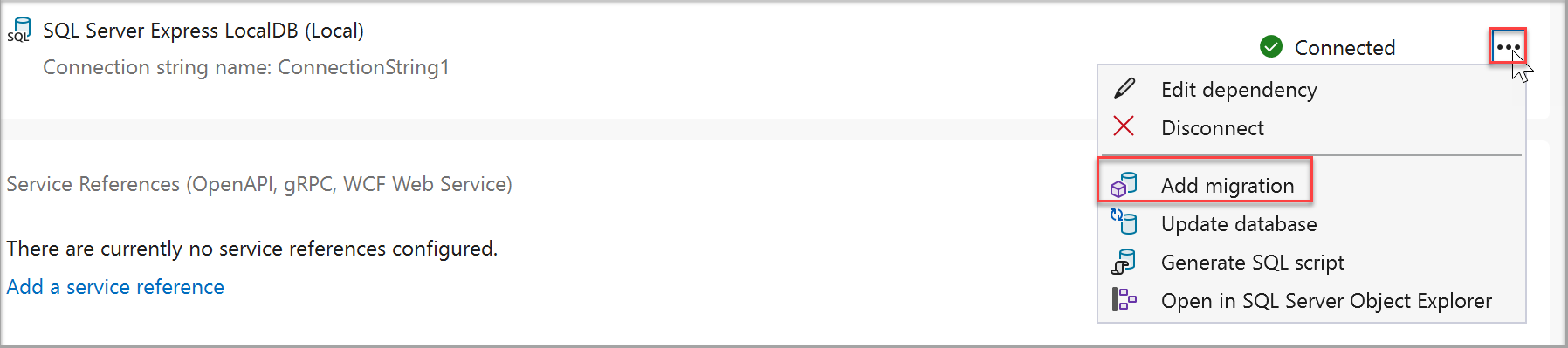
Commands are available there to create new migrations, apply them directly, or generate SQL scripts that apply the migrations.
Next steps
You can continue with the quickstarts for Azure SQL Database, but instead of starting from the beginning, you can start after the initial connection is set up. If you're using Entity Framework, you can start at Add the code to connect to Azure SQL Database. If you're using SqlClient or ADO.NET data classes, you can start at Add the code to connect to Azure SQL Database.
Your code won't exactly match what is used in the quickstarts, which use a different way of getting the connection string. The connection strings are secrets and are securely stored as explained in Safe storage of app secrets in development in ASP.NET Core. In particular, to read the connection string from the secrets store, you can add code as in Read the secret via the configuration API.