Note
Access to this page requires authorization. You can try signing in or changing directories.
Access to this page requires authorization. You can try changing directories.
Data groups categorize connectors within a data policy. The three data groups are the Business data group, the Non-Business data group, and the Blocked data group.
Categorize connectors by placing them in groups based on the business-centered or personal-use-centered services that they connect to in the context of your organization. Classify connectors that host business-use data as Business. Classify connectors that host personal-use data as Non-Business. Classify connectors that you want to keep from being used at all across one or more environments as Blocked.
When you create a new policy, all connectors are placed in the Non-Business group by default. From there, you can move connectors to Business or Blocked based on your preference. You manage the connectors in a data group when you create or modify the properties of a data policy from the admin center. For more information, see Manage data policies. You can also change the initial classification of connectors by editing your data policy. For more information, see Edit a data policy.
Note
Until recently, some HTTP connectors weren't readily available for data policy configuration by using the data policy UI or PowerShell. As of May 2020, the following HTTP connectors can now be classified by using the data policy UI and PowerShell, like any other Power Platform connector: HTTP, HTTP Webhook, and When an HTTP request is received. If you're updating legacy data policies by using the new data policy UI, a warning message is displayed to admins indicating that these three HTTP connectors are now being added to the data policies purview and that they should ensure that these connectors are placed in the right data policies grouping.
Because child flows share an internal dependency with the HTTP connector, the grouping that admins choose for HTTP connectors in a data policy might affect the ability to run child flows in that environment or tenant. Make sure your HTTP connectors are classified in the appropriate group for your child flows to function. If there are any concerns in classifying the connector as Business in shared environments such as the default environment, classify it as Non-Business or block it. Then, create dedicated environments where makers can use HTTP connectors, but restrict the maker list so that you can unblock makers from building child flows.
The Content Conversion connector is an integral feature of Microsoft Power Platform, used to convert an HTML document to plain text. It applies both to Business and Non-Business scenarios and doesn't store any data context of the content converted through it. Therefore, it's not available for classification through data policies.
How data is shared among data groups
You can't share data among connectors that are located in different groups. For example, if you place SharePoint and Salesforce connectors in the Business group and you place Gmail in the Non-Business group, makers can't create an app or flow that uses both the SharePoint and Gmail connectors. This restriction in turn restricts data flows between these two services in Microsoft Power Platform.
Although you can't share data among services in different groups, you can share data among services within a specific group. From the earlier example, because SharePoint and Salesforce were placed in the same data group, makers can create an app or flow that uses both SharePoint and Salesforce connectors together. This configuration in turn allows data flows between these two services in Microsoft Power Platform.
The key point is that connectors in the same group can share data in Microsoft Power Platform, whereas connectors in different groups can't share data.
The effect of the Blocked data group
You can block data flow to a specific service by marking that connector as Blocked. For example, if you place Facebook in the Blocked group, makers can't create an app or flow that uses the Facebook connector. This restriction in turn restricts data flows to this service in Microsoft Power Platform.
You can block all third-party connectors. You can block all Microsoft-owned premium connectors, except Microsoft Dataverse.
List of connectors that you can't block
To ensure core user scenarios remain fully functional, you can't block connectors that drive core Microsoft Power Platform functionality, such as Dataverse, Approvals, and Notifications. You also can't block connectors that enable core Office customization scenarios, such as Microsoft Enterprise Plan standard connectors.
Note
Use advanced connector policies (ACP) to limit or block these connectors. ACP uses a strict allowlist model and can restrict any certified connector, including the nonblockable connectors listed in this article.
You can classify these nonblockable connectors into Business or Non-Business data groups. These connectors broadly fall into the following categories:
- Microsoft Enterprise Plan standard connectors (with no other licensing implications).
- Microsoft Power Platform–specific connectors that are part of the base platform capabilities. Within this category, Dataverse connectors are the only premium connectors that you can't block because Dataverse is an integral part of Microsoft Power Platform.
The following connectors can't be blocked by using data policies.
| Microsoft Enterprise Plan standard connectors | Core Power Platform connectors |
|---|---|
| Defender for Cloud Apps | Approvals |
| Dynamics 365 Customer Voice | Notifications |
| Excel Online (Business) | Dataverse (legacy) |
| Kaizala | Dataverse |
| Microsoft 365 Groups | Power Apps Notifications (v1 and v2) |
| Microsoft 365 Groups Mail (Preview) | Microsoft Copilot Studio |
| Microsoft 365 Outlook | |
| Microsoft 365 Users | |
| Microsoft Teams | |
| Microsoft To-Do (Business) | |
| OneDrive for Business | |
| OneNote (Business) | |
| Planner | |
| Power BI | |
| SharePoint | |
| Shifts | |
| Skype for Business Online | |
| Yammer |
Note
If a currently unblockable connector is already in the Blocked group (for example, because you blocked it when restrictions were different), it remains in the same group until you edit the policy. You get an error message that stops you from saving the policy until you move the unblockable connector to a Business or Non-Business group.
Viewing the classification of connectors
When you edit data policies in the Power Platform admin center, you see all available and visible connectors, regardless of whether they're classified in a policy. However, when you view a data policy in PowerShell or through the Power Platform for Admins connector, you see only the connectors that are explicitly classified in the Business, Non-business, or Blocked categories. Data policies viewed from PowerShell or the Power Platform for Admins connector might include stale references to connectors that are no longer available or visible.
In general, the list of Power Platform connectors can differ depending on where you view them. Several reasons explain these differences. Some connectors require specific licensing, and if your license doesn't include them, you can't see them. Different environments can also have different connectors available due to compliance and regulatory requirements. Microsoft might release updates to connectors that aren't immediately available across all Power Platform components. Some connectors might only be available in Power Automate and not in Power Apps. Depending on your role and permissions, you might not have access to all connectors.
Connector classification in advanced connector policies
Advanced connector policies (ACP) use a different approach to connector classification than classic data policies. Instead of the Business, Non-Business, and Blocked model, ACP uses a strict allowlist where all connectors are blocked by default unless explicitly allowed.
ACP currently applies to certified connectors only. The following connector types are governed differently:
- Custom connectors: Not yet supported in ACP. Continue using classic data policies for custom connector governance. Custom connector support in ACP is planned as a separate rule type in a future release.
- HTTP connectors: Not yet supported in ACP. Continue using classic data policies and connector endpoint filtering for HTTP connector governance.
- Virtual connectors: Not supported by ACP and won't be added in the future. Copilot Studio virtual connectors are evolving into their own dedicated governance rules. Desktop Flow virtual connectors are transitioning to certified connectors, at which point they'll be manageable through ACP.
For more information, see Supported connector types in ACP.
Custom connector classification
Environment-level data policies
Environment admins can now find all the custom connectors in their environments alongside prebuilt connectors on the Connectors page in Data Policies. Similar to prebuilt connectors, you can classify custom connectors into Blocked, Business, or Non-Business categories. Custom connectors that aren't explicitly classified go under the default group (or Non-Business, if admins don't explicitly choose a default group).
You can also use data policy PowerShell commands to set custom connectors into Business, Non-Business, and Blocked groups. For more information, see Data policy commands.
Tenant-level data policies
The Power Platform admin center supports tenant admins in classifying custom connectors by their Host URL endpoints by using a pattern-matching construct for tenant-level data policies. Because the scope of custom connectors is environment-specific, these connectors don't show up on the Connectors page for you to classify. Instead, you see a new page in Data Policies named Custom connectors, which you can use to specify an ordered list of Allow and Deny URL patterns for custom connectors.
The rule for the wildcard character (*) is the last entry in the list, which applies to all custom connectors. Admins can tag the * pattern to Blocked, Business, Non-business, or Ignore. By default, the pattern is set as Ignore for new data policies.
Ignore ignores data policy classification for all connectors in this tenant-level policy, and defers evaluation of a pattern to other environments or tenant-level policies to attribute them into the Business, Non-Business, or Blocked grouping as appropriate. If no specific rule exists for the custom connectors, an Ignore * rule allows custom connectors to be used with both Business and Non-Business connector groupings. Except for the last entry in the list, Ignore as an action isn't supported for any other URL pattern added to the custom connector pattern rules.

You can add new rules by selecting Add connector pattern on the Custom connectors page.

This action opens a side panel where you can add custom connector URL patterns and classify them. New rules are added to the end of the pattern list (as the second-to-the-last rule, because * is the last entry in the list). However, you can update the order while adding a new pattern.
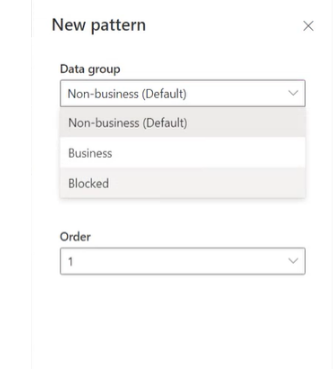
You can also update the order of the patterns by using the Order dropdown list or selecting Move up or Move down.

After you add a pattern, you can edit or delete these patterns by selecting a specific row and selecting Edit or Delete.
Default data group for new connectors
You must designate one data group as the default group to automatically classify any new connectors added to Microsoft Power Platform after you create your policy. Initially, the Non-Business group is the default group for new connectors and all services. You can change the default data group to the Business or Blocked data group, but don't.
Any new services that you add to apps are placed in the designated default group. For this reason, keep Non-Business as the default group, and manually add services into the Business or Blocked group after your organization evaluates the impact of allowing business data to be shared with the new service.
Note
Microsoft 365 Enterprise license connectors and a few core Microsoft Power Platform connectors are exempt from being marked as Blocked, and can only be classified as Business or Non-Business. If Microsoft adds any new connectors that can't be blocked and you set the default group for the data policy as Blocked, these connectors are automatically marked as Non-Business instead of Blocked.