Note
Access to this page requires authorization. You can try signing in or changing directories.
Access to this page requires authorization. You can try changing directories.
APPLIES TO:  Power BI Report Builder
  Power BI Desktop
In this article, you learn how to create parameters in Power BI Report Builder for paginated reports. A report parameter provides a way for report readers to choose report data and vary the report presentation. Creating a fully functional parameter involves several steps: defining the parameter, setting available values, configuring default values, and connecting the parameter to your dataset query.
For more information about how your business users interact with parameters in the Power BI service, see View parameters for paginated reports.
The following illustration shows Design view in Power BI Report Builder for a report with the parameters @BuyingGroup, @Customer, @FromDate, and @ToDate.
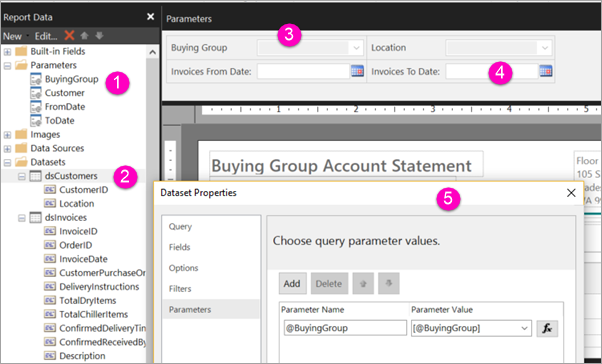
- The report parameters in the Report Data pane.
- The table with one of the parameters in the dataset.
- The Parameters pane. You can customize the layout of parameters in the parameters pane.
- The parameters @FromDate and @ToDate have the data type DateTime. When viewing the report, you can either type a date in the text box, choose a date in the calendar control, or select Go to today.
- One of the parameters in the Dataset Properties dialog box.
Prerequisites
License requirements for Power BI paginated reports (.rdl files) are the same as for Power BI reports (.pbix files).
- You don't need a license to download Power BI Report Builder from the Microsoft Download Center for free.
- With a free license, you can publish paginated reports to My Workspace in the Power BI service. For more information, see Feature availability for users with free licenses in the Power BI service.
- With a Power BI Pro license or a PPU license, you can publish paginated reports to other workspaces. You also need at least a contributor role in the workspace.
- You need Build permission for the dataset.
Overview: Steps to create a working parameter
Creating a parameter that filters your report data requires these steps:
- Create the report parameter - Define the parameter name, data type, and prompt text.
- Set available values (recommended) - Specify the list of values users can choose from.
- Set default values (optional) - Provide initial values so the report runs automatically.
- Connect the parameter to your dataset - Link the parameter to your query so it filters the data.
The following sections walk through each step.
Step 1: Create the report parameter
- Open your paginated report in Power BI Report Builder.
- In the Report Data pane, right-click the Parameters node and select Add Parameter. The Report Parameter Properties dialog box opens.
- In Name, type a name for the parameter (for example,
ProductCategory). The name must begin with a letter and can contain only letters, numbers, or underscores (_). Spaces aren't allowed. - In Prompt, type text to appear next to the parameter (for example,
Select a category:). - In Data type, select the data type for the parameter value. Common types include:
- Text - For string values
- Integer - For whole numbers
- DateTime - For date values (displays a calendar picker)
- Boolean - For true/false values (displays radio buttons)
- Configure additional options as needed:
- Allow blank value - User can submit an empty string.
- Allow null value - User can leave the parameter unset.
- Allow multiple values - User can select more than one value (displays checkboxes).
- Set the visibility:
- Visible - Parameter appears on the report toolbar.
- Hidden - Parameter doesn't display but can be set via URL.
- Internal - Parameter is hidden and can't be modified after publishing.
- Don't select OK yet. Continue to set available values.
Step 2: Set available values
Available values create a dropdown list that limits users to valid choices. You can specify values manually or retrieve them from a dataset query.
Option A: Specify values manually
- In the Report Parameter Properties dialog, select the Available Values page.
- Select Specify values.
- Select Add to create each value:
- Value - The actual value passed to the query (for example,
1). - Label - The friendly name displayed to users (for example,
Bikes).
- Value - The actual value passed to the query (for example,
- Repeat for each value. Use the arrow buttons to reorder the list.
Option B: Get values from a query
First, create a dataset that retrieves the available values. For example, create a dataset named
CategoryListwith this query:SELECT CategoryID, CategoryName FROM ProductCategory ORDER BY CategoryNameIn the Report Parameter Properties dialog, select the Available Values page.
Select Get values from a query.
In Dataset, select your dataset (for example,
CategoryList).In Value field, select the field containing the actual values (for example,
CategoryID).In Label field, select the field containing the display names (for example,
CategoryName).
Step 3: Set default values (optional)
Default values cause the report to run automatically when first opened. Without defaults, users must select values and select View Report.
- In the Report Parameter Properties dialog, select the Default Values page.
- Choose one of these options:
- No default value - Users must make a selection.
- Specify values - Manually enter one or more default values.
- Get values from a query - Use a dataset to provide defaults.
- Select OK to close the dialog.
Step 4: Connect the parameter to your dataset
The parameter doesn't filter data until you connect it to your dataset query. There are two common approaches:
Option A: Add a query variable
In the Report Data pane, right-click your main dataset and select Dataset Properties.
On the Query page, modify your query to include a WHERE clause with a variable:
SELECT ProductID, ProductName, CategoryID, Price
FROM Products
WHERE CategoryID = @ProductCategory
When you select OK, Report Builder automatically creates a dataset parameter and links it to your report parameter.
Option B: Link parameters manually
If you've renamed a parameter or need to manually link them:
- In the Report Data pane, right-click your dataset and select Dataset Properties.
- Select the Parameters page.
- In the Parameter Value column, select the report parameter to link to each query parameter (for example,
[@ProductCategory]). - Select OK.
Test your parameter
- Select Run (or press F5) to preview the report.
- The parameter appears in the toolbar with your available values.
- Select a value and select View Report to verify the data filters correctly.
Related content
- View parameters for paginated reports - How users interact with parameters in the Power BI service
- Report parameters in Power BI Report Builder - Comprehensive reference for parameter properties and concepts
- Add or modify available values for a report parameter - Detailed guidance on configuring value lists
- Add or modify default values for a report parameter - Configure automatic report execution
- Add cascading parameters to a report - Create dependent parameter dropdowns
- Associate a query parameter with a report parameter - Link parameters to dataset queries
- Add a multivalue parameter to a report - Allow users to select multiple values
- Pass a report parameter in a URL - Set parameter values programmatically