Note
Access to this page requires authorization. You can try signing in or changing directories.
Access to this page requires authorization. You can try changing directories.
SharePoint Server Copilot Connector (Graph Connector) allows users in your organization to search for content stored in an on-premises SharePoint Server farm or use the content in Copilot for specific use cases and scenarios. It crawls documents and site pages from SharePoint on-premises farms. On-premises versions of SharePoint Server 2016, 2019, and Subscription Edition (SPSE) are supported.
Note
Active Directory synchronization is a prerequisite for enabling security trimming in SharePoint Server content search. For more information, see Microsoft Entra Connect Sync: Understand and customize synchronization.
Note
To access Copilot connectors that are in preview, enable the Targeted release option for your admin account.
Capabilities
Uses an authenticated account to crawl SharePoint documents and web pages along with permissions.
Users who don't have permission to the crawled items can't find those items in their Search or Copilot results.
Lists all available site collections that and admin can choose to include for indexing.
Includes an exclusion feature to exclude certain sites from indexing.
Enables users to utilize connector content for Copilot queries and prompts. Here are some of the capabilities:
- Ask questions about the content of the documents. Example: What are the current sales projections mentioned in the file Sales_Report.doc?
- Summarize the content of documents. Example: summarize the file Sales_Report.doc.
- Create content using existing documents. Example: Create an FAQ document to be shared with sales personnel using the file Sales_Report.doc.
Limitations
The connector only supports indexing documents and web pages.
The exclusion rules exclude only the specified sites. They can't be used to exclude certain lists, libraries, or content types inside a site.
Staged rollout is not supported in SharePoint On-premises connections.
Creating a Declarative Agent (DA) for SharePoint On-premises currently requires a pro code approach using Visual Studio Code and a manually authored DA manifest, Declarative agent schema 1.2 for Microsoft 365 Copilot | Microsoft Learn.
Before you get started
Install the Graph Connector Agent
To index your SharePoint On-premises content, you must install and register the Graph Connector Agent (GCA). See Install Graph Connector Agent to learn more. The Graph Connector Agent can be installed on the same machine as the SharePoint server or on a machine that has access to the SharePoint On-premises server.
Each source (SharePoint web application) can be configured in one connection. One Graph Connector Agent can be used to source content from multiple connections of SharePoint On-premises sources. It's advised to limit the number of connections to an agent to three sources to ensure an optimal ingestion rate.
The account used for indexing should have full control access to the SharePoint web applications or should be a farm admin. Items that the account doesn't have permission to are skipped during indexing.
Mandatory and optional settings
To get you quickly started with Copilot connectors, the steps in the setup process are split into two groups:
Mandatory settings - Default setup screen that you see when you enter the setup flow. You must provide inputs for these fields to create the connection. The inputs (connection name, data source settings, etc.) vary based on your organization's context and use case.
Custom Setup (optional settings) - Custom setup has advanced configuration steps for super users. The steps are optional, and for your convenience, the settings in the setup process are pre-configured with default values based on the most common selections made by admins. You can choose to accept the default values or modify them to suit your organization's needs.
Get started
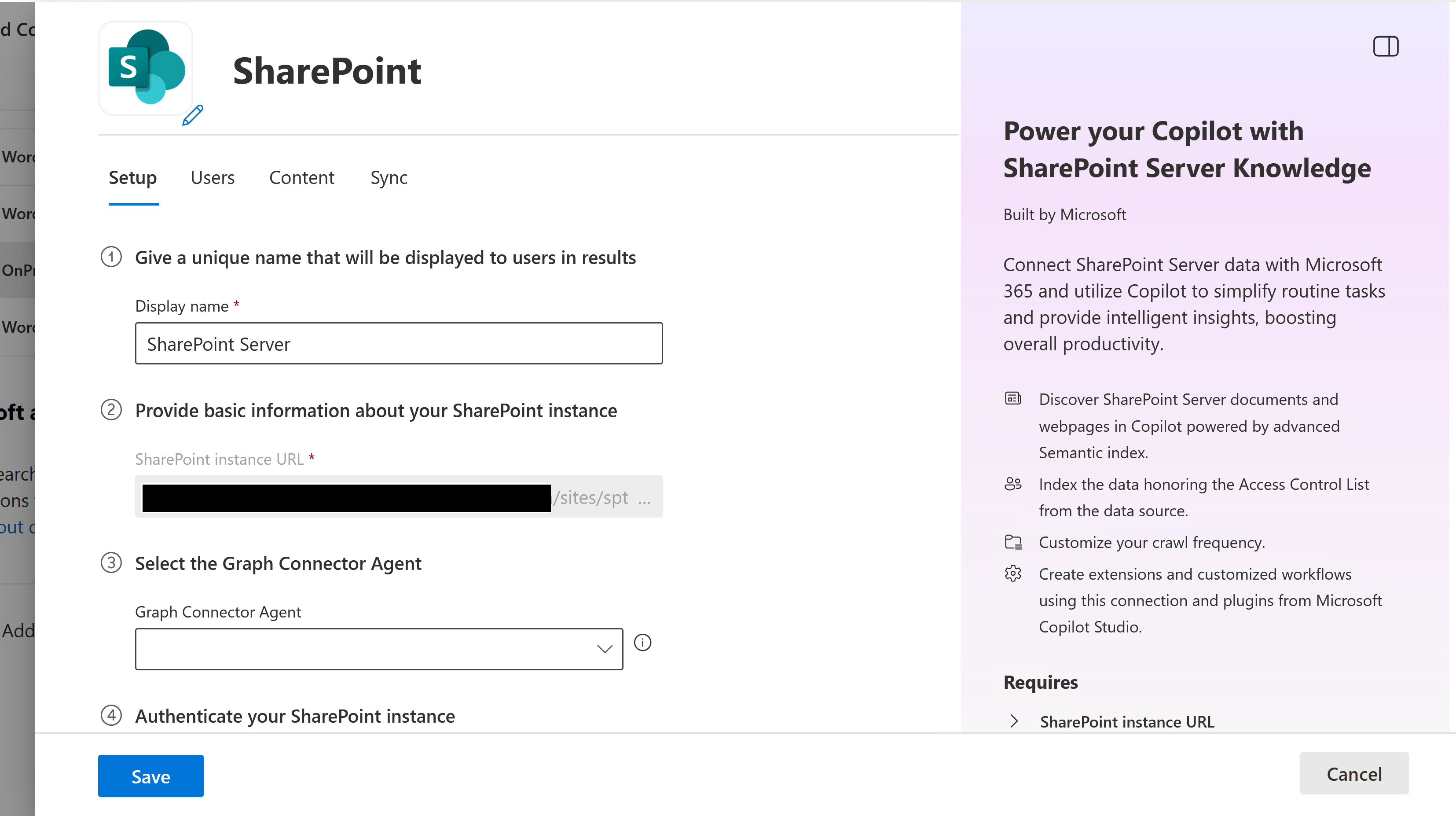
Add the SharePoint Server Copilot connector.
For more information, see general setup instructions.
 .
.
1. Display name
A display name is a user-facing name in Copilot. Choose the right display name for your users to identify with the content of the data source. The name is also useful for users who wish to add Graph connectors knowledge to their Copilot Agents. Display name also signifies trusted content. Display name is also used as a content source filter. A default value is present for this field, but you can customize it to a name that users in your organization recognize.
2. SharePoint Instance URL
Enter the URL for the SharePoint site/site collection in the format https://{domain}/sites/{site-name}. The connector identifies the site URL and lists all site collections present in that web application. Admins can choose from these site collections to index the content.
3. Select Graph Connector Agent
Select from the list of available Graph Connector Agents registered to your tenant.
4. Authentication
Choose the authentication type from the drop-down menu of options. The supported options are:
- Basic
- Windows (NTLM)
- Microsoft Entra ID OIDC
Note
- Basic authentication is not recommended. It is currently included for compatibility with legacy systems but may be removed in the future.
- Use Domain\username format in the "Username" field to authenticate to the SharePoint server instance using the Windows option.
- For Windows authentication, only NTLM is currently supported, Kerberos is not.
- ADFS is currently not supported.
- Unlike Basic and Windows, Entra ID (OIDC) authentication requires additional configuration, as outlined in the next section.
To authenticate with the provided credentials, select Sign-in to load the list of available site collections.
Microsoft Entra ID-based authentication for Microsoft SharePoint Server Copilot Connector
Note
The steps in this subsection are only required if you're using Microsoft Entra ID (OIDC) authentication. If you're using Windows or Basic, you can skip to step 5. Select Site Collections.
Before using the Microsoft Entra ID-based authentication method, ensure the following prerequisites are met:
- Microsoft Entra ID-based authentication is supported for Graph Connector Agent versions 3.1.2.0 and above. Upgrade your agent before proceeding. See Install Graph Connector Agent to learn more.
- Microsoft Entra ID-based authentication is supported only for SharePoint Server Subscription Edition. Make sure the farm is patched to the November 2024 build (16.0.17928.20238) or later. Refer to SharePoint Updates.
- You'll need to set up OpenID Connect (OIDC) with Microsoft Entra ID. Since OpenID Connect (OIDC) requires HTTPS, ensure your SharePoint web applications are configured to use HTTPS.
Steps
- Download Microsoft Entra ID Connect.
- Follow steps to install Microsoft Entra ID Connect.
- Set up and enable OpenID Connect (OIDC) with Microsoft Entra ID using the steps here. This step requires you to set up a third-party application in your Azure portal. Ensure that you have admin rights to perform this step.
Configure "Expose an API"
Browse to the Entra ID admin center and log on as an Entra ID admin.
Select App Registrations, and choose the application that you created to enable OIDC authentication for your SharePoint Server web app.
Go to "Expose an API".
Select "Add" next to Application ID URI. Make sure the application ID URI matches your SharePoint Server web application URL.

Select "Add a scope", enter user_impersonation for the scope name, admin consent display name, and admin consent description. Make sure the "State" is set to "Enabled" and choose "Add scope".
Select "Add a client application". Enter the Graph Connector Agent (GCA) client ID: cb15c983-0c91-416f-8dc0-6c0e1de4ed42
Under "Authorized Scopes", select the user_impersonation scope for your web app and select "Add application".

5. Select Site Collections
Select which site collections you want to index. The site collections belong to the web application within the SharePoint URL provided. This list can be long based on the number of site collections available in the data source.

6. Roll out
At this point, you're ready to create the connection for SharePoint. You can select Create to publish your connection and index the selected content.
7. Successful Create
Once the connection creation is successful, it starts indexing (syncing) the content. At this time, admins are asked to provide a description for the connection. The description helps Copilot discover the connection content better. The better the connection description for the intended content usage, the better Copilot's responses. The description is also useful for users to select the right connection for their Declarative Agents.

Custom Setup
Custom setup is for those admins who want to edit the default values for the configuration settings. Once you select the "Custom setup" option, you see three more tabs - Users, Content, and Sync.
If you edit any connection, it always opens in a custom setup window.
Users
The following options are available.
| Users | Description |
|---|---|
| Access permissions | Only people with access to the content in the data source can see the content. (Recommended). |
| Everyone | The connection is open to everyone, and anyone in your organization can see the content. |
Note
Copilot connectors support Users, Security Groups, and Distribution Lists. However, the data source (SharePoint Server) does not support Distribution Lists as Access Control Lists. If there are nested distribution lists, members of those distribution lists may also get access to content through Graph connectors.
The default and preferred option is "Only people with access to this data source". The connector honors the data source permissions and only users that have access to that content within SharePoint can see Copilot results for that content. You can change it to "Everyone" if you want to make it available for everyone in the organization.

The SharePoint On-premises connector supports the existing Access Control List (ACL) on given items. Indexed data appears in the search results and is visible only to users who have permission to view it. Microsoft 365 experiences understand and honor Entra ID permissions. To support Access Control Lists on items, we require that Active Directory identities and Entra ID Identities are synced.
Content
Add site URLs to exclude from indexing
Add the URLs of the sites you want to exclude from indexing. Exclusion rules work at the site or subsite level only. Don't add URLs to site contents like libraries or documents, as those exclusions are not honored. You can use the wildcard * at the end of a URL to exclude all contents of sites and subsites that begin with that URL.
If the URL ends with /*, then all URLs prefixed with the entered URL are excluded from indexing. For example, abc.com/private/* excludes abc.com/private/terms.html and all content inside "/private". However, if you provide abc.com/private/terms.html as the URL to exclude, it is not honored as exclusion rules work only at the site or subsite level.

Manage Properties
Properties define what data is available for searching, querying, retrieving, and refining. From these settings, you can add or remove data source properties, assign a schema to the property (define whether a property is searchable, retrievable, or refinable), change the semantic label, and add an alias to the property.
| Source Property | Label | Description | Schema |
|---|---|---|---|
| Content | This is to index the content | Search | |
| CreatedBy | Created by | The owner who created the item | Query, Retrieve, Search |
| CreatedByUpn | The User Principal Name(UPN) of the owner who created the item | Query, Retrieve, Search | |
| CreatedTime | Created date time | Data and time that the item was created in the data source | Query, Retrieve |
| DocumentType | The type of document | Retrieve | |
| IcnUrl | IconUrl | Icon url that you want that item type to assign | Retrieve |
| LastAccessed | Data and time that the item was last accessed | Query, Retrieve | |
| LastModified | Last modified date time | Data and time that the item was last modified | Query, Retrieve |
| LastModifiedBy | Created by | The user who modified the item | Query, Retrieve |
| LastModifiedByUpn | The User Principal Name(UPN) of the user who modified the item | Retrieve, Search | |
| Name | Title | The title of the item that you want to show in Copilot and other search experiences | Query, Retrieve, Search |
| ObjectType | The type of object as returned from the data source | Query, Retrieve, Search | |
| Url | Item url | Retrieve |
You can add custom properties defined in your sites to better manage the search or Copilot outcomes for your users. To add a custom property, select "Add property," where you need to specify the exact string from the data source. To configure a custom property, you define a property name and specify a data type (String, StringCollection, DateTime, Boolean, Int64, and Double). Custom properties match the custom columns in SharePoint. Be careful when specifying property names, as the connector ignores any property names that don't match any existing properties during crawling. To avoid any issues, double-check property names to ensure they're spelled correctly.
Note
Currently, a total of 128 properties are supported. If you are selecting multiple site collections in a single connection, only default properties are supported. If you want to support custom properties defined in a site, create a different connection and add custom properties for that site.
Sync
The refresh interval determines how often your data is synced between the data source and the Copilot connector index. There are two types of refresh intervals - full crawl and incremental crawl. For more information, see refresh settings.
Default values of refresh interval:
| Sync | Description |
|---|---|
| Incremental Crawl | Frequency: Every 15 mins |
| Full Crawl | Frequency: Every Day |

Set up search result page
After creating the connection, you need to customize the search results page with verticals and result types. To learn about customizing search results, review how to manage verticals and result types.