Note
Access to this page requires authorization. You can try signing in or changing directories.
Access to this page requires authorization. You can try changing directories.
As an administrator, you can install the Sales agent as an integrated app from Microsoft 365 admin center. The app is installed in Fixed mode by default. In a Fixed deployment, users receive the app automatically and can't remove it. You can also manage the app's configuration, add and remove users, and view its usage in the Microsoft 365 admin center.
Sign in to the Microsoft 365 admin center.
In the left pane, select Agents > All agents.
On the All agents page, search for Sales and select it.
In the Sales pane, select Deploy.

In the Select users step, select the users or groups who will have access to the app, and then select Next. Learn more about configuring users and groups at Considerations when assigning an add-in to users and groups
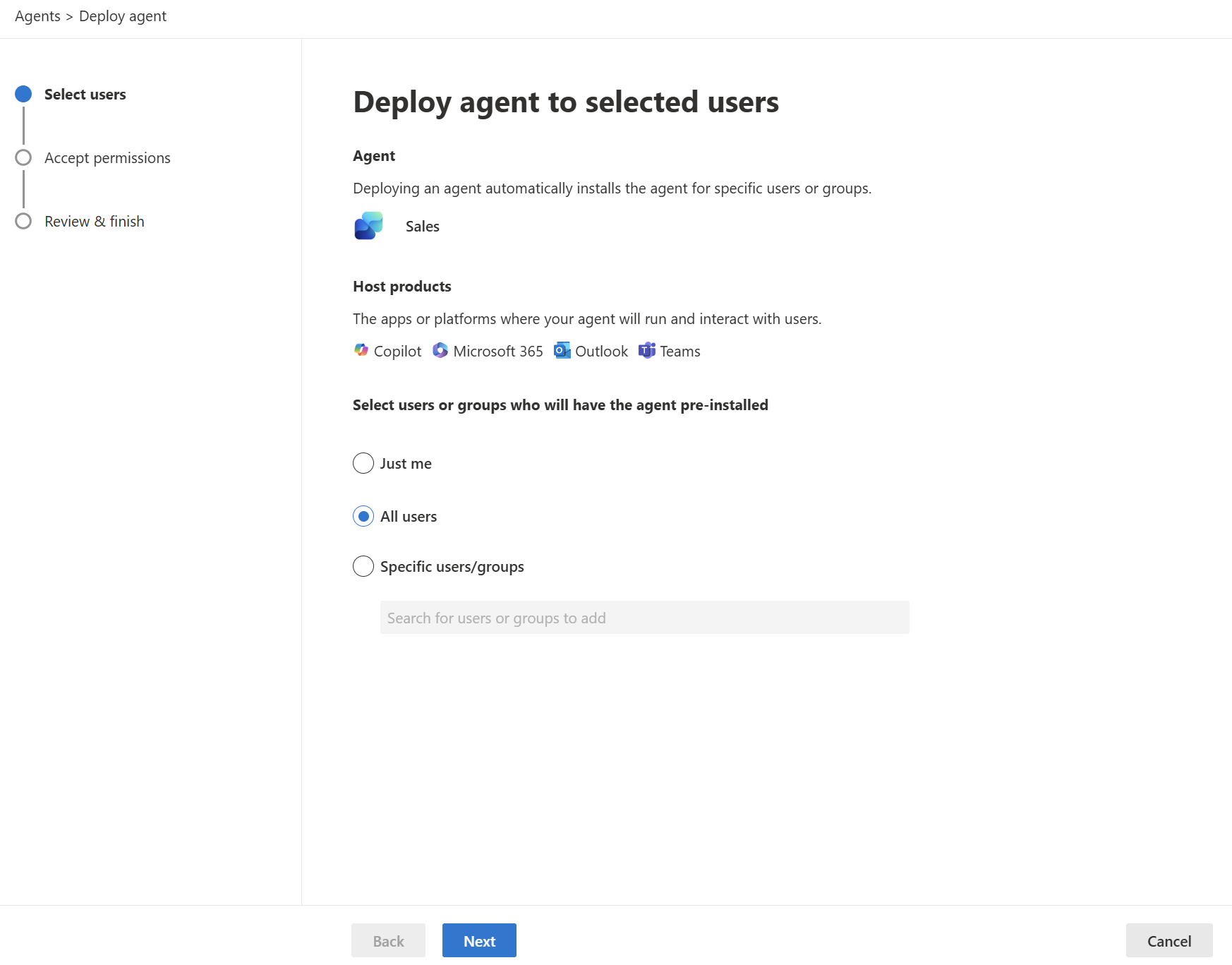
In the Accept permissions step, select Next.
In the Review & finish step, review the selected settings, and then select Finish deployment.
When the deployment is complete, select Done.
Allow up to six hours for the Sales agent to appear in users' Outlook ribbon.
Note
The app is installed in Outlook and other Microsoft 365 applications but not in Teams. You need to go to the Microsoft Teams admin center and create setup policies to install the app and assign users. For information about installing the Sales agent in Teams, go to Install and pin the Sales agent in Teams.
Important
It can take up to 48 hours for the app to appear in Outlook and other Microsoft 365 apps. If users can't see the app after 48 hours, it might be due to the public attachment handling policy. More information: Why can't users see the Sales agent in Outlook after it's deployed?
Manage the Sales agent
After you've deployed the Sales agent, you can manage its configuration by adding or removing agents, adding custom tools and knowledge, and updating users.
- In the Microsoft 365 admin center, select Agents > All agents.
- On the All agents page, select Sales.
The Sales panel opens with the following tabs:
- Overview: Displays basic information about the agent, assigned users, and channel availability.
- Connected Agents: Displays any agents that are connected to the Sales agent.
- Custom tools & knowledge: Allows you to add custom tools and knowledge to the Sales agent to enhance its capabilities.
- Users: Allows you to edit the users who can use the app.
Update the Sales agent
- In the Microsoft 365 admin center, select Agents > All agents.
- On the All agents page, select Sales.
- In the Sales panel, select Update.
User-deployed app installation
End users can install the Outlook add-in and Teams app from within Microsoft Marketplace in Outlook or Teams respectively, as long as they aren't explicitly blocked by the administrator.
If end users install the Outlook add-in, it's considered user-deployed instead of admin-deployed and will not have full feature support. User-deployed apps don't support the Sales agent banner notifications that appear within the top of new or reply emails. Also, the Sales agent is not added automatically to meeting invites. However, sellers can manually add the Sales agent to the meeting to get meeting summaries.