Note
Access to this page requires authorization. You can try signing in or changing directories.
Access to this page requires authorization. You can try changing directories.
[This article is prerelease documentation and is subject to change.]
Important
- This is a preview feature.
- Preview features aren’t meant for production use and might have restricted functionality. These features are subject to supplemental terms of use, and are available before an official release so that customers can get early access and provide feedback.
Email insights is an AI-powered feature that analyzes sales emails involving CRM contacts and surfaces key details such as summaries, sentiment, objections, and next steps.
As an administrator, you can configure how email insights are stored and shared, and control which emails are included based on sensitivity labels. These settings help ensure that only authorized users or groups can access insights, while supporting your organization’s privacy and compliance requirements.
Configure email insights sharing settings
You can control whether stored email insights contribute to the AI knowledge base and other sellers can see them. By default, this setting is turned off, meaning that email insights are not shared. If you turn on this setting, only team members with access to the associated CRM record to an email can see email insights for that email. You can also choose whether to share email insights of all users or only of specific security groups.
Prerequisites
Turn on email insights sharing
Under Environment, select Email insights (preview).
Select Share email insights.
In the Share email insights pane, turn on the toggle.
Under Who can access this feature?, choose to share email insights of all users or only of specific security groups. To do this, select one of the following options:
- No restrictions: All users' email insights are shared.
- Set access restrictions: Use security groups to decide which users' email insights are shared. You must add security groups in either of the sections to save the changes.
- Allow access: Search and add security groups that can access the feature.
- Restrict access: Search and add security groups that cannot access the feature.
Select Save.

Include email based on sensitivity labels
You can control whether emails with specific sensitivity labels are included in email insights. Emails without a sensitivity label are always included in email insights.
To include emails based on sensitivity labels:
Under Environment, select Email insights (preview).
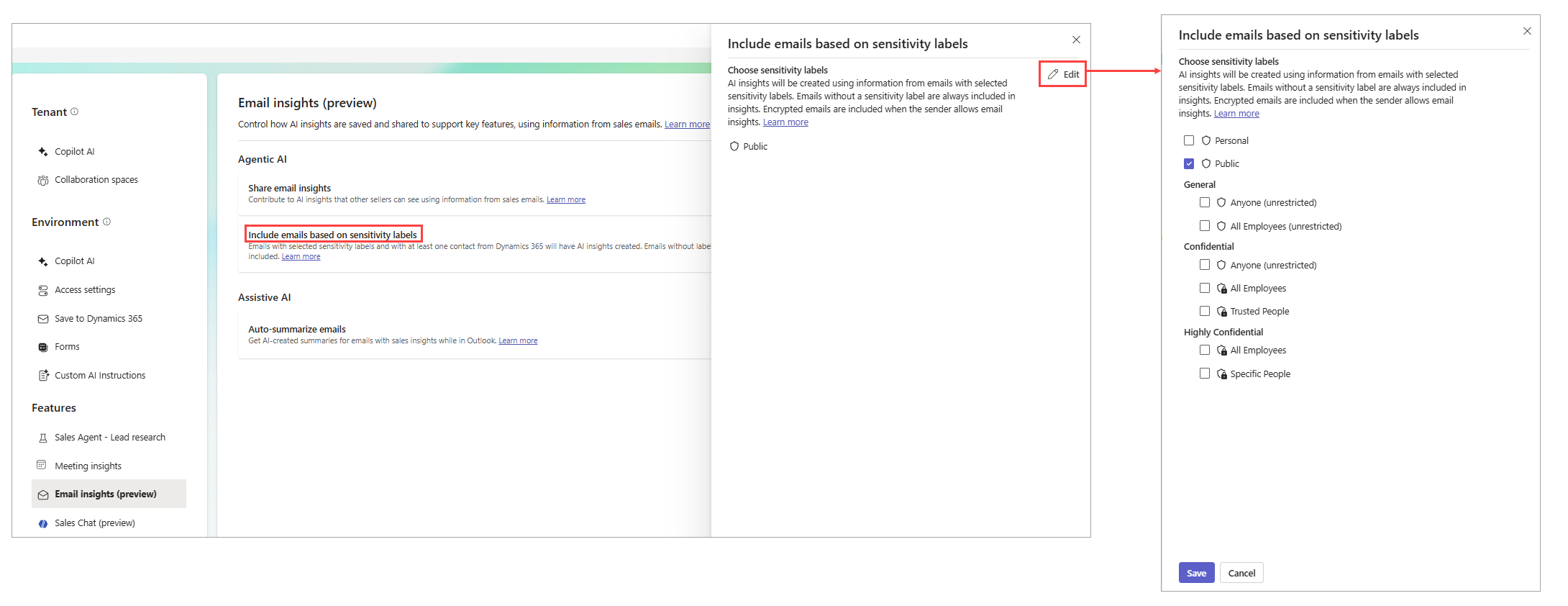
Select Include emails based on sensitivity labels.
Select Edit next to Choose Sensitivity labels.
Select the sensitivity labels you want to include in email insights.
Select Save.
Automatically summarize email in the Key email info card
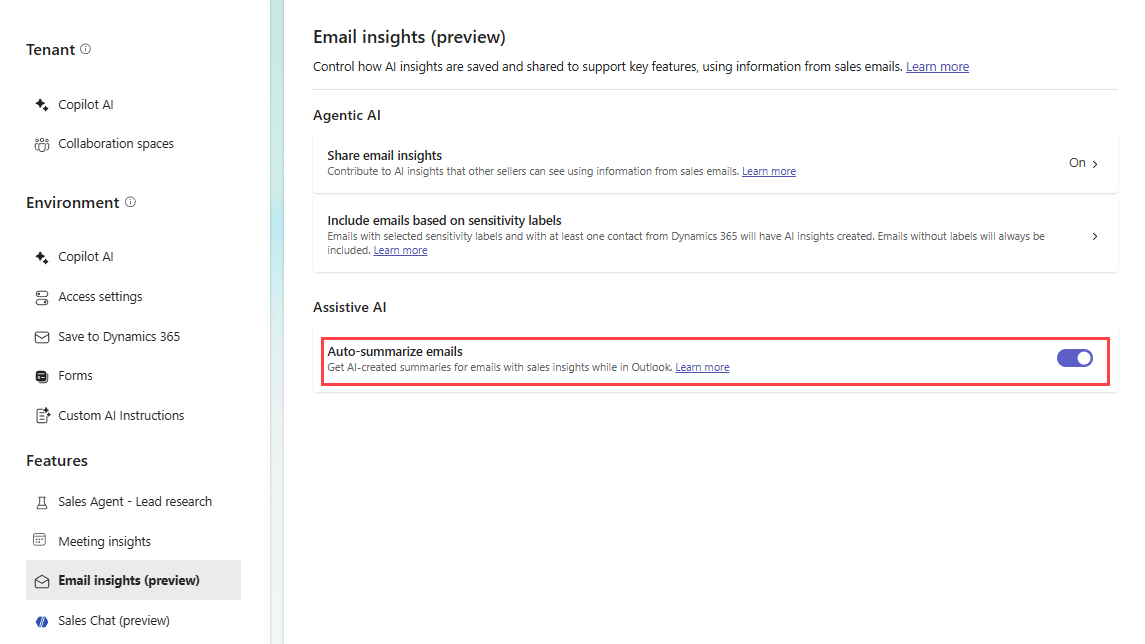
You can control whether emails are automatically summarized in the Key email info card. By default, this setting is turned on. If you turn it off, sellers must manually summarize emails in the Key email info card by selecting Summarize email.
To configure this setting:
Under Features, select Email insights (preview).
Turn on or off the Auto-summarize emails toggle to enable or disable automatic email summarization.