Note
Access to this page requires authorization. You can try signing in or changing directories.
Access to this page requires authorization. You can try changing directories.
Important
You need to be part of the Frontier preview program to get early access to Microsoft Agent 365. Frontier connects you directly with Microsoft’s latest AI innovations. Frontier previews are subject to the existing preview terms of your customer agreements. As these features are still in development, their availability and capabilities may change over time.
In this article, you learn how to use and collaborate with agents in Agent 365 to automate tasks like sales outreach and prospect management. Discover how template agents, such as the Sales Development agent, help you streamline workflows and focus on higher-value work.
Agent administrators can access several template agents designed to work with popular apps and services. Here are a few of the model context protocol (MCP) servers available as template agents in Microsoft Agent 365:
- Microsoft Word
- Microsoft Outlook Calendar
- Microsoft Outlook Mail
- Microsoft Teams
- Microsoft 365 Copilot Search
- Microsoft SharePoint
- Microsoft OneDrive
The following section shows you how to use the Sales Development agent, which is one of the available template agents.
Use the Sales Development agent
Important
The Sales Development agent is available to customers who have opted into the Microsoft 365 Targeted release program. You can choose Targeted release for your entire organization, or just for selected users. See Standard or Targeted release options in Microsoft 365 for more information about opting into the program.
The Sales Development agent automates sales outreach and prospect management within Microsoft Teams. This AI-powered agent helps sales teams scale prospecting while maintaining personalized communication.
Here's the quick demo of the Sales Development agent in action:
Deploy and create the Sales Development agent
Search for the Sales Development agent in the Teams Store or Microsoft 365 Copilot Agent store and follow the steps to deploy and create an instance of the agent.
If you're using Dynamics 365 as your CRM, integrate the Sales Development agent with your CRM to enable seamless lead management and activity tracking.
If you're not using Dynamics 365, proceed to onboard the Sales Development agent directly in Teams to configure its playbook, guidelines, product knowledge, and settings.
Integrate the Sales Development agent with your CRM
The Sales Development agent can integrate with Dynamics 365 to connect with leads, log interactions, and sync engagement actions such as emails, qualification, disqualification, and ownership transfer. This integration ensures that all outreach activities are tracked and accessible to your sales team.
Step 1: Add the agent as user in CRM and assign appropriate role
- Add the agent as a user in your CRM and assign the appropriate license to the agent user. Learn more about creating a user and assigning a license.
- Assign the appropriate role to the agent, such as "Salesperson" or a custom role with permissions to access and manage leads. Learn more about assigning a security role to a user in Power Platform admin center.
Step 2: Enable the Dataverse Model Context Protocol (MCP) server
The Sales Development agent uses the Dataverse Model Context Protocol (MCP) server to connect with Dynamics 365. Make sure the Dataverse MCP server is enabled in your environment. Learn how to enable the Dataverse MCP server in the Power Platform admin center.
Step 3: Publish the MCP server to the CRM environment
Next, publish the Dataverse MCP server to your CRM environment either by VS Code or Agent 365 CLI tool. This step allows the Sales Development agent to communicate with Dynamics 365 and perform necessary actions.
Publish using VS Code
In VS Code, create a new file named
mcp.jsonwith the following content or add the MCP server definition to your existingmcp.jsonfile:{ "servers": { "DataverseMCPServer": { "url": "https://agent365.svc.cloud.microsoft/agents/tenants/{TenantId}/servers/MCPManagement", "type": "http" } } }Learn more about configuring the mcp.json file in Visual Studio Code.
Start the MCP server.
In the confirmation dialog, select Allow and sign in with the tenant credentials.
Use the chat agent in Visual Studio Code and interact with it in a natural language to publish the MCP server to your CRM environment.
- Ask the agent what MCP servers are available and in which environments they can be published.
- From the list of available MCP servers, select the Dataverse MCP server and ask the agent to publish it to your CRM environment. For example, you can say
Publish the dataverse mcp server to environment <environment ID>. - Ensure the publish result matches your environment ID and is successful.
If there's an error during publishing or the environment ID doesn't match, you can unpublish the MCP server and try again. To unpublish, ask the agent to unpublish the MCP server from the environment. For example, Unpublish the dataverse mcp server from the environment <environment ID>.
Publish using Agent 365 CLI tool
Install the Agent 365 CLI tool.
List the available environments to publish the MCP server to by running the following command:
a365 develop-mcp list-environmentsList the available MCP servers by running the following command:
a365 develop-mcp list-serversPublish the Dataverse MCP server to your CRM environment by running the following command:
a365 develop-mcp publish --server-name <server name> --environment-id <environment ID>` --alias <alias> --display-name <display-name>Confirm the MCP server is published successfully by running the following command and checking that the MCP server is listed:
a365 develop list-available
If you want to unpublish the MCP server and try again, run the command a365 develop-mcp unpublish --server-name <server name> --environment-id <environment ID>.
Next steps after CRM integration
After the MCP server is published to your CRM environment, the Sales Development agent can now interact with Dynamics 365. You can proceed to onboard the Sales Development agent directly in Teams to configure its playbook, guidelines, product knowledge, and settings.
Note
- Chat with the agent in Teams and tell it to onboard to the CRM. For example, you can say "Riley, onboard to CRM.".
- Ensure to set the default product recommendation for the agent.
Onboard the Sales Development agent
Note
After the agent is created, it might take several hours before it's ready to go to work. The agent contacts you with a Teams chat message once it's ready to interact with you. Any interactions with the agent before it contacts you are ignored by the agent.
After the agent is created, it guides you through the configuration via Teams. You chat with the agent to configure four key areas: playbook, guidelines, product knowledge, and settings.
The agent asks you to confirm any change to the playbook and guidelines before they're applied to its configuration. You can test each change before you apply them to gain confidence in your changes.
Tip
When you make changes to the playbook and guidelines, the agent saves them as a draft that you can test before making them permanent. Your changes don't affect customer outreach until you tell the agent to apply them. When you're done suggesting and testing your playbook and guideline draft changes, make sure to tell the agent to "apply" your changes so they become permanent.
Agent configuration framework
Four key components shape your agent's behavior.
| Component | What it does | How to manage it |
|---|---|---|
| Playbook | Defines your prospect progression. | Comes with defaults; customize through Teams chat. |
| Guidelines | Sets the communication tone and defines acceptable and unacceptable behaviors when engaging with prospects. | Modify through Teams chat as needed. |
| Product knowledge | Documents and URLs that teach the agent about your products. | Upload directly in Teams chat. |
| Settings | Controls timing, disclaimers, and unsubscribe options. | Modify language through Teams chat. |
Tip
You can ask the agent anytime to see the currently configured (or draft) playbook and guidelines. Just ask!
Define the playbook
The playbook defines how a sales prospect progresses from one stage to another (outreach -> qualification -> handoff). The stages themselves are fixed, but you control the rules that move a prospect forward.
When you're prompted by the Sales Development agent, you can:
- Use the default playbook (recommended for first time setup).
- Provide your own rules. For example, "move to qualification after the prospect replies to one of your emails."
You must confirm changes to the playbook by asking the agent to apply your changes before they affect customer outreach.
Set guidelines
Guidelines define how the AI agent works and communicates at each stage. Guidelines cover things like phrasing outreach, responding to objections, and handling handoffs or escalations.
You can:
- Accept the default guidelines.
- Share sample outreach emails to help the agent learn your tone and voice.
For example, when you're given two sample outreach emails, the agent correctly identifies they represent the outreach stage, generates matching tone and behavior rules, and offers to apply similar rules to other stages like qualification or handoff.
You must confirm changes to the guidelines by asking the agent to apply your changes before they affect customer outreach.
Provide product knowledge
Provide content that helps the agent represent your offering accurately.
What you can share with the agent:
- Product or service documentation (.docx, .pdf, .pptx, .txt).
- SharePoint or OneDrive-hosted files.
- Public web pages, like your product pages or case studies.
The agent supports URL crawling up to two link levels deep (maximum of 100 links per level).
After you upload a file, the agent provides status feedback in Teams chat to confirm whether it successfully ingested the content or encountered any issues.
- Success: "Got it. I'll treat this page as product knowledge."
- Can't process: "I can't view this file directly. Could you share a text summary or document version instead?"
Caution
Changes to knowledge take effect immediately. For example, as soon as a document is uploaded, the agent uses it for customer outreach. You can't test changes to knowledge before they're applied.
Warning
The content you share with an agent, such as files, chat history, or emails, might be summarized or included in the agent's responses to other users, even those individuals who don't originally have access to that content. This risk applies regardless of sensitivity labels or permissions placed on the content. For more information, go to Understand how content is shared with agents in Microsoft 365
Configure email and outreach settings
Customize how the Sales Development agent interacts with prospects through email. You can adjust:
- Email cadence: Number and timing of follow-ups.
- Signature: How the agent signs off messages.
- Unsubscribe text: Standard opt-out language.
You can use the default settings and change them later.
Important
Complete the steps in the order described in this article. Type default at every step to demonstrate and customize later during coaching.
Test the Sales Development agent in chat
Chat with the agent in a Teams chat to test the agent, give feedback, and approve the behavior in a low-risk environment. Provide learning materials so that the agent can learn from them.
During testing you can provide feedback to the agent through chat messages. For example, ask the agent about what makes a good initial outreach email. After the agent replies, provide feedback about the tone, length of the email, and so on.
To further test the agent, you can do the following:
- If you've integrated the agent with your CRM, tell the agent run simulations with CRM leads. For example, you can say "Run a simulation with 10 leads from CRM and show me the outreach emails you'd send." The agent runs the simulation and shares the generated outreach emails in chat for your review.
- Provide a list of prospects as a CSV or Excel file to the agent and ask it to generate outreach emails for those prospects in chat. For example, you can say "Here's a list of prospects in this file. Generate outreach emails for them." The agent generates sample outreach emails for each prospect and shares them in chat for your review.
When you're confident that the agent is ready to work on real prospects, proceed to the next step.
Upload your prospect list
Provide your prospect list to the agent for validation. The list can be a CSV or Excel file with one row per contact and column headers included. The required fields are:
| Field | Description |
|---|---|
| Prospect's email address. | |
| Company Name | The organization the prospect works for. |
| Product | What you're promoting (especially important if you're using the same agent to cover multiple product lines or campaigns). |
| First name | For personalization. |
If there are file issues, the agent tells you what's missing:
- "No column named 'company name' found—please add before continuing."
- "This file is empty or unreadable." (the agent might not have permissions)
- "Some rows are missing key details. 92 out of 100 prospects are ready. I'll skip the remaining eight missing email or product data."
The agent handles issues such as:
- Rows missing critical fields are skipped (you can observe which ones).
- Malformed data, like invalid email formats, are ignored.
Run a test
Once your list is validated, the agent begins generating test email content in Teams chat:
- Creates sample outreach emails using your configuration.
- Applies your tone and guidelines.
- Provides each draft in Teams for review.
For example, a generated test email references the company, highlights the value proposition, and ends with a clear call to action—aligning with the structure of a well-performing outreach sequence.
Note
Test emails shown in chat have unsubscribe links. The links in chat are placeholders and don't function. When emails are sent to customers, the unsubscribe placeholders are replaced with functional unsubscribe links.
Role-play real-world scenarios
To verify performance, test real-world cases:
- Pricing questions: "How much does this cost?". The agent should acknowledge the question and either provide high-level pricing guidance (if configured) or escalate to a human for detailed quotes, respecting your guardrails.
- Competitive comparisons: "How are you better than [competitor]?". The agent should highlight your differentiators without disparaging competitors, staying factual and focused on value.
- Lack of interest: "I'm not interested right now." The agent should acknowledge the response, offer to reconnect at a better time, and mark the conversation appropriately.
When testing is complete, type I'm done with testing.
When you type this phrase, the agent prepares for live outreach.
Note
The agent doesn't automatically detect when testing is complete. You need to tell it.
Launch live outreach with the agent
You can provide the list of prospects in either of the following ways and ask for the go-live plan.
- As a CSV or an Excel file to the agent
- By connecting the agent to your CRM system, in which case the agent can pull the prospect list directly from the CRM.
After you review and approve the plan, the agent starts working on the prospects and sends outreach emails to them. The agent also informs you of its progress and proactively escalates if it finds any issue.
You can also ask the agent about the status. For example, you can enter the following prompt: Give me a summary of the leads you've been working on.
Once the agent confirms, it's ready to go:
- Upload your final, approved prospect list.
- Confirm your playbooks, guidelines, and settings are finalized.
- Type Go live.
What happens when you go live?
- The agent starts sending emails following your approved cadence.
- It tracks replies and automatically classifies outcomes.
- All guardrails and unsubscribe rules are respected.
- You get progress updates via Teams messages.
While it's live, the agent provides summary updates in Teams:
- Total prospects contacted.
- Replies received.
- Leads either handed off or escalated.
You can request real-time updates by asking:
- Show me this week's outreach summary.
- Which prospects haven't replied yet?
Note
When you go live, emails start sending immediately. The agent currently doesn't have configuration to prevent it from sending emails on the weekend, on holidays, or after work hours.
CRM actions during live outreach
After integration, any new leads created in the CRM environment are automatically available for outreach by the agent. Every correspondence to and from the agent and prospects is saved in CRM, so you can track each prospect's engagement history.
When the agent determines that a prospect is interested based on their email response, it updates the lead status in CRM to "qualified" and assigns the lead to its manager (the agent's creator) for follow-up. When the agent determines that a prospect isn't interested, it updates the lead status in CRM to "disqualified."
You can tell the agent to stop CRM-based outreach at any time, which prevents it from processing new CRM leads. However, the agent continues working with prospects it already contacted before the stop command was issued.
Scale the Sales Development agent across teams
Once your agent is validated, you can scale it across product lines, territories (English speaking and US only), or teams. Each instance can have its own configuration while still following organization-wide compliance rules.
Best practices for scaling:
- Start small; test with fewer than 25 prospects before expanding.
- Review engagement summaries and tweak your configuration regularly.
- Keep playbooks and guidelines current as products and markets evolve.
- Create additional instances for new products, regions, or campaigns.
- Maintain separate CSV files for each outreach wave.
- Review summaries weekly to ensure guardrails are followed and tone remains consistent.
Management capabilities:
- Pause outreach: Immediately stops all active engagement.
- Reassign leads: Forward hot leads or escalations to specific sellers (if defined in your prospect file).
- Handle unsubscribes: Automatically records opt-outs and ensures no further contact.
When an outreach wave is completed, you get a summary message with the full status breakdown (sent, pending response, and unsubscribed).
Report on prospect status with CSV export
As a Sales manager, you often need to review and reconcile large volumes of prospect data for compliance, reporting, and performance tracking. The CSV export feature makes this easier by allowing managers to extract, analyze, and share prospect records in a structured format.
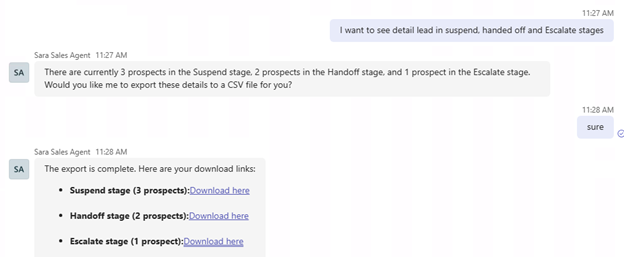
When you request prospect lists in terminal stages, the Sales Development agent offers a CSV export instead of showing a large result set in chat.
Supported terminal stages:
- Handoff
- Escalate
- Disqualify
- Suspend
- Unsubscribe
- Unresponsive
How it works:
- Each CSV file contains prospects from one stage only.
- The file includes key fields such as prospect email and the timestamp when the prospect entered that stage.
- The agent provides the CSV as a downloadable file.
This helps managers:
- Reconcile records with consent systems in bulk
- Analyze trends by campaign or segment
- Share data quickly with internal teams
Example queries:
- "Get me unsubscribed prospects this month in CSV file"
- "Give me all opt outs"
- "Export all escalated leads to CSV"
Multilingual capabilities
Sales managers in global markets often need to engage prospects in multiple languages without creating separate regional teams. Multilingual capabilities help you scale outreach into new geographies while maintaining message quality and local relevance.
The Sales Development agent can generate outreach and replies in the following 22 languages:
- Arabic
- Chinese (Simplified)
- Czech
- Danish
- Dutch
- English
- Finnish
- French
- German
- Greek
- Hebrew
- Italian
- Japanese
- Korean
- Norwegian (Bokmal)
- Polish
- Portuguese (Brazil)
- Russian
- Spanish
- Swedish
- Thai
- Turkish
Using a single configuration, the agent adapts message tone and structure for each language and market, including formality, email structure, and call-to-action style. It can also continue conversations when a prospect switches languages mid-thread.
Configure language targeting in prospect data
When you upload a prospect list, you can include the following optional columns:
| Field | Purpose |
|---|---|
| Language | Sets the target language for each prospect. |
| Country/Region | Further tailors messaging to regional business norms within the same language (for example, Spanish for Spain versus Mexico, or French for France versus Canada). |
If you don't provide a Language value, the agent uses the default language configured in agent settings.
Search and testing behavior
For personalization, the Sales Development agent automatically searches in both English and the prospect's target language.
Before live deployment, you can run simulation-based conversation testing in any supported language to validate behavior and quality.
Sales Development agent email conversation patterns
Sales Development agent maintains email conversation continuity by tracking thread context rather than relying only on the original recipient address. This model allows Sales Development agent to continue a sales conversation correctly when prospects forward emails, add teammates, or have colleagues reply on their behalf.
This behavior matters in real buying cycles, where multiple stakeholders participate in one thread at different times. Sales Development agent preserves participant context, detects qualified interest, and routes handoff messages to the right people.
Conversation continuity model
Prospect engagement often shifts from a one-to-one exchange to multi-party coordination. In practice, prospects may forward messages internally, add colleagues to replies, or let someone else respond directly.
Sales Development agent maintains continuity by following the email thread. If thread markers are preserved, Sales Development agent treats the new message as part of the same conversation, even when the sender changes from the original prospect to another contact.
Contact identity and name personalization
Sales Development agent selects how to address contacts based on message type and available identity signals.
| Email type | Name source |
|---|---|
| Initial outreach | Prospect record from CRM or uploaded file (CSV or Excel) |
| Follow-up email | Same stored prospect record used for outreach |
| Reply email | Incoming message content, including signature, to identify who actually wrote the reply |
This approach ensures Sales Development agent addresses the current responder accurately, including cases where the responder was not the original prospect in the system.
Engagement pattern concepts
Forward-to-colleague response with original prospect retained
In this pattern, the original prospect forwards Sales Development agent's message internally. A colleague then replies to Sales Development agent and keeps the original prospect copied.
Sales Development agent recognizes the reply as part of the original thread, preserves participants already in loop, detects qualified interest (for example, a request to schedule a call), and initiates handoff by adding the seller to the To line. The resulting handoff reaches the colleague who replied, the original prospect, and the seller.
Prospect reply with colleague added in CC
In this pattern, the original prospect replies directly to Sales Development agent and adds a colleague in CC while expressing interest.
Sales Development agent treats this as the same ongoing conversation, preserves the added colleague in CC, and performs handoff when intent is qualified. The response is addressed to the replying prospect, includes the seller for handoff, and keeps the added colleague in loop.
Original prospect out of loop after colleague direct reply
In this pattern, the original prospect forwards internally, and the colleague replies directly to Sales Development agent without including the original prospect.
Sales Development agent still recognizes thread continuity but respects current recipient scope. It identifies the replying colleague's name from the incoming message (including signature), addresses that person directly, and sends handoff only to active participants in the reply. The original prospect remains out of loop unless reintroduced in-thread.
Handoff behavior and current limitations
Sales Development agent processes each incoming message as it arrives. This supports fast response, but it does not wait for internal side discussions to complete before replying.
Two practical limitations follow from that design:
- Immediate response in multi-party replies: If a prospect adds a colleague and asks that colleague a question, Sales Development agent responds right away when qualified interest is detected, rather than waiting for the colleague's input.
- Finality after handoff and escalation: Once Sales Development agent hands off to a seller, Sales Development agent exits the thread. Later replies in that thread are handled by the seller, and Sales Development agent does not re-enter the conversation.
These boundaries keep ownership clear after qualification while preserving rapid response behavior during automated engagement.
Supported and unsupported content types
When you interact with the Sales Development agent in Teams, here's what works and what doesn't:
Supported content:
- Structured business data (CSV or Excel files).
- Text-based documents and decks (.docx, .pptx, .pdf, .txt).
- Public or internal web links (nonmedia content).
- Conversations in 1:1 Teams chats.
Unsupported content:
- Video or audio files.
- Image-based content (.jpg, .png).
- Group chats or Teams channels.
- Outlook threads or forwarded emails.
- Personal, confidential, or unrelated information not relevant to outreach configuration.
If you share unsupported content, such as a video file, the agent prompts: "I can't access video files. Please share a written summary or document."
Sales Development agent permissions
The Sales Development agent makes use of the following permissions to perform its work.
Agent 365 Tools
- McpServers.Mail.All: Allows the application to access the Mail MCP server.
- McpServers.OneDriveSharepoint.All: Allows the application to access the OneDrive and SharePoint MCP server.
- McpServers.Word.All: Allows the application to access the Word MCP server.
- McpServers.Excel.All: Allows the application to access the Excel MCP server.
- McpServers.Knowledge.All: Allows the application to access the Knowledge MCP server.
- McpServers.Teams.All: Allows the application to access the Teams MCP server.
- McpServers.Dataverse.All: Allows the application to access the Dataverse MCP server.
- McpServers.Sales.All: Allows the application to access the Sales MCP server.
- McpServersMetadata.Read.All: Allows the application to read metadata of all MCP servers.
- McpServers.SharepointLists.All: Allows the application to access the SharePoint Lists MCP server.
- McpServers.Me.All: Allows the application to access the Me MCP server.
- McpServers.CopilotMCP.All: Allows the application to access the Copilot MCP server.
Microsoft Graph
- ChannelMessage.Read.All: Read all channel messages.
- Chat.Read: Read user chat messages.
- ChatMessage.Send: Send user chat messages.
- Files.ReadWrite.All: Have full access to all files user can access.
- Mail.ReadWrite.Shared: Read and write mail in shared folders.
- Mail.Send: Send mail.
- Sites.ReadWrite.All: Have full control of all site collections.
- User.Read.All: Read all users' full profiles.
- Chat.Create: Create chats.
- Presence.ReadWrite: Read and write your presence information.
Power Platform Environment Service
- user_impersonation: Allows users to access all APIs.
Dataverse
- user_impersonation: Allows the application to access Common Data Service.
Power Platform API
- Connectivity.Connections.Read: Read connections.
- CopilotStudio.Copilots.Invoke: Invoke Copilot Studio Copilots.
Messaging Bot API Application
- AgentData.ReadWrite: Allows read/write of agent data.
Cross-geo data flows and EU compliance
The Sales Development agent is designed to use AI processing components in your selected geographic region.
When in-region processing capacity or required service components are unavailable, certain data associated with the service might be processed outside your selected geographic region.
Important
For customers within the EU Data Boundary, this consent doesn't modify, waive, or otherwise affect existing EU Data Boundary commitments. Those commitments remain in effect.
Installation flow transparency notice
By installing the Sales Development agent, you acknowledge and agree that, when in-region processing capacity or required service components are unavailable, certain data associated with the service might be processed outside your selected geographic region.
If you don't consent to potential processing outside your selected geographic region:
- Don't install the Sales Development agent.
- If already installed, uninstall the Sales Development agent to revoke consent.
Current limitations of the Sales Development agent
The following table outlines current limitations of the Sales Development agent in Agent 365:
| Area | How it works |
|---|---|
| Teams chat | Only 1:1 chats between the agent's creator and the agent are supported. Other people can't chat with the agent at this time. |
| Communication channels | The agent only interacts with users via email and Teams chats. Conversations in Teams Channels, comments in documents, Teams meetings, and other channels aren't supported. |
| Email threads | The agent only replies to email threads that it starts. The agent ignores email sent to it unless it has started the thread. |
| Renaming | Once deployed, names of the agent are permanent. |
| Data ingestion | Supports SharePoint, OneDrive, and web links, but not recursive crawling or media files. |
| Analytics | No built-in visual reporting dashboards; progress shared via Teams chat. |
| Human oversight | Once launched, runs autonomously until stopped. |
| Testing scope | Validation limited to Teams 1:1 chat. |
| Automatic progression | Doesn't auto switch from testing to pilot. |
| Email sending | Sends emails at all hours, including weekends. |
Report concerns about AI-generated content
If you come across any objectionable AI-generated content, please reach out to us at salesagentteam@microsoft.com.