Note
Access to this page requires authorization. You can try signing in or changing directories.
Access to this page requires authorization. You can try changing directories.
Important
- This is a preview feature.
- Preview features aren't meant for production use and might have restricted functionality. These features are subject to supplemental terms of use, and are available before an official release so that customers can get early access and provide feedback.
Add Work IQ MCP to your agents to enhance what they can understand and do. Work IQ is the intelligence layer that grounds Microsoft 365 Copilot and your agents in real-time, shared context across your organization. It enables personalized search, advanced reasoning, and deeper semantic understanding by connecting signals across the Microsoft 365 ecosystem and your business systems. Work IQ applies an extensive understanding of your work to help Microsoft 365 Copilot and your agents deliver insights, recommendations, and actions that closely align with the reality of your business.
Work IQ is built on three tightly integrated layers: Data, Memory, and Inference. These layers work together to give Microsoft 365 Copilot and your agents continuous, contextual understanding of work.
- Data unifies signals from files, emails, meetings, chats, and business systems across Microsoft 365 to capture how work happens across the organization.
- Memory builds persistent understanding of how people and teams work, enabling Agent 365–managed agents to stay aligned to priorities and remain consistent across tasks, apps, and sessions.
- Inference brings together models, skills, and tools so agents can reason and take action by using Work IQ MCP tools, while the Agent 365 control plane ensures those actions remain observable, governed, and compliant. Copilot and your agents don't just understand your work, they actively move it forward.
You can extend your agents with Work IQ MCP tools by using one of these clients:
- Get started in Microsoft Copilot Studio for a low-code experience.
- Get started in Microsoft Foundry for a pro-code experience.
- Connect to MCP Management Server in Visual Studio Code for direct API integration with the MCP Management Server.
- Set up Work IQ MCP Servers for coding agents for a pro-code experience.
Important
You must have a Microsoft 365 Copilot license to use Work IQ MCP servers. For more information about licensing and how to set it up, see Microsoft 365 Copilot license.
Work IQ MCP key features
Work IQ MCP servers are secure, scalable, and compliant by design. Key features include:
- Centralized governance: Admins manage MCP servers in the Microsoft 365 admin center, so they can allow or block servers across the organization.
- Enterprise‑grade security: Scoped permissions, policy enforcement, and runtime observability ensure agents operate within compliance boundaries.
- Continuous evaluation: All Work IQ MCP servers undergo rigorous testing across diverse datasets and models to ensure production-grade robustness and consistent performance. They measure:
- Accuracy
- Latency
- Reliability
- Integrated developer experience: Tooling infrastructure is built into Microsoft Agent 365 SDK and CLI, Microsoft Foundry, and Copilot Studio.
Agent 365 tools catalog
Agent 365 offers a rich catalog of Work IQ and other MCP servers that are standardized and optimized for real-world scenarios. These servers expose granular, auditable tools for productivity and business workflows. These servers enable agents to perform deterministic actions across Microsoft 365 and more, ensuring consistency and security.
Note
- Existing connections that use previous versions of Microsoft MCP servers, such as Microsoft Teams MCP server, remain supported.
- For all new connections, use the latest Work IQ MCP servers, such as Work IQ Teams.
Highlights include:
- Work IQ Copilot: Chat with Microsoft 365 Copilot, start a conversation, continue multi‑turn threads, and ground responses with files.
- Work IQ Calendar: Create, list, update, and delete events; accept and decline; resolve conflicts.
- Work IQ Mail: Create, update, and delete messages; reply and reply all; semantic search.
- Work IQ SharePoint: Upload files; get metadata; search; manage lists.
- Work IQ OneDrive: Manage files and folders in user's personal OneDrive.
- Work IQ Teams: Create, update, and delete chat; add members; post messages; channel operations.
- Work IQ User: Get manager, direct reports, and profile info; search users.
- Work IQ Word: Create and read documents; add comments; reply to comments.
- Dataverse and Dynamics 365: CRUD operations and domain-specific actions.
This curated catalog ensures agents have access to enterprise-ready tools that are secure, standardized, and optimized for real-world scenarios.
Security and compliance
Agent 365 gives IT administrators centralized control to manage which Work IQ MCP servers and other MCP servers are available to agents. This control ensures that every tool call follows organizational policies. Key security and compliance features include:
- Admin control: Activate or block servers in Microsoft 365 admin center.
- Scoped access: Grant only the permissions agents need.
- Observability: Provide full tracing of tool calls for audits and troubleshooting.
- Policy enforcement: Enforce rate limits, payload checks, and security scans at runtime.
Governance using Microsoft 365 admin center
IT admins get a unified view of all Work IQ tools and other MCP servers through Microsoft 365 admin center. This centralized perspective lets them oversee, manage, and enforce governance across the entire MCP landscape. If an MCP server is blocked, it's blocked for every user and every agent. Permissions always take priority over configuration, so IT admins have ultimate authority to maintain security and compliance.
Each MCP server corresponds to a permission on the Agent 365 application. When an agent is onboarded, the admin grants the required permissions. The agent gains access to the MCP server only after this consent, ensuring that every interaction is secure and fully authorized.
IT admins can manage MCP servers directly in the Microsoft 365 admin center under the Agents and Tools section to:
- View all activated Work IQ MCP servers (Work IQ Mail, Work IQ Calendar, Work IQ Teams, and any custom servers).
- Allow or block specific servers based on organizational policies.
- Apply scoped permissions so agents only access what they need.
Note
The ability to allow or disallow tooling and MCP servers in Microsoft 365 admin center might not be available in your region yet.
The Agent 365 control plane ensures that only approved tools are available to agents in Microsoft Copilot Studio, reducing risk and aligning with compliance requirements.
Observability using Microsoft Defender
Operational transparency is built in. Admins can go to the Microsoft Defender portal, go to Advanced Hunting, and run queries to:
- Inspect trace logs of tool calls made by agents.
- Monitor execution details, including which tools were invoked, parameters passed, and outcomes.
- Detect anomalies or unauthorized usage patterns for proactive security.
Agent 365 provides a secure, centralized gateway for extending AI agents with enterprise-ready tools through default MCP servers for Microsoft 365 services and custom tooling servers for specialized workflows so developers can build powerful, compliant agents without sacrificing flexibility.
By using centralized governance in the Microsoft 365 admin center and full observability by using Microsoft Defender, organizations maintain control and transparency over every tool call. Integrated into Copilot Studio for low-code builders and Azure AI Foundry for pro-code developers, Agent 365 delivers a consistent, developer-friendly experience backed by rigorous evaluation for accuracy, latency, and reliability.
Agent 365 combines extensibility, security, and compliance to help organizations confidently scale AI agents across productivity and business systems.

Developer experience
Agent 365 is designed for developers first, offering a seamless experience across pro-code and low-code environments. Whether you're building in Copilot Studio or using the Agent 365 SDK, integration with MCP servers is straightforward and consistent.
Developer benefits include:
- Discover tools through the Agent 365 SDK or Copilot Studio.
- Integrate MCP servers into agent workflows by using declarative manifests or SDK calls.
- Authenticate by using agentic user identity or On-Behalf-Of (OBO) delegated user permissions. For details on authentication flows, see Agent 365 Identity.
- Test and validate with tracing enabled for transparency.
Learn more in Extend using the SDK.
Add Work IQ tools to your agents
Get started by learning what steps to take to extend your agents with Work IQ tools in Copilot Studio or Microsoft Foundry.
Prerequisites
Before you connect your agent to Work IQ, make sure you have a Microsoft 365 Copilot license.
Get started in Copilot Studio
Extend your agents with a Work IQ MCP server. These tools connect your agent to the Work IQ service, so it can access real-time work insights and context.
You can connect your agent to multiple Work IQ MCP servers in Copilot Studio. The following steps guide you through the process of adding the Work IQ Mail MCP server to your agent. This server provides your agent with insights and context from your emails, so it can understand and act on email content in a more informed way.
Try the low-code experience in Microsoft Copilot Studio by using the Extend your agents with a Work IQ MCP server tool. These tools connect your agent to the Work IQ service, enabling it to access real-time work insights and context.
You can connect your agent to multiple Work IQ tools in Copilot Studio. The following steps guide you through the process of adding the Work IQ Mail MCP server tool to your agent. This tool provides your agent with insights and context from your emails, so it can understand and act on email content in a more informed way.
Sign in to Copilot Studio and select or create your agent.
Select the Tools tab and select Add Tool.

On the Add tool page, select Model Context Protocol to see the Work IQ MCPs and other MCP servers.
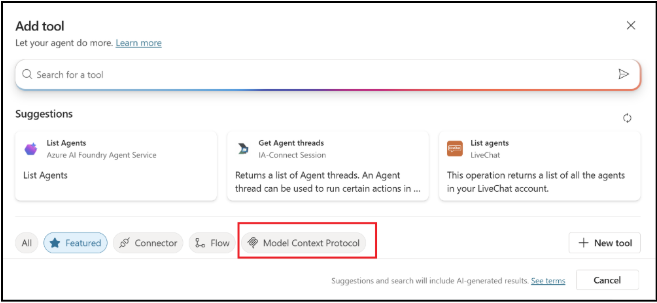
Type mail in the search box.

Select Work IQ Mail and expand the connection dropdown to select Create New Connection.
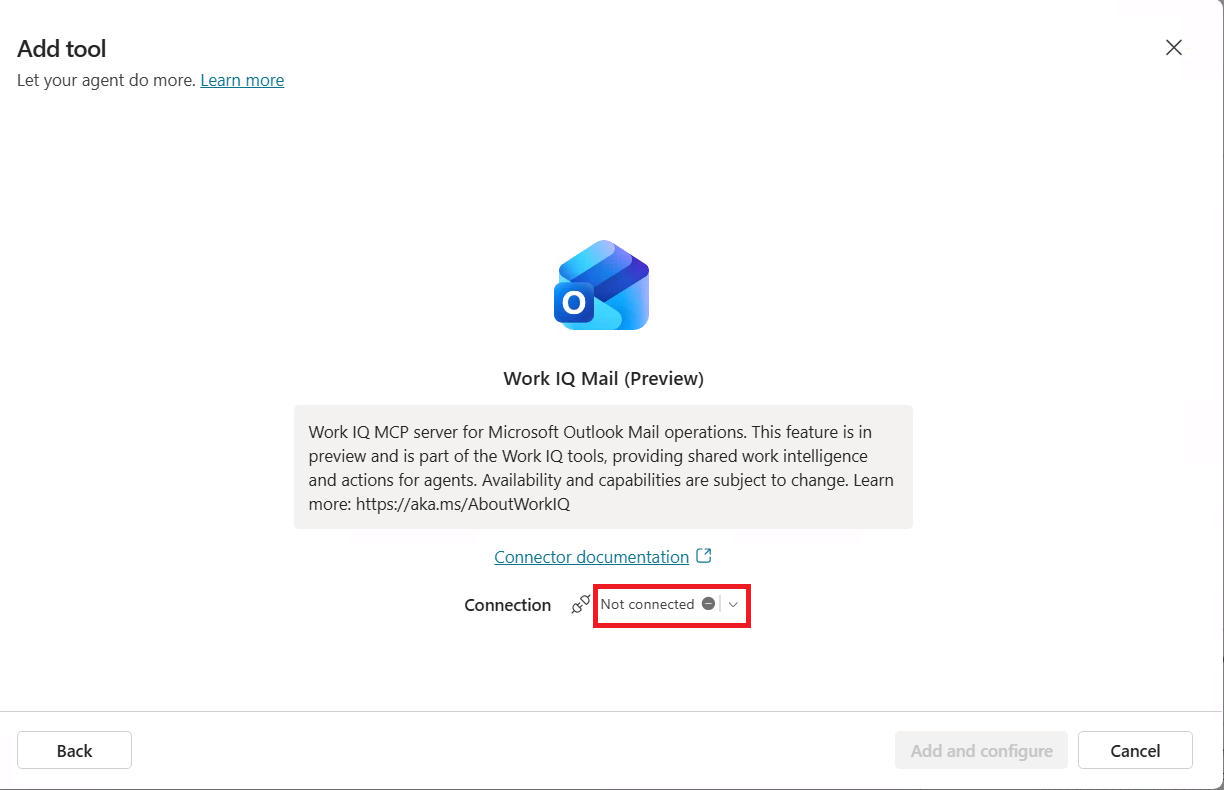
Select Create.
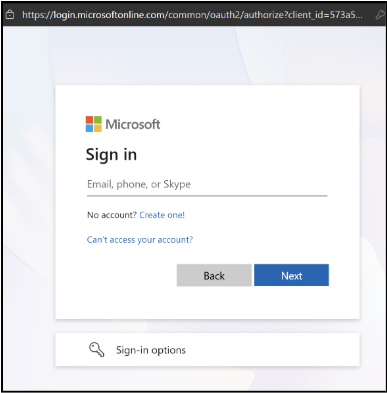
Provide your credentials and complete the sign-in process.
Test the agent by using Test Copilot. Select Test and then type a prompt that requires email context to see the Work IQ Mail tool in action. For example, you can use the following prompt: Send an email to <your test tenant email address> and ask how the hands-on lab is going.

Select Enter.
When asked to allow the Work IQ tool to connect and use services, select Allow. After a few moments, you receive an email.
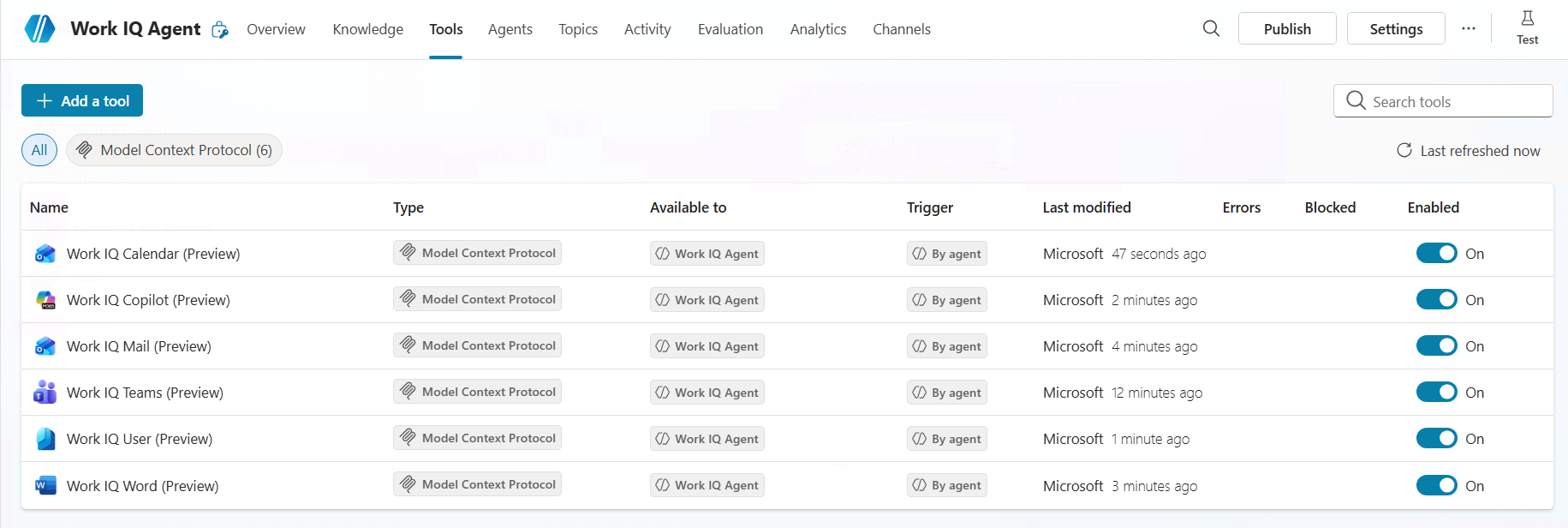
The agent can now read the email content, understand the context, and respond accordingly. You can repeat these steps to connect your agent to other Work IQ MCP tools, such as Work IQ Calendar or Work IQ Teams, to further enhance its capabilities with insights from meetings, chats, and more.
Get started in Microsoft Foundry
Try the pro-code experience in Microsoft Foundry by adding an MCP server designed to assist with calendar management. To add an MCP server in Microsoft Foundry, follow these steps:
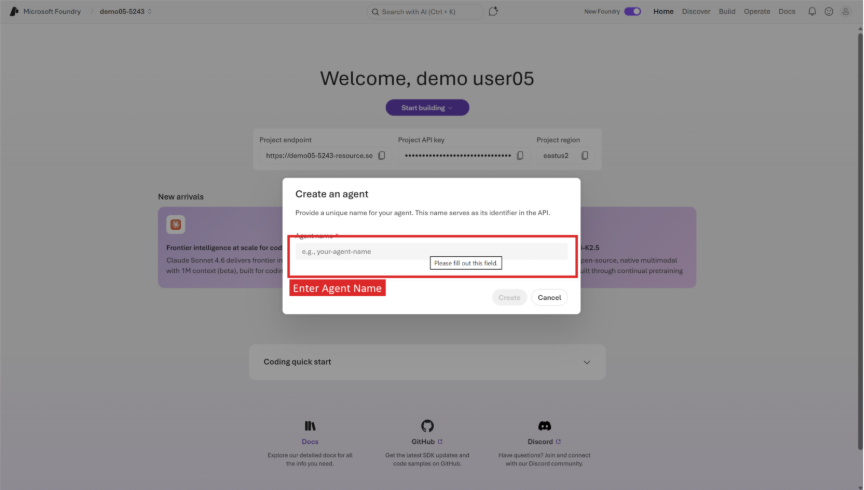
Create a new agent by going to ai.azure.com and opening your project. Select Start Building, enter an agent name (for example, A365), and select Create.
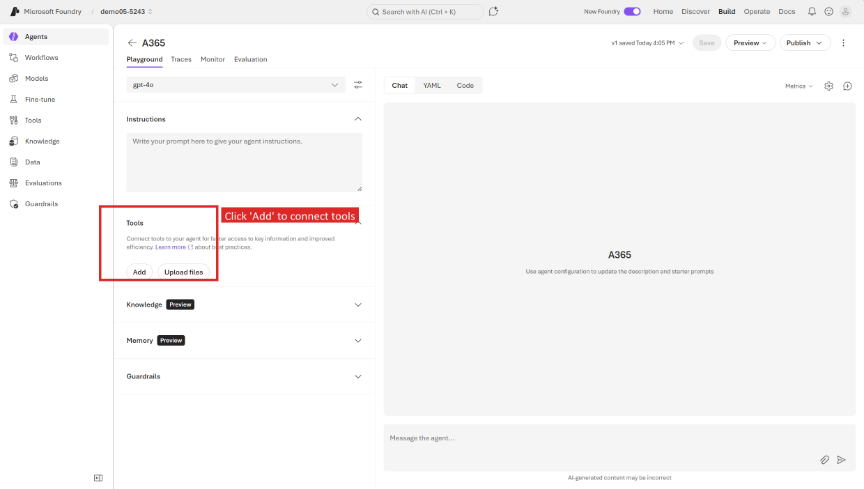
Configure your agent on the configuration page by selecting a model (for example, GPT-4o), adding instructions, and then selecting Add under the Tools section to connect MCP server tools.
Browse through the tool catalog and filter by Provider > Microsoft to see available MCP server tools. Scroll down to find the Microsoft 365 Frontier tools (User Profile, Outlook Calendar, Copilot Search).

Connect a tool by selecting one (for example, Microsoft Outlook Calendar). The connection dialog shows the MCP server endpoint and authentication settings. Don't change the default values and select Connect.

Test your agent in the Chat Playground by typing a prompt like, Schedule a meeting with John for tomorrow at 4 PM to start an agent task. The agent calls the connected tools to look up the user and create the meeting. Approve each tool call when prompted.

The agent completes the task and returns a summary with meeting details, Teams link, and dial-in information that you can review.

Extend your agents with available or custom MCP servers
Agent 365 provides two ways to extend your agents with secure, standardized tools:
- Use the Default IQ MCP servers that Microsoft provides for common productivity and business workflows.
- Build and onboard your own custom MCP servers for specialized or line-of-business scenarios.
Both approaches use the tooling gateway for governance, policy enforcement, and observability, so every tool call is secure and compliant.
Default IQ MCP servers
Use Microsoft-built Work IQ MCP servers that are pre-certified and deeply integrated with Microsoft 365 services. These servers cover core productivity tools like Outlook, Teams, SharePoint, OneDrive, Word, and business tools from Dataverse, Sales, and Service. By using these servers, you can enable rich workflows without writing a single line of code.
You can see and access these ready-made servers in both development experiences:
- Copilot Studio for low-code developers, enabling quick integration into conversational flows and business processes.

- Azure AI Foundry for pro-code developers, providing full SDK support and advanced orchestration capabilities.

Build scenario-focused custom MCP servers with the Microsoft MCP Management Server
For organizations that need specialized workflows or industry-specific tools, Agent 365 provides the Microsoft MCP Management Server. By using this API-first build surface, you can create and manage custom MCP servers without building a UI or writing complex code.
The MCP Management Server is an MCP server that exposes tools for creating, updating, and deleting MCP servers and tools. By using the tooling gateway, you can quickly stand up scenario-focused servers by using connectors, APIs, and custom logic.
Core tools include:
- CreateMCPServer: Create a new MCP server instance.
- CreateToolWithConnector: Add connectors, Graph APIs, REST endpoints, or Dataverse custom APIs as tools.
- UpdateTool: Modify existing tools in your MCP server.
- DeleteMCPServer: Remove an MCP server when no longer needed.
- PublishMCPServer: Publish an MCP server.
The MCP Management Server uses an API-first design, so it doesn't require a user interface. Everything is fully API-driven for automation and integration. As a developer, you can work directly in Visual Studio Code or within agent frameworks, composing workflows through API calls or conversational agent interactions. This approach enables teams to build, configure, and manage custom MCP servers programmatically with precision and flexibility.
MCP Management Server key capabilities
Build scenario-focused MCP servers by:
- Taking advantage of a rich ecosystem of connectors and APIs to integrate virtually any system into your agent workflows.
- 1,500+ connectors (for example, ServiceNow, JIRA)
- Microsoft Graph APIs (Mail, Calendar, Teams)
- Dataverse custom APIs
- REST APIs for any HTTP endpoint
- Enabling ISVs and customers. The platform supports multiple roles in the ecosystem, ensuring innovation and extensibility at scale.
- ISVs can build, publish, and certify their own servers.
- Customers can create line-of-business MCP servers.
Connect to MCP Management Server in Visual Studio Code
Note
Currently, only tenant administrators can publish custom MCP servers within a tenant. The product team is actively working to enable this capability for developers.
- Download Visual Studio Code. If you don't have it installed, download it from https://code.visualstudio.com/download.
- Launch Visual Studio Code.
- Open a command prompt by pressing Ctrl + Shift + P on Windows or Linux, or Cmd + Shift + P on macOS.
- Search for Add Server.
- Select MCP: Add Server from the list.
- When prompted, select http as the server type.
- Enter the following URL as the server URL, replacing
{environment ID}with your Power Platform environment ID.https://agent365.svc.cloud.microsoft/mcp/environments/{environment ID}/servers/MCPManagement - Name the server
MCPManagement. - Choose Global so the server is available across all projects.
- At the prompt, sign in with your Microsoft account credentials.
Use built‑in tools such as Create MCP Server and Add Tools to define your custom MCP server.
Set up Work IQ MCP Servers for coding agents
You can connect to Work IQ MCP Servers and other MCP servers from GitHub Copilot CLI and Claude Code to access work insights and context from Microsoft 365 and other sources to enhance your coding experience.
To enable access to Work IQ MCP Servers for yourself and possibly other users in your tenant if you have the required permissions, you need to register an enterprise application which acts as a client and has the proper permissions to access the Work IQ MCP Servers. You can register enterprise applications either through a PowerShell script or directly in the Microsoft Entra admin center.
- To set up Work IQ MCP Servers using a PowerShell script, see Manage apps.
- To set up Work IQ MCP Servers using the Microsoft Entra admin center, follow the steps in the Set up an enterprise application in Microsoft Entra admin center section.
Whichever method you choose, review the Prerequisites section to ensure you have the necessary subscriptions and understand the required permissions, and refer to the Claude Code and GitHub Copilot CLI usage samples to understand how to connect to the Work IQ MCP Servers.
Prerequisites
Microsoft Entra user account: To set up Work IQ MCP Servers for coding agents, you need a Microsoft Entra user account. If you don't have one, you can create an account for free.
Note
By default in Microsoft Entra ID, all users can register applications and manage all aspects of applications they create. Everyone also has the ability to consent to apps accessing company data on their behalf. If you're unable to register applications or consent to apps, you might need to contact your administrator to adjust your permissions.
For more information about permissions required to register and manage applications in Microsoft Entra ID, see:
Claude Code subscription: To set up and use Claude Code with Work IQ MCP Servers, you need a Claude Code subscription and to have the Claude Code extension installed in your development environment. For more information, see Claude Code Docs Quickstart.
GitHub Copilot CLI: To set up and use GitHub Copilot CLI with Work IQ MCP Servers, you need a GitHub Copilot plan and to have the GitHub Copilot CLI installed in your development environment. For more information, see GitHub Docs Copilot CLI quickstart.
Set up an enterprise application in Microsoft Entra admin center
Register and set up an enterprise application in the Microsoft Entra admin center by following these steps:
Access Microsoft Entra resources by signing in directly to the Microsoft Entra admin center or by signing in to the Azure portal.
If you signed in to the Azure portal, select Microsoft Entra ID.
Select a tenant. If you only have access to one tenant, it's selected by default.
Select App registrations to see owned applications.
Select an application. If you don't have an application, create one by selecting New registration and following the prompts.
On the Overview page, note the Application (client) ID and Directory (tenant) ID because you need the IDs later in the process.

Select API permissions.
Add the required permissions depending on the Work IQ MCP Servers you want to enable for coding agents in your organization. Consent to the permissions. For example, if you want to enable the Work IQ Mail MCP Server, add the WorkIQ-MailServer permission.
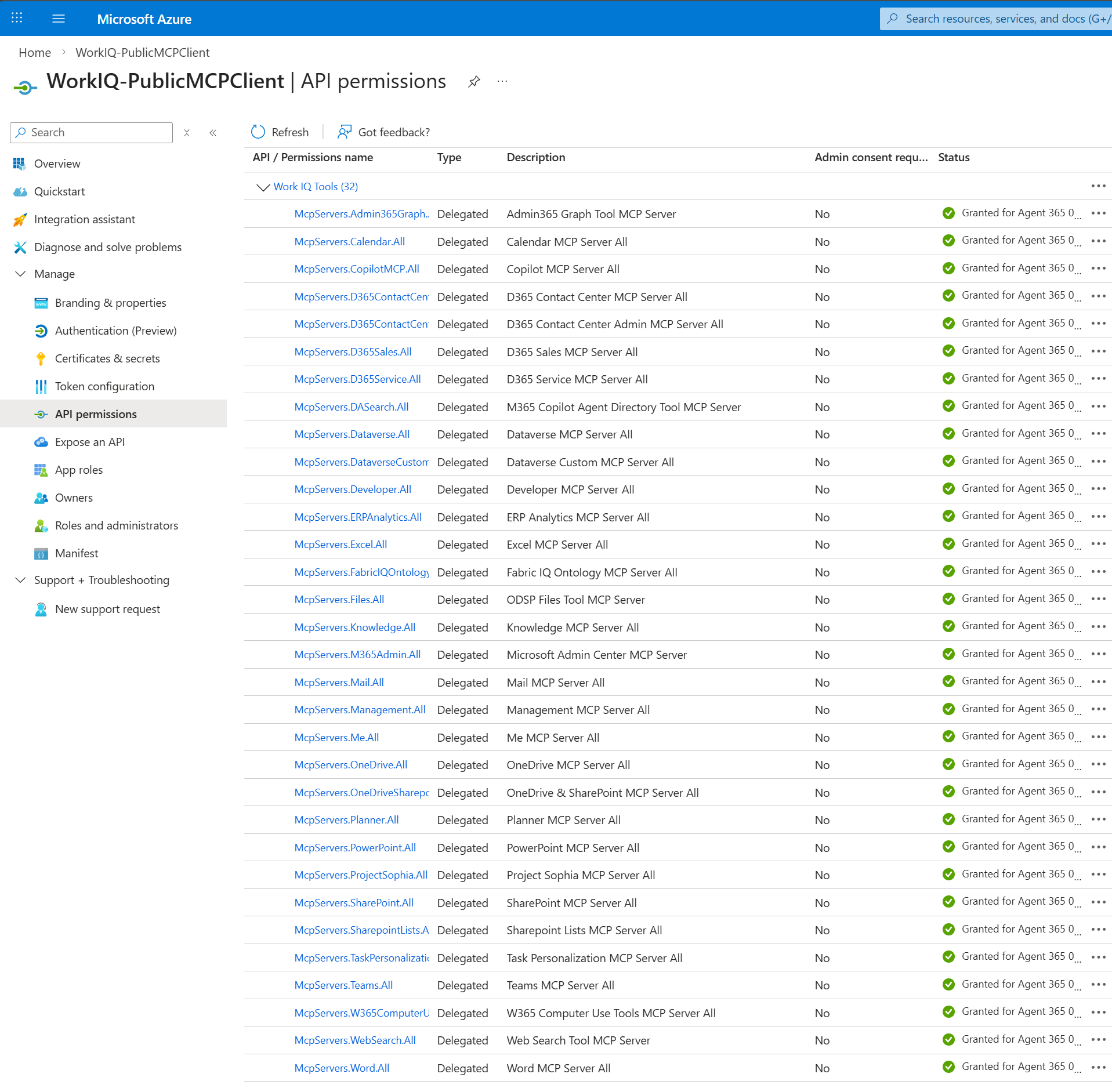
Add the redirect URL to the application. Enter Mobile and Desktop applications, value:
http://localhost:8080/callback.
You're set. Users in your organization can use this public client to connect to the WorkIQ MCP Servers.
Usage sample from ClaudeCode
Create a test directory
c:\tmp\.Add a text file to it with the mcp configuration. Fill in the tenantId in the URL and the clientId (appId) noted in an earlier step.
- File name:
C:\tmp\.mcp.json - Content:
{ "mcpServers": { "WorkIQ-MailServer": { "type": "http", "url": "https://agent365.svc.cloud.microsoft/agents/tenants/9c23c1e3-15be-4744-a3d7-027089c33654/servers/mcp_MailTools", "oauth": { "clientId": "18f4deab-76fc-406d-b9d8-3cc0377fa30d", "callbackPort": 8080 } } } }- File name:
Go to the folder.
Start Claude Code in the
c:\tmp\folder.Run the
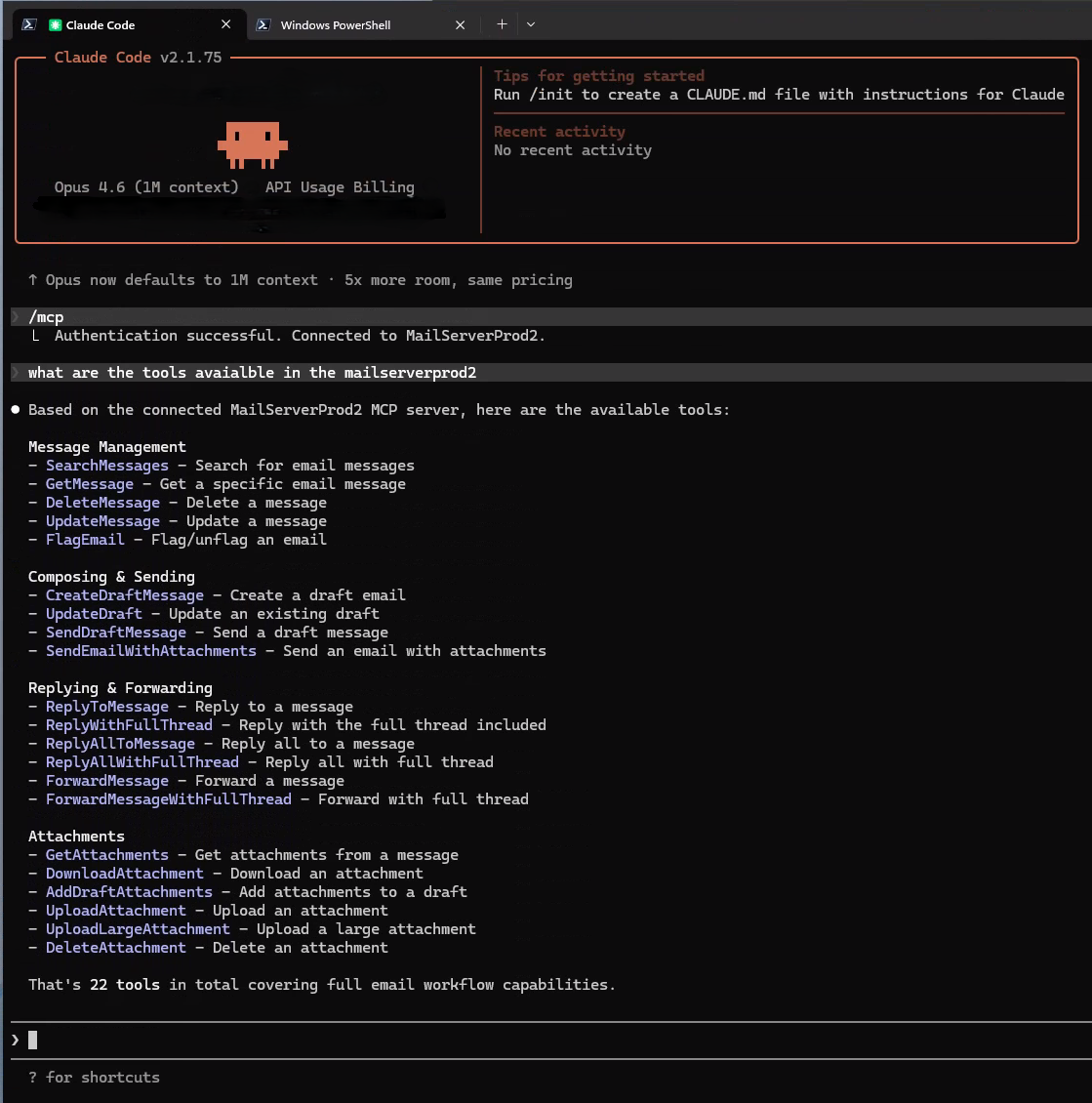
/mcpcommand and authenticate to the MCP server.Complete authentication. A success message displays in the terminal, and you can see the connection in the Microsoft Entra admin center.
Ask Claude to confirm that the MCP server is working. Enter What are the tools in WorkIQ-MailServer? You are now all set in Claude Code.
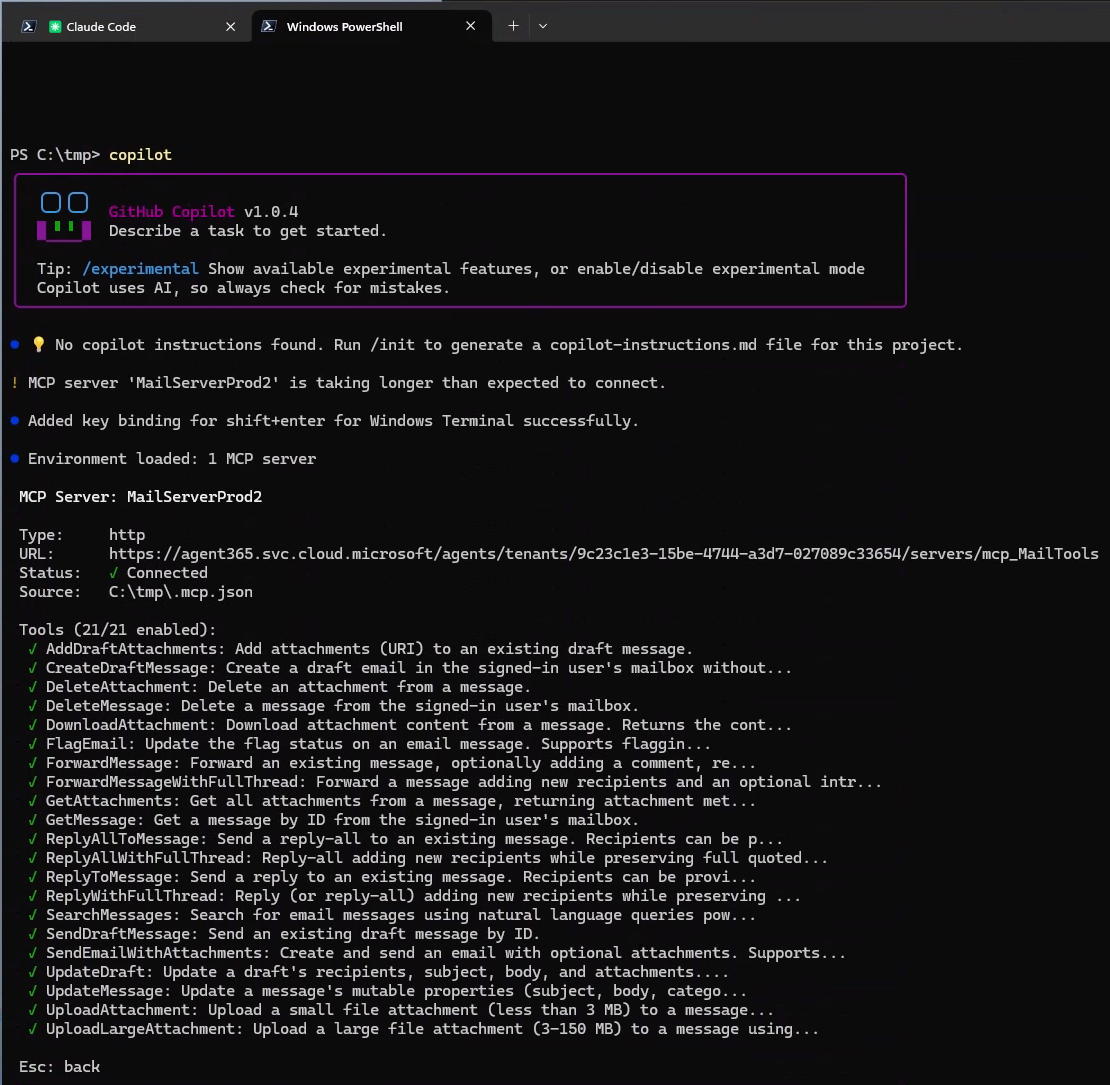
Usage sample from GitHub Copilot CLI
Go to the same
c:\tmp\folder where you set up Claude.Launch GitHub Copilot CLI.
GitHub Copilot CLI detects the
.mcp.jsonfile and prompts you to connect to the MCP server.Authenticate. A success message displays in the terminal, and you can see the connection in the Microsoft Entra admin center.
Ask GitHub Copilot CLI to confirm that the MCP server is working. Enter What are the tools in WorkIQ-MailServer? You are now all set in GitHub Copilot CLI.
Next step
Learn about the capabilities of individual MCP servers by viewing MCP server reference documentation.
- Go to the Agent 365 tools catalog section of this article for links to Work IQ MCP server reference documentation.
- Go to the List of all MCP servers to see a list of MCP servers certified by Microsoft.