Note
Access to this page requires authorization. You can try signing in or changing directories.
Access to this page requires authorization. You can try changing directories.
The startup performance report in endpoint analytics provides insights into the startup performance of your Windows devices. It helps you identify and remediate issues that can lead to slow boot and sign-in times.
Before you begin
- Review Scores, baselines, and insights in endpoint analytics to understand these concepts.
- Confirm that your environment meets all prerequisites.
- Clients require a restart to fully enable all analytics.
Review the report
In the Microsoft Intune admin center, select Reports > Endpoint analytics > Startup performance.

The retention period for device boot and sign-in events is 29 days. If a device hasn't uploaded a boot or sign-in event in the past 29 days, it doesn't appear in the startup performance report.
Startup score
The startup score measures how quickly users can go from power-on to productivity, minimizing boot and sign-in delays. It's a weighted average of the boot score and sign-in score, expressed as a number from 0 (poor) to 100 (excellent).
Boot score
Represents the time from power-on to sign-in. We use the last boot time for each device (excluding update phases) and score it from 0 (poor) to 100 (excellent). These scores are averaged to provide the overall tenant boot score.
Sign-in score
Represents the time from credential entry until the user can access a responsive desktop. A desktop is considered responsive when it has rendered and CPU usage falls below a moderate level, or the device responds to user actions. We use the last sign-in time for each device (excluding first sign-ins or those immediately after a feature update) and score it from 0 (poor) to 100 (excellent). These scores are averaged to provide the overall tenant sign-in score.
Insights and recommendations
The report provides a prioritized list of insights and recommendations to help improve your score.
Hard disk drives
Startup performance provides an insight on the number of devices on which the boot drive is a hard disk. Hard disk drives typically result in boot times three to four times longer than solid-state drives. We also report the expected improvement to start up performance you would gain by moving to solid-state drives.
Scroll through to see the list of devices that have hard disk drives. The recommended action is to upgrade these devices to solid-state drives.
Group Policy
Startup performance provides an insight on the number of devices that have delays to boot and sign-in times caused by Group Policy. Clicking through takes you to the devices view. The view is sorted by Group Policy time, so you can see affected devices for further troubleshooting.
Select a particular device, to see its boot and sign-in history. The history helps you determine if the issue is a regression and when it might have occurred.
Tip
While there are many articles on how to optimize Group Policies performance, you might choose to migrate to cloud-management instead. Migrating to cloud-management allows you to use Intune security baselines and Group Policy analytics.
Slow boot and sign-in times
Startup performance provides an insight on the number of devices with slow boot or sign-in times. A boot score or sign-in score of "0" means it's slow. Clicking through takes you to the devices view. The devices are sorted by core boot time or core sign-in time respectively, so you can see affected devices for further troubleshooting.
Select a particular device, to see its boot and sign-in history. The history helps you determine if the issue was a regression and when it occurred.
Report tabs
The report is organized into tabs, each providing a different view of related data and insights.
Model performance
Review the boot and sign-in performance by device model, which can help you identify if performance problems are isolated to particular models.
In the model performance tab, two default columns allow you to review both the average number of restarts and the average number of Stop errors per model over the last 30 days. Sort these columns to find problematic device models. Only models with at least 10 devices are shown to ensure the averages are done across enough devices to be meaningful.
Device performance
Review boot and sign-in metrics for all your devices. You can sort by a particular metric to see which devices have the worst scores for that metric to help with troubleshooting. You can also search for a device by name.
Note
In the device performance tab, admins only see devices they have access to according to their assigned scope tags. To learn more about scope tags, see Scope tags for distributed IT. Aggregated insights, such as scores and summary views are calculated using all enrolled devices in the tenant. To apply scope tags to aggregated insights, see Device scopes in endpoint analytics.
Device level drill-in view
Select a device to see its boot and sign-in history, which can help you identify if there was a recent regression.
The OS restart history table contains the following information:
- The Restart category for each reboot
- For Stop errors:
- The stop code also called the bug check code
- A Failure bucket ID that can be used for diagnostics when working with Microsoft support

The OS restart history table shows the 10 most recent restarts that occurred within the last 30 days. Because this table updates with low latency, new restarts typically appear here before they show up in the daily aggregates on the Device performance tab.
Note
The restart count in the OS restart history table may differ from the count shown under the Device performance tab. This difference is expected:
- The OS restart history table is limited to the 10 most recent restarts.
- The Device performance tab aggregates daily data for the last 30 days.
Startup processes
Startup processes can negatively affect user experience by increasing the length of time that users must wait for the desktop to become responsive. This tab shows you which processes are impacting the sign-in "time to responsive desktop" phase and keeps the CPU above 50% after the desktop is rendered. The table only lists processes that affect a minimum of 10 devices in your tenant. When you review the startup processes, the following data calculations are displayed:
- Device count: The count of devices that experienced a delay to a responsive desktop from the process.
- Median delay: The median delay time of the process for the counted devices.
- Total delay: The sum of the delays for all of the counted devices.
Restart frequency
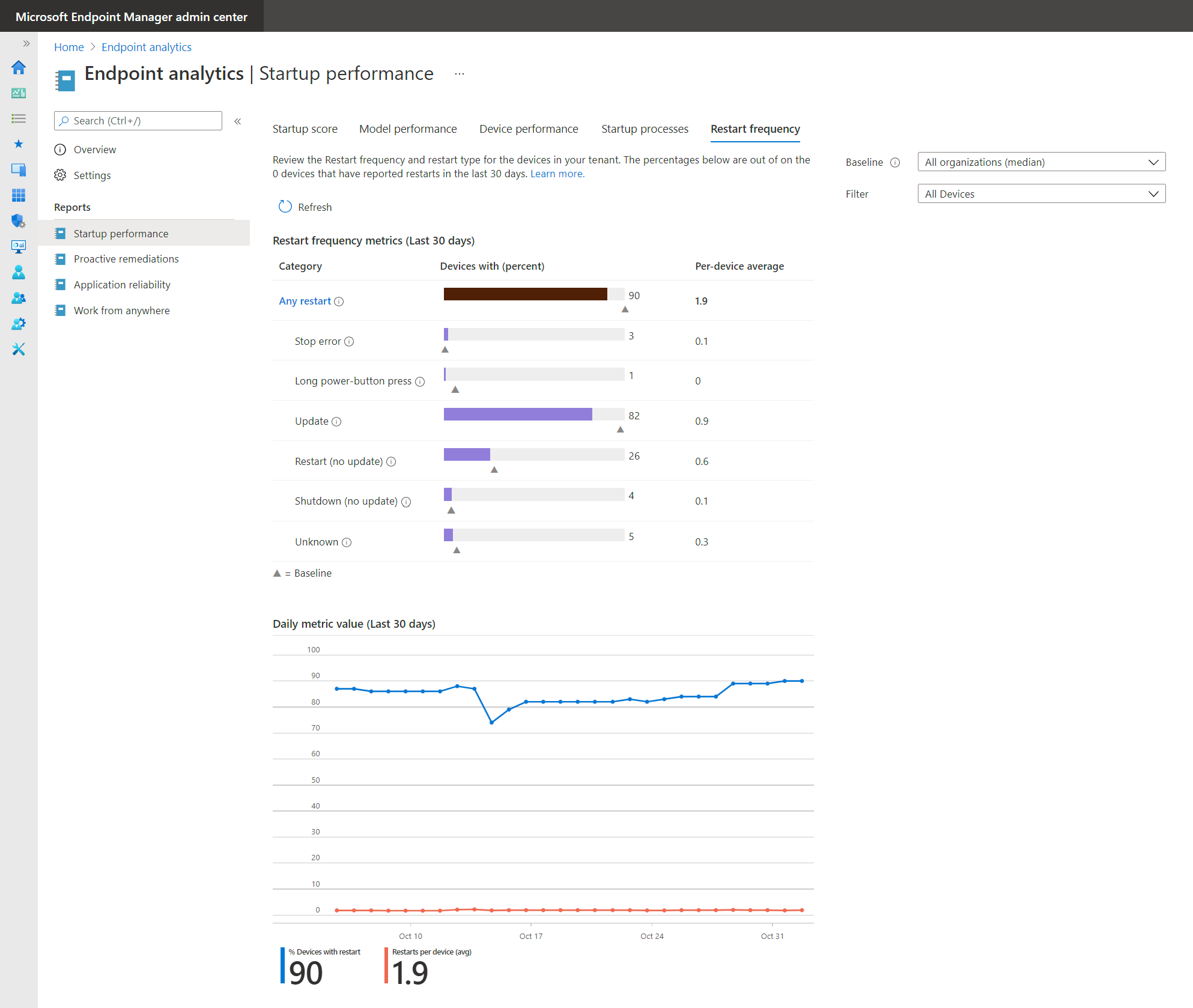
Reboot frequency can affect a user's experience. A device that reboots daily due to Stop errors results in poor user experience even if the boot times are fast. We've recently added insights into restart frequencies within your organization to help you identify problematic devices.
Review aggregates of restart frequency counts for each of the restart categories over the last 30 days. For each restart category, the following information is displayed:
- Number of devices with at least one restart in that category
- The average number of restarts per device across all devices, to understand the total effect.
- This average is all devices, not just the ones that had at least one restart in the category.
The trend chart indicates how the rolling 30-day average changes over time. If there's a regression, you can see it and identify when it started. Click through the metrics table to go to the Device performance tab, which is sorted by the number of restarts, so you can quickly identify the devices with the most restarts.
Restart categories
Each restart is categorized into one of six categories. They're described as either abnormal shutdowns or normal shutdowns.
Abnormal shutdowns: Where the shutdown or restart didn't go through the normal Windows shutdown process. There are three categories for different types of abnormal shutdowns:
- Stop errors: Stop errors are the most severe type of abnormal shutdown. They indicate a serious problem that caused Windows to crash.
- Long power button press: When an end user holds the power button down to force a restart.
- Unknown: Any abnormal shutdown that isn't one of the above shutdowns.
Normal shutdowns: Where the shutdown or restart went through the normal Windows shutdown process. There are three categories for different types of normal shutdowns:
- Update: The restart was done to finish installation of a Windows update. Ideally there should be around one of these restarts per device per month. Less than once per month is problematic since it indicates devices aren't getting patched. More than once per month is also problematic as it indicates users are enduring more update restarts than is typically necessary.
- Shutdown (no update): Typically means someone is trying to save battery or power and isn't indicative of a poor user experience.
- Restart (no update): Ideally this category should be close to zero since there shouldn't be a reason to restart a device beyond monthly patching.
The difference between Shutdown (no update) and Restart (no update) is the user's action. A shutdown or restart doesn't have to be initiated through the start menu, it could be initiated other ways too.