Note
Access to this page requires authorization. You can try signing in or changing directories.
Access to this page requires authorization. You can try changing directories.
Important
Some or all of this functionality is available as part of a preview release. The content and the functionality are subject to change.
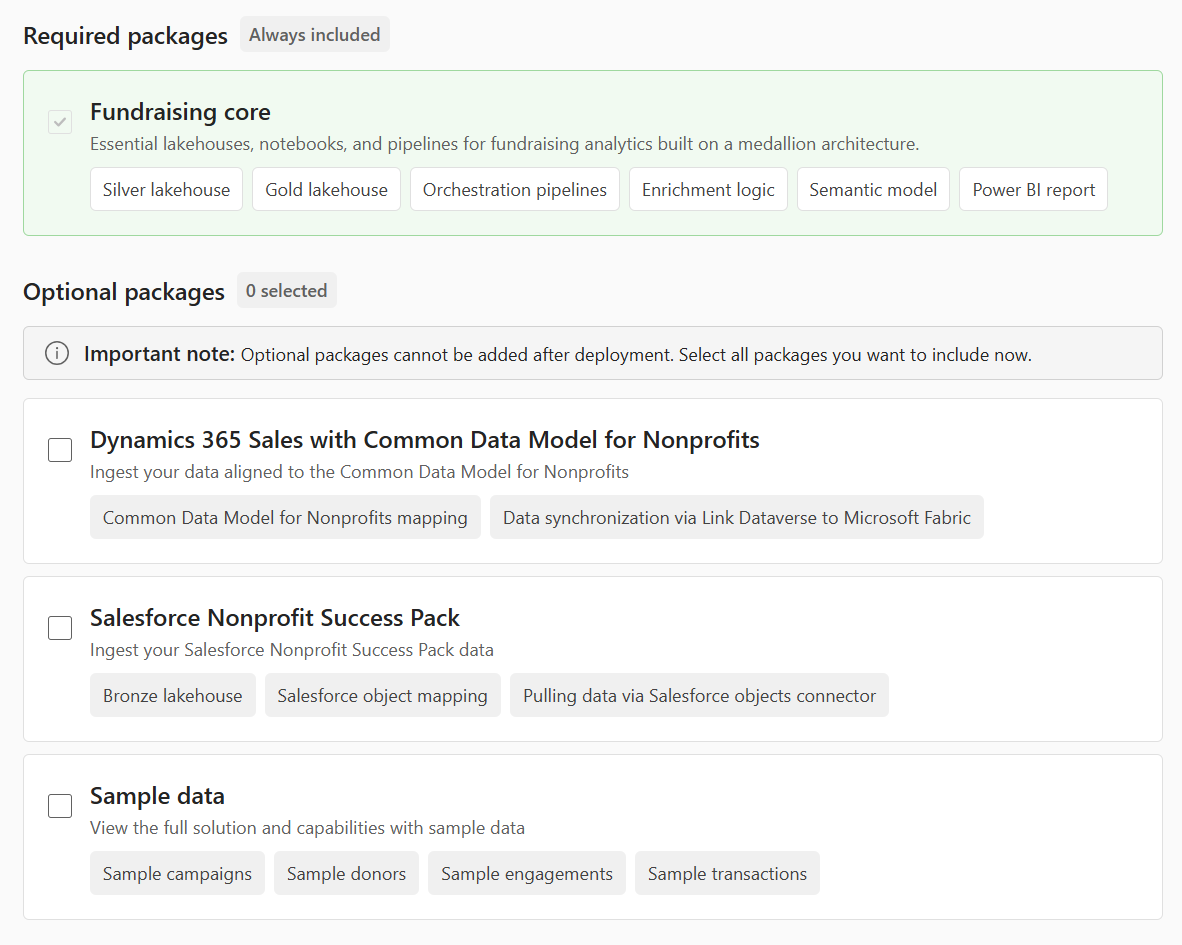
After you deploy the Nonprofit data solutions, you'll need to run the orchestration pipeline. Its logic automatically adapts to the optional data source packages that you select during deployment; therefore, no additional configuration is required. After the orchestration pipeline runs successfully, you need to refresh the semantic model to get the reporting layer ready.
Run orchestration pipeline
Running an orchestration pipeline initiates a series of pipelines to process data within Microsoft Fabric. Data is ingested from the source into the bronze layer then it's processed through the silver layer, further refined in the gold layer, and populated in the reporting layer.
Follow these steps to start an on-demand pipeline run:
- Sign in to Microsoft Fabric.
- In the left navigation pane, select Workspaces and navigate to the workspace where Nonprofit data solutions are installed.
- Open the Fundraising item that you installed.
- In the left navigation pane on the workload item page, select the Overview tab.
- In the Quick start guide section, select Open Pipeline.
- To start running the pipeline, select Run from the top menu bar. Wait for the pipeline to complete.
For more information about how to schedule or trigger pipelines, see Run, schedule, or use events to trigger a pipeline.
For pipeline performance benchmarks and data volumes, see Pipeline performance metrics.
Refresh semantic model
After you run the orchestration pipeline, you need to refresh the semantic model. Refreshing a semantic model in Microsoft Fabric updates it with the latest data from the source while reapplying all transformations, relationships, and business rules, so that your reports and analytics reflect accurate, current information.
Follow these steps to refresh the semantic model:
- Sign in to Microsoft Fabric.
- In the left navigation pane, select Workspaces and navigate to the workspace where Nonprofit data solutions are installed.
- Open the Fundraising item that you installed.
- In the left navigation pane on the workload item page, select the Overview tab.
- In the Quick start guide section, select Open semantic model.
- To start refreshing the semantic model, select Refresh from the top menu bar and then select Refresh now. Wait for the refresh to complete.
Note
If you have any issues during the postdeployment process, review the Troubleshooting information.