Note
Access to this page requires authorization. You can try signing in or changing directories.
Access to this page requires authorization. You can try changing directories.
Note
This feature is currently in public preview. This preview is provided without a service-level agreement, and isn't recommended for production workloads. Certain features might not be supported or might have constrained capabilities. For more information, see Supplemental Terms of Use for Microsoft Azure Previews.
Sharing is a convenient way to give users read access to your graph model or QuerySet for downstream consumption. When you share, the recipient gets item-level access without needing a workspace role. You can customize the permissions that the shared recipient receives.
Note
You must be an Admin or Member in your workspace to share a graph item. For more information about workspace roles, see Security overview for graph.
Prerequisites
Before you start, verify that:
- You have an Admin or Member role in the workspace that contains the graph model or QuerySet.
- The graph model is saved and the queryable graph loaded successfully. For more information, see Manage data in graph.
Share a graph model
- In your Microsoft Fabric workspace, locate the graph model you want to share.
- Select the ellipsis (...) next to the graph model, and then select Share.
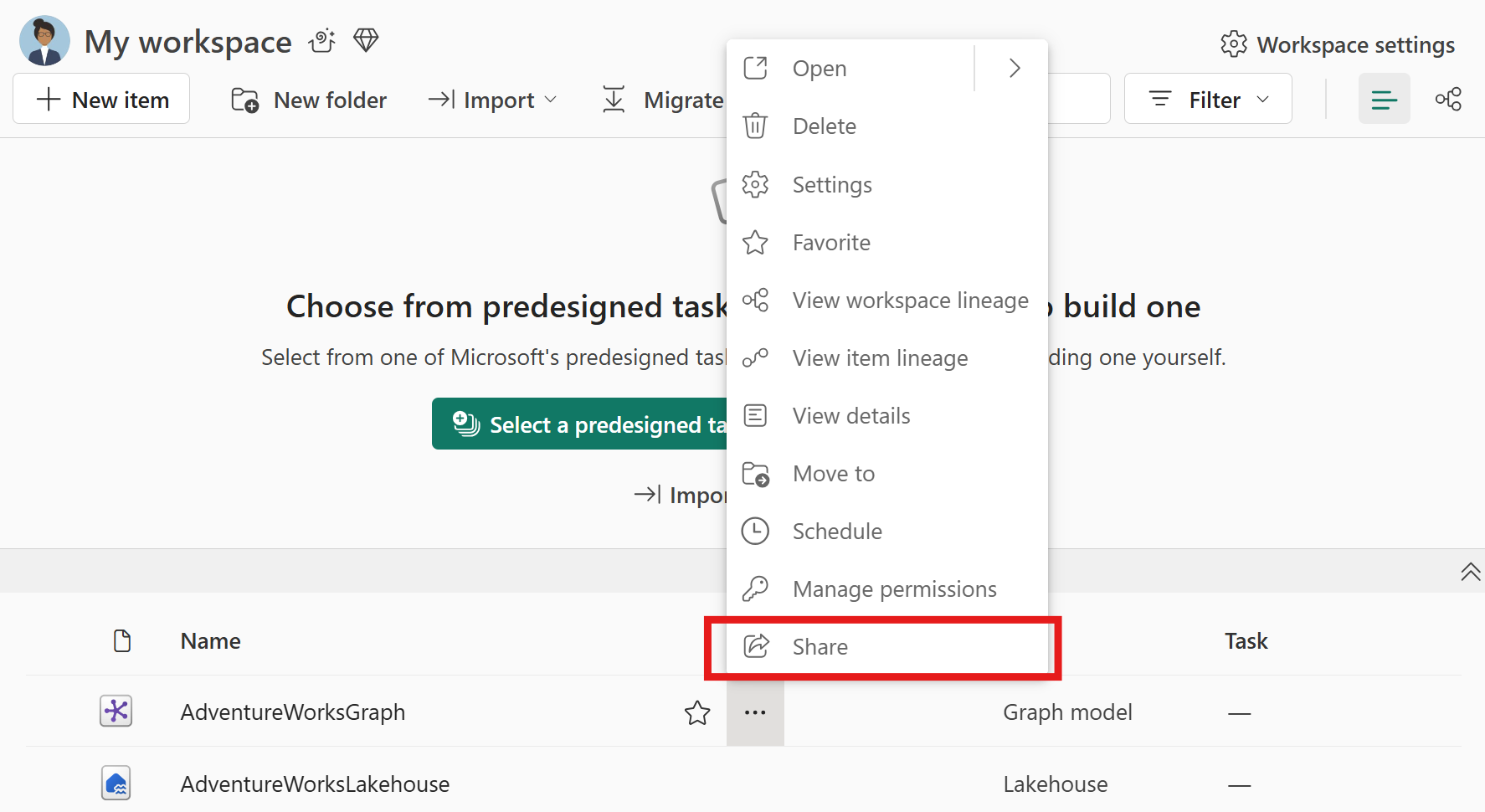
In the sharing dialog, enter the name or email address of the person or group you want to share with.
Select the permissions you want to grant. Read permission is always included by default.
Optionally, add a message and select whether to notify the recipient by email.
Select Grant access.

The shared recipient is notified by email that they can now find the graph model in the OneLake catalog and open it. The level of access depends on the permissions you granted. In the following screenshot, the recipient has Read, Edit, and Run algorithms (private preview) permissions, which means they can view the graph model structure, edit it, and run queries against the queryable graph.
Share a QuerySet
You share a QuerySet in a way similar to how you share a graph model.
In your workspace, locate the QuerySet you want to share.
Select the ellipsis (...) next to the QuerySet, and then select Share.
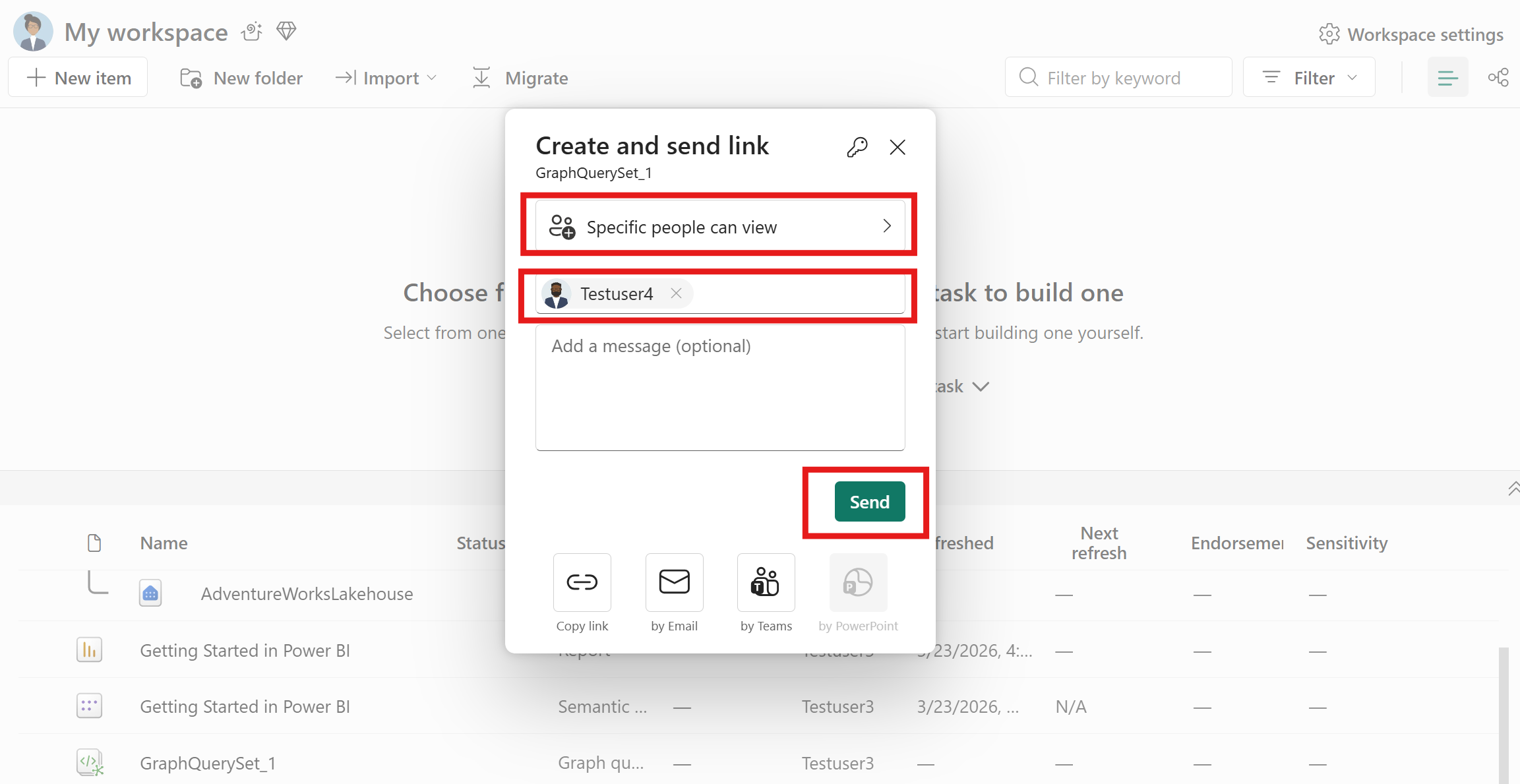
Enter the recipient's name or email address and select Specific people can view to set permissions.
Optionally add a message and then select Send.
Important
The shared recipient also needs read access to the underlying graph model to run queries from the QuerySet. If they don't have access to the graph model, share it separately or add the recipient to a workspace role.
Permission levels
When you share a graph item, you can grant the following permissions. Read permission is always included by default.
| Permission | Sharing dialog label | What it grants |
|---|---|---|
| Read | Read | The recipient can discover the item in the OneLake catalog and open it. For a graph model, the recipient can view the model structure. For a QuerySet, the recipient can open and view saved queries. |
| Write | Edit | The recipient can modify the graph model or QuerySet. |
| Execute | Run algorithms (private preview) | The recipient can run queries and algorithms against the queryable graph. |
| Reshare | Reshare | The recipient can share the item with other users and grant up to the same permissions they have. |
Note
Only read, write, and reshare permissions are supported for QuerySet items. The Run algorithms permission applies to graph models only and is currently in private preview.
Manage permissions
Use the Manage permissions page to view who has access to your graph item and modify or revoke permissions.
- In your workspace, select the ellipsis (...) next to the graph model or QuerySet.
- Select Manage permissions.
On this page, you can see:
- Users who have access through workspace roles, along with their role and permissions.
- Users who received access through item sharing, along with the specific permissions granted.
Modify or remove access
- To remove all item permissions for a user, select the ellipsis (...) next to their name and choose Remove access.
- To change specific permissions, select the ellipsis (...) and choose the appropriate option to add or remove individual permissions.
Note
You can't modify or remove permissions that are inherited from a workspace role on this page. To change workspace role assignments, see Workspace roles.

Underlying data access
Graph models read data from tables in a lakehouse. The following considerations apply to data access:
- Users within the workspace who have access to the underlying data in the lakehouse can model and query the graph.
- All users need read access to the underlying graph model item to run queries against it from a QuerySet. If you share a QuerySet, also share the graph model or add the recipient to a workspace role.
- Support for column-level and row-level OneLake security is under development.
Limitations
- Permission changes can take up to two hours to take effect if the user is currently signed in. The changes appear in Manage permissions immediately.
- Sharing is available through the Fabric user experience only. Programmatic sharing through APIs isn't currently supported.
- Shared recipients receive access only to the specific item shared, not to other items in the workspace.
- During preview, sharing options and available permissions might change as new capabilities are added.