Note
Access to this page requires authorization. You can try signing in or changing directories.
Access to this page requires authorization. You can try changing directories.
This guide is intended for Microsoft Fabric capacity administrators who want to monitor and optimize their capacity usage proactively - for example, after receiving alerts that their capacity utilization is high. By identifying the items that consume the most capacity units (CUs) on a capacity, administrators can take steps to fine-tune those items or manage usage before performance issues or throttling occur.
Scenario
Capacity admins received a notification such as "You're using X% of your available capacity", indicating that a Fabric capacity's utilization is high. They want to investigate which workloads or items (datasets, also known as semantic models; reports; pipelines; and so on) are contributing the most to this CU consumption, so they can consider optimizations (like query tuning or schedule changes) or capacity adjustments. The Microsoft Fabric Capacity Metrics app provides insight into capacity usage over time and by item, which can be used to pinpoint the top consumers of capacity resources.
Prerequisites
- Capacity name: Identify the Fabric capacity that is nearing its limits (as indicated by the alert or by monitoring). You must have admin or contributor access to this capacity's metrics.
- Timeframe of interest: Note when the high utilization was observed or if it's an ongoing trend. This helps focus the analysis (for example, looking at the past day or week). The Metrics app shows data for the last 14 days by default.
- Cross-capacity scenarios: If the heavy item on this capacity depends on another workspace that resides on a different capacity, you might need to check that other capacity's metrics as well. For example, if a report on Capacity A uses a semantic model from Capacity B, you should examine both capacities to get the full picture.
The Microsoft Fabric Capacity Metrics app is designed to provide monitoring capabilities for Microsoft Fabric capacities. Use the app to monitor your capacity consumption and make informed decisions on how to use your capacity resources. Administrator should use the latest version of the Metrics app. For more information on how to use the Metrics app, see the Metrics app documentation
For this troubleshooting, the Compute page of the Metrics app is used. For better understanding and navigation, it would be helpful for the administrators to Understand the Metrics app Compute page.
Overview of troubleshooting stages
To troubleshoot capacity usage, we follow a three-stage process that helps us identify the top CU-consuming items, drill down by date/time if needed, and analyze trends to plan optimizations. The process is visualized in the following flowchart:
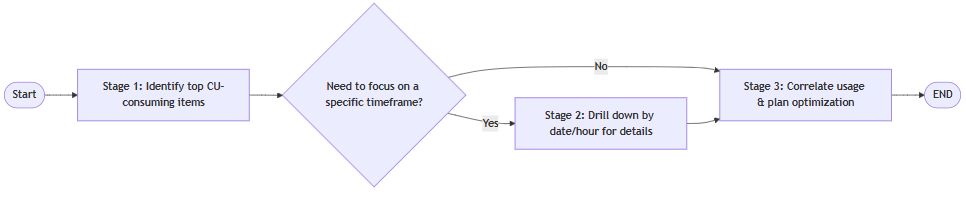
| Stage | Action | Description |
|---|---|---|
| 1 | Identify top consuming items (14-day overview) | Use the Metrics app's Compute page to review overall capacity usage and identify which items (workspace artifacts) consumed the most CUs over the last two weeks. - Review the Multimetric ribbon chart for workload patterns - Examine the Items matrix table for a ranked list of items by CU consumption |
| 2 | Drill down by date/time (optional) | If needed, narrow the analysis to a specific day or hour to find when peak utilization occurs and which items were top consumers during that period. - Drill into a particular day (and even hour) - View updated matrix showing top items for that specific time slice |
| 3 | Analyze operation trends & plan optimization | Correlate the usage with the number of operations and users to see if spikes align with increased user activity or particular workloads. - Analyze correlations between CU usage, operations, and user counts - Work with respective teams (data engineers, report authors, and so on) to optimize items - Decide on next steps to reduce capacity strain |
Begin by looking at the capacity's overall usage and finding which items are using the most capacity (Stage 1). If utilization is consistently high or if we just want the broad view, we might not need to drill into a specific time (skip Stage 2). However, if the high usage is intermittent or tied to certain periods (for example, peak load hours), then drill into a specific day or hour (Stage 2) to see exactly when and which item's usage spikes. Finally, in Stage 3, we examine other factors like the number of operations and users to understand why those items are heavy (for example, many concurrent users or an expensive refresh operation) and then decide on optimization steps. The end result is a clear identification of the top CU consumers and an action plan to reduce their impact or increase capacity.
Each stage is detailed in the sections that follow, with a flowchart and a table explaining the steps.
Note
In the flowcharts, Start and End steps are drawn as rounded rectangles, Decision points as diamonds (with Yes/No branches), and Process steps as rectangles. Arrows show the progression of steps.
Stage 1: Identify top CU-consuming items (14-day overview)
In this stage, we use the Compute page of the Metrics app to get a 14-day overview of capacity usage and see which items are the biggest consumers of CUs. The Compute page has a Multimetric ribbon chart (top visuals) showing usage trends and a Matrix by item and operation (bottom visual) listing all items on the capacity with their total CU usage and other metrics over the last 14 days. We sort this matrix to find the highest CU-consuming items, and inspect details about what operations are driving their consumption.
The following flowchart illustrates Stage 1 (steps 1-8), accessing the Metrics app and finding the top resource-consuming items:

Note
In this diagram, steps 1-8 are sequential. After identifying the top items, you can proceed to Stage 2 (step 9 onward) to optionally drill deeper by time.
The following table explains the steps in Stage 1:
| Step | Description / action | Explanation |
|---|---|---|
| 1 (START) | Identify the relevant capacity name and, if applicable, the timeframe of high usage that you want to investigate. | This ensures you analyze the correct capacity and period. For example, if the notification said usage was 85% at 3 PM today, make a note of that capacity and approximate time. (If you simply want to review the past two weeks generally, the timeframe can be "last 14 days.") Having this context guides your filtering in later steps. |
| 2 | Open the Microsoft Fabric Capacity Metrics app. | Launch the Metrics app to begin analysis. The Metrics app provides monitoring for capacity performance and usage. It's a Power BI report that capacity admins can install and use to track how resources are consumed over time. |
| 3 | Ensure you're on the "Compute" page of the Metrics app. | The app contains multiple pages (Compute, Storage, and so on), but the Compute page is where overall CPU/compute utilization is shown. This page provides a 14-day overview of your capacity's performance, with visuals for utilization trends and a table of items. |
| 4 | Use the Capacity name dropdown to select the capacity you want to examine. | If you manage multiple capacities, pick the one of interest from the dropdown at the top of the report. All visuals on the page then refresh to show data for the chosen capacity. If you only have one capacity, it might be selected by default. |
| 5 | On the Multimetric ribbon chart (top-left), make sure the CU metric is selected (the chart has multiple tabs such as CU, Duration, Operations, Users). This shows the total CU utilization over time, broken down by workload type. | The Multimetric ribbon chart](metrics-app-compute-page.md#multi-metric-ribbon-chart) provides a daily view with an option to drill down to an hourly view of the capacity's usage over the last 14 days. It can display different metrics (CUs, duration, number of operations, number of users) - here we focus on CUs. In the chart, each column (per hour or day) is segmented by workload category (for example, Dataset or semantic model, Report, Pipeline, and so on). Viewing the CU metric in this chart helps identify which workloads are consuming the most compute capacity overall. For instance, you might observe that most of the capacity is used by semantic model refreshes versus report queries. |
| 6 | Look at the Items (14 days) matrix at the bottom of the Compute page. Select the CU (s) column header to sort it in descending order (if not already sorted). Identify the top entries (items with the highest CU value). | This matrix, titled Items (14 days), lists each item (such as a dataset or semantic model, dataflow, warehouse, pipeline, and so on) that consumed capacity, along with metrics like total CUs, duration, and so on, over the last two weeks. By sorting by CU (s) in descending order, the items using the most capacity appears at the top. These top entries are the heavy hitters that we're interested in. For example, you might see a particular semantic model showing a high CU total, indicating it used a lot of compute power in the past 14 days. |
| 7 | Hover over a specific item (especially the top consumers) in the matrix to view the operation-level breakdown for that item. | In the table, when you hover your cursor over an item's row, a tooltip appears, listing that item's contributions by operation type. This allows you to see what portion of its CU usage came from different operations. For instance, for a semantic model item, the hover might show something like "Refresh: 80%, Query: 20%" of its CU usage. This insight tells you whether the item's high consumption is due to background operations (like refreshes) or interactive operations (like user queries) on that item. |
| 8 | (Optional) Use the Select optional column(s) dropdown above the table to add more columns to the table, such as Item size (GB) or various operation counts (Successful, Failed, Rejected, and so on), to gather more context about the top items. | The table by item has several optional metrics you can display. For example, adding Item size (GB) shows how much memory each item requires. You can also add columns like Failed count or Successful count to see how many times an operation (like a refresh) failed or succeeded for each item in the period. These details can hint at reliability issues (for example, many failures) or complexity (for example, large data size) for the high-CU items and so on. Using this extra information, you might note that the top item is a large semantic model or that it had numerous refresh attempts, which could be areas to investigate further. |
After completing these steps, you should have a list of the top capacity-consuming items on your capacity and an understanding of what operations (refreshes, queries, and so on) are driving their usage. Next, you can choose to narrow the analysis to a specific time to see when these items consume the most resources. If your interest is only in the aggregate usage (for example, a consistently heavy semantic model overall), you might proceed to Stage 3. Otherwise, continue to Stage 2 to drill into specific timeframes.
Stage 2: Drill down by date or time for specific usage patterns
This stage is optional but useful if you want to pinpoint capacity usage during a particular period (for example, during a surge or at the time a notification was triggered). Here, we filter the visuals to a specific date, and even drill down to hourly data, to see which items were consuming the most CUs at those times. The Metrics app's Multimetric ribbon chart allows you to select a date (and drill further into hours) which in turn filters the Items matrix to that scope. By doing this, you can answer questions like "What was using the most capacity yesterday afternoon?" or "Which items were the top consumers during peak hours?"
The following flowchart illustrates Stage 2 (steps 9-11), focusing on a specific day and hour to identify top consumers in that window:

Note
In this diagram, step 9 is a decision whether to narrow the timeframe. If "yes," you perform steps 10-11; if "no," you would skip to Stage 3. In practice, you can always examine the data by time - here we illustrate it as optional for the troubleshooting flow.
The following table explains the steps in Stage 2:
| Step | Description / action | Explanation |
|---|---|---|
| 9 (DECISION) | Decide whether to focus on a specific date or time period where capacity usage was notably high. | If the capacity alert or your analysis in Stage 1 suggests that a particular day or time had peak usage, select Yes to drill into that timeframe. For example, if you got notified of high usage on the 10th of the month, or you observe a significant spike on the Multimetric ribbon chart for that date, you'd want to investigate that day in detail. If there's no particular peak (for example, usage is uniformly high every day) or if you already know which item to target, you can choose No and move to Stage 3. |
| 10 | If focusing on a date: Select that date in the Multimetric ribbon chart's x-axis. This filters the visuals to that single day. Then, use the drill-down feature (down arrow icon in the chart) and double-click the date to drill into hourly data for that day. | Selecting a specific date on the Multimetric ribbon chart filters the matrix and other visuals to show data only for that day. The chart is hierarchical (by day and hour), so enabling drill-down allows you to break the daily column into 24 hourly columns. After double-clicking the date (with drill mode on), the Multimetric ribbon chart will display the usage for each hour of that day. Now the Items matrix shows "Items (1 day)" (as indicated by the title change) - meaning it lists the top items for just that day. You can further narrow it: initially it considers the whole day's usage; by drilling, the chart and table can focus on specific hours. |
| 11 | Look at the hourly breakdown. Select a specific hour column (or Ctrl + click multiple hour columns) in the Multimetric ribbon chart to filter the matrix to that hour or range of hours. | This step allows you to zoom in even more - for example, to see the top consumers during a particular hour. When you select one hour on the chart (or a combined timeframe if you multi-selected hours), the Items matrix updates to show the top CU consumers in that hour. This is useful to identify which item was spiking the capacity at, say, 3:00-4:00 PM. You can multi-select a couple of hours (by holding Ctrl and clicking) to get an aggregate for a broader time window (for example, the peak period of 3:00-5:00 PM). At this point, you might discover that during peak hours, a certain semantic model jumps to the top of the list (even if it wasn't the number one item over 14 days), indicating it runs a heavy operation at that time. |
After filtering by date or hour, you have a more granular view: the Items matrix now reflects the top items for the selected timeframe. Compare this with the overall 14-day view: Are the same items on top, or do different items emerge as top CU users at specific times? Often, you might find that a particular item is responsible for short bursts of high usage (for example, heavy use of reporting queries on month end), whereas another item might have steady moderate usage.
Once you identify the key items for the specific timeframe (or confirmed that the same items dominate in that window), you can proceed to interpret this information and plan optimizations in Stage 3.
Stage 3: Analyze usage trends and plan optimization
In the final stage, we interpret the findings and consider how to address the heavy usage. This involves looking at two other metrics provided by the app, Operations and Users, to see if high CU consumption correlates with a high number of operations or users. For example, a spike in usage might coincide with many users running queries (user-driven load), or it might happen without many users, indicating a heavy background process. Understanding this helps in deciding optimization strategies (reducing concurrency, optimizing queries, jobs, and so on).
After analyzing these trends, the capacity admin should use the information, specifically, the Workspace name, Item name, Item type, and the operation types causing load, to collaborate with the item’s owner (such as a report author, data engineer, or pipeline owner) on performance tuning. Potential actions include optimizing the dataset (semantic model) or pipeline, partitioning data, adjusting refresh frequency, or even scaling up capacity if necessary. The Metrics app also provides a Performance delta indicator (comparing current usage to the previous week) which can help measure improvements after changes. For more information on optimization options, see Evaluate and optimize your capacity.
The following flowchart illustrates Stage 3 (steps 12-13), where we analyze the operations and users metrics to understand usage patterns, and then interpret the results to plan optimizations for the top CU-consuming items:

Note
Stage 3 is a continuous process of analysis and action - no decision branches here. Step 13 concludes the troubleshooting process.
The following table explains the steps in Stage 3:
| Step | Description / action | Explanation |
|---|---|---|
| 12 | On the Multimetric ribbon chart, switch between the "Operations" view and the "Users" view (tabs) to observe any trends corresponding to the high CU usage. Also review the counts in the matrix (for example, the Users column for top items, if visible). | Besides CU consumption, the Metrics app tracks the number of operations and number of unique users on the capacity. By looking at the Operations metric, you can see if the period of high CU corresponds to a large number of operations (for example, hundreds of refresh/query operations running). The Users metric shows how many distinct users or service principals were active. If you notice that CU usage spiked while user count also spiked, it suggests a surge in user activity contributed to the load (for example, many users ran reports at the same time). Conversely, if CUs peaked with few users, the cause was likely heavy background work. For instance, you might find that a dataset (semantic model) refresh kicked off (one operation, not user-driven) and consumed a ton of CUs, whereas user count remained low. These correlations help target your optimization: a user-driven spike might be alleviated by distributing usage or improving query efficiency, while a background spike might be addressed by optimizing that process or setting surge protection on the capacity to control background use. |
| 13 (END) | Interpret the results and plan optimizations for the top CU-consuming items. Use the item details (Workspace, Item name/type, operation type) to engage the appropriate teams or take action. | At this stage, you identified which items (and which operations on them) are the major consumers of capacity. Now, decide on next steps to fine-tune those items or otherwise manage their impact. For example, if a dataset (semantic model) has high refresh CUs, you might work with the data engineer to optimize the data model or incremental refresh, or schedule it for a time when capacity is underused. If a report query is expensive, a report developer might optimize measures or indexes to reduce its load. If a pipeline (Data Factory workflow) is consuming a lot of CUs during data movement, consider breaking it into smaller chunks or reviewing its design. In some cases, you might also consider scaling up the Fabric capacity or enabling autoscale for Premium capacities if the workload is legitimately heavy and can't be reduced. The Metrics app’s Performance delta metric (which compares an item’s current usage to a week ago) can be useful after changes - for instance, after optimizations, you might see a positive delta indicating reduced CU usage, or an improvement like "20%" - meaning the item is now using 20% less capacity than before. |
By implementing optimizations and continually monitoring via the Metrics app, you can proactively keep capacity usage in check and avoid hitting the capacity limit or triggering throttling in the future. For more information on optimization options, see Evaluate and optimize your capacity.
Conclusion
You proactively identified which items in your Fabric capacity are the largest consumers of compute resources and during what periods. By understanding whether their load is driven by interactive queries or background operations and observing how usage correlates with user activity, you can make informed decisions to optimize those workloads. Regularly monitoring these metrics helps in preventing capacity overloads; instead of reacting to throttling or slowdowns, you can address the causes (through performance tuning or capacity adjustments) in advance. The Metrics app will continue to be a valuable tool in this ongoing capacity management process - use it to track the impact of any changes (looking at the trends and performance delta over time) and ensure your capacity runs smoothly within its limits.