Note
Access to this page requires authorization. You can try signing in or changing directories.
Access to this page requires authorization. You can try changing directories.
Applies to: ✅ SQL database in Microsoft Fabric
The Fabric Migration Assistant can import schema metadata from a DACPAC file and guide you through copying data into the target SQL database in Fabric.
Important
This feature is in preview.
Prerequisites
Before you start, make sure the following prerequisites are met.
Fabric prerequisites
- You need a Microsoft Fabric workspace with active capacity.
- For communication between your source SQL Server instance and Microsoft Fabric, you need to install an on-premises data gateway.
- For more information, see Access on-premises data sources in Data Factory for Microsoft Fabric.
- Register the data gateway on a machine that's geographically closest to the source database.
- Verify that the gateway is available in the Fabric portal by navigating to Settings > Manage connections and gateways > On-premises data gateways.
- Confirm that the newly registered gateway appears in the list and is in a ready state before starting data migration.
- A Fabric SQL connection created and enabled for gateway usage. Migration copy operations run through a gateway runtime. If gateway usage isn't enabled on the Fabric SQL connection, data copy operations will fail.
Source database prerequisites
- A DACPAC file generated from the source SQL Server database. For information about how to generate a
.dacpacfile, see Extract a DACPAC from a database.
Create a SQL database in Fabric connection
After registering an on-premises data gateway, create a Fabric SQL connection and enable it for gateway usage.
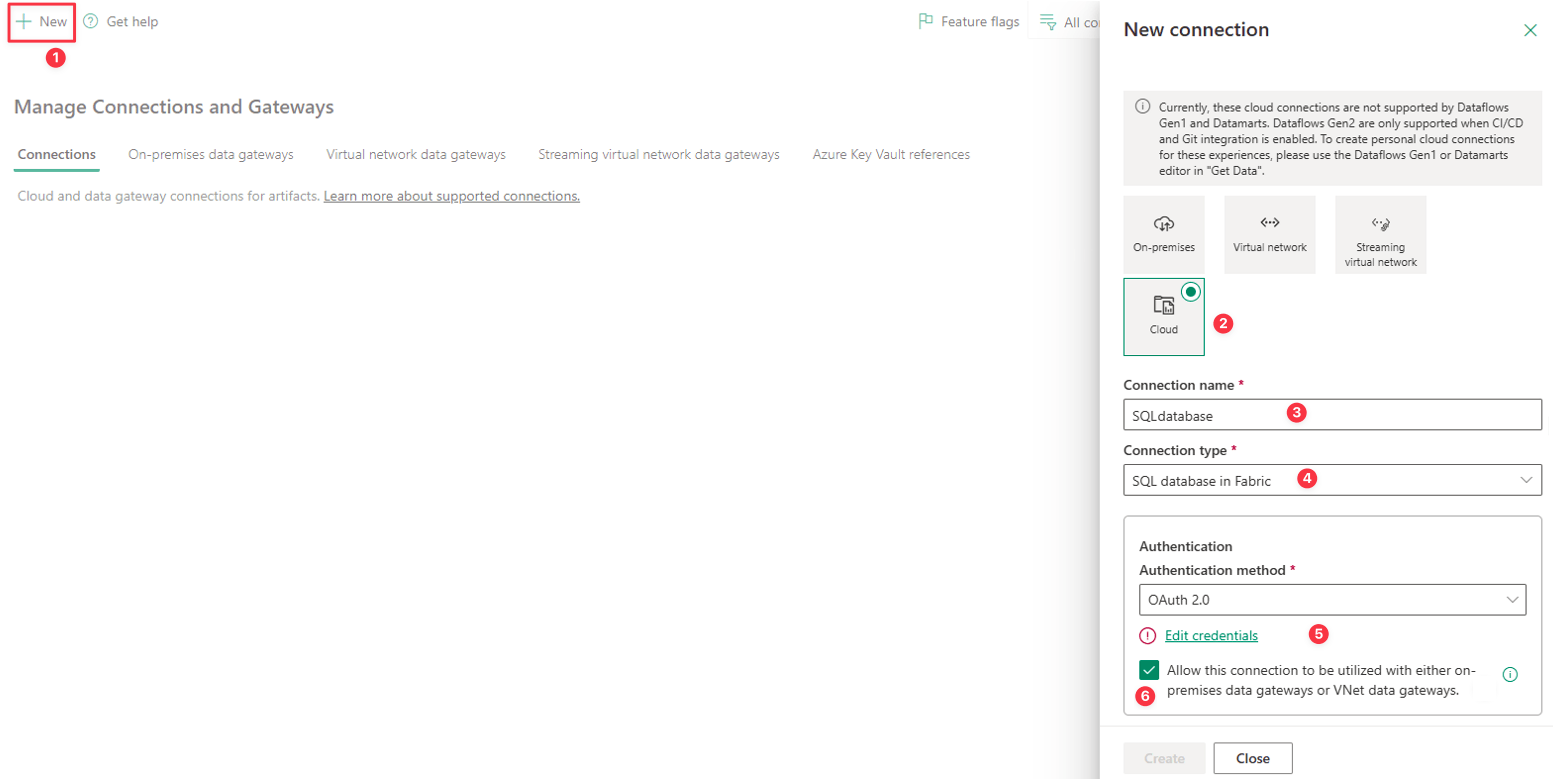
Steps
- In the Microsoft Fabric portal, select Settings. 1. Select Manage connections and gateways, and then select New.
- In the New Connection pane, choose Cloud.
- Enter a connection name.
- Select SQL database in Fabric as the connection type.
- Configure authentication, such as OAuth 2.0.
- Under the connection settings, select Allow this connection to be utilized with either on-premises data gateways or VNet data gateways. This setting is required because migration copy operations run through a gateway runtime. If you don't enable the Fabric SQL connection for gateway usage, data copy operations fail.
- Select Create to create the connection.
Launch the Migration Assistant
After you configure the on-premises data gateway and create the Fabric SQL connection, you're ready to start the Migration Assistant.

- In the Fabric portal, go to your workspace. From the toolbar, select Migrate to launch the Migration Assistant.
- In the Migrate to Fabric pane, under Migrate to a database, select SQL Server (Preview).
- On the Overview page, review the What to expect when you migrate information, and select Next.
Step 1: Copy schema
On the Select the source page, upload the DACPAC file from the source SQL Server environment.
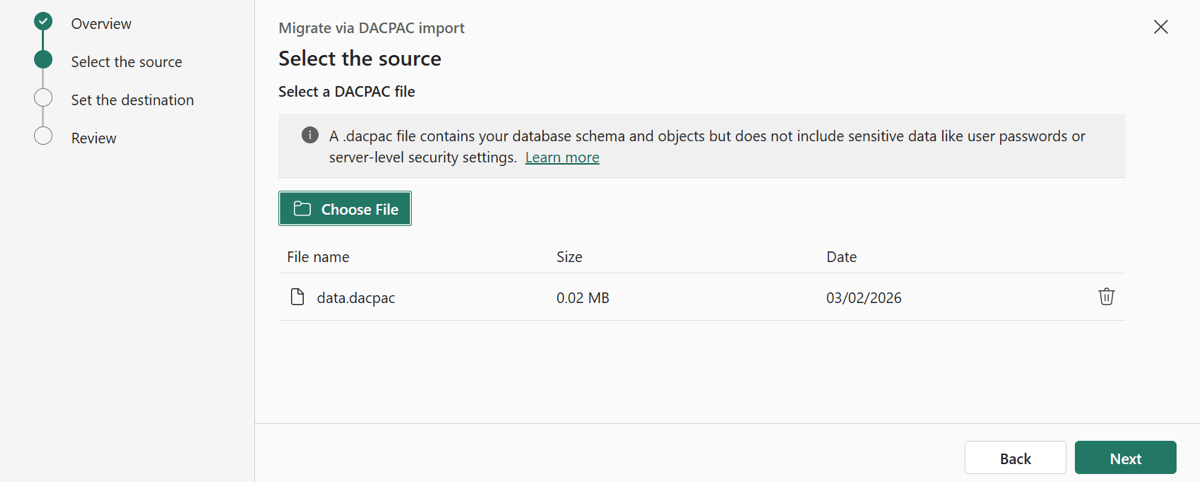
When this step completes:
- A migration session is created.
- Schema analysis begins automatically.
Step 2: Fix script errors
The Migration Assistant analyzes the schema objects in the DACPAC and categorizes them based on compatibility with SQL database in Fabric.
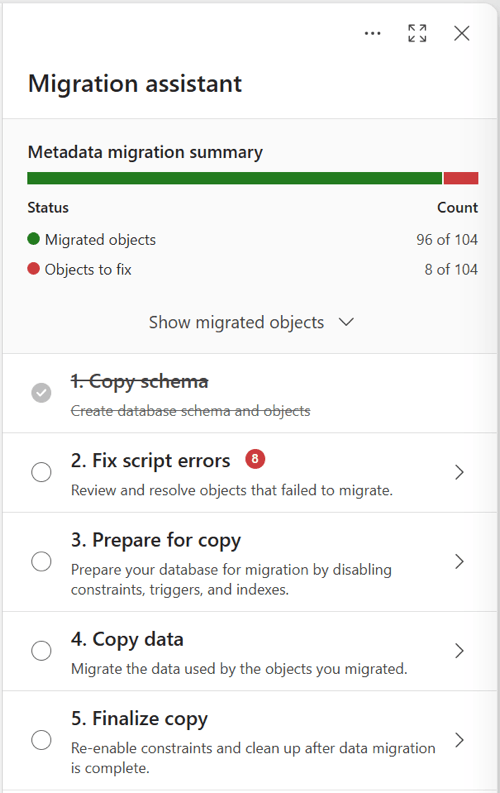
You now have a clear picture of what you can migrate as-is and what requires attention. You must resolve primary objects before dependent objects can be migrated. For database objects that fail the initial schema migration:
- View migrated and failed objects. Review suggested fixes in the assistant.
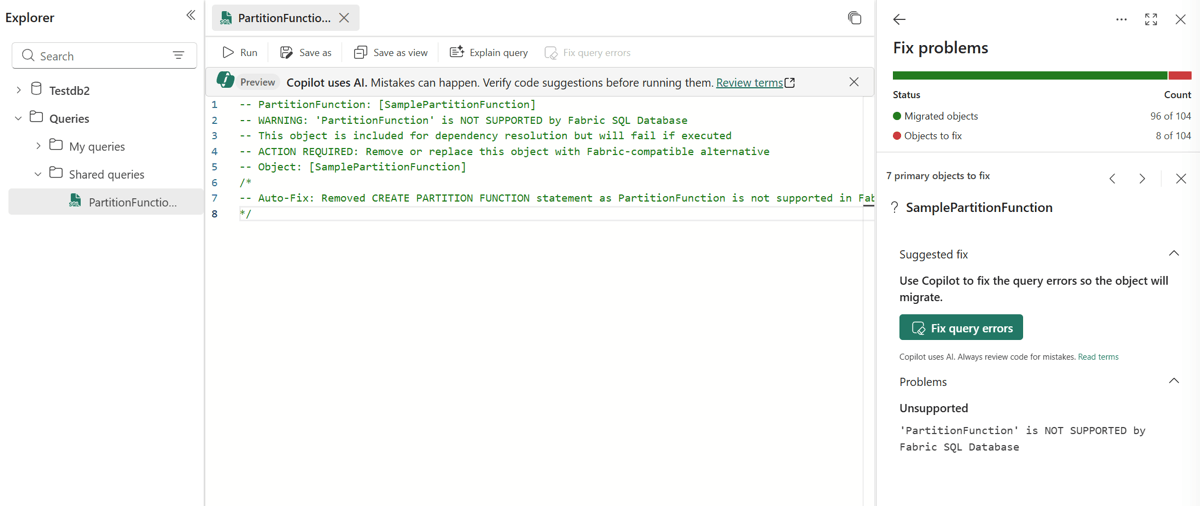
- Review reasons for incompatibility. Apply supported changes to incompatible objects.
- Revalidate objects after applying fixes.
For example, you might see identified syntax incompatibilities and the Fix query errors button to provide a T-SQL script fix or workaround.
Step 3: Prepare for copy
The Prepare for copy step prepares the database schema in the new SQL database. The schema is ready for data movement in the Fabric Copy Job. This step reduces copy failures and improves performance during data migration.
- Copy the generated preparation script.
- Run the script in the Query Editor against the target SQL database.
Step 4: Copy data
Select 4. Copy data in Migration Assistant.
Choose Use a copy job. Name the job, and then select Create to open the Copy Job wizard.
Source configuration:
In Choose data source, complete the following information.
- Choose SQL Server database as the source type.
- Select or create the source connection.
- Enter the SQL Server instance and database details.
- Select the on-premises data gateway used to connect to the source SQL Server instance.
- Select authentication. Use the Organization account option.
- If encryption isn't enabled on the source SQL Server instance, disable encryption in settings.
- Select Next.
Select tables:
- In Choose data, select the tables to migrate.
- Confirm the target schema already exists (from schema migration), and select Next.
Review + run:
- Review column mappings.
- Select Copy mode.
- Review the summary.
- Select Save + Run.
Monitor:
To monitor the progress of the Copy Job, check the following values:
- Rows read and written
- Per-table status
- Migration errors, if any
Resolve failures and rerun tables as needed.
After the copy job finishes successfully, return to the Migration Assistant, and mark the copy data step complete.
Step 5: Finalize copy
The 5. Finalize Copy step completes the data migration and enables remaining items such as constraints, triggers, and indexes, to bring the database to the desired state.
Copy the query from the Finalize Copy window and run it in query editor.
At the end of this step, the guided migration experience is complete.
Post-migration considerations
After you complete the migration:
- Validate application queries and workloads.
- Update application connection strings.
- Review performance and compatibility with SQL database in Fabric features.