Note
Access to this page requires authorization. You can try signing in or changing directories.
Access to this page requires authorization. You can try changing directories.
This article outlines the steps to create a Snowflake database connection.
Supported authentication types
The Snowflake database connector supports the following authentication types for copy and Dataflow Gen2 respectively.
| Authentication type | Copy | Dataflow Gen2 |
|---|---|---|
| Snowflake | √ | √ |
| Microsoft Account | √ | √ |
| Key-pair | √ | √ |
Set up your connection for Dataflow Gen2
You can connect Dataflow Gen2 in Microsoft Fabric to Snowflake using Power Query connectors. Follow these steps to create your connection:
- Check capabilities, limitations, and considerations to make sure your scenario is supported.
- Get data in Fabric.
- Connect to a Snowflake database.
Capabilities
- Import
- DirectQuery (Power BI semantic models)
- Advanced options
- Specify a text value to use as Role name
- Relationship columns
- Connection timeout in seconds
- Command timeout in seconds
- Database
- Native SQL statement
Get data
To get data in Data Factory:
On the left side of Data Factory, select Workspaces.
From your Data Factory workspace, select New > Dataflow Gen2 to create a new dataflow.

In Power Query, either select Get data in the ribbon or select Get data from another source in the current view.

In the Choose data source page, use Search to search for the name of the connector, or select View more on the right hand side the connector to see a list of all the connectors available in Power BI service.

If you choose to view more connectors, you can still use Search to search for the name of the connector, or choose a category to see a list of connectors associated with that category.


Connect to a Snowflake database
To make the connection, take the following steps:
Select the Snowflake option in the connector selection.
In the Snowflake dialog that appears, enter the name of the server and warehouse.
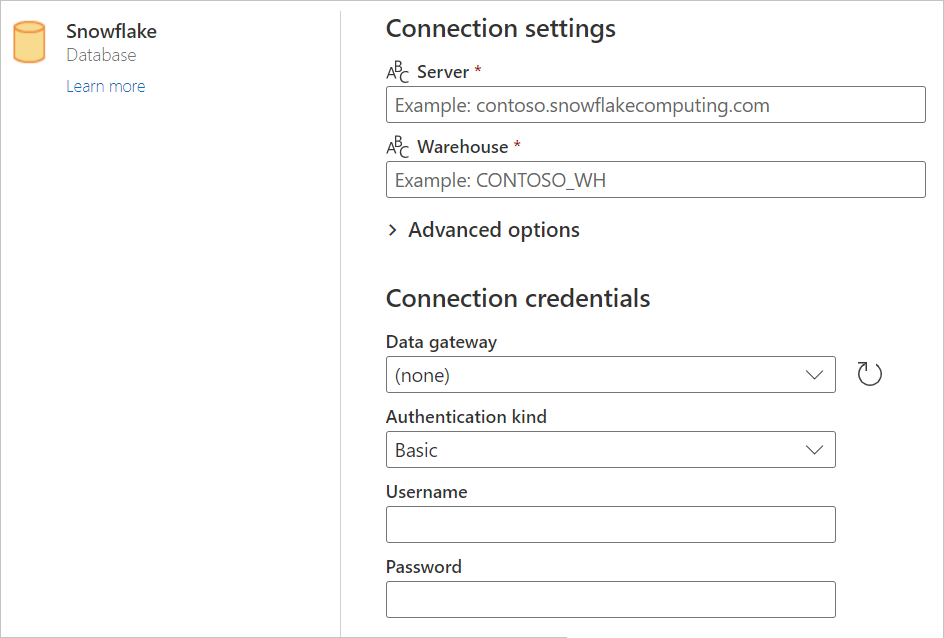
Enter any values in the advanced options you want to use. If there are any advanced options not represented in the UI, you can edit them in the Advanced Editor in Power Query later.
Enter your connection credentials, including selecting or creating a new connection, which gateway you would like to use, and a username and password.
Select Next to connect to the database.
In Navigator, select the data you require, then select Transform data to transform the data in Power Query Editor.

Limitations and considerations
Known issues in Snowflake connector implementation 2.0
Currently, the Snowflake connector implementation 2.0 has the following known issues. There's ongoing work towards a fix and the documentation will be updated when a fix is released.
- Snowflake query with
count distinctlogic returns incorrect result. - Increased memory use. The overall load time is typically faster using
Implementation="2.0", but the memory consumption can also be higher, in some cases causing issues such asResource Governing: This operation was canceled because there wasn't enough memory to finish running it. Either reduce the memory footprint of your dataset by doing things such as limiting the amount of imported data, or if using Power BI Premium, increase the memory of the Premium capacity where this dataset is hosted.
Resolved issues
Hyphens in database names
If a database name has a hyphen in it, you can encounter an ODBC: ERROR[42000] SQL compilation error. This issue is addressed in the September 2024 release.
Slicer visual for Boolean datatype
The slicer visual for the Boolean data type isn't functioning as expected in the June 2024 release. This nonfunctionality is a known issue. As a temporary solution, users can convert the Boolean data type in their reports to text by navigating to: Transfer -> Data Type -> Text. A fix is provided in October 2024 release.
Views not visible with Implementation="2.0"
In some version of the March 2025 release of Power BI Desktop, you might encounter an issue that views aren't visible when using the Snowflake connector implementation 2.0 (Implementation="2.0"). This issue is fixed since the latest March 2025 release of Power BI Desktop. To try again, upgrade your installation.
TIMESTAMP_NTZ values are UTC with Implementation="2.0"
TIMESTAMP_LTZ types aren't being converted to the local time zone but are returning the UTC value when using the Snowflake connector implementation 2.0 (Implementation="2.0"). For example, doing SELECT CURRENT_TIMESTAMP from Snowflake is returning the UTC time, not the user's local time zone. This issue is addressed in the July 2025 release.
Index was outside the bounds of the array when using Implementation="2.0"
In some scenarios, an error is thrown indicating the Index was outside the bounds of the array when using the Snowflake connector implementation 2.0 (Implementation="2.0"). This issue is addressed in the June 2025 release.
Set up your connection in Manage connections and gateways
The following table contains a summary of the properties needed for Snowflake connection:
| Name | Description | Required |
|---|---|---|
| Connection name | A name for your connection. | Yes |
| Connection type | Select a type for your connection. | Yes |
| Server | The host name of the Snowflake account. | Yes |
| Warehouse | The default virtual warehouse used for the session after connecting. | Yes |
| Authentication kind | Go to Authentication. | Yes |
| Privacy Level | The privacy level that you want to apply. Allowed values are None, Organizational, Privacy, and Public. | Yes |
| Specify a text value to use as Role name | Enter a text value to use as Role name. | No |
| Connection timeout in seconds | The time to wait (in seconds) while trying to establish a connection before terminating the attempt and generating an error. | No |
| Command timeout in seconds | The time to wait (in seconds) while trying to execute a command before terminating the attempt and generating an error. | No |
| Implementation | The implementation modes for test connection. | No |
For specific instructions to set up your connection in Manage connections and gateways, follow these steps:
From the page header in Data Integration service, select Settings
 > Manage connections and gateways
Select New at the top of the ribbon to add a new data source.

The New connection pane shows up on the left side of the page.

In the New connection pane, choose Cloud, and specify the following fields:

- Connection name: Specify a name for your connection.
- Connection type: Select a type for your connection.
- Server: Specify the host name of the Snowflake account. For example,
contoso.snowflakecomputing.com. - Warehouse: Specify the default virtual warehouse used for the session after connecting. For example,
CONTOSO_WH.
Under Authentication method, select your authentication from the drop-down list and complete the related configuration. The Snowflake connector supports the following authentication types:

Optionally, set the privacy level that you want to apply. Allowed values are None, Organizational, Privacy, and Public. For more information, see privacy levels in the Power Query documentation.
Advanced Options are used for test connection only. Items that use this connection must specify these options in queries.

- Specify a text value to use as Role name: Enter a text value to use as Role name.
- Connection timeout in seconds: Specify the time to wait (in seconds) while trying to establish a connection before terminating the attempt and generating an error.
- Command timeout in seconds: Specify the time to wait (in seconds) while trying to execute a command before terminating the attempt and generating an error.
- Implementation: Specify your implementation modes for test connection.
Select Create to create your connection. Your creation is successfully tested and saved if all the credentials are correct. If not correct, the creation fails with errors.


Authentication
This section lists the instructions for each authentication type supported by the Snowflake connector:
Snowflake authentication
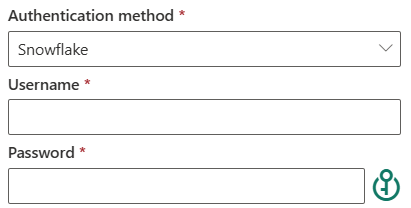
- Username: Specify the login name for the Snowflake user.
- Password: Specify the password for the Snowflake user.
Microsoft Account authentication

Select Edit credentials, which displays the sign in interface. Enter your account and password to sign in your organizational account. After signing in, go back to the New connection page.
Key-pair authentication

To use Key-pair authentication, you need to configure and create a Key-pair authentication user in Snowflake by referring to Key-pair Authentication & Key-pair Rotation.
Username: Specify the login name for the Snowflake user.
Private key: Upload the private key file used for Key-pair authentication. After you upload the private key file, the service automatically detects whether it is encrypted or unencrypted, and displays or hides the Passphrase accordingly.
Passphrase: Specify the passphrase used to decrypt the private key. This is required only if the private key file is encrypted.
