Note
Access to this page requires authorization. You can try signing in or changing directories.
Access to this page requires authorization. You can try changing directories.
This article describes the steps you need to perform in both Jostle and Microsoft Entra ID to configure automatic user provisioning. When configured, Microsoft Entra ID automatically provisions and de-provisions users and groups to Jostle using the Microsoft Entra provisioning service. For important details on what this service does, how it works, and frequently asked questions, see Automate user provisioning and deprovisioning to SaaS applications with Microsoft Entra ID.
Capabilities Supported
- Create users in Jostle
- Remove users in Jostle when they don't require access anymore
- Keep user attributes synchronized between Microsoft Entra ID and Jostle
- Single sign-on to Jostle (recommended)
Prerequisites
The scenario outlined in this article assumes that you already have the following prerequisites:
-
- A Microsoft Entra user account with an active subscription. If you don't already have one, you can Create an account for free.
- One of the following roles:
- A Jostle tenant.
- A user account in Jostle with Admin permissions.
Step 1: Plan your provisioning deployment
- Learn about how the provisioning service works.
- Determine who's in scope for provisioning.
- Determine what data to map between Microsoft Entra ID and Jostle.
Step 2: Configure Jostle to support provisioning with Microsoft Entra ID
Automation account
Before you begin, you’ll need to create an Automation user in your Jostle intranet. This is the account you’ll use to configure with Azure. Automation users can be created in Admin Settings > User accounts and data > Manage Automation users.
For more details on Automation users and how to create one, see this article.
Once created, the Automation user account must be activated (that is, logged in to your intranet at least once) before it can be used to configure Azure.
Manage user provisioning
Before you begin, ensure that your account subscription includes SSO/user provisioning features. If it doesn't, you can contact your Customer Success Manager success@jostle.me and they can assist you in adding it to your account.
The next step is to obtain the API URL and API key from Jostle:
Go to the Main Navigation and select Admin Settings.
Under User data to/from other systems select Manage user provisioning .If you don't see "Manage user provisioning" here and have verified that your account includes SSO/user provisioning, contact Support support@jostle.me to have this page enabled in your Admin Settings).
In the User Provisioning API details section, go to Your Base URL field, select the Copy button and save the URL somewhere you can easily access it later.
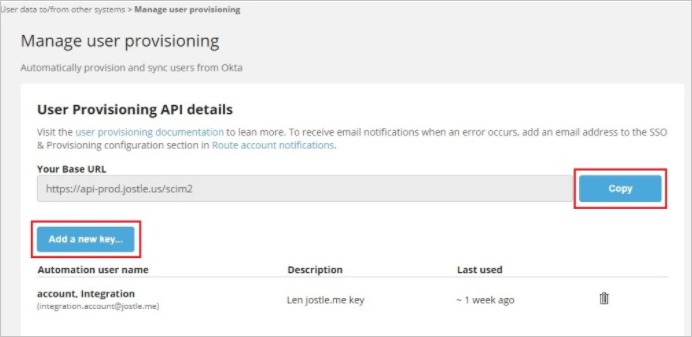
Next, select the Add a new key... button
On the following screen, go to the Automation User field and use the drop-down menu to select your Automation user account.

In the Provisioning API key description field give your key a name (such as
Azure) and then select the Add button.Once your key is generated, make sure to copy it right away and save it where you saved your URL (since it's the only time your key appears).
Next, you’ll use the API URL and API key to configure the integration in Azure.
Step 3: Add Jostle from the Microsoft Entra application gallery
Add Jostle from the Microsoft Entra application gallery to start managing provisioning to Jostle. If you have previously setup Jostle for SSO, you can use the same application. However it's recommended that you create a separate app when testing out the integration initially. Learn more about adding an application from the gallery here.
Step 4: Define who is in scope for provisioning
The Microsoft Entra provisioning service allows you to scope who is provisioned based on assignment to the application, or based on attributes of the user or group. If you choose to scope who is provisioned to your app based on assignment, you can use the steps to assign users and groups to the application. If you choose to scope who is provisioned based solely on attributes of the user or group, you can use a scoping filter.
Start small. Test with a small set of users and groups before rolling out to everyone. When scope for provisioning is set to assigned users and groups, you can control this by assigning one or two users or groups to the app. When scope is set to all users and groups, you can specify an attribute based scoping filter.
If you need extra roles, you can update the application manifest to add new roles.
Step 5: Configure automatic user provisioning to Jostle
This section guides you through the steps to configure the Microsoft Entra provisioning service to create, update, and disable users and groups in Jostle app based on user and group assignments in Microsoft Entra ID.
Note
For more information on automatic user provisioning to Jostle, see User-Provisioning-Azure-Integration.
To configure automatic user provisioning for Jostle in Microsoft Entra ID:
Sign in to the Microsoft Entra admin center as at least a Cloud Application Administrator.
Browse to Entra ID > Enterprise apps
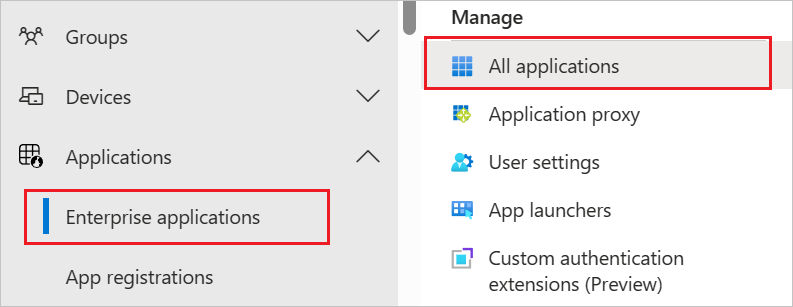
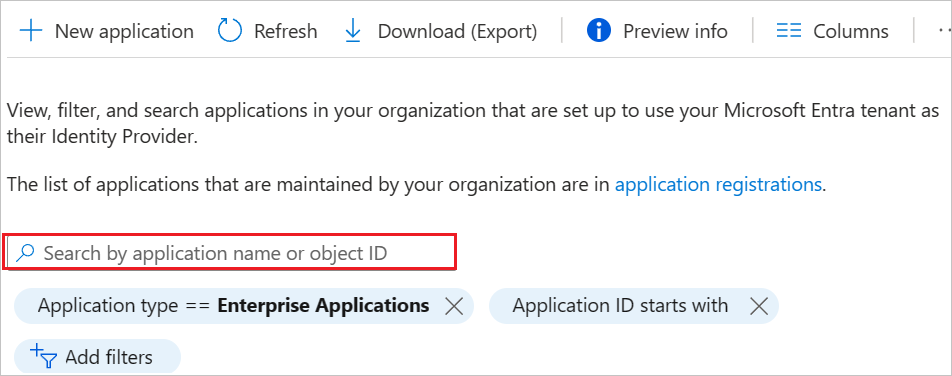
In the applications list, select Jostle.
Select the Provisioning tab and select Get Started.

Select + New configuration.
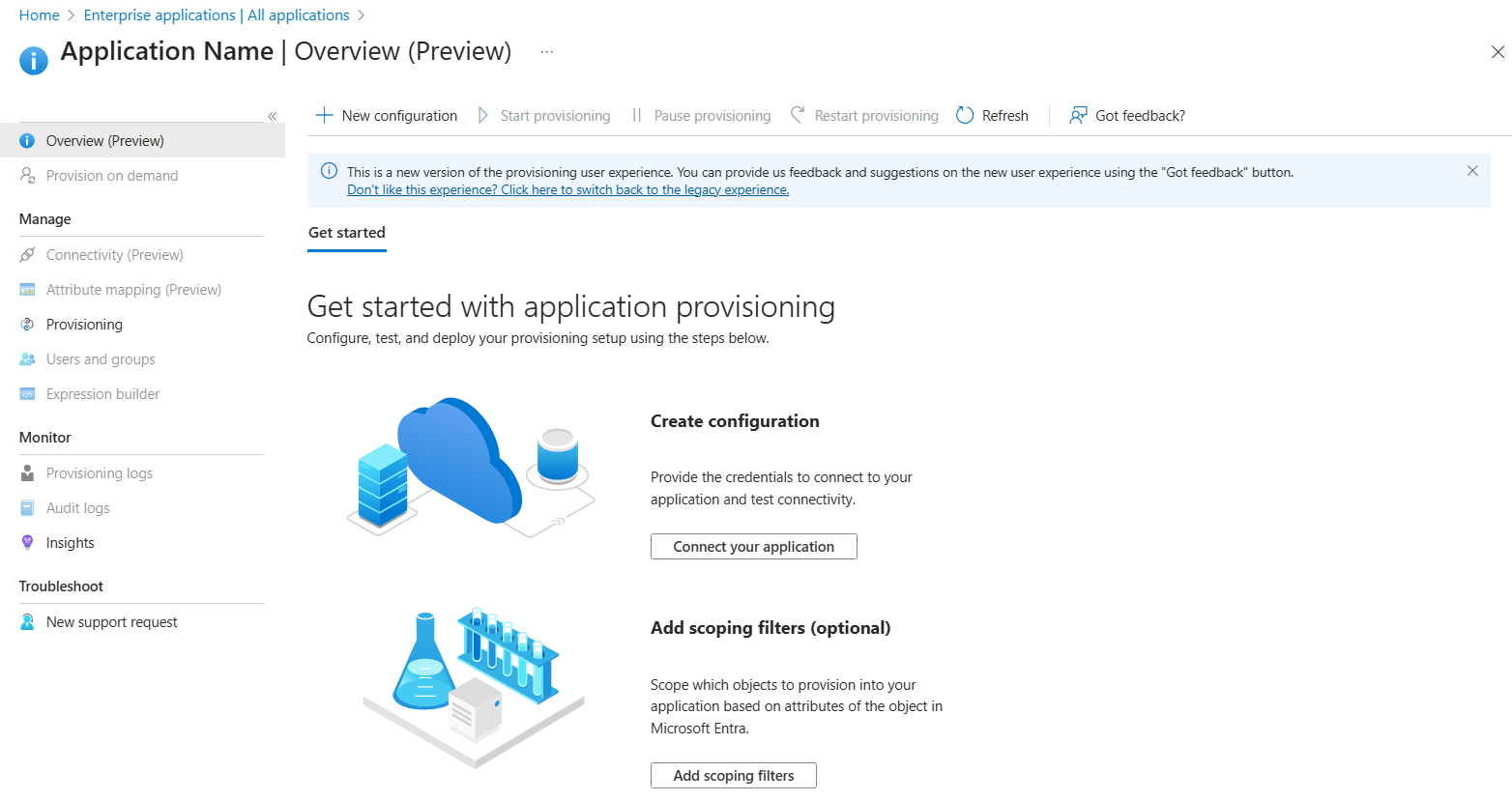
In the Tenant URL field, enter your Jostle Tenant URL and Secret Token. Select Test Connection to ensure Microsoft Entra ID can connect to Jostle. If the connection fails, ensure your Jostle account has the required admin permissions and try again.

Select Create to create your configuration.
Select Properties on the Overview page.
In the Notification Email field, enter the email address of a person who should receive the provisioning error notifications and select the Send an email notification when a failure occurs check box.

Select Attribute Mapping in the left panel and select users.
Review the user attributes that are synchronized from Microsoft Entra ID to Jostle in the Attribute-Mapping section. The attributes selected as Matching properties are used to match the user accounts in Jostle for update operations. If you choose to change the matching target attribute, you need to ensure that the Jostle API supports filtering users based on that attribute. Select the Save button to commit any changes.
Attribute Type Supported for filtering userName String ✓ active Boolean name.givenName String name.familyName String emails[type eq "work"].value String emails[type eq "personal"].value String emails[type eq "alternate1"].value String emails[type eq "alternate2"].value String urn:ietf:params:scim:schemas:extension:jostle:2.0:User:alternateEmail1Label String urn:ietf:params:scim:schemas:extension:jostle:2.0:User:alternateEmail2Label String To configure scoping filters, refer to the instructions provided in the Scoping filter article.
Use on-demand provisioning to validate sync with a small number of users before deploying more broadly in your organization.
When you're ready to provision, select Start Provisioning from the Overview page.
Step 6: Monitor your deployment
Once you configure provisioning, use the following resources to monitor your deployment:
- Use the provisioning logs to determine which users are provisioned successfully or unsuccessfully
- Check the progress bar to see the status of the provisioning cycle and how close it's to completion
- If the provisioning configuration seems to be in an unhealthy state, the application goes into quarantine. Learn more about quarantine states the application provisioning quarantine status article.
More resources
- Managing user account provisioning for enterprise apps
- What is application access and single sign-on with Microsoft Entra ID?