Note
Access to this page requires authorization. You can try signing in or changing directories.
Access to this page requires authorization. You can try changing directories.
Global Secure Access integrates with Microsoft Sentinel, so organizations can stream network traffic logs, audit logs, and alerts directly into Sentinel. This integration uses Microsoft Entra diagnostic settings and a Global Secure Access content hub package with preconfigured workbooks and analytics rules to enhance security monitoring and visualization. By using this integration, organizations can correlate Global Secure Access data with other Microsoft security services to improve threat detection and response across their environments.
Prerequisites
To integrate Global Secure Access with Microsoft Sentinel, you need the following configurations and permissions:
- Microsoft Sentinel, enabled on a Log Analytics workspace. For more information, see create a Log Analytics workspace.
- Global Secure Access, configured with traffic forwarding profiles such as Microsoft 365, Internet Access, and Private Access.
- A Microsoft Entra ID data connector, configured according to the instructions in Send data to Microsoft Sentinel using the Microsoft Entra ID data connector.
- An active Azure subscription.
- Microsoft Entra Security Administrator role to configure diagnostic settings.
- Microsoft Sentinel Contributor permissions for the resource group that the workspace belongs to, to install or manage solutions and configure analytics in the content hub.
- Contributor permissions for the subscription where the Microsoft Sentinel workspace resides to enable Microsoft Sentinel.
Configure Microsoft Entra diagnostic settings
To configure Microsoft Entra diagnostic settings so Global Secure Access can stream data to your Log analytics workspace:
- Sign in to the Microsoft Entra admin center as at least a Security Administrator.
- Browse to Entra ID > Monitoring & health > Diagnostic settings. The General settings appear by default.
- Select Add diagnostic setting to create a new setting.
- Enter a Diagnostic setting name.
- In the Logs section, select the following Categories:
- In the Destination details section, select Send to Log Analytics workspace.
- From the Log Analytics workspace menu, select your Sentinel workspace.
- Select Save.


Install the Global Secure Access solution from the Sentinel Content hub
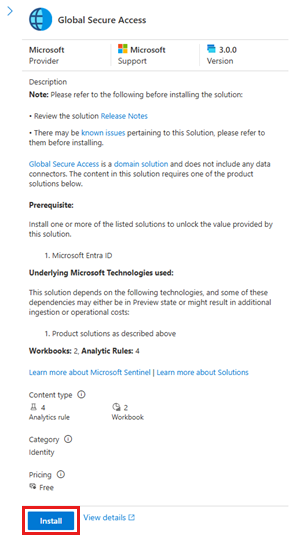
The Global Secure Access solution includes two workbooks and four analytics rules. To install the solution:
Sign in to the Microsoft Defender portal.
Browse to Microsoft Sentinel > Content management > Content hub.
To find the Global Secure Access solution in the Content hub, enter "Global Secure Access" in the Search field.

Select the Global Secure Access solution. Its description opens.
To add the solution to your workspace, select Install.


Enable enriched Microsoft 365 logs (optional)
Enriched Microsoft 365 logs combine Microsoft 365 OfficeActivity data with Global Secure Access NetworkAccessTraffic logs. This enrichment provides more context such as device ID, operating system, and original IP address to audit events. This extra information is critical for diagnosing issues like blocked access or performance anomalies.
To enable this workbook:
- Follow the steps in Configure Microsoft Entra diagnostic settings.
- In the Logs section, select the OfficeActivity category.
- From the Log Analytics workspace menu, select the same Sentinel workspace.
- Select Save.
Validate the data flow
To validate the data flow from Global Secure Access to Microsoft Sentinel:
- Sign in to the Microsoft Defender portal.
- Browse to Microsoft Sentinel > Configuration > Tables.
- In the Tables view, use filters or search to confirm that the following Sentinel tables are in the workspace:
- NetworkAccessTraffic
- NetworkAccessAlerts
- NetworkAccessConnectionEvents
- RemoteNetworkHealthLogs
- OfficeActivity (if you enabled enriched Microsoft 365 logs)


Note
Microsoft Sentinel creates tables when it ingests data into the Log Analytics workspace. If there's no data ingestion, the table doesn't exist in the workspace.
Enable analytics rules
You enable or customize analytics rules from the Global Secure Access solution. For more information, see Create and manage analytics rules in Microsoft Sentinel.

Analytics rules can:
- Detect abnormal denials from specific source IPs to destination IP addresses.
- Detect a source IP scanning for open ports.
- Detect changes in the protocol used for specific destination ports.
- Detect connections that occur outside the defined operational hours.
View the preconfigured workbooks
The Global Secure Access solution includes two workbooks: Enhanced Microsoft 365 logs and Network Traffic Insights. To view a workbook dashboard:
- Sign in to the Microsoft Defender portal.
- Browse to Microsoft Sentinel > Content management > Content hub.
- In the Content hub, expand the Global Secure Access solution.
- Select one of the preconfigured workbooks.
- Select View Template. The workbook dashboard opens.
