Note
Access to this page requires authorization. You can try signing in or changing directories.
Access to this page requires authorization. You can try changing directories.
Note
Community interest groups have now moved from Yammer to Microsoft Viva Engage. To join a Viva Engage community and take part in the latest discussions, fill out the Request access to Finance and Operations Viva Engage Community form and choose the community you want to join.
[This article is prerelease documentation and is subject to change.]
One way to improve the accuracy of a forecast is to include input signal data beyond just historical sales. You can add signals in your forecast models by including a Signal step. This type of step lets you include any signal as input data. You can then use the new Forecast with signals step to combine the signal input and main input to create the forecast.
This article explains how to set up a forecast model that includes both a primary input (such as historical sales) and up to five signal inputs (such as inflation or weather data).
Important
- This is a preview feature.
- Preview features aren’t meant for production use and might have restricted functionality. These features are subject to supplemental terms of use, and are available before an official release so that customers can get early access and provide feedback.
Set up a forecast model that includes both input and signals
Follow these steps to set up a forecast that includes both input and up to five signal inputs.
Create a new forecast profile as described in Create and manage forecast profiles.
On the Select a forecasting model preset page, select None.
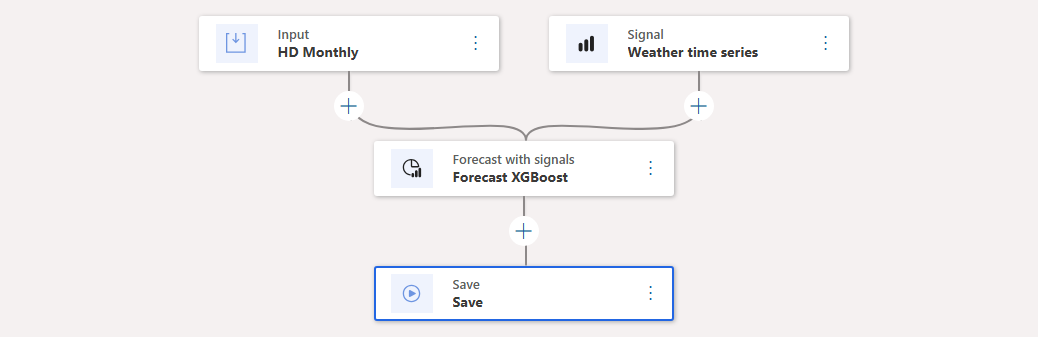
After you create and save the profile, on the Forecast model tab, set up your model in the following way. (Learn more in Design forecast models.)
- Use an Input step to set up your primary time series.
- Add a Signal step to set up a signal time series in a parallel branch.
- Add other steps as required to condition the data in each branch.
- Add a Forecast with signals step to combine the branches.
- Complete the model by adding a Save step.
On the Action Pane, select Save.
Align input and signal time series
To calculate a forecast with signals, the input and signal time series must be aligned. This means that they must have compatible time bucket sizes, dimensions, and time spans.
Time span requirements
The time span of the signal time series must cover all of the historical input data that you want to consider and extend to the end of the forecast time horizon. If the input time series extends further into the past than the signal time series, then the forecast calculation will ignore all input data that is older than the oldest signal data. If the forecast time horizon extends further into the future than the signal time series, then the forecast will fail and you'll see an error message.
The following illustration provides examples of successful and unsuccessful time span alignments.
- The first example won't work because the signal time series doesn't include any data for the forecast horizon.
- The second example won't work because the signal time series doesn't include enough data to cover the full forecast horizon.
- The third example is perfectly aligned.
- The fourth example works, but the forecast will ignore the input data that is older than the oldest signal data.

Dimension requirements
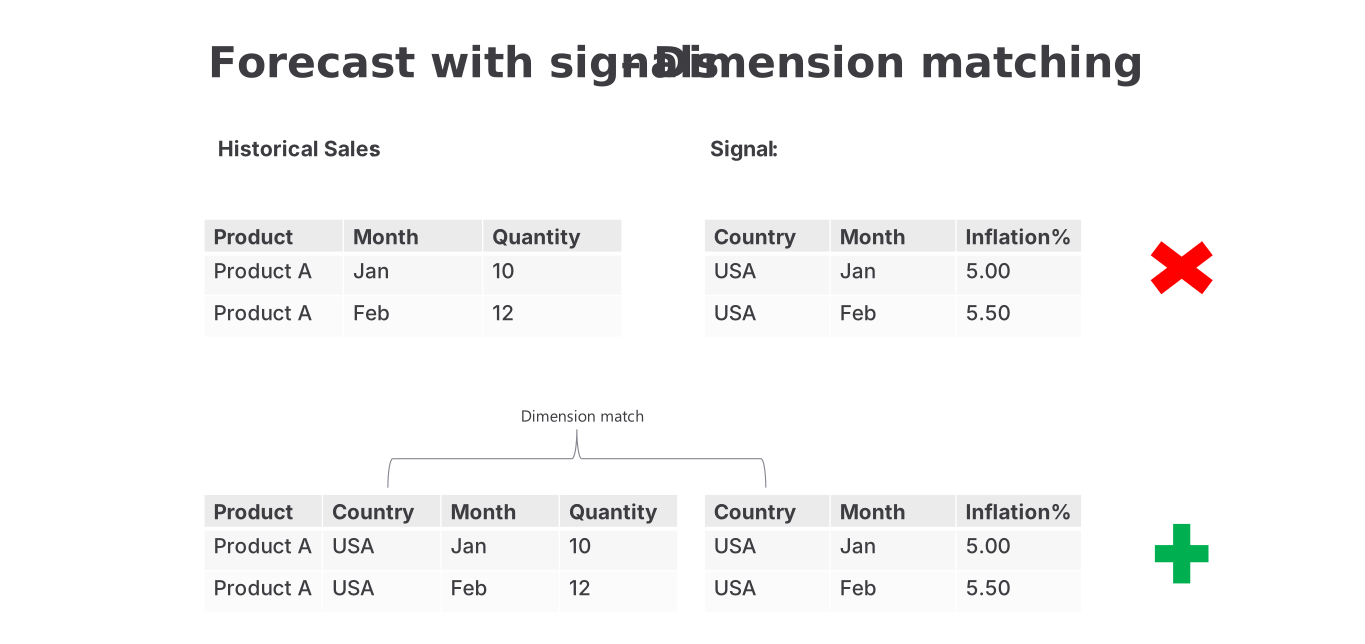
The input and signal time series must have compatible dimensions. For example, if the input time series has dimensions for Country and Month, then the signal time series must also have Country and Month dimensions. The system uses these dimensions to align the two time series. If the dimensions don't match, the forecast calculation will fail and you'll see an error message.
The following illustration provides examples of successful and unsuccessful dimension alignments.
- The first example won't work because the signal time series has a Country dimension, but the input time series doesn't.
- The second example works because both time series include dimensions for both the Country and the Month.