Note
Access to this page requires authorization. You can try signing in or changing directories.
Access to this page requires authorization. You can try changing directories.
Applies To: Project Operations Integrated with ERP, Project Operations Core
The external scheduling mode lets you natively create, update, and delete data in tables that are related to work breakdown structures (WBSs), but without the current limits that Microsoft Project for the Web enforces. It also provides limited validation. Use this mode only if you're one of the following customers:
- You have the tools that are required to define a WBS outside the scheduling logic that Project Operations provides.
- You need to manage schedule hierarchy, dependencies, or task duration.
Important
If you don't correctly enter data in the WBS-related tables, the resource reconciliation grid, estimates grid, tracking grid, and resource assignment grid might not render the data.
Configuration
This feature is enabled by default. However, the related column isn't visible by default on the out-of-box main page for projects. To enable the column, in the Maker portal, open the main page for the project entity, select the Scheduling Engine column, and then change the column to Visible by Default. If you don't use the out-of-box project main page, edit your existing page, and add the Scheduling Engine column to it.
Settings
To use the external scheduling mode, create a new project and select the Externally Scheduled scheduling engine in the drop-down list on the project main page. After you set this mode for a project, you can't change it.
Viewing the WBS
If you externally schedule a project, you restrict access to Project for the Web for that project. To view the WBS, go to the tracking grid, where the full WBS is shown.
Creating and editing the WBS
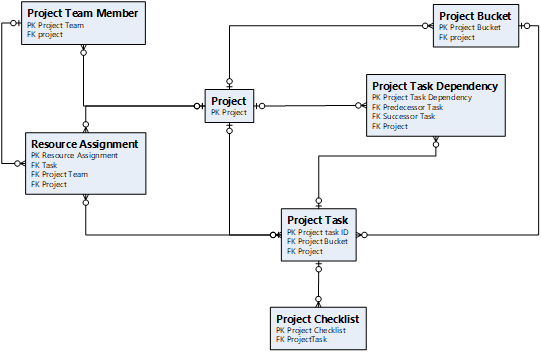
If you enable external scheduling for a project, you must enter data for all WBS-related tables, including tasks, team members, resource assignments, and dependencies.
The following illustration shows the data model for project planning.
Functional limitations
The following operations aren't permitted on externally scheduled projects.
Copilot functionality
- Copilot functionality to create tasks, risks, and issues and generate status reports isn't available on externally scheduled projects.
Project planning
- Copy project – This operation isn't supported on externally scheduled projects.
- Move project – Changes to the start date of a project don't move the start of tasks or resource assignments in the WBS.
- Updating the Project Manager – Changes to the project manager on the project main page don't automatically create a new project team member until the project is converted.
- Updating the project's work hour template – Changes to the project's work hour template don't recalculate the project's schedule.
- Resource Assignment Contours – The creation of resource assignments doesn't automatically update the mdyn_PlannedWork column. This column stores contours for resource assignment effort. If you show time-phased effort in the resource assignment grid or the resource reconciliation grid, you must define valid resource assignment contours. These contours must be correctly formatted so that they trigger the calculation of both cost contours and sales price contours. Create a test project that is scheduled in Project for the Web, and then review the associated data to confirm the requirements and formatting.
Resource management
- Creation of resource requirements from generic resource assignments – You can't create resource requirements from generic team members with assignments for externally scheduled projects. For these projects, create generic project team members directly on the team member grid to automatically create resource requirements.
- Generic resource fulfillment – The system doesn't support generic resource fulfillment for externally scheduled projects if the generic resource has task assignments. If you fulfill an active open requirement, the system creates new project team members but it doesn't delete the generic team member or replace the generic team member on any existing resource assignments.
- Delete Team Member – Deleting a team member doesn't automatically delete resource assignments.
- Experiences on the Resource Reconciliation grid – The Resource Reconciliation grid that shows discrepancies between bookings and assignments supports limited functionality. Extending bookings from this experience isn't enabled.
Quoting and contracting
- Importing Quote Line and Contract Line details – When you import quote or contract line details from a project, the application supports a maximum of 500 tasks in the WBS, based on a limit of 20 assignments per task.
Actuals and invoicing
- Although there are no changes to existing validations between the WBS and financial transactions, it's important that you conform to the out-of-box data model to ensure that all downstream transactions run as expected.