Note
Access to this page requires authorization. You can try signing in or changing directories.
Access to this page requires authorization. You can try changing directories.
Note
Community interest groups have now moved from Yammer to Microsoft Viva Engage. To join a Viva Engage community and take part in the latest discussions, fill out the Request access to Finance and Operations Viva Engage Community form and choose the community you want to join.
The Electronic reporting (ER) application-specific parameters feature lets you configure data filtering in an ER format so that it's based on a set of abstract rules. You can configure this set of rules to use the data source of the Lookup type that is available in an ER format. Use the user interface (UI) that is automatically generated based on the settings of the Lookup data source of the corresponding ER format and the current legal entity data to specify real rules beyond the ER components designers. Eventually, the ER format's Lookup data source accesses the specified rules when this ER format is executed.
Note
Use the configured data sources of the editable ER format to specify what application data is used to configure real rules.
Use the ER Operations designer to bring a data source of the Lookup type into your ER format. You must configure the data source to describe how your abstract rules look, including the following elements:
- The parameter set of a certain data type whose value specifies a single rule.
- The value type of a certain data type that a single rule returns when this rule is considered the most appropriate among others.
Depending on the type of value that any configured rule returns, you can configure the following types of Lookup data sources:
- Use the Data model\Lookup type when you must return a model enumeration value.
- Use the Dynamics 365 Operations\Lookup type when you must return an application enumeration value or an application extended data type value.
- Use the Format enumeration\Lookup type when you must return a format enumeration value.
The following illustration shows how you can configure a format enumeration in the sample ER format.

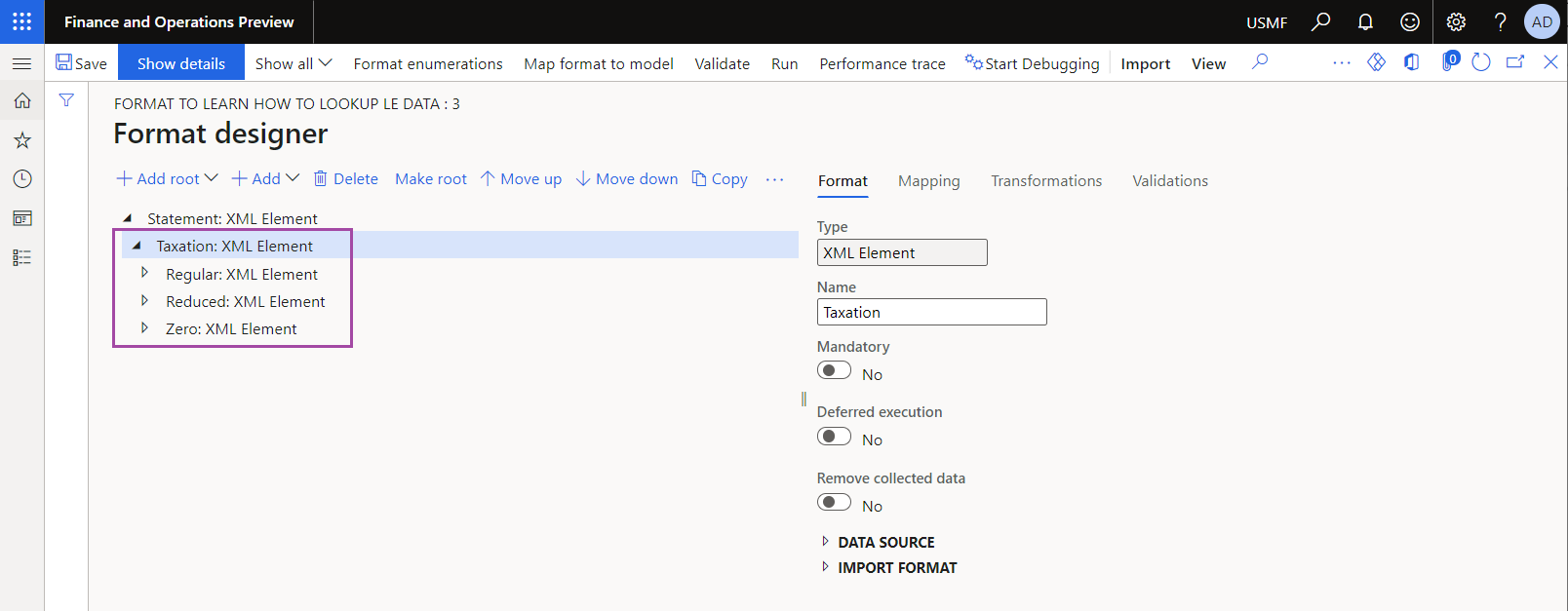
The following illustration shows the format components that you configured to report different types of taxes in different sections of a generated report.
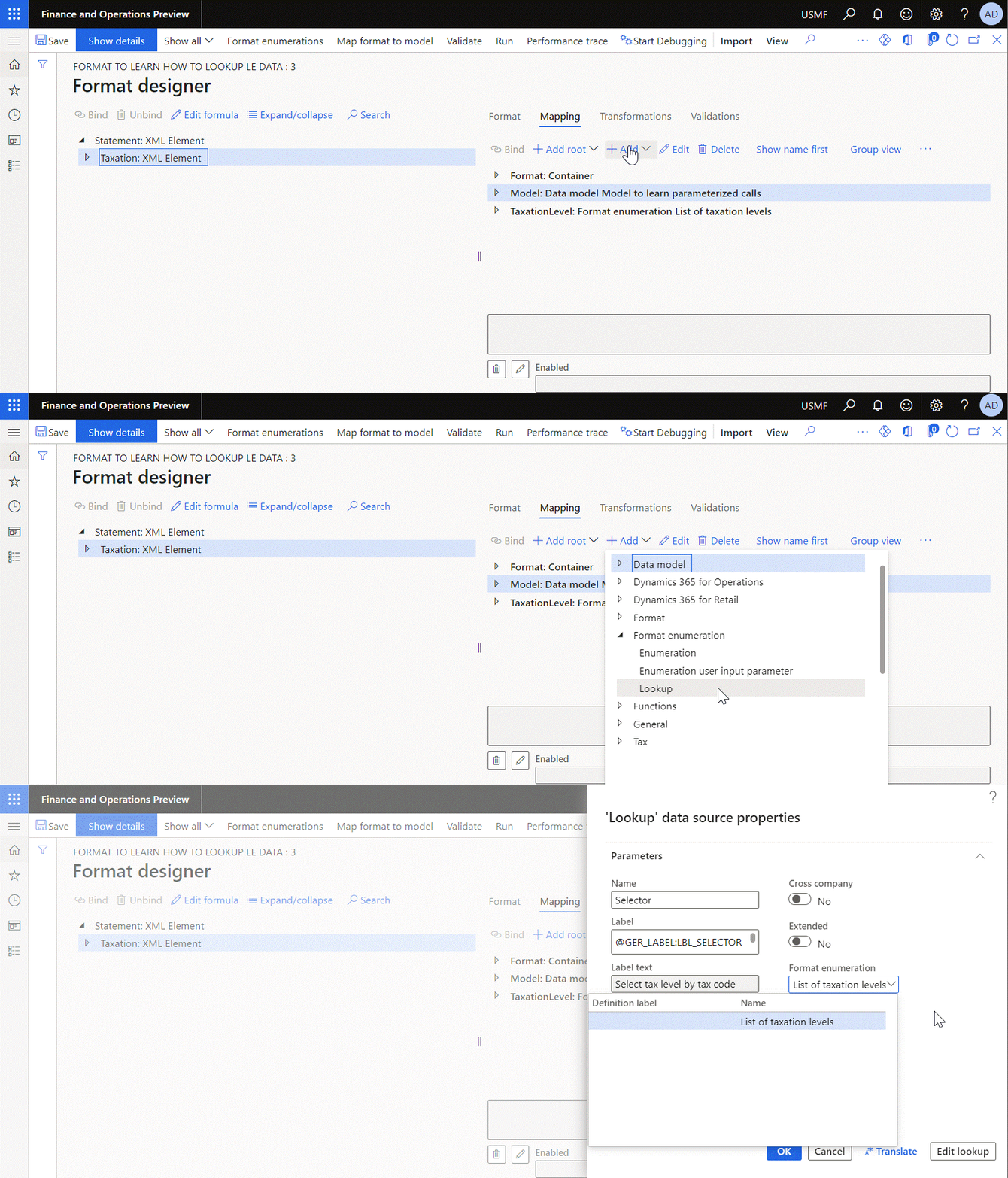
The following illustration shows how the ER Operations designer allows you to add a data source of the Format enumeration\Lookup type. The added data source is configured as returning a value of the List of taxation levels format enumeration.
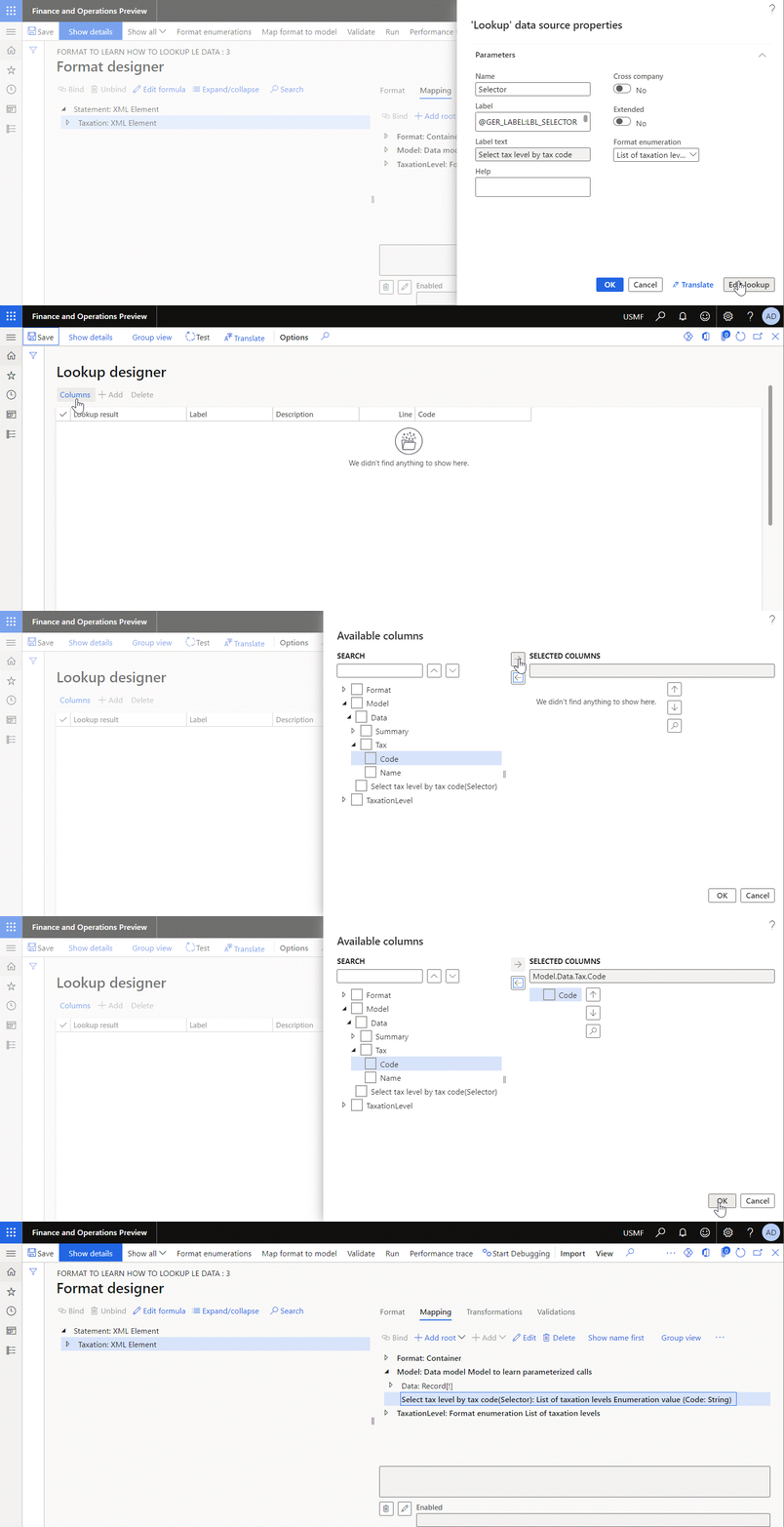
The following illustration shows how you configure the added data source to use the Code field of the Model.Data.Tax record list of the Model data source as a parameter that you must specify for every configured rule.
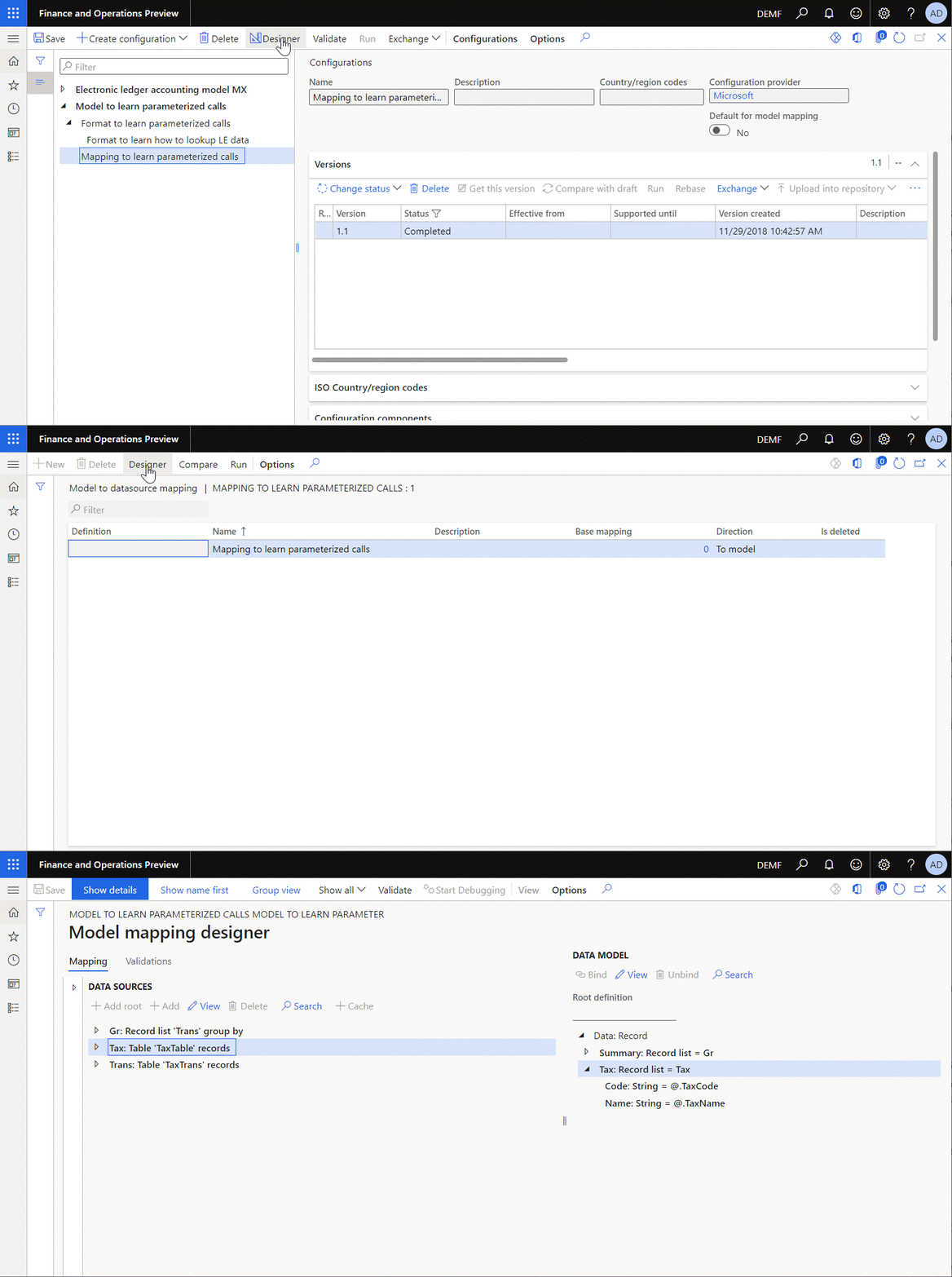
You configure the added Model.Data.Tax data source to specify a tax code for every configured rule by accessing records of the TaxTable application table.
Set up the lookup rules for the selected ER format by using the UI that automatically aligns with the structure of the configured data source. Currently, this UI requires that for each rule, you specify the returned value as the List of taxation levels format enumeration value as well as the tax code as a parameter.
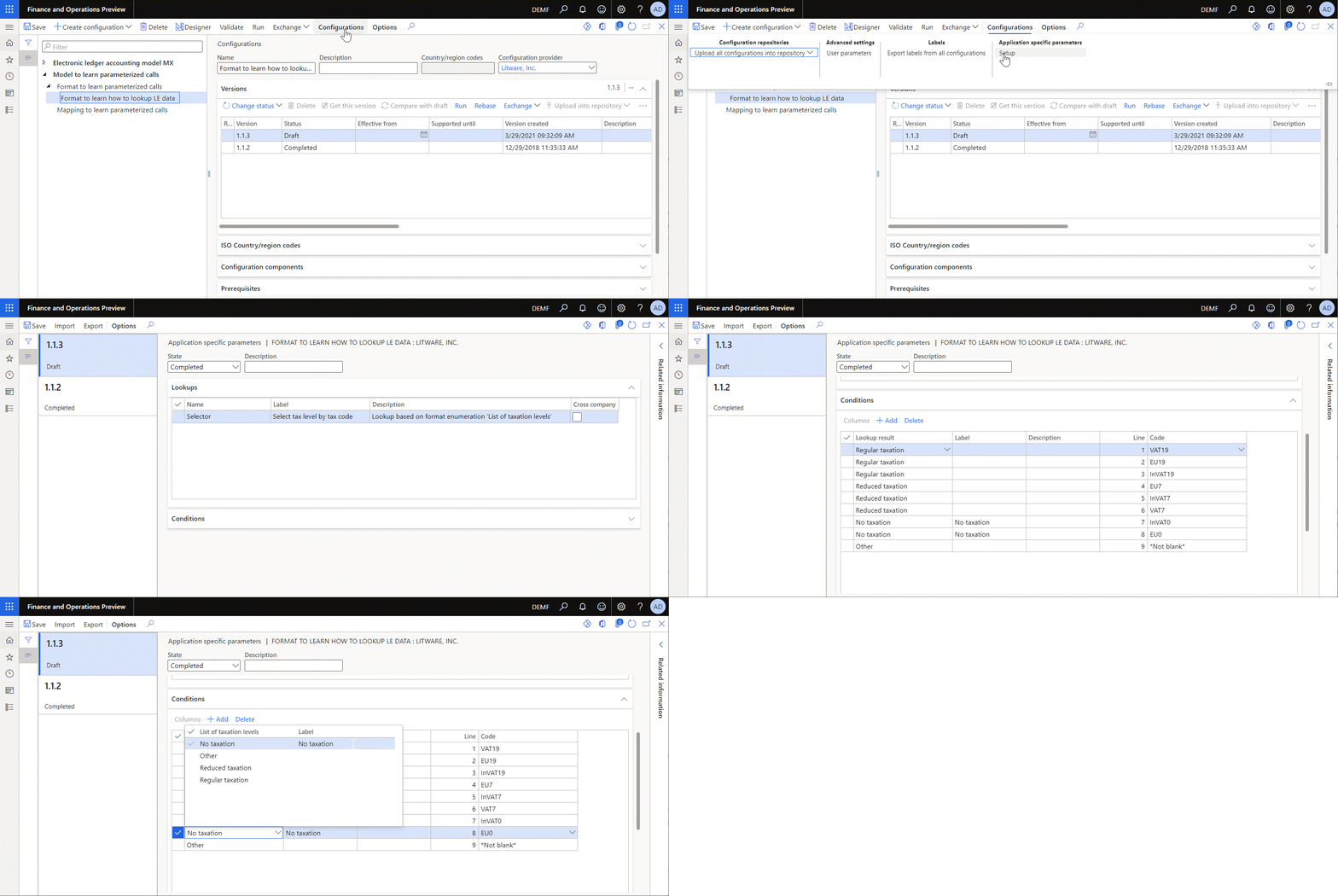
The following illustration shows how you can configure the Model.Data.Summary.LevelByLookup data source of the Calculated field type to call the configured Lookup data source by providing the required parameters. To process this call at runtime, ER goes through the list of configured rules in the defined sequence to locate the first rule that satisfies the provided conditions. In this example, it's the rule that contains the tax code that matches the provided one. As the result, ER finds the most appropriate rule and returns the enumeration value that you configured for the found rule.
Note
An exception is thrown when no applicable rule is found. To prevent these exceptions, configure additional rules at the end of the rules list to handle cases when a non-configured value or no value is provided. Use the *Not blank* and *Blank* options accordingly.

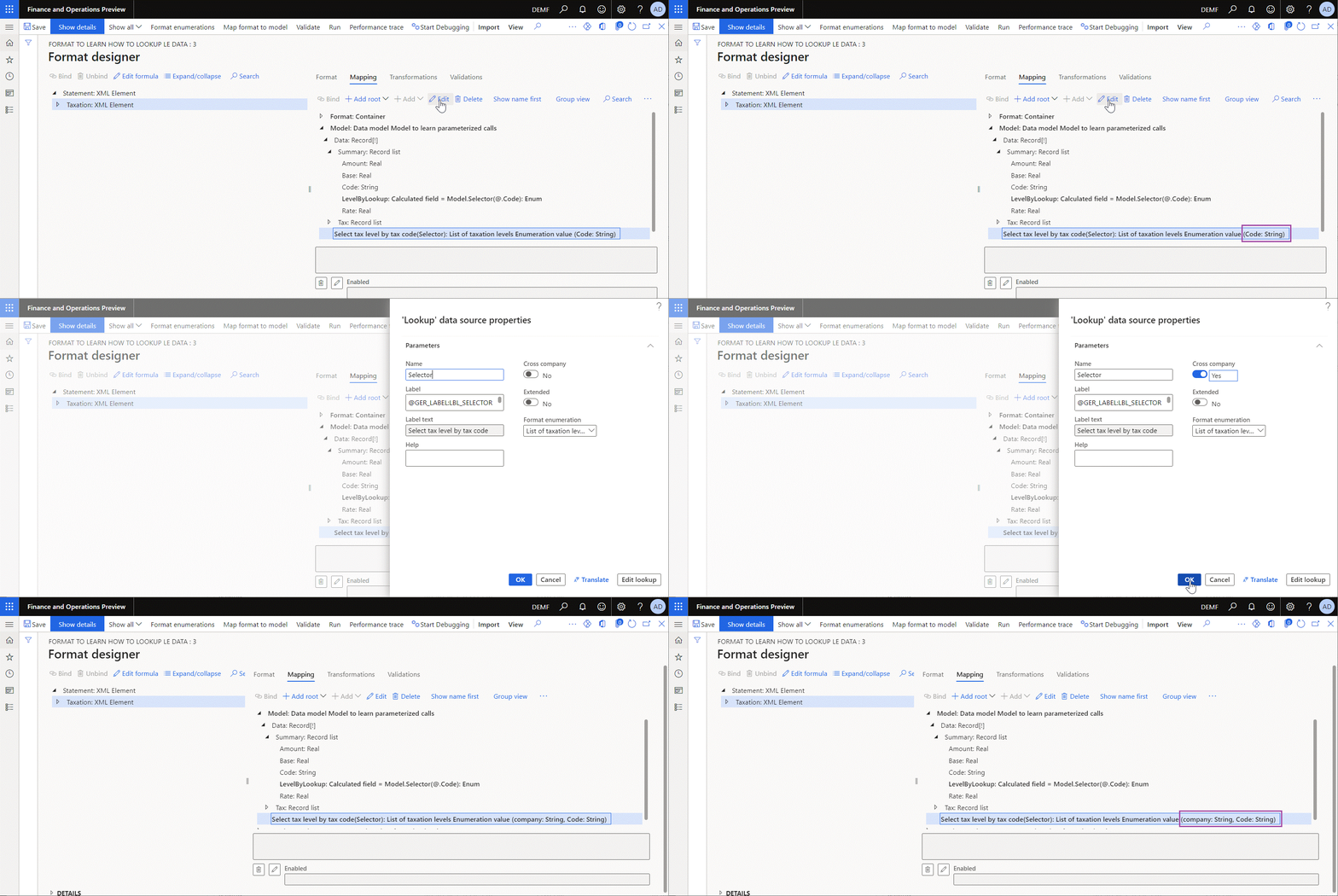
When you set the Cross-company option to Yes for the editable lookup data source, you add a new required Company parameter to the set of parameters for this data source. You must specify the value of the Company parameter at runtime when the lookup data source is called. When you specify the company code at runtime, the rules configured for this company are used to find the most appropriate rule, and the corresponding value is returned. The following illustration shows how you can do this and how the set of parameters of the editable data source is changed.
Note
Select every company separately to configure the set of rules for this lookup data source of the editable ER format. An exception is thrown at runtime when the cross-company lookup is called with the code of the company for which the lookup setting wasn't completed.
Make sure that you grant permissions for a user who runs the ER format with the cross-company Lookup data source to access the data of every company that is in scope of this data source. Otherwise, an exception is thrown at runtime.
Starting in version 10.0.19, the Lookup data sources include extended capabilities. When you set the Extended option to Yes for the editable lookup data source, the configured lookup data source transforms into a structured data source that offers extra capabilities to analyze the configured set of rules. The following illustration shows this transformation.
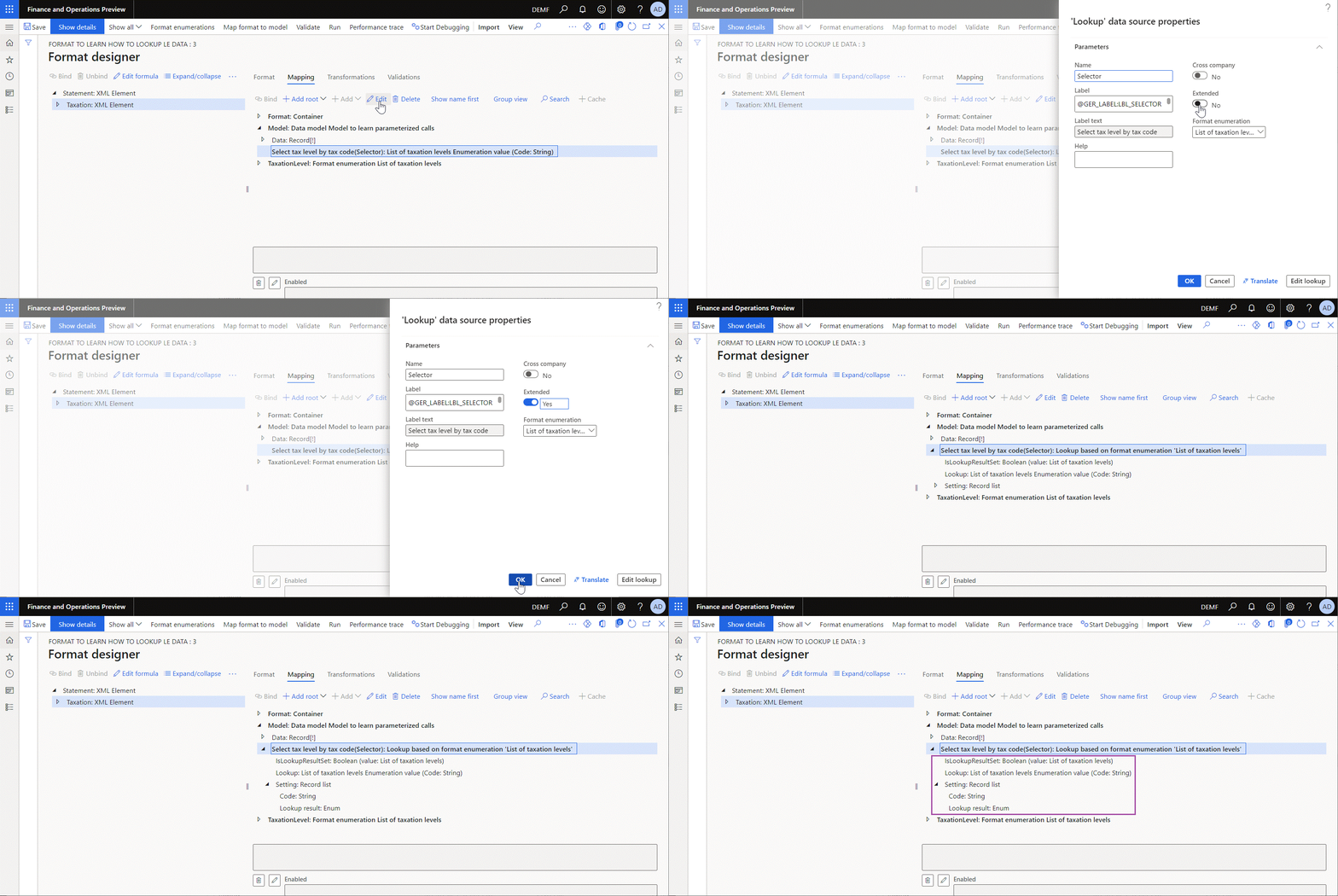
The Lookup subitem works as a function that finds the most appropriate rule from the set of configurable rules based on the provided set of parameters.
The IsLookupResultSet subitem works as a function that accepts the provided value of the base enumeration data source and returns the Boolean value of True when the set of rules contains at least one rule for which the provided enumeration value is configured as a returned value. This function returns the Boolean value of False when there are no rules configured to return the provided enumeration value.
The Setting subitem works as a function that returns the set of configured rules as records of a record list. The returned values and the set of parameters of the configured rules are presented in every returned record as fields of the relevant data types:
- The returned value appears as the Lookup result field.
- The configured parameters appear as fields with names of parameters (Code field in this example).
For more information about how to configure the Lookup data source, see Configure ER formats to use parameters that are specified per legal entity. To learn how to set the Lookup rules, see Set up the parameters of an ER format per legal entity.
Additional resources
Configure ER formats to use parameters that are specified per legal entity