Note
Access to this page requires authorization. You can try signing in or changing directories.
Access to this page requires authorization. You can try changing directories.
After purchasing licenses for Field Service, an administrator installs the application on a Power Platform environment.
Requirements
When installing Field Service, you must meet these requirements:
- You have the System Administrator or Dynamics 365 admin security role.
- The environment has an attached Dataverse data store. The installation process explains how to create a new environment. Field Service isn't supported on a bare Common Data Service (CDS) instance.
- Enable Dynamics 365 apps is turned on in the environment settings. The installation process explains how to enable this setting.
- The environment isn't a developer or sandbox environment created without a database.
Install on a new environment
Installing Field Service on an environment that doesn't meet these requirements isn't supported.
Install on an existing environment
If your organization already maintains environments, you can install the app on an existing environment with a database and Enable Dynamics 365 apps turned on. If your environment doesn't meet these requirements, create a Power Platform environment with an attached Dataverse data store and turn on the Enable Dynamics 365 apps setting.
Install a trial
When you get a free trial, the Field Service application installs automatically on a new environment. After purchasing a license, you can change the environment type to a production environment.
Access Field Service
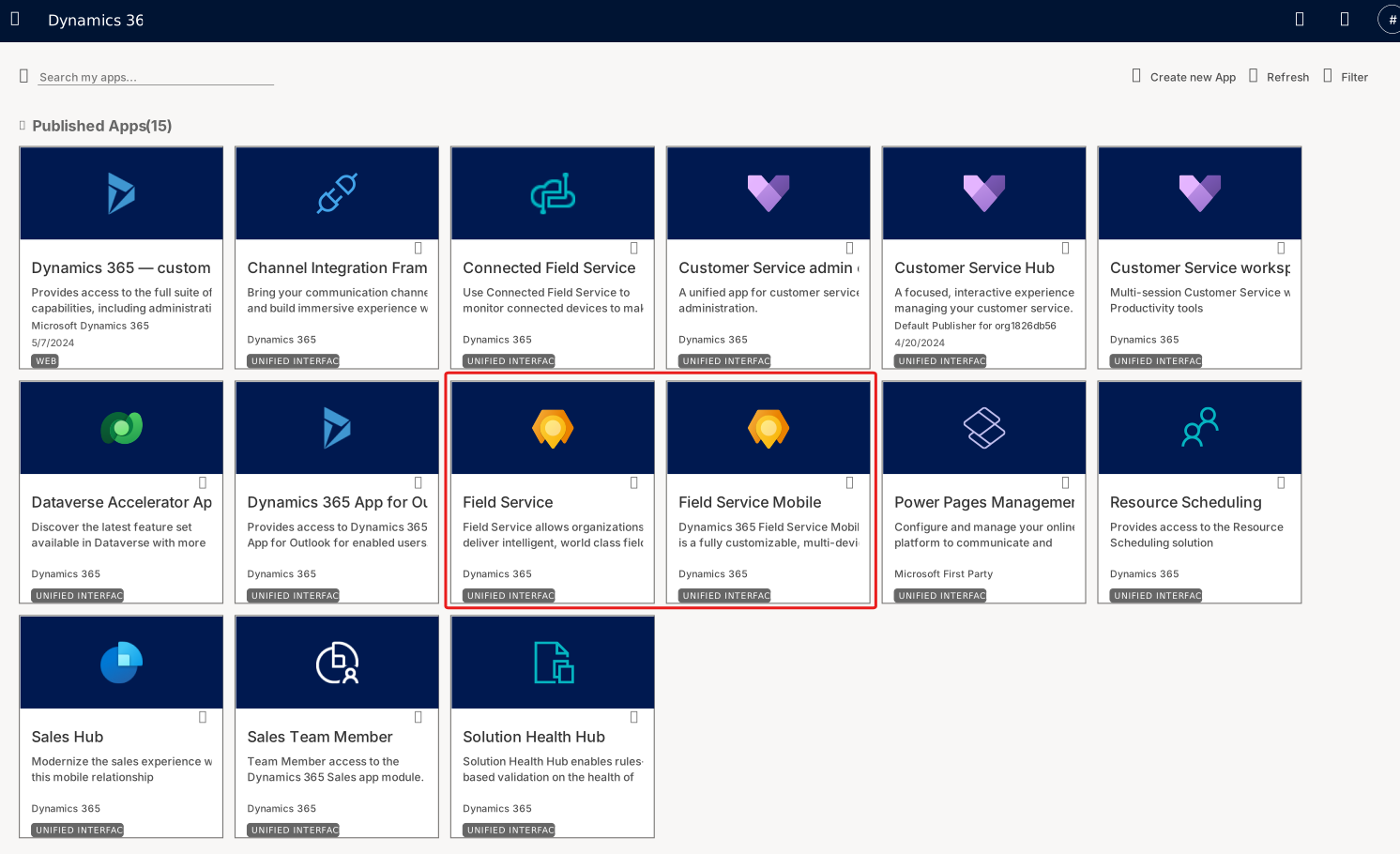
Once the installation is complete, the Field Service and Field Service Mobile apps appear in the list of apps when you sign in to your Dynamics 365 organization. You can find these apps by going to:
https://[your-environment-URL].crm.dynamics.com/apps
Install and set up the Dynamics 365 Field Service mobile app
Set up the mobile app for frontline workers to use to view and complete work orders in the field.
Next steps
After installing Field Service and the Field Service mobile app, see the following articles to configure the system to create, schedule, view, and complete work orders.