Note
Access to this page requires authorization. You can try signing in or changing directories.
Access to this page requires authorization. You can try changing directories.
Applies to: Dynamics 365 Contact Center—embedded, Dynamics 365 Contact Center—standalone, and Dynamics 365 Customer Service
You can Enable file attachments to allow customer service representatives (service representatives, representatives) and customers to share files during messaging conversations.
When you enable the option for customers in the General settings configuration of your channel, customers can include attachments with their messages. Similarly, when you enable the option for service representatives, they can send attachments from the communication panel to the customers. Representatives can upload files by dragging and dropping the file from the file explorer into the conversation canvas. Customers must use the Attach icon to upload files.
If a representative transfers the conversation to another representative, the receiving representative can access the files attached to the conversation.
Learn more about the representative and customer experience of using file attachments in chat in Configure file attachment.
Learn more about the file types that are supported in each channel in Asynchronous channel support.
File size limit and unsupported extensions for attachments
By default, the application has a file size limit of 5 megabytes (MB) (5,120 kilobytes). You can change this limit based on your organization's requirements.
Tip
Refer to documentation for your channel when determining message size limits. If you enable file attachments for Facebook Messenger, we recommend that you configure a maximum limit of 25 MB (25,600 kilobytes) because the Facebook Messenger file size limit is 25 MB.
You can set the file extension types that customers and representatives can share.
Configure file size limit and file extensions
To configure the file size limit and file extensions, complete the following steps:
In the Customer Service or Contact Center app, select the Settings icon in the navigation bar, and then select Advanced Settings.
Go to Settings > Administration > System Settings.
In the System Settings window, go to the Email tab.
Go to the Set file size limit for attachments section, and in the Maximum file size (in kilobytes) field, enter the value in kilobytes.

To specify unsupported file types, go to the General tab.
In the Set blocked file extensions for attachments field, add or edit the file types.
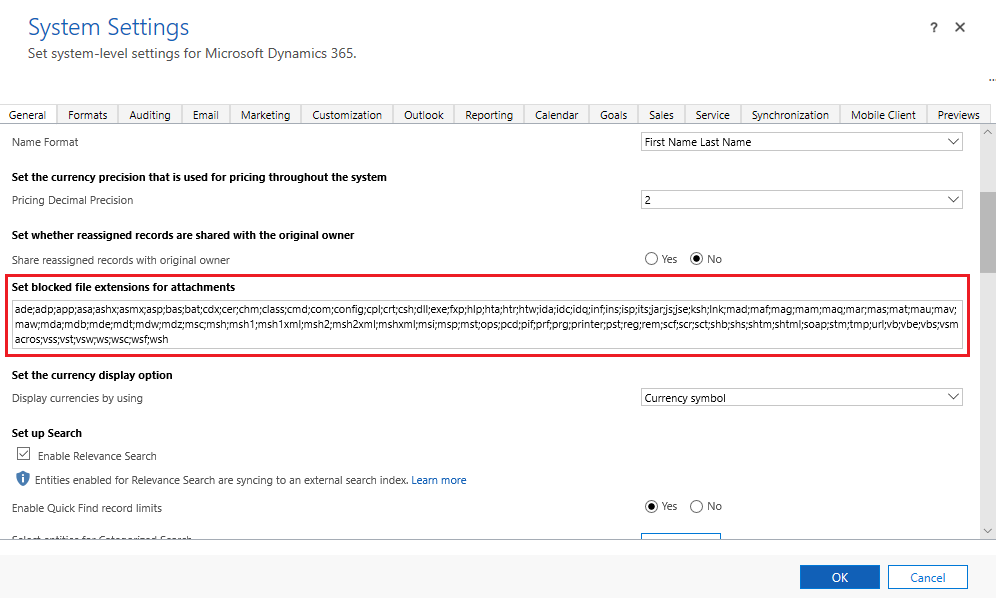
Select OK.
Now, representatives and customers can share file attachments during their conversation.
Related information
Support for live chat and asynchronous channels
Configure file attachments
Configure a Facebook channel
Configure a WhatsApp channel
Configure a LINE channel
Download file attachments from your Azure bot