Note
Access to this page requires authorization. You can try signing in or changing directories.
Access to this page requires authorization. You can try changing directories.
This article describes how to use customer hierarchies to manage business partners for Microsoft Dynamics 365 Commerce business-to-business (B2B) e-commerce websites.
In Commerce headquarters, use a customer hierarchy entity to represent the business partner organizations that use your B2B e-commerce site. Before you can start to use customer hierarchies to manage business partners, you must enable the B2B e-commerce capabilities in Commerce headquarters and then define a number sequence for the customer hierarchy.
Enable the B2B e-commerce feature in Commerce headquarters
To use the B2B e-commerce capabilities, first enable the Enable the use of B2B eCommerce capabilities feature in Commerce headquarters.
- Go to Workspaces > Feature management.
- On the All tab, use the filter box to search for Module: Retail and Commerce.
- Find the Enable the use of B2B eCommerce capabilities feature, select it, and then select Enable now in the lower-right corner.
For a business buyer to successfully register on the website, you must first enable the automatic linking feature. This feature links the business buyer's Commerce customer account to the email address they used to request onboarding.
To enable the automatic linking feature, follow these steps:
- Go to System administration > Workspaces > Feature management and select the All tab.
- Search for the Local Identity Record and Commerce Customer automatic linking feature.
- Select the feature, and then in the properties pane, select Enable now.
Note
- For automatic linking to be successful, you must run the 1010 (Customers) distribution schedule job before the customer signs in to the website.
- Once it's turned on, the automatic linking feature is enabled for all channels in your environment. Be aware of this functionality if you're hosting different types of sites within your environment.
For more information, see Automatic linking on B2B sites.
Define a number sequence for the customer hierarchy
Number sequences generate readable, unique identifiers for master data records and transaction records that need identifiers. Define a number sequence to generate the ID for the customer hierarchy. For more information about number sequences, see Number sequences overview.
To define a number sequence for the customer hierarchy in Commerce headquarters, follow these steps:
- Go to Retail and Commerce > Headquarters setup > Number sequences > Number sequences.
- Create a new number sequence, or select an existing number sequence to reuse it.
- Go to Retail and Commerce > Headquarters setup > Parameters > Commerce shared parameters.
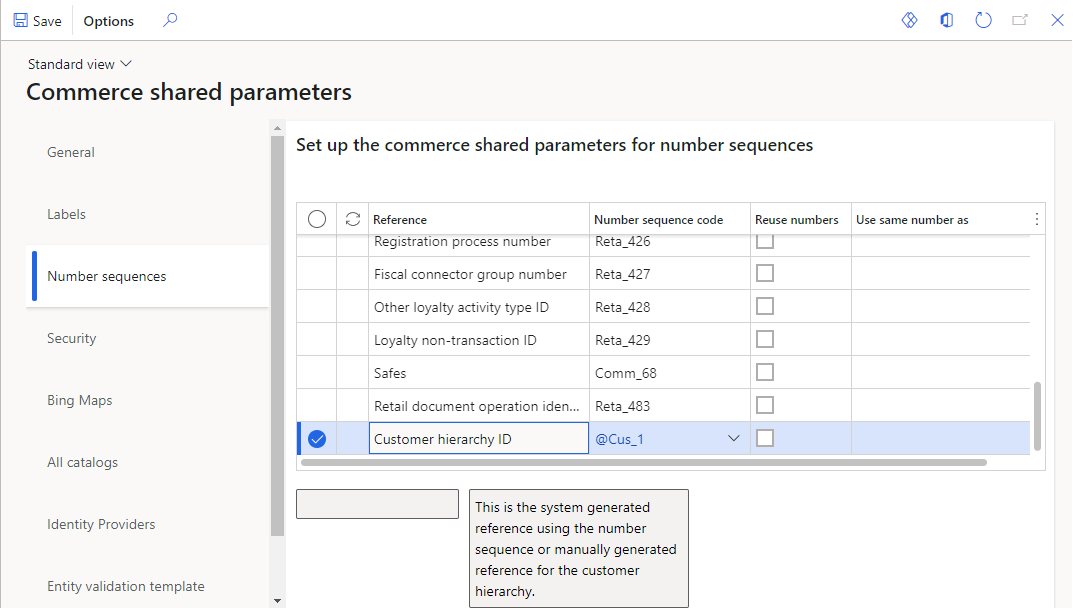
- On the Number sequences tab, add the number sequence that you created or selected earlier to the Customer hierarchy ID reference.
How the approval process works
When a business partner requests to join a B2B e-commerce site, the system saves the request as a prospect. A Commerce headquarters persona such as a retail operations manager can approve or reject partner requests. For more information about how to manage business partner requests and prospect approvals, see Manage business partner users on B2B e-commerce websites.
When a prospect is approved, the system creates two new customer records:
- One customer record of the Organization type represents the organization that's requesting to become a business partner.
- One customer record of the Person type represents the person who submitted the request.
In addition, the system creates a new customer hierarchy record at Retail and Commerce > Customers > Customer hierarchies. This customer hierarchy record has the following properties:
- Customer hierarchy ID – The unique ID of the customer hierarchy. This ID uses the number sequence that you defined in Commerce shared parameters.
- Name – The organization name of the business partner, as specified in the onboarding request. This field is editable.
- Purpose – This property is set to the predefined value B2B organization.
- Organization – The customer ID of the business partner organization.
Add the person who submitted the onboarding request on the Hierarchy FastTab, and assign the Admin role to them. As the administrator adds more users to the business partner organization on a B2B site, the system creates a new customer record for each user. Add the customer record to the relevant customer hierarchy record for the business partner, and assign the User role to it.
Examples
A person named Sam J. submits an onboarding request on behalf of the Microsoft organization. After approval, the system creates two new customer accounts: one of the Person type for Sam J. and one of the Organization type for Microsoft.
As the following illustration shows, the system also creates a new customer hierarchy record. This record has the same name as the organization (Microsoft), and the Admin role is assigned to Sam J. As the administrator, Sam J. adds any other Microsoft users of the B2B site to this hierarchy and assigns the User role to them. In this example, Sush R. is added as a user.

To determine whether a customer is associated with a customer hierarchy, open the customer record. As the following illustration shows, the Customer hierarchy ID field in the B2B section on the Retail FastTab shows whether the customer is part of a customer hierarchy, and the B2B administrator option indicates whether the customer is an administrator of that hierarchy.

In most cases, the property values of all customer records in a hierarchy should match. For example, all business partner users should get similar prices for products, so their price group and associated configurations should match. However, the system doesn't enforce this consistency. Therefore, the relevant Commerce headquarters users are responsible for ensuring that the property values and configurations match for all customers in a given hierarchy.
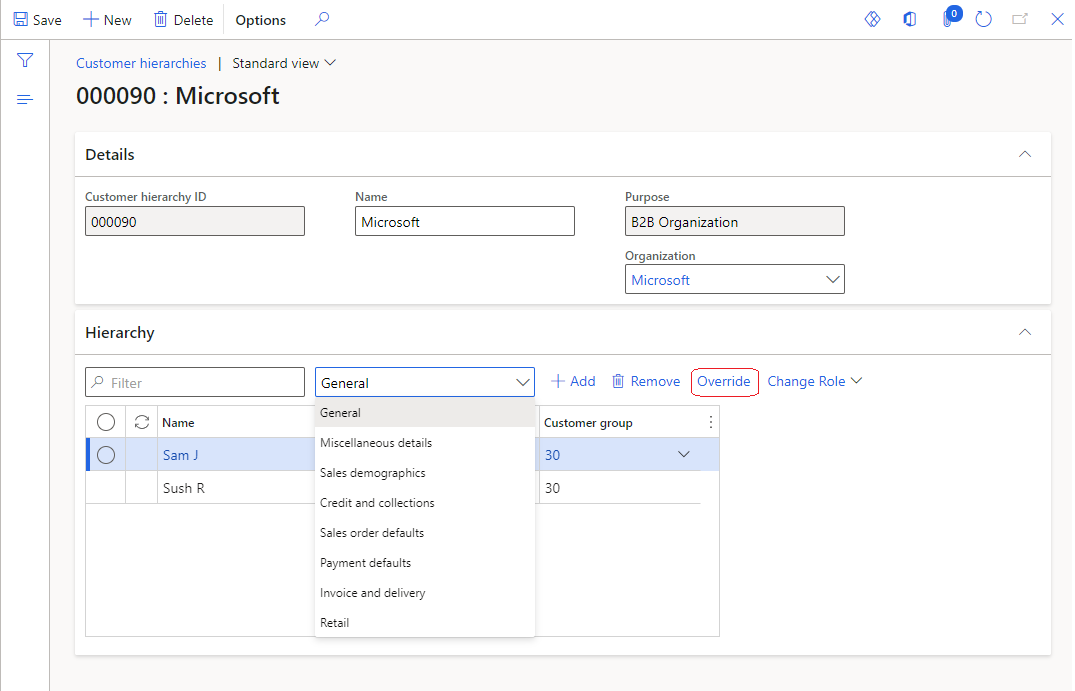
Commerce headquarters users can inspect property values for all customer records in a hierarchy in a side-by-side view. As the following illustration shows, you can use the General option in the drop-down list on the Hierarchy FastTab and then select any section of the customer record to show the related properties. Users can edit the property values directly in this view. To copy all the values from an administrator customer record to all users, select Override on the Hierarchy FastTab.
Control access to the B2B ecommerce site
When you onboard a business partner to a B2B e-commerce site, the business partner has access to all B2B e-commerce sites under the same organization. To restrict business partner access to B2B ecommerce sites, starting in Commerce version 10.0.38, administrators can associate online B2B channels with the customer hierarchy of a business partner. If no channel is associated with the business partner's customer hierarchy, the business partner can access all of the B2B e-commerce sites under the same organization.
The following example image shows the customer hierarchy of a business partner in headquarters with the associated retail channel highlighted.
