Note
Access to this page requires authorization. You can try signing in or changing directories.
Access to this page requires authorization. You can try changing directories.
Tip
Did you know you can try the features in Microsoft Defender for Office 365 Plan 2 for free? Use the 90-day Defender for Office 365 trial at the Microsoft Defender portal trials hub. Learn about who can sign up and trial terms on Try Microsoft Defender for Office 365.
In all organizations with Microsoft Teams and cloud mailboxes, admins can create and manage block entries for domains and email addresses in Microsoft Teams using the Tenant Allow/Block List.
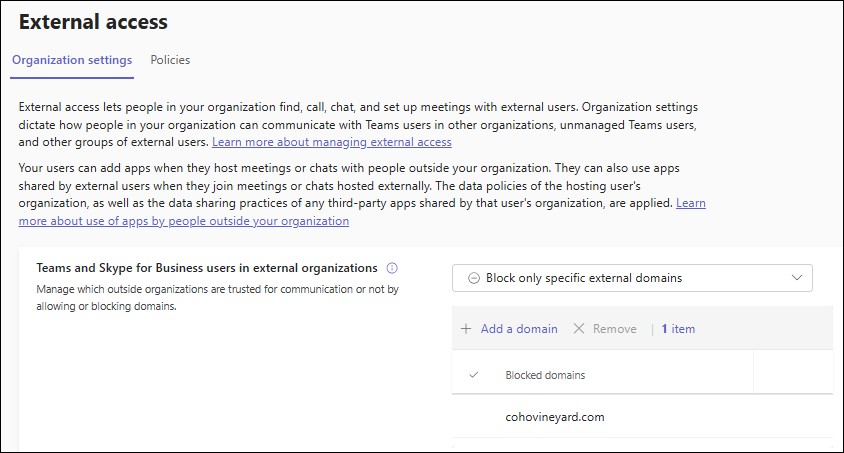
These entries also appear on the Organization settings tab of the External access page in the Microsoft Teams admin center at https://admin.teams.microsoft.com/company-wide-settings/external-communications:
Blocked domains: Entries are in the Allow or block external domains section:
Blocked email addresses: Entries are in the Block specific users from communicating with people in my organization section:


For more information about the Tenant Allow/Block List, see Manage allows and blocks in the Tenant Allow/Block List.
This article describes how security admins can manage entries for blocked domains and addresses in Teams admin center using the Microsoft Defender portal.
What do you need to know before you begin?
You open the Microsoft Defender portal at https://security.microsoft.com. To go directly to the Tenant Allow/Block Lists page, use https://security.microsoft.com/tenantAllowBlockList. Then, go to the Teams senders tab.
After you add the block entry for the domain or sender address in Teams, all new Teams communication from that organization is blocked. Block communication includes new Teams meetings, chats, channels, and calls. Existing Teams meetings, chats, channels, and calls are deleted.
On the Organization settings tab of the External access page in the Microsoft Teams admin center at https://admin.teams.microsoft.com/company-wide-settings/external-communications, the following settings are required to create and manage block entries for domains and senders in Teams using the Tenant Allow/Block List:
- Teams and Skype for Business users in external organizations must be Allow all external domains or Block only specific external domains.
- Allow my security team to manage blocked domains must be
 On.
On. - Block specific users from communicating with people in my organization
On.
The maximum number of domain block entries for Microsoft Teams is 4,000.
The maximum number of users block entries for Microsoft Teams is 200.
Block entries for domains and senders in Teams never expire.
An entry should be active within 24 hours.
You need to be assigned permissions before you can do the procedures in this article. You have the following options:
Microsoft Entra permissions: Membership in these roles gives users the required permissions and permissions for other features in Microsoft 365:
- Add, modify, and delete entries: Membership in the Global Administrator*, Teams Administrator, Security Administrator, or Security Operator roles.
- Read-only access to entries: Global Reader, or Security Reader roles.
Important
* Microsoft strongly advocates for the principle of least privilege. Assigning accounts only the minimum permissions necessary to perform their tasks helps reduce security risks and strengthens your organization's overall protection. Global Administrator is a highly privileged role that you should limit to emergency scenarios or when you can't use a different role.
Create block entries for domains and addresses in Teams in the Tenant Allow/Block List
Tip
See the requirements in the What do you need to know before you begin? section to managed blocked domains and senders in Teams in the Tenant Allow/Block list. If you don't meet the prerequisites, you get errors adding domains or senders on Teams senders tab of the Tenant Allow/Block Lists page.
In the Microsoft Defender portal at https://security.microsoft.com, go to Email & collaboration > Policies & rules > Threat policies > Rules section > Tenant Allow/Block Lists. Or, to go directly to the Tenant Allow/Block Lists page, use https://security.microsoft.com/tenantAllowBlockList.
On the Tenant Allow/Block Lists page, select the Teams senders tab.
On the Teams senders tab, select
 Block.
In the Block sender domains & addresses on Teams flyout that opens, enter up to 20 domains separated by commas or line breaks, and then select Add.
Back on the Teams senders tab, the domain and addresses block entries are listed. After a few minutes, the blocked domains and addresses also appear on the Organization settings tab of the External access page in the Microsoft Teams admin center at https://admin.teams.microsoft.com/company-wide-settings/external-communications.
View block entries for domains and addresses in Teams in the Tenant Allow/Block List
In the Microsoft Defender portal at https://security.microsoft.com, go to Email & collaboration > Policies & rules > Threat policies > Tenant Allow/Block Lists in the Rules section. Or, to go directly to the Tenant Allow/Block Lists page, use https://security.microsoft.com/tenantAllowBlockList.
On the Teams senders tab, select the Teams senders.
On the Teams senders tab, you can sort the entries by clicking on an available column header. The following columns are available:
- Value: The domain or email address.
Use the  Search box and a corresponding value to find specific entries.
Remove block entries for domains and addresses in Teams in the Tenant Allow/Block List
In the Microsoft Defender portal at https://security.microsoft.com, go to Email & collaboration > Policies & rules > Threat policies > Rules section > Tenant Allow/Block Lists. Or, to go directly to the Tenant Allow/Block Lists page, use https://security.microsoft.com/tenantAllowBlockList.
On the Tenant Allow/Block Lists page, select the Teams senders tab.
On Teams senders tab, select the entry from the list by selecting the check box next to the first column, and then select the
 Delete action that appears.
Tip
You can select multiple entries by selecting each check box, or select all entries by selecting the check box next to the Value column header.
In the warning dialog that opens, select Delete.
Back on the Teams senders tab, the entry is no longer listed. After a few minutes, the blocked domain and addresses disappears from the Organization settings tab of the External access page in the Microsoft Teams admin center at https://admin.teams.microsoft.com/company-wide-settings/external-communications.