Note
Access to this page requires authorization. You can try signing in or changing directories.
Access to this page requires authorization. You can try changing directories.
Many apps use APIs other than Microsoft Graph to access Microsoft 365 and other resources. With visibility over such apps, you can identify and defend against risks inherent to these apps including APIs that they access, some of which might receive limited support and updates.
App governance provides visibility over OAuth apps registered on Microsoft Entra ID, regardless of whether they access Graph API or other APIs. Additionally, you can monitor these apps and automatically take action if they're noncompliant or exhibit suspicious behavior.
You can better protect your organization with the new functionalities and enhancements in the following ways:
- Get improved coverage of OAuth apps with powerful app governance insights and monitoring capabilities.
- Automatically get alerted for any threats or anomalies from apps using non-Graph or legacy APIs.
- Get an enhanced experience for investigation of apps with more filters, columns, and properties.
Identify apps that use non-Graph APIs
To view Microsoft 365 apps that access non-Graph APIs:
- Go to Settings > Cloud apps > Apps governance in the Microsoft Defender portal.
- Select the Microsoft 365 tab
- Open the API access filter
- Select one of the options:
- Office 365 Exchange Online
- Office 365 SharePoint Online
- Windows Azure Active Directory
- Other APIs
- Select Apply.

View APIs used by an app
To view the APIs that an app uses:
In the App governance page, select the app you want to investigate.
In the app details pane, select the Permissions tab.
The Permissions tab lists all permissions granted to the app, including Graph API permissions and non-Graph API permissions.

Create policies for apps accessing non-graph APIs
Create app governance policies to monitor and take action on apps that access non-Graph APIs.
You can decide to create a custom policy or use an existing template.
In the App governance page, select the Policies tab.
Select + Create policy.
To create a custom policy, select Custom policy and then configure the policy settings as needed. Select the the Non-Graph API permissions policy condition to identify and monitor apps that access non-Graph APIs.

To use a template, select usage and then the template New app with Non-Graph API permissions.
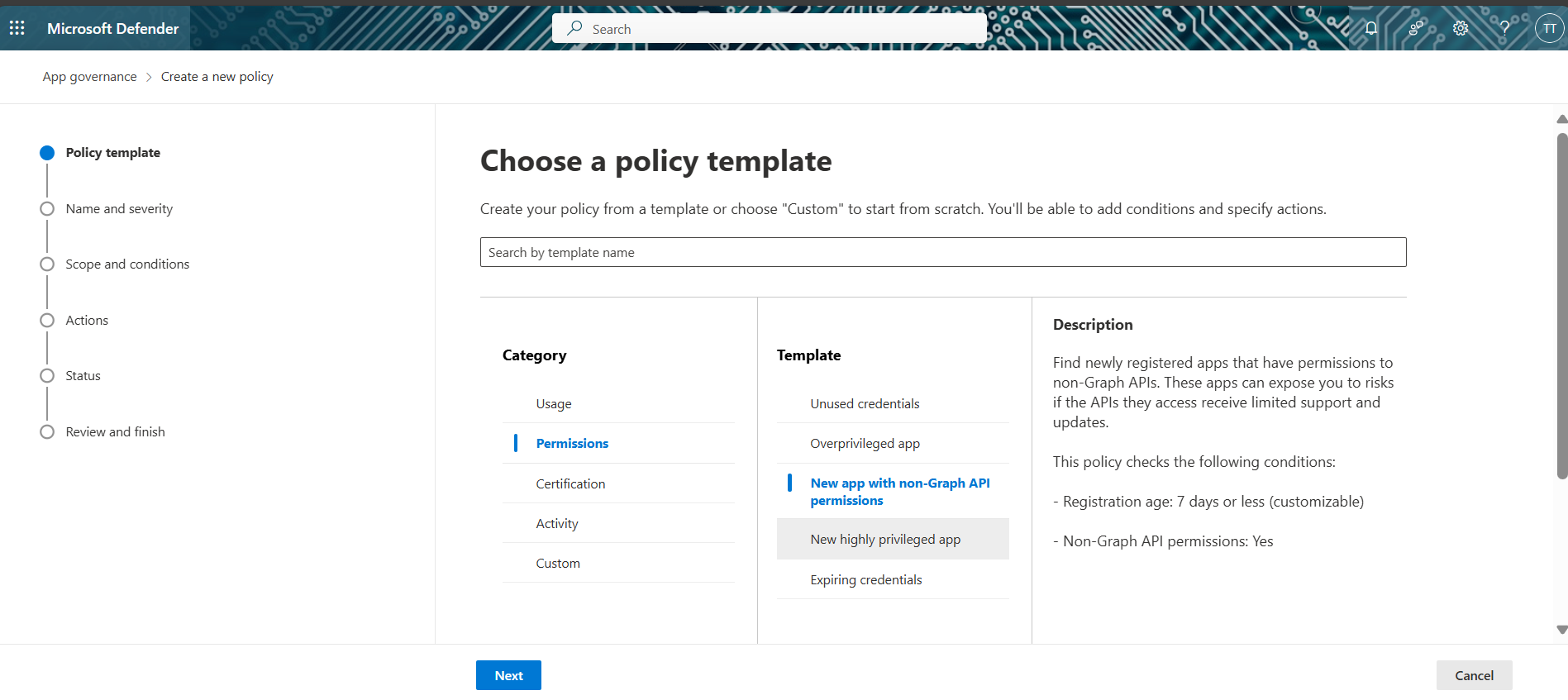
Configure the policy settings as follows:
- Give the policy a name and description
- Set the severity level to low, medium, or high.
- Set policy scope and conditions, you can choose to apply the default settings or customize the policy.
- Choose an action you'd like to take on apps that match the conditions in this policy. For example, disabling the app.
- Set the policy actions to active or disabled.
Next steps
Secure apps with app hygiene features
View your app details with app governance