Note
Access to this page requires authorization. You can try signing in or changing directories.
Access to this page requires authorization. You can try changing directories.
Important
- Clarity retains Recordings for 30 days from the time of recording. However, Favorite recordings and a randomly selected recording are retained for up to 13 months.
- The timestamp in recordings is displayed in the time zone of the Clarity user.
Clarity offers an inline player for visualizing user behavior on your site. You can explore session recordings quickly without losing the context of user actions.
The inline player includes the following features:
Playback viewer
The playback viewer contains the inline player and several options for exploring further:
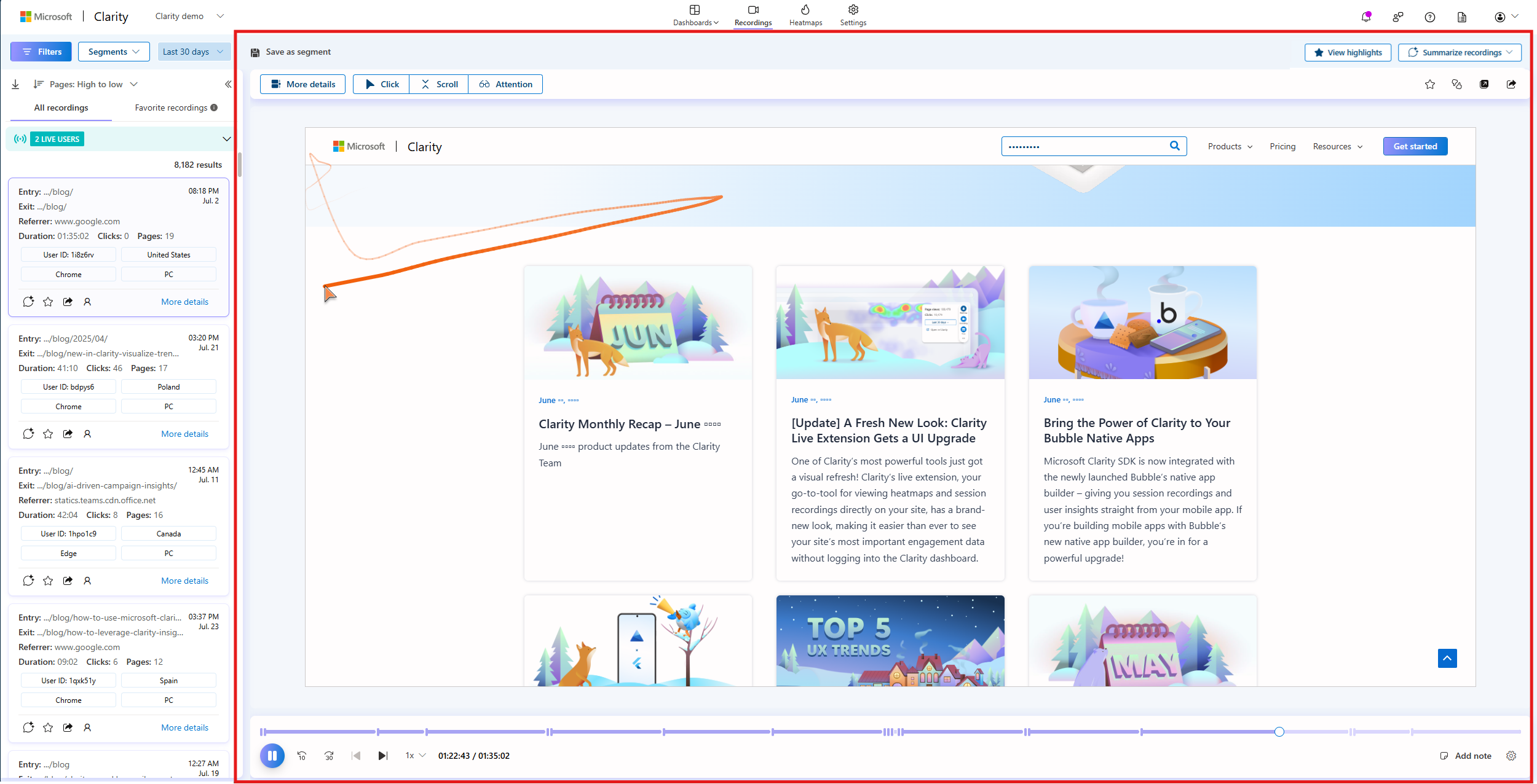
- View highlights: Quickly view highlights of the recording by surfacing key user interactions and multiple key events without needing to watch entire recording. Learn more.
- Summarize recordings: Using generative AI, this feature summarizes multiple session recordings at a time. You can generate these insights for custom selected recordings or for top 10 recordings.
- More details: View the details tab for this recording.
- Click and Area: View the click map and Area map for this recording.
- Scroll: View the scroll map for this recording.
- Attention: View the attention map for this recording.
- Favorite the session: You can favorite this session from the inline player.
- Rate this recording: Provide your feedback by rating the recording.
- Open in new tab: Open the playback viewer in a new tab with more details, and other playback controls such as add note, favorite, share, and video settings.
- Share: Share the recording.
View highlights
Highlights break long session recordings into meaningful, digestible moments by surfacing key user interactions and events. Recordings are automatically converted into multiple highlights, making them easier to scan and analyze.
Types of events considered for highlights
Events are prioritized to surface the most meaningful interactions, such as insights, navigational actions, and key user inputs, while filtering out less significant clicks:
- Clicks: Actions on buttons, text areas, or images that indicate intent.
- JavaScript errors: Specific error states or failed actions (configurable as smart events).
- Form inputs: User engagement with forms, text fields, or submission actions.
- Smart events: Context-aware triggers that capture meaningful interactions beyond simple clicks.
Where to view highlights?
Note
In highlights mode, some options are not available such as: heatmaps, playback speed control, summarize recording, open in a new tab, or favoriting.
Select View highlights for a recording.

The session opens to highlights, where:
- Each highlighted period is indicated on the timeline.
- You can play, pause, speed up, mute/unmute, or autoplay the highlights.
- Navigation arrows let you move forward/backward within the highlight.

- Use the up and down arrows to switch between highlights of the previous or next recording.

- You can also Filter and Save as segments.
Tip
For an optimal Highlights experience, enable Autoplay to view the session as a continuous feed.

Select View full recording to get back to the full recording from any highlight.

Explore Heatmaps through Recordings
With heatmaps, you can analyze user behavior in any recording. Select the Click button to see a click map and Area map for this recording. Select the Scroll button to view a scroll map and find out how far the user scrolled on your page. Similarly, view the attention maps. Dynamically view heatmaps for different page states in the session using the forward by 30 seconds and rewind by 10 seconds button.

Note:
While you view a click, scroll, attention, or area map, playback controls such as play, pause, skip inactivity, auto play, add note, summarize recordings, and speed are disabled.
Currently, click map, scroll map, attention map, and area map options are unavailable while viewing the recording in a new tab or when you share it.

Watch recordings
When you select a card, you can view the session recording in the playback viewer. The viewer allows you to analyze and understand user interactions with your site. You can view:
- User clicks throughout the session.
- Insights such as excessive scrolling, rage clicks, dead clicks, and quick backs.
- User cursor movements.
- Pages hidden or visible to the user.
- How and where users enter text on your site.
- Which contexts are the users selecting.
- Where users change the screen size.

Important
For privacy, Clarity masks the sensitive data by default before sending it to Clarity. To unmask or mask specific sections of your page, refer to Masking content.
While the masked content is shielded, third-party iFrame content is blocked on the playback viewer.
Playback controls

Playback controls provide you with the following options:
Here are the playback controls:
- Play / Pause: Plays or pauses the recording.
- Rewind: Rewind the recording by 10 seconds.
- Fast forward: Fast forwards the recording by 30 seconds.
- Play previous: Select to play the previous recording. This is disabled for the first recording.
- Play next: Select to play the next recording. This is disabled for the last recording.
- Playback speed: Available presets: 0.25X, 0.5X, Normal, 1.5X, 2X, 4X, 8X, and 12X.
- Time: The current time / total time of recording.
- Add note: Add a note directly to specific moments in a session recording. Learn more.
- Video settings: The video settings include:
- Autoplay: Learn more about Autoplay.
- Mute: Mute or unmute the audio in a recording.
- Skip inactivity: When checked, periods of inactivity on the page are skipped.
- View symbols and shortcuts: Timeline events that describe events shown in the recordings timeline, along with keyboard shortcuts.

Add note
The Add note feature allows you to attach notes directly to specific moments in a session recording. It complements existing Favorites and Labeling capabilities, creating a unified, seamless experience without redundancy.
Why it matters?
This feature addresses common pain points by:
- Reducing time-consuming manual workflows of taking notes, screenshots, and timestamps.
- Enhancing collaboration by providing clear context within the recording itself.
- Improving team alignment by enabling direct discussions on specific moments.
- Eliminating fragmented workflows caused by reliance on external tools.
How it works?
While reviewing a session, you can add a note in two ways:
- Select the Add note option and enter the details.

- Hover over a point in the timeline and add a note directly from there.

Once a note is added, the recording is automatically added to Favorites.

You can also filter recordings with notes labelled as Note.

You can edit or remove the note by selecting the Edit icon or Delete icon in the labels.

You can also edit or remove the note by selecting the Edit icon or Delete icon in the playback controls.

When replaying, notes appear at the exact points where they were added, making it easier to review and share key insights.
Autoplay
Go to Video settings. Toggle the Autoplay to automatically play the next recording in 5 seconds.

When Autoplay is enabled
If Autoplay is enabled, at the end of each recording, you can see the following controls:

- Rate recording: Provide feedback for this recording.
- Favorite: Favorite this recording.
- Share: Share this recording.
- Add labels: Choose from the list of available labels so you find this recording later.
- Cancel: Cancel the timer that is running on Play next and Exit the pop-up window to return to the current recording.
- Play next: Play the next recording before the timer ends.
When Autoplay is disabled
If Autoplay is disabled, at the end of each recording, you can see the following controls:

- Rate recording: Provide feedback for this recording.
- Favorite: Favorite this recording
- Share: Share this recording.
- Add labels: Choose from the list of available labels so you find this recording later.
- Exit: Exit the pop-up window and return to the current recording.
- Play next: Play the next recording.
View details
The details tab includes:
More details
Select the More details button to view the summary, Insights for your session, and the timeline of user events as shown:

The summary includes:
Events
These events showcase the detailed time at which events occurred that includes page visits within a session. Each page has events associated with it.
For each event, select Expand details to view page visit, duration, load time, event count, LCP, INP, CLS, Performance score and more.

The supported event types are:
Insights:
- Rage clicks: Check Rage clicks to learn more.
- Dead clicks: Check Dead clicks to learn more.
- Excessive scrolling: Check Excessive scrolling to learn more.
- Quick backs: Check Quick back to learn more.
Actions:
- Click: This event is seen when a user clicks on a page.
- Scroll: This event is seen when a user scrolls on a page.
- Area: This event is seen when there are total clicks for all the elements within an area.
- Input: This event is seen when a user inputs text into a form element. You can filter to this event with the "Entered text" filter.
- Refreshed page: This event is seen when a user refreshes their browser on this page.
- Resize: This event is seen when the user changes the size of their browser window or switches between landscape and portrait on mobile. You can filter this event with the "Resized page" filter.
- Selection: This event is seen when a user selects text on the page. You can filter to this event with the "Selected text" filter.
- Smart events: This event is seen when a smart event is identified automatically or when a user manually sets an event. Learn more about smart events.
Page:
- Page visible: This event is seen when a user's attention is on your web page.
- Page hidden: This event is seen when your web page is hidden behind other tabs or windows.
- JavaScript error: This event is seen when a JavaScript error is detected. You can also see the error string in the timeline.
Custom:
- Custom page ID: This event is seen when a user sets custom page ID through Clarity Client API custom identifiers. You can filter to this event with the Custom IDs.
- Custom tags: This event is seen when a user sets custom tags. You can filter to this event with Custom tags filter.
Session info

The session info contains the following information:
- Date and time stamp
- User ID
- The location in which the session is recorded
- Device details that include screen resolution, Browser, and Operating system with version
- Clicks, Page views, and User intent
- Entry and exit URLs
- Referrer
- Custom user ID
- Custom session ID
- Custom page ID
- Labels
Note
Though Screen resolution and operating system's version are included in the session, filtering on based on these two details is currently not supported.
Inline player limitations
Some recordings might look broken or have missing images. This is because Clarity might have difficulty locating CSS, font, or images to display the site. To learn more, see Troubleshoot Recordings.
Clarity can't capture third-party iFrames and HTML Canvas elements. They appear in your recording as shown:

Clarity's inline player might have rendering issues if your website is on
http. To mitigate layout issues and maximize Clarity functionality, consider migrating tohttps.
FAQ
For more answers, refer to Session Recordings FAQ.