Note
Access to this page requires authorization. You can try signing in or changing directories.
Access to this page requires authorization. You can try changing directories.
The Service issues pane in Azure Service Health offers a detailed, real-time view of active Azure service problems. It highlights issues that could be affecting your resources.
You can see which resources are impacted and review key details such as severity, status, scope, and timestamps. The information on this pane helps you stay informed and able to take action quickly if needed. This article provides a detailed explanation of the purpose of this panel and the information it provides.
On the main panel you can sort the displayed list of Service issue events by Scope, Subscription, Region, Service, Event levels, and Event tags.
And you can create a service health alert. See Create Service Health alerts in the Azure portal.
Get started with Service issues

The Service issues pane provides you with the help to track incidents, understand which of your services are affected, and follow recommended steps to reduce downtime or disruption.
For each Service issue listed on this panel, the information includes:
- Issue name
- Event Level
- Tracking ID
- Services
- Regions
- Start time
- Last updated
- Event tags
- Scope
Select the link in the Issue name column to open the tabs and see more detailed information about the issue.
Note
Service issue events are displayed in the panel for 3 days if they are still active or have been updated during that time. After that they are moved to the health history panel where they are displayed for 90 days.
For more information about Service issue events using ARG queries, see Resource graph sample queries which provides guidance on how to utilize the available queries.
Filtering and sorting
At the top of each tab, there's a command bar with several options of how to view the information on this page.

- Download as a PDF: Select this link to download and open a PDF with the information about this event.
- Request post incident review: Select this button to open a window to start the creation of a Service health alert where you can receive a Post Incident Review (PIR) when it's available.
- Track issue on mobile: Select this link to open and point your mobile phone camera at the QR code.
- Create a support request: See How to create an Azure support request.
- Create service health alert: See Create Service Health alerts in the Azure portal.
Summary tab
The Summary tab shows detailed information about the Service issue.

The information on this tab includes the following data:
| Field | Description |
|---|---|
| Title | A summary of the issue |
| Tracking ID | A unique identifier for the incident |
| Status | Whether the issue is Active or Resolved Select the See details link to open the Impacted Services tab for more detailed information. The issue is Resolved only if all the services in the region are resolved. |
| Start/End Time | When the issue began and when it was resolved (if applicable) All times displayed are in Coordinated Universal Time (UTC). |
| Impacted Services | The Azure services affected by the issue. |
| Impacted Regions | All geographic regions where the issue is occurring. |
| Impacted Subscriptions | Your subscriptions that are affected. |
| Impacted Resources | The resources affected by this service issue. Select the View details link to open the Impacted Resources tab for more detailed information. |
| Event level | The severity of the issue (for example, Informational, Warning, Critical). Each communication for an incident includes its own event level, but the summary tab always shows the highest severity across all affected regions and services. |
| Event tags | The definition of the nature and status of the event. The tags are a combination of all communications for the incident. |
| Last update | The timestamp of the most recent update from Azure Service Health. Select the See all updates link to open the Issue Updates tab for more detailed information. |
Impacted Services tab

This tab displays all the impacted services that are affected:
- Region
- Status
- Last update time
- The resource that is affected
Issue Updates tab
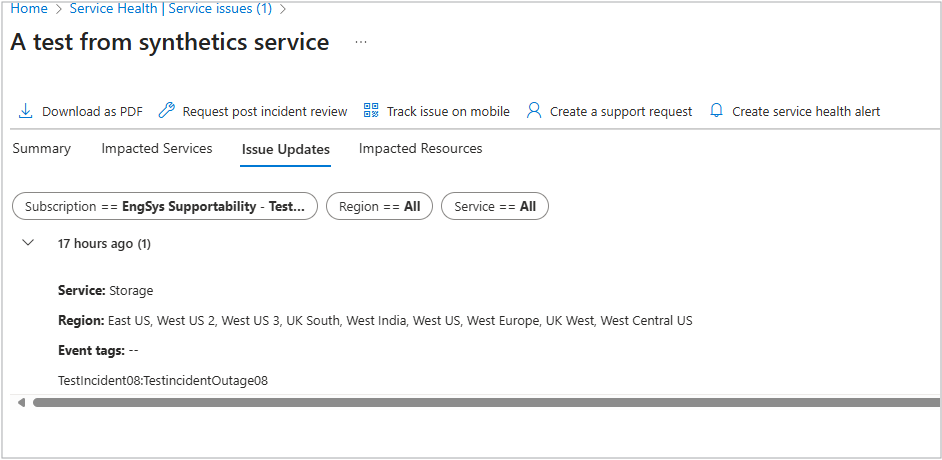
This tab provides a timeline of updates from Azure Service Health, including:
- The Root Cause Analyses (RCAs) and mitigation steps.
- Each message update is listed with the time of creation.
Impacted Resources tab
 This tab shows a list of your specific resources that are or might be affected, which includes:
- Resource Name (linked to Resource Health)
- Health Status (Available, Degraded, Unavailable, Unknown)
- Impact Type (Confirmed or Potential)
- Resource Type, Group, Location, and Subscription details
- Resource Group
- Location
- Subscription ID
- Subscription Name
For more information about Impacted resources, see:
- Impacted Resources from Outages
- Impacted Resources from planned maintenance events
- Impacted Resources from Azure security advisories
- Impacted Resources from Azure retirements