Note
Access to this page requires authorization. You can try signing in or changing directories.
Access to this page requires authorization. You can try changing directories.
Azure DevOps Services | Azure DevOps Server | Azure DevOps Server 2022
Visual Studio 2019 | Visual Studio 2022
You can rename a Git repository (repo) in a project from your web browser. After you rename the repo, each member of your team must take a few steps to reenable their dev machines to connect to the repo on the server.
Prerequisites
| Category | Requirements |
|---|---|
| Project access | Member of a project. |
| Permissions | - View code in private projects: At least Basic access. - Clone or contribute to code in private projects: Member of the Contributors security group or corresponding permissions in the project. - Set branch or repository permissions: Manage permissions are permissions for the branch or repository. - Change default branch: Edit policies are permissions for the repository. - Import a repository: Member of the Project Administrators security group or Git project-level Create repository permission set to Allow. For more information, see Set Git repository permissions. |
| Services | Repos enabled. |
| Tools | Optional. Use az repos commands: Azure DevOps CLI. |
Note
In public projects, users with Stakeholder access have full access to Azure Repos, including viewing, cloning, and contributing to code.
| Category | Requirements |
|---|---|
| Project access | Member of a project. |
| Permissions | - View code: At least Basic access. - Clone or contribute to code: Member of the Contributors security group or corresponding permissions in the project. |
| Services | Repos enabled. |
Rename the repository
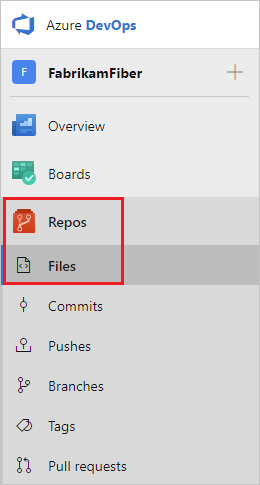
On the web portal, select Repos > Files.
From the repo dropdown list, select Manage repositories.

Select the name of the repo from the Repositories list, select the ellipsis ... for more actions, and then select Rename repository.

Rename the repo by entering the new name for the repo and selecting Rename.

Update the Git remotes on your dev machines
Git uses remote references to fetch and push changes between your local copy of a repo and the remote version that's stored on the server. After you rename a Git repo or project, you should update your remote references. Update your references to the remote repo URL that contains the project and the repo name.
Each member of your team must update their local Git repos to continue connecting from their dev machines to the repo in the project. The following instructions show how to update the remotes for the Fabrikam Mobile repo that was renamed to Fabrikam.
Get the new URL for the repo
Select Repos > Files.
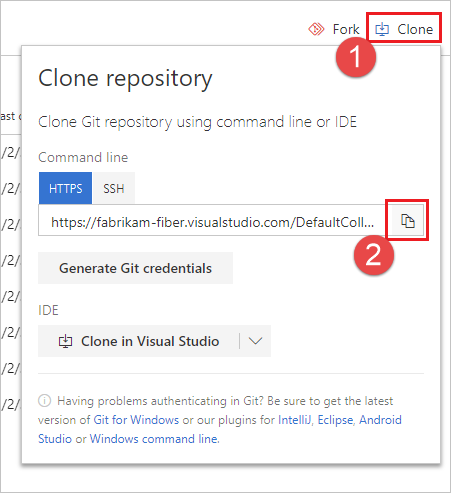
In the upper-right corner of the Files window, select Clone and copy the clone URL.
Update your remote in Visual Studio
To update your remote:
In the Git menu on the menu bar, select Manage Remotes.
In the Options dialog, select the remote to edit, and then select Edit.

Replace the fetch and push remote references with the URL that you copied from the remote repo.
Select Save, and then select OK.
Visual Studio 2019 version 16.8 and later versions provide a Git version control experience while maintaining the Team Explorer Git user interface. To use Team Explorer, on the menu bar, go to Tools > Options > Preview Features and clear the New Git user experience checkbox. You can exercise Git features from either interface interchangeably.
To update your remote from Visual Studio Team Explorer:
To connect to the repo, select Connect.

To open the project settings, select Settings.

To open the repo settings, select Repository Settings.

Edit the fetch and push remote references, and paste the URL that you copied from the remote repo.

Q&A
Can I rename my repo again? Can I reuse an old repo name?
Yes.