Note
Access to this page requires authorization. You can try signing in or changing directories.
Access to this page requires authorization. You can try changing directories.
Azure DevOps Services | Azure DevOps Server | Azure DevOps Server 2022
Sprint burndown charts are useful to monitor how well a team is executing on their sprint plan. Several built-in charts and dashboard widgets support monitoring sprint burndown. See Configure and monitor sprint burndown.
However, you can customize a sprint burndown chart using Analytics and Power BI with the queries provided in this article. The following example shows a burndown of User Stories and their States.

Important
Deleting Area Path values or reconfiguring Iteration Path values causes irreversible data loss in the following charts:
- Burndown and burn up widget charts
- Sprint burndown charts
- Velocity charts for teams with changed area paths
- Historical trend charts that reference the Area Path and Iteration Path values as defined at the time for each work item
You can delete area and iteration paths only when they're no longer used by any work items. When you delete these paths, you can no longer retrieve their historical data.
For more information about burndown and burnup, see Burndown and burnup guidance.
Note
This article assumes you read Overview of sample reports using OData queries and have a basic understanding of Power BI.
| Category | Requirements |
|---|---|
| Access levels | - Project member. - At least Basic access. |
| Permissions | By default, project members have permission to query Analytics and create views. For more information about other prerequisites regarding service and feature enablement and general data tracking activities, see Permissions and prerequisites to access Analytics. |
Sample queries
Burndown charts require querying the WorkItemSnapshot entity set to get historical data.
Note
To find available properties for filtering or reporting, see the Metadata reference for Azure Boards. You can filter queries or return properties by using any Property value defined under an EntityType, or any NavigationPropertyBinding Path value listed for an EntitySet. Each EntitySet maps to an EntityType, which documents the data type for each property.
Burndown user stories for an area path and the current iteration
Copy and paste the following Power BI query directly into the Get Data > Blank Query window. For more information, see Overview of sample reports using OData queries.
let
   Source = OData.Feed ("https://analytics.dev.azure.com/{organization}/{project}/_odata/v3.0-preview/WorkItemSnapshot? "
        &"$apply=filter( "
            &"WorkItemType eq 'User Story' "
            &"and startswith(Area/AreaPath,'{areapath}') "
            &"and StateCategory ne 'Completed' "
            &"and DateValue ge Iteration/StartDate "
            &"and DateValue le Iteration/EndDate "
            &"and Iteration/StartDate le now()  "
            &"and Iteration/EndDate ge now() "
        &") "
        &"/groupby( "
            &"(DateValue,State,WorkItemType,Priority,Area/AreaPath,Iteration/IterationPath), "
            &"aggregate($count as Count, StoryPoints with sum as TotalStoryPoints) "
        &") "
    ,null, [Implementation="2.0",OmitValues = ODataOmitValues.Nulls,ODataVersion = 4])
in
    Source
Substitution strings and query breakdown
Replace the following strings with your values. Don't include the braces {} in your substitution. For example, if your organization name is "Fabrikam", replace {organization} with Fabrikam, not {Fabrikam}.
{areapath}- Your area path. Example format:Project\Level1\Level2.
Query breakdown
The following table describes each part of the query.
Query part
Description
$apply=filter(
Start filter() clause.
WorkItemType eq 'User Story'
Burndown on User Stories.
and startswith(Area/AreaPath,'{areapath}')
Work items under a specific Area Path. Replacing with Area/AreaPath eq '{areapath}' returns items at a specific Area Path.
To filter by Team Name, use the filter statement Teams/any(x:x/TeamName eq '{teamname})'
and StateCategory ne 'Completed'
Filters out items that are completed. For more information on State Categories, see How workflow states and state categories are used in Backlogs and Boards.
and DateValue ge Iteration/StartDate
Begin trend at Iteration start.
and DateValue le Iteration/EndDate
End trend at Iteration end.
and Iteration/StartDate le now()
Select current Iteration.
and Iteration/EndDate ge now()
Select current Iteration.
)
Close filter() clause.
/groupby(
Start groupby() clause.
(DateValue, State, WorkItemType, Priority, Area/AreaPath, Iteration/IterationPath),
Group by DateValue (used for trending), and any fields you want to report on.
aggregate($count as Count, StoryPoints with sum as TotalStoryPoints)
Aggregate by count of user stories, and sum of Story Points.
)
Close groupby() clause.
Burndown user stories for a team and the current iteration
This query is the same as the one used earlier, but it filters by Team Name instead of Area Path.
Copy and paste the following Power BI query directly into the Get Data > Blank Query window. For more information, see Overview of sample reports using OData queries.
let
   Source = OData.Feed ("https://analytics.dev.azure.com/{organization}/{project}/_odata/v3.0-preview/WorkItemSnapshot? "
        &"$apply=filter( "
            &"WorkItemType eq 'User Story' "
            &"and (Teams/any(x:x/TeamName eq '{teamname}') or Teams/any(x:x/TeamName eq '{teamname}') or Teams/any(x:x/TeamName eq '{teamname}')) "
            &"and StateCategory ne 'Completed' "
            &"and DateValue ge Iteration/StartDate "
            &"and DateValue le Iteration/EndDate "
            &"and Iteration/StartDate le now()  "
            &"and Iteration/EndDate ge now() "
        &") "
        &"/groupby( "
            &"(DateValue,State,WorkItemType,Priority,Area/AreaPath,Iteration/IterationPath), "
            &"aggregate($count as Count, StoryPoints with sum as TotalStoryPoints) "
        &") "
    ,null, [Implementation="2.0",OmitValues = ODataOmitValues.Nulls,ODataVersion = 4])
in
    Source
Burndown user stories for all sprints since the start of a year
You might want to view a burndown of all the sprints in a single report. These queries pull in sprint burndowns, and their story points, for all sprints since the beginning of a year.
Copy and paste the following Power BI query directly into the Get Data > Blank Query window. For more information, see Overview of sample reports using OData queries.
let
   Source = OData.Feed ("https://analytics.dev.azure.com/{organization}/{project}/_odata/v3.0-preview/WorkItemSnapshot? "
        &"$apply=filter( "
            &"WorkItemType eq 'User Story' "
            &"and startswith(Area/AreaPath,'{areapath}') "
            &"and StateCategory ne 'Completed' "
            &"and DateValue ge Iteration/StartDate "
            &"and DateValue le Iteration/EndDate "
            &"and Iteration/StartDate ge 2022-01-01Z "
        &") "
        &"/groupby( "
            &"(DateValue,Iteration/EndDate,Area/AreaPath,Iteration/IterationPath,State,WorkItemType,Priority,AreaSK), "
            &"aggregate($count as Count, StoryPoints with sum as TotalStoryPoints) "
        &") "
    ,null, [Implementation="2.0",OmitValues = ODataOmitValues.Nulls,ODataVersion = 4])
in
    Source
Burndown tasks and remaining work
Copy and paste the following Power BI query directly into the Get Data > Blank Query window. For more information, see Overview of sample reports using OData queries.
let
   Source = OData.Feed ("https://analytics.dev.azure.com/{organization}/{project}/_odata/v3.0-preview/WorkItemSnapshot? "
        &"$apply=filter( "
            &"startswith(Area/AreaPath,'{areapath}') "
            &"and StateCategory ne 'Completed' "
            &"and DateValue ge Iteration/StartDate "
            &"and DateValue le Iteration/EndDate "
            &"and Iteration/StartDate le now()  "
            &"and Iteration/EndDate ge now() "
            &"and WorkItemType eq 'Task' "
        &") "
            &"/groupby( "
            &"(DateValue,State,WorkItemType,Activity,Priority,Area/AreaPath,Iteration/IterationPath,AreaSK), "
            &"aggregate($count as Count, RemainingWork with sum as TotalRemainingWork) "
        &") "
    ,null, [Implementation="2.0",OmitValues = ODataOmitValues.Nulls,ODataVersion = 4])
in
    Source
(Optional) Rename query
You can rename the default query label, Query1, to something more meaningful. Enter a new name from the Query Settings pane.

Expand columns in Power Query Editor
Before you create the report, expand columns that return records containing several fields. In this case, expand the following records:
AreaIterationAssignedTo
For more information about expanding work items, see Transform Analytics data to generate Power BI reports.
Close the query and apply your changes
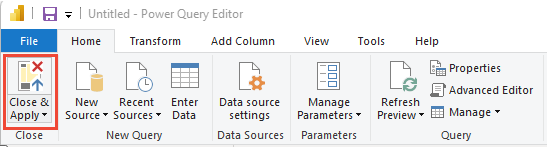
When you finish all your data transformations, select Close & Apply from the Home menu. This action saves the query and returns you to the Report tab in Power BI.
Create the stacked column chart report
In Power BI, under Visualizations, select the Stacked column chart report.

Add
DateValueto X-Axis. Right-click and selectDateValue, rather thanDate Hierarchy.Add
Countto Y-Axis.Add
Stateto Legend.
The following example report displays burndown on both Story Points and Count of Stories.