Note
Access to this page requires authorization. You can try signing in or changing directories.
Access to this page requires authorization. You can try changing directories.
This sprint enhances Azure Pipelines deployment clarity by surfacing the exact build artifact deployed in each pipeline run and introducing a new Stages view. Together, these updates make it easier to track what version is deployed, where it’s running, and how deployments progress across environments
Check out the release notes for details.
General
- Remote MCP Server public preview
- Allow extensions to access local network resources
- Expired personal access tokens (PATs) can no longer be modified
GitHub Advanced Security for Azure DevOps
- Advanced Security status checks for pull requests
- Export results from security overview
- Audit log events for Advanced Security enablement changes
- Automatic cleanup of alerts from stale pipeline configurations
Azure Boards
Azure Pipelines
Azure Test Plans
General
Remote MCP Server public preview
We're excited to introduce the Remote Azure DevOps MCP Server, now available in public preview. This hosted endpoint enables seamless integration with Azure DevOps without the need to manage a local server. Support is currently available in Visual Studio and Visual Studio Code, with additional clients and services, including Microsoft Foundry and Copilot Studio, coming soon.
Getting started is simple. Depending on the tools that you are using, you only need to add the following server information to your mcp.json.
{
  "servers": {
    "ado-remote-mcp": {
      "url": "https://mcp.dev.azure.com/{organization}",
      "type": "http"
    }
  },
  "inputs": []
}
Additional configuration options are available to customize your setup. To learn more, see the official documentation: Remote MCP Server.
Allow extensions to access local network resources
Some web browsers may block calls from iframes to resources on the local network, which can impact Azure DevOps organizations that rely on extensions connecting to back-end services hosted on internal company networks. To avoid disruptions and continue using these extensions, organizations can enable the Allow extensions to access resources on the local network security policy.
You can learn more about the policy in our documentation..

Expired personal access tokens (PATs) can no longer be modified
We’ve closed a discovered gap in Personal Access Token (PAT) behavior that allowed certain expired PATs to be altered or extended after their expiration date. Going forward, expired PATs cannot be modified or extended via either the Azure DevOps UI or PAT APIs at all in the Azure DevOps Services product.
This change enforces true token lifetimes, reduces risk from leaked or forgotten credentials, and makes PAT behavior simpler and more predictable. It also helps customers meet internal security and compliance expectations by ensuring credentials cannot silently persist beyond their intended lifetime.
If a PAT expires, create a new token or regenerate the existing token. Always use short‑lived PATs and consider migrating to Microsoft Entra–based authentication where supported.
GitHub Advanced Security for Azure DevOps
Advanced Security status checks for pull requests
Advanced Security now publishes configurable status checks that integrate with Azure DevOps' built-in branch policy system. When Advanced Security scanning runs against a pull request, it automatically publishes status checks that can be used as required branch policies.
Two new status checks are available:
- AdvancedSecurity/NewHighAndCritical — fails only when the pull request introduces new high or critical severity alerts, ignoring pre-existing findings in the target branch.
- AdvancedSecurity/AllHighAndCritical — fails when there are any high or critical severity alerts present, including pre-existing alerts in the target branch.
Status checks use fail-open behavior: repositories where Advanced Security is not enabled pass the check automatically, preventing workflow blocking for non-onboarded repositories.
To use these status checks, add them as required status policies on your branches through the branch policy settings. For more information and setup, see Advanced Security status checks.

Export results from security overview
You can now export results from security overview to a CSV file. Both the Risk and Coverage views support export, giving you a downloadable snapshot of your organization's security posture across repositories. The upcoming Alerts page, which gives you insight into specific alerts across your organization, will also support export functionality with a max of the first 1,000 alerts exported.
This feature is only available via the UI at this time.

Audit log events for Advanced Security enablement changes
Azure DevOps now records audit log events whenever GitHub Advanced Security enablement settings change. When Advanced Security features are enabled or disabled at the repository, project, or organization level, a detailed event is captured in the Azure DevOps audit log.
Audit log entries include the actor, timestamp, and the specific settings that were modified, including:
- Advanced Security (bundled) or Code Security/Secret Protection plans (standalone)
- CodeQL default setup
- Dependency scanning default setup
- Secret push protection
These events provide visibility into when and by whom security features are configured across your organization, supporting compliance and governance requirements.
Automatic cleanup of alerts from stale pipeline configurations
Advanced Security now automatically hides alerts associated with pipeline configurations that have not been run in over 90 days. Alert fingerprints in Advanced Security are tied to specific pipeline configurations, so when a pipeline job or stage is changed, previously associated alerts can become orphaned if they were also resolved as part of the pipeline update.
With this change, alerts linked to stale pipeline configurations are automatically hidden, reducing noise and ensuring that your alert results reflect your current CI/CD setup. If you re-run a previously stale pipeline configuration after its alerts have been hidden, any previously open alerts will return as active, open alerts. You can also use the delete analysis API to manually hide alerts associated with specific pipeline configurations that are no longer in use.
Azure Boards
Increased inherited process limit
To better support organizations with complex process customization needs, we’ve doubled the limit on inherited processes. Organizations can now create up to 256 inherited processes, increased from the previous limit of 128.
Azure Pipelines
Improved continuous deployment visibility in YAML pipelines
Previously it was difficult to determine which artifacts were deployed in a give run while using YAML based Azure Pipelines for continuous deployment (CD) scenarios. In this sprint, we’ve improved artifact visibility across pipeline runs.
On the pipeline runs overview page, you can now see the artifact used by each run, making it easier to understand what was deployed at a glance.

When viewing an individual run, Azure Pipelines now surfaces the artifacts used by that run at the top of the run details page.

This functionality works with pipeline artifacts defined as pipeline resources. If multiple artifacts are defined, Azure Pipelines displays the first artifact listed.
Deployment history for stages
When deploying the same service to multiple instances, it can be difficult to understand which version of the system is currently deployed to each instance.
With this sprint, we’re introducing a new Stages experience in Azure Pipelines that provides clear deployment visibility at the pipeline level. The Stages view shows the most recent pipeline run that is currently deployed, or in the process of deploying to each stage in your pipeline.
For example, consider the following YAML pipeline with multiple deployment stages grouped by region:
stages:
- stage: deploy_WUS
  group: US Deployment
  displayName: Deploy to WUS
  jobs:
  - job:
    steps:
    - script: ./deploy.sh WUS
- stage: deploy_CUS
  group: US Deployment
  displayName: Deploy to CUS
  jobs:
  - job:
    steps:
    - script: ./deploy.sh CUS
- stage: deploy_WEU
  group: EU Deployment
  displayName: Deploy to WEU
  jobs:
  - job:
    steps:
    - script: ./deploy.sh WEU
- stage: deploy_CEU
  group: EU Deployment
  displayName: Deploy to CEU
  jobs:
  - job:
    steps:
    - script: ./deploy.sh CEU
After you run your pipeline a couple of times, and you come to the Stages tab, this is what you see.

You can see that the latest run that touched the stage named Deploy to WUS was #20260317 that deployed the system version 20260316.1. For a stage, you see successful or in progress pipeline runs that run that stage.
If you click on the stage name, for example, Deploy to WUS, you will get to the stage's logs. If you click on #20260317 • Deploying build version 20260316.1, you will get to that pipeline run.
If you click on the row of a stage, you get its deployment history. The history contains completed and in-progress runs that reference the stage.
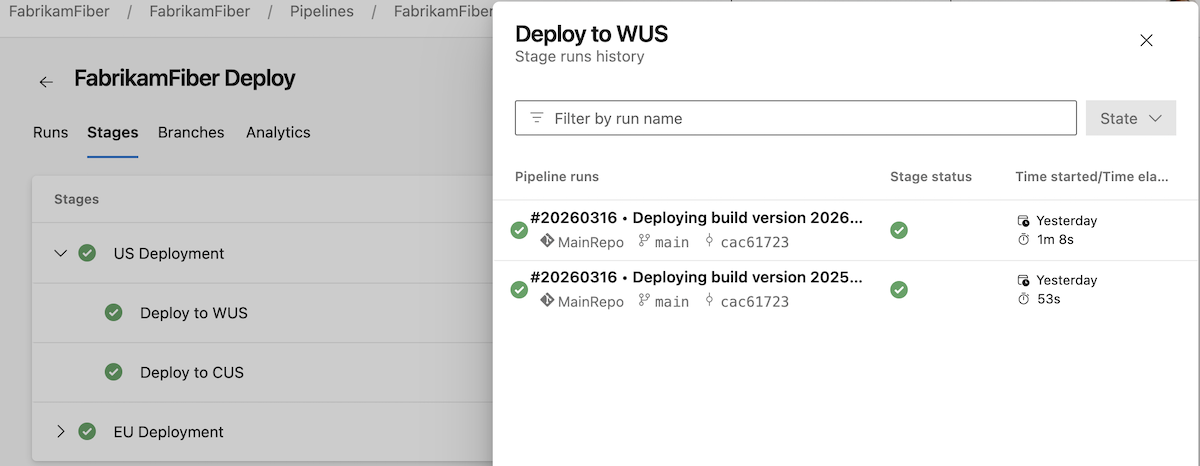
Deployment pipelines can have hundreds of stages organized in various groups, for example, in a ring structure. We're adding support for specifying a stage's group. In the previous screenshot, you can see two groups, US Deployment and EU Deployment.
The group stage property supports multiple levels of nesting. That is, you can have a group whose name reads EU Deployment\Italy, like in the following case.
- stage: deploy_IT
  group: EU Deployment\Italy
  displayName: Deploy to Italy
  jobs:
  - job:
    steps:
    - script: echo ./deploy.sh IT
When you run this stage, the Stages view gets updated like in the following screenshot.

Stages are shown as long as there is a run that references them.
A stage needs to have a name to show up in the Stages tab. That is, - stage: deploy_WUS will show up, while - stage: will not.
Azure Test Plans
Query and relate work items across projects in test results
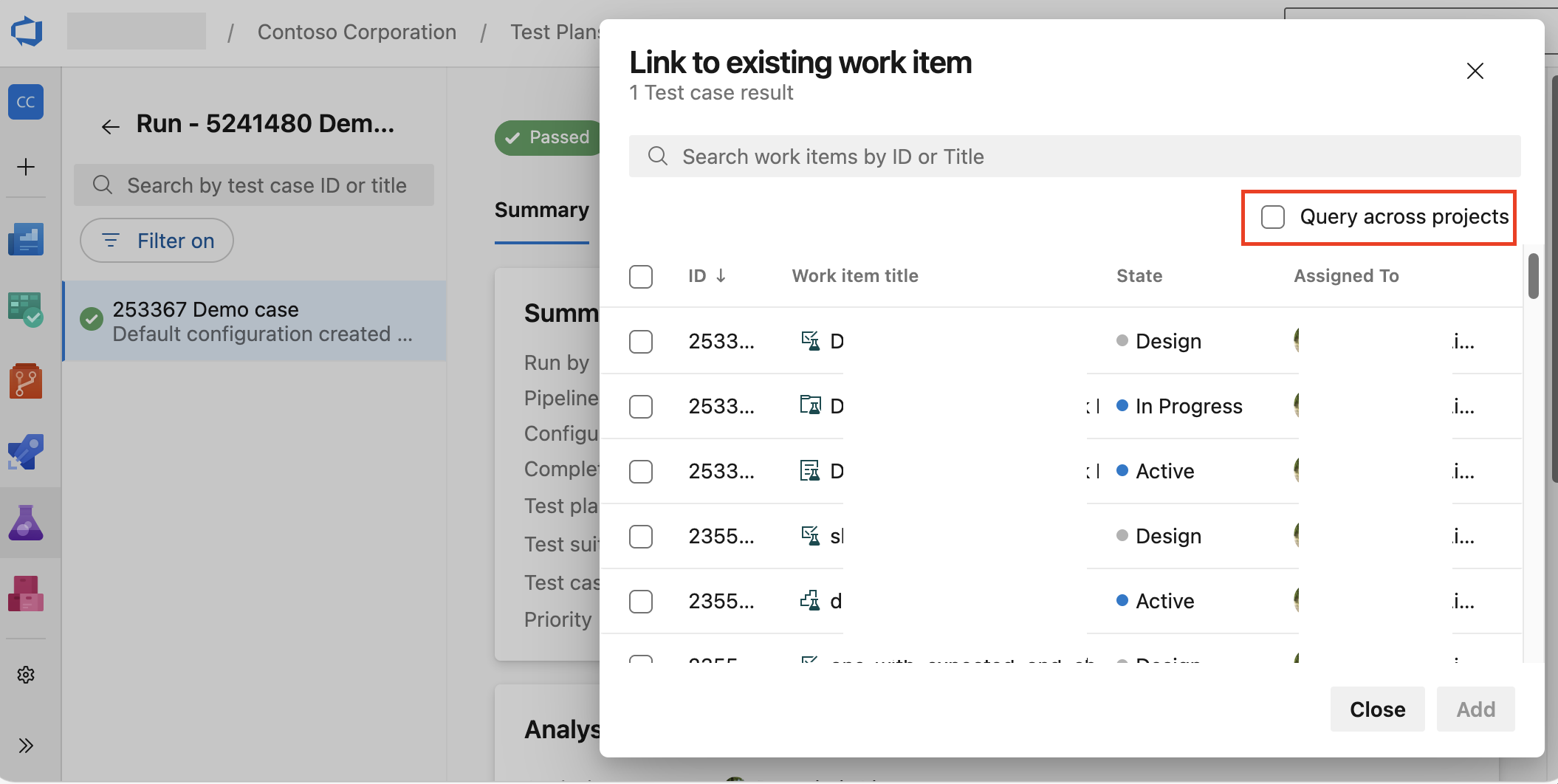
When analyzing test results, you may need to search for and relate bugs or other work items that live in a different project than the test result itself. Now we support this scenario by allowing you to query and relate work items across projects. To use this capability, enable the Query across projects option when searching for work items from a test case result.
- Relating bugs across projects

- Relating work items across projects
Next steps
Note
These features will roll out over the next two to three weeks. Head over to Azure DevOps and take a look.
How to provide feedback
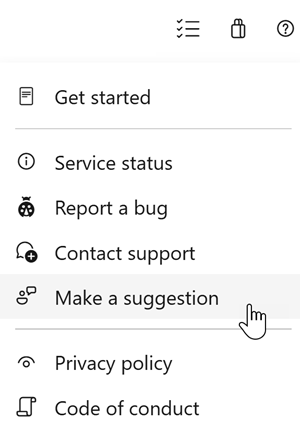
We would love to hear what you think about these features. Use the help menu to report a problem or provide a suggestion.
You can also get advice and your questions answered by the community on Stack Overflow.