Note
Access to this page requires authorization. You can try signing in or changing directories.
Access to this page requires authorization. You can try changing directories.
A Microsoft Azure Consumption Commitment (MACC) is a contractual agreement in which your organization commits to a specified level of Azure spending over a defined period. If your organization has a MACC associated with a Microsoft Customer Agreement or Enterprise Agreement billing account, you can track key details through the Azure portal or REST APIs. These details include start and end dates, remaining balance, and eligible spending.
MACC functionality in the Azure portal is available only to direct Microsoft Customer Agreement and direct Enterprise Agreement customers. A direct agreement is one signed directly between Microsoft and the customer, whereas an indirect agreement involves a customer signing through a Microsoft partner.
Prerequisites
- If you have an Enterprise Agreement, you must have the Enterprise Administrator role to view the MACC balance.
- If you have a Microsoft Customer Agreement, you must have the Owner, Contributor, or Reader role on the billing account to view the MACC balance.
Actions for tracking your MACC
Sign in to the Azure portal.
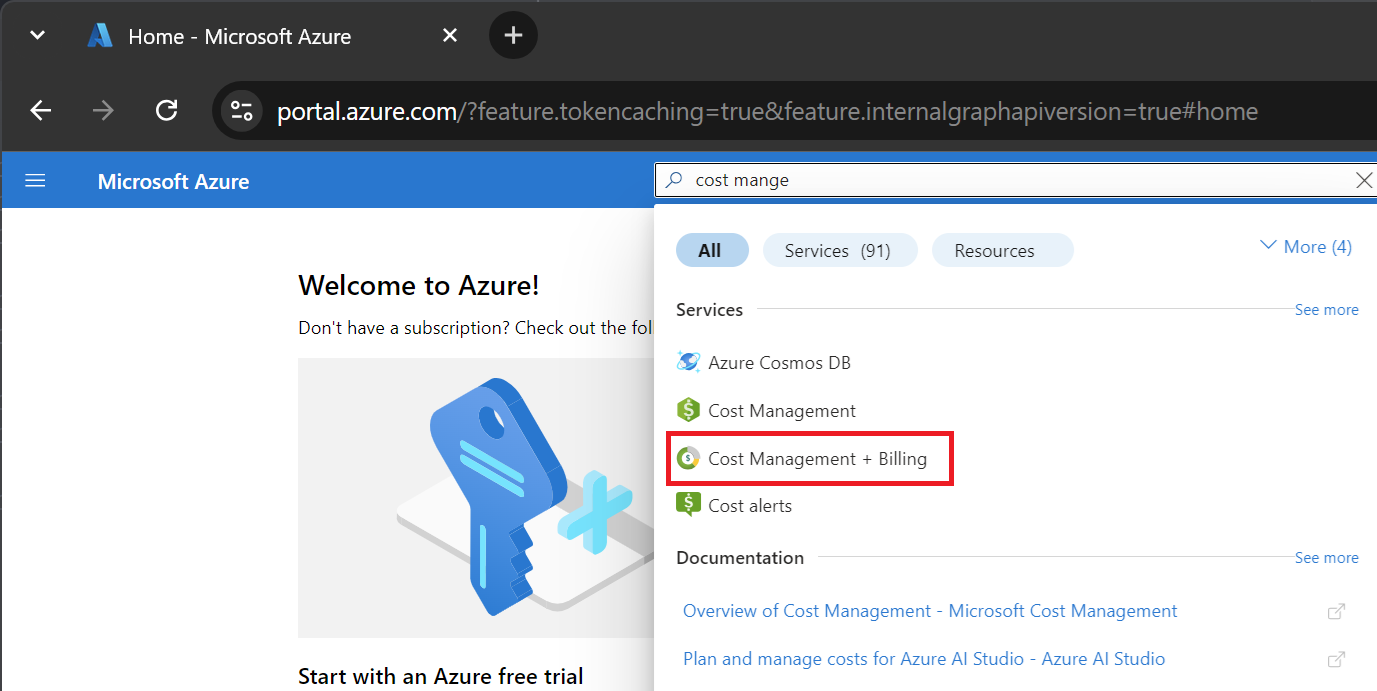
In the search box, enter cost management + billing.
Under Services, select Cost Management + Billing.

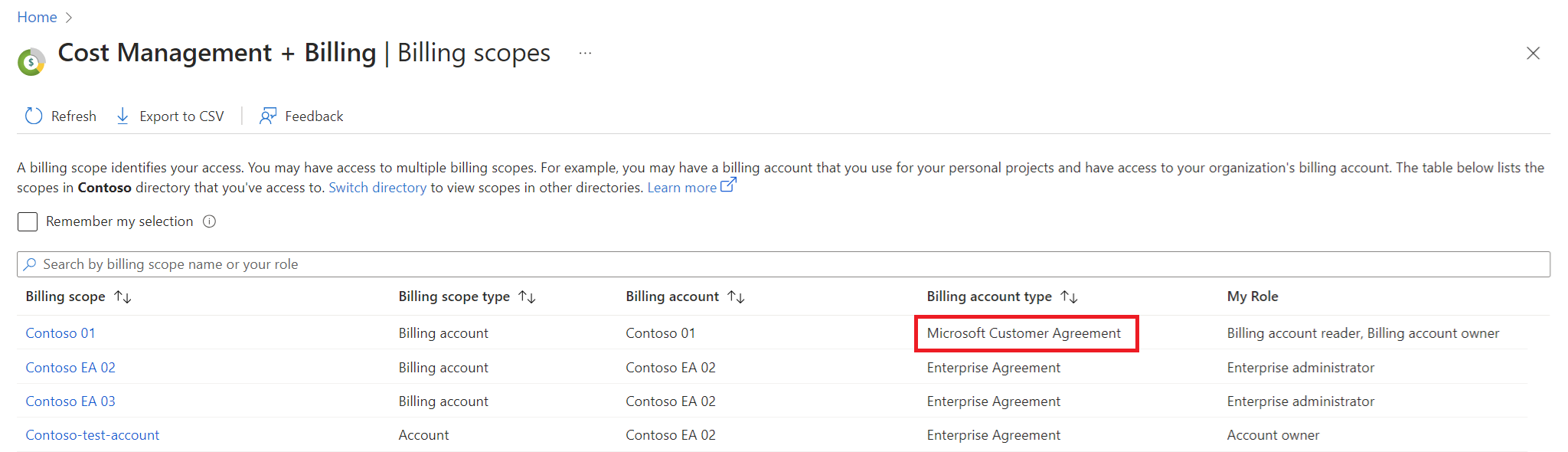
On the Billing scopes pane, select the billing account for which you want to track the commitment. The billing account type must be Microsoft Customer Agreement or Enterprise Agreement, depending on your agreement type.

Note
The Azure portal remembers the last billing scope that you access and displays the scope the next time you open the list of billing scopes. You don't see the Billing scopes pane if you visited Cost Management + Billing earlier. If so, check that you're in the right scope. If not, switch the scope to select the billing account for a Microsoft Customer Agreement.
Depending on your agreement type, take one of the following steps:
For a Microsoft Customer Agreement, select Benefits on the left pane, and then select the Microsoft Azure Consumption Commitment (MACC) tile.

For an Enterprise Agreement, select Credits + Commitments on the left pane, and then select Microsoft Azure Consumption Commitment (MACC).
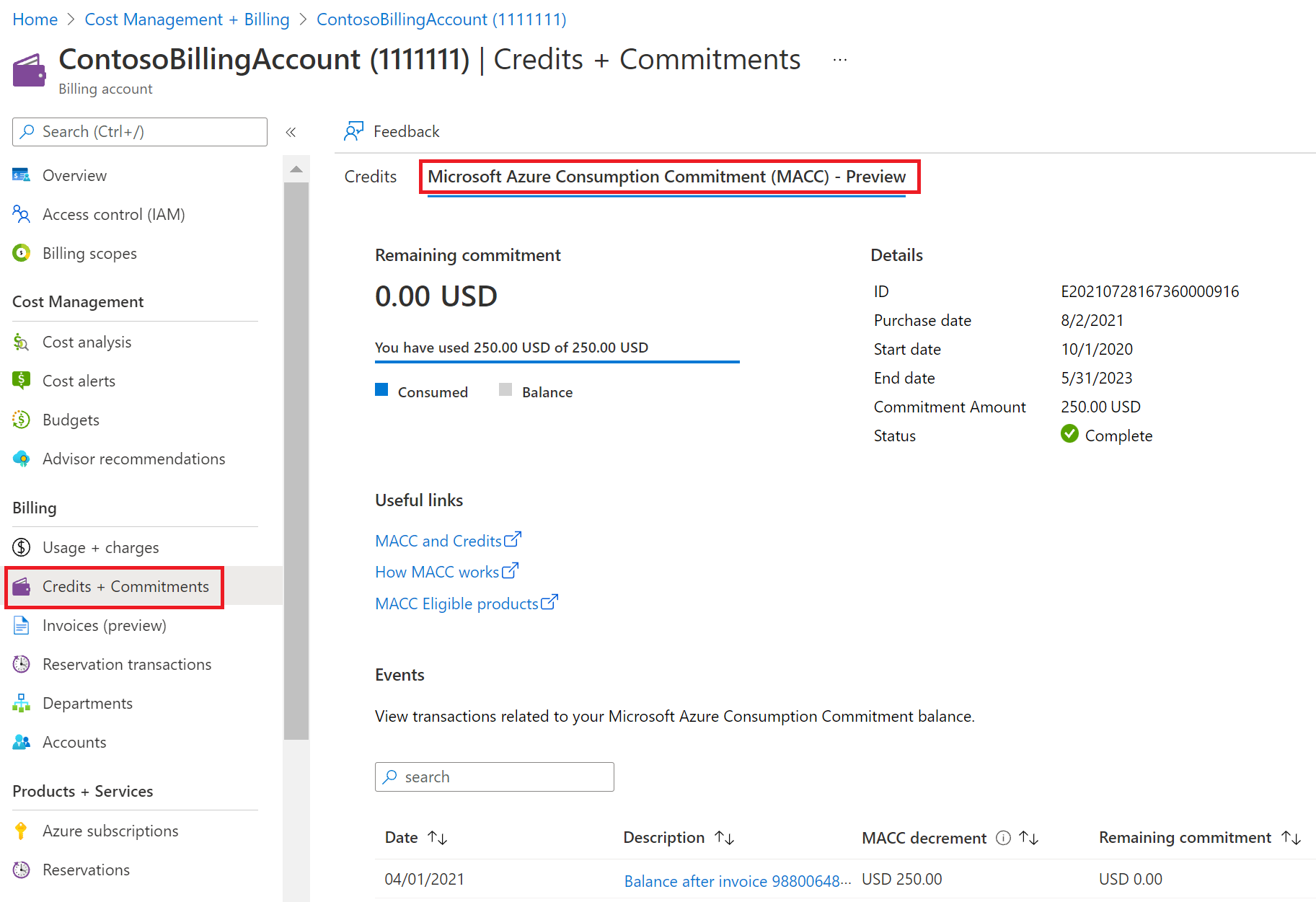


The Microsoft Azure Consumption Commitment (MACC) tab has the following sections.
Remaining commitment
The Remaining commitment section displays the remaining commitment amount since your last invoice.

Details
The Details section displays other important aspects of your commitment.

| Term | Definition |
|---|---|
| ID | Identifier that uniquely identifies your MACC. It's used to get your MACC information through REST APIs. |
| Purchase date | Date when you made the commitment. |
| Start date | Date when the commitment became effective. |
| End date | Date when the commitment expired. |
| Commitment amount | Amount that you commit to spending on MACC-eligible products and services. |
| Status | Status of your commitment. |
Your MACC can have one of the following statuses:
- Active. The MACC is currently in effect. Eligible Azure spending contributes toward fulfilling your commitment.
- Complete. You fully met the MACC amount. No further action is required.
- Expired. The MACC end date passed without the commitment being fully met. Contact your Microsoft account team for more information.
- Canceled. The MACC was terminated before the end date. New Azure spending doesn't contribute toward your MACC. Contact your Microsoft account team for more information.
Events
The Events section displays events (invoiced spending) that decremented your MACC.
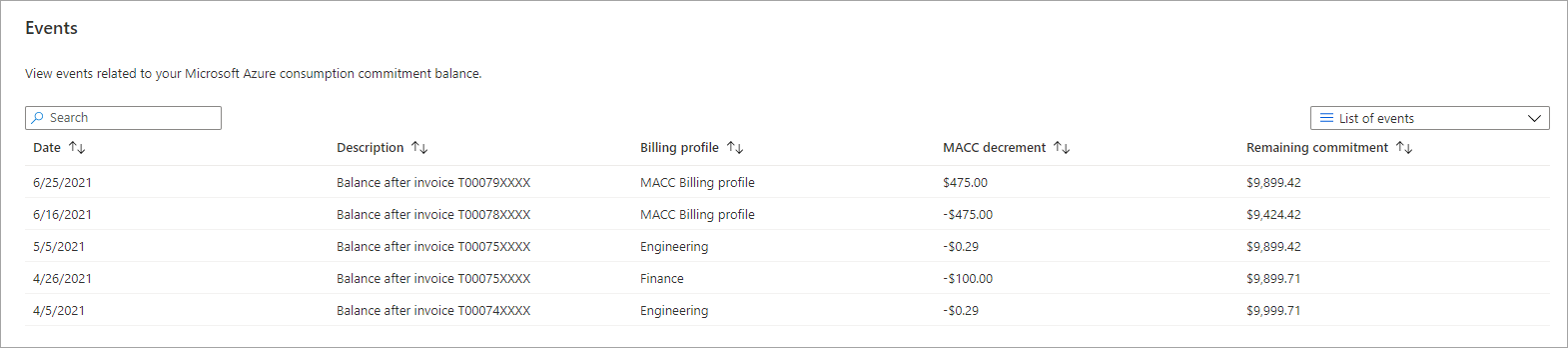
| Term | Definition |
|---|---|
| Date | Date when the event happened. |
| Description | Description of the event. |
| Billing profile | Billing profile for which the event happened. The billing profile applies only to Microsoft Customer Agreements. If you have an Enterprise Agreement enrollment, the billing profile doesn't appear. |
| MACC decrement | Amount of MACC decrement from the event. |
| Remaining commitment | Remaining MACC after the event. |
MACC milestones
Milestones are predefined financial targets within the MACC framework that you must meet within a specific timeframe. They help track progress against your MACC and include both a due date and a milestone commitment amount.
Not every MACC includes milestones. If your MACC has milestones configured, they appear in the Azure portal when you select an event.


Here are key points about MACC milestones:
Missed milestone. If you don't meet a milestone by its due date, a shortfall charge is applied to your account to fulfill the milestone commitment. The charge takes the form of an Azure prepayment credit.
Missed MACC. If you don't meet the total MACC amount by the MACC end date, a shortfall charge is applied to your account for the remaining balance. The charge takes the form of an Azure prepayment credit.
Important
Consumption charges covered by shortfall credits don't accrue toward your MACC. For more information, see Azure credits and MACC later in this article.
MACC shortfalls and alerts
Microsoft emails billing account admins to help you meet MACCs and milestones on time. These alerts give advance notice so you can act before getting shortfall charges.
MACC expiry alerts
If you don't meet your MACC target, billing account admins get email notifications at the following intervals:
- 90 days before commitment expiry
- 60 days before commitment expiry
- 30 days before commitment expiry
Milestone alerts
If your MACC includes milestones and you don't meet a milestone target, billing account admins get email alerts at the following intervals:
- 90 days before milestone end date
- 60 days before milestone end date
- 30 days before milestone end date
Shortfall charges
If you don't meet the MACC or the milestone target by the end date, an email alert notifies you about a shortfall charge for the remaining balance. This shortfall charge is an Azure prepayment credit that's applied to your account to fulfill your remaining commitment.
Azure services and Marketplace offers that are eligible for MACC
You can determine which Azure services and Microsoft Marketplace offers are eligible for MACC decrement in the Azure portal. See Azure Consumption Commitment benefit.
Azure credits and MACC
If your organization receives Azure credits from Microsoft, consumption or purchases that those credits cover don't contribute to your MACC.
If your organization purchased Azure prepayment, consumption or purchases that the prepayment covers don't contribute to your MACC. However, the Azure prepayment purchase itself decrements your MACC.
Example
Contoso makes a MACC of $50,000 in May. In June, it purchases an Azure prepayment of $10,000. This purchase decrements the MACC, leaving a remaining balance of $40,000.
During June, Contoso consumes $10,000 of Azure prepayment-eligible services. These service charges are covered by the Azure prepayment and don't decrement the MACC. After Contoso fully uses the Azure prepayment, all Azure service consumption and other eligible purchases decrement the MACC.
Steps for checking access to a Microsoft Customer Agreement
To determine whether you have access to a billing account for a Microsoft Customer Agreement, check the agreement type:
Go to the Azure portal. Search for and select Cost Management + Billing.
If you have access to just one billing scope, select Settings > Properties. You have access to a billing account for a Microsoft Customer Agreement if the billing account type is Microsoft Customer Agreement.

If you have access to multiple billing scopes, check the type in the Billing account type column. You have access to a billing account for a Microsoft Customer Agreement if the billing account type for any of the scopes is Microsoft Customer Agreement.

Support
If you need help, contact support to get your issue resolved quickly.