Note
Access to this page requires authorization. You can try signing in or changing directories.
Access to this page requires authorization. You can try changing directories.
Azure Container Registry (ACR) allows you to enable the soft delete policy that lets you recover accidentally deleted artifacts for a set retention period.
Important
The soft delete policy is currently in PREVIEW. See the Supplemental Terms of Use for Microsoft Azure Previews for legal terms that apply to Azure features that are in beta, preview, or otherwise not yet released into general availability.
You can enable or disable the soft delete policy at any time in the Azure portal or by using Azure CLI. When you enable the soft delete policy in ACR, the registry treats any deleted artifacts as soft-deleted artifacts with a set retention period. Within the retention period, you can list, filter, and restore all deleted artifacts. After the retention period expires, the soft-deleted artifacts are permanently deleted and can't be restored.

The default retention period for soft-deleted artifacts is seven days, but you can select any value between 1 and 90 days. You can set, update, and change the retention policy value. The soft-deleted artifacts expire once the retention period is complete.
The autopurge runs every 24 hours and always considers the current value of retention days before permanently deleting artifacts. For example, if you deleted an artifact five days ago, then change the retention value from 7 days to 14 days, the artifact expires after 14 days from the date it was deleted.
This preview feature is available in all service tiers (also known as SKUs).
Note
Soft-deleted artifacts are billed as per active SKU pricing for storage.
Keep in mind the following current limitations:
- Azure Container Registry doesn't support manually purging soft-deleted artifacts.
- The soft delete policy doesn't support registries configured for geo-replication or artifact cache.
- Azure Container Registry doesn't allow enabling both the retention policy and the soft delete policy.
Prerequisites
If you don't have an Azure account, create a free account before you begin.
To perform soft delete operations, a user requires the following permissions at the container registry level:
Microsoft.ContainerRegistry/registries/deleted/read: List soft-deleted artifactsMicrosoft.ContainerRegistry/registries/deleted/restore/action: Restore soft-deleted artifacts
For Azure CLI, you can use the Azure Cloud Shell or a local installation to run the commands listed in this article. We recommend using the most recent version of the Azure CLI. If you need to install or upgrade, see How to install the Azure CLI.
Enable soft delete policy
You can enable the soft delete policy for your Azure Container Registry in the Azure portal or by using Azure CLI.
- Go to your Azure Container Registry in the Azure portal.
- In Overview, check the status of Soft delete (Preview).
- If the Status is Disabled, select Disabled to open the Properties pane.
- Select the Soft delete checkbox.
- Enter a number of days between 1 and 90 to retain deleted artifacts.
- Select Save.

When soft delete is enabled, and you perform actions such as untagging a manifest or deleting an artifact, you can view these tags and artifacts by selecting Managed deleted artifacts before the retention period expires, as described in the next section.
View and restore soft-deleted artifacts
You can view and restore soft-deleted artifacts during the current retention period set for a repository. Keep in mind the following considerations:
- You can't import a soft-deleted image at both source and target resources.
- Pushing an image to a soft-deleted repository restores that repository.
- Pushing an image that shares the same manifest digest with the soft-deleted image isn't allowed. Instead, restore the soft-deleted image.
Restore soft-deleted artifacts
Go to your Azure Container Registry in the Azure portal.
In the service menu, under Services, select Repositories.
In Repositories, select a repository.
Select Manage deleted artifacts.
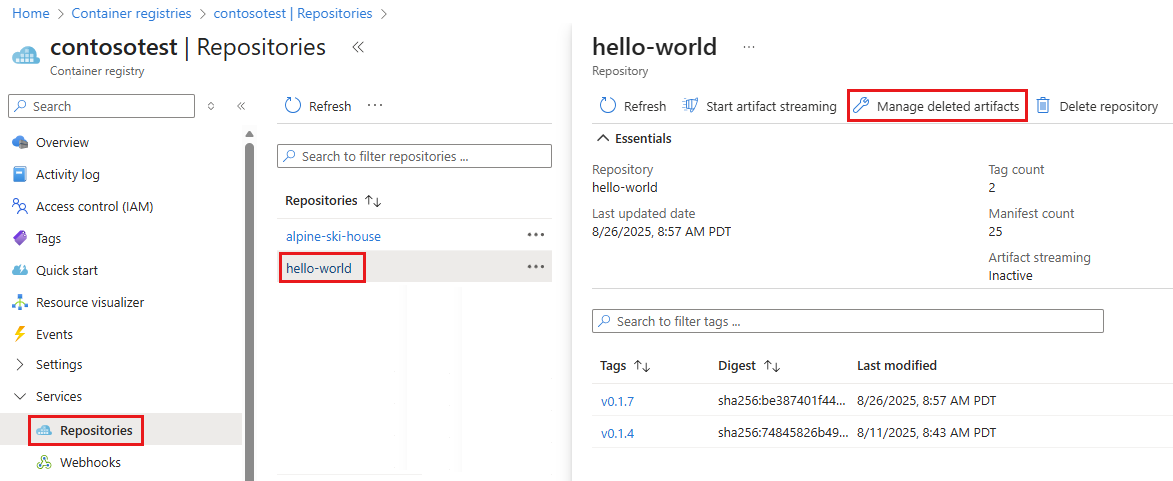
In the row for the deleted artifact that you want to restore, select Restore.
In the Restore Artifact pane, select the tag to restore. You can only select one tag with which to restore your artifact. To recover additional tags, you must restore them separately.
Select Restore.
Restore soft-deleted repositories
- Go to your Azure Container Registry in the Azure portal.
- In the service menu, under Services, select Repositories.
- In Repositories, select a repository.
- Select Manage Deleted Repositories.
- In the row for the deleted repository that you want to restore, select Restore.
- In the Restore Artifact pane, select the tag to restore. You can only select one tag with which to restore your repository. To recover additional tags, you must restore them separately.
- Select Restore
Next steps
- Learn more about options to delete images and repositories in Azure Container Registry.