Note
Access to this page requires authorization. You can try signing in or changing directories.
Access to this page requires authorization. You can try changing directories.
The Favorites list in the Azure portal lets you quickly go to the services you use most often. We've already added some common services to your Favorites list, but you can customize it by adding or removing items. You're the only one who sees the changes you make to Favorites.
You can view your Favorites list in the Azure portal menu, or from the Favorites section within All services.
Add a favorite service
Items that are listed under Favorites are selected from All services. Within All services, you can hover over a service name to display information and resources related to the service. A filled star icon  next to the service name indicates that the item appears in the Favorites list. If the star icon isn't filled in for a service, select the star icon to add it to your Favorites list.
This example shows how to add Azure Migrate to the Favorites list.
Select All services from the Azure portal menu.

Enter "migrate" in the Filter services field near the top of the All services pane. The portal shows services that have "migrate" in the title or as a keyword.
Hover over the service name and select the star icon.
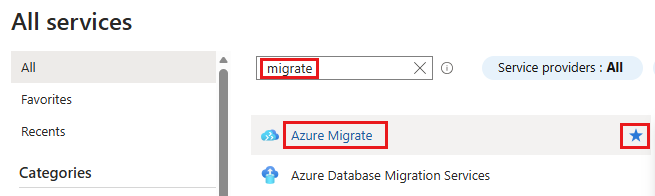
Azure Migrate is now added to your Favorites list.
Rearrange your favorite services
In the Favorites section within All services, your favorite services are shown in alphabetical order. However, you can customize the order in which services appear within the Favorites list in the Azure portal menu.
To move a favorite service to a different position, select the new service, then drag and drop it to the desired location. Continue to drag and drop any service in your Favorites list until you're happy with the order.
Remove an item from Favorites
You can remove items directly from the Favorites list.
In the Favorites section of the portal menu, or within the Favorites section of All services, hover over the name of the service you want to remove.

On the information card, select the star so that it changes from filled to unfilled.
The service is then removed from your Favorites list.