Note
Access to this page requires authorization. You can try signing in or changing directories.
Access to this page requires authorization. You can try changing directories.
Get code-level suggestions based on Code Optimizations recommendations with the GitHub Copilot coding agent. In this article, you learn how to:
- Assign a GitHub issue from Code Optimizations to GitHub Copilot.
- Iterate with GitHub Copilot through pull request reviews.
Note
Using the GitHub Copilot coding agent requires transferring your data to other countries in which Microsoft operates, including the United States. By using this functionality, you agree to the transfer of your data outside your country. Read the Microsoft Privacy Statement.
Prerequisites
Enable the following services for your .NET application:
Verify Code Optimizations for your application
In the Azure portal, navigate to your Application Insights resource.
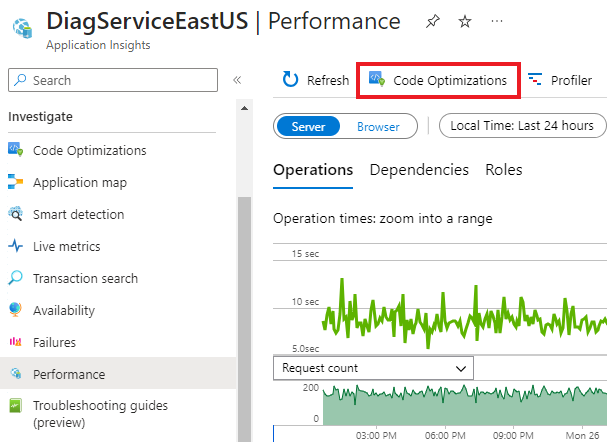
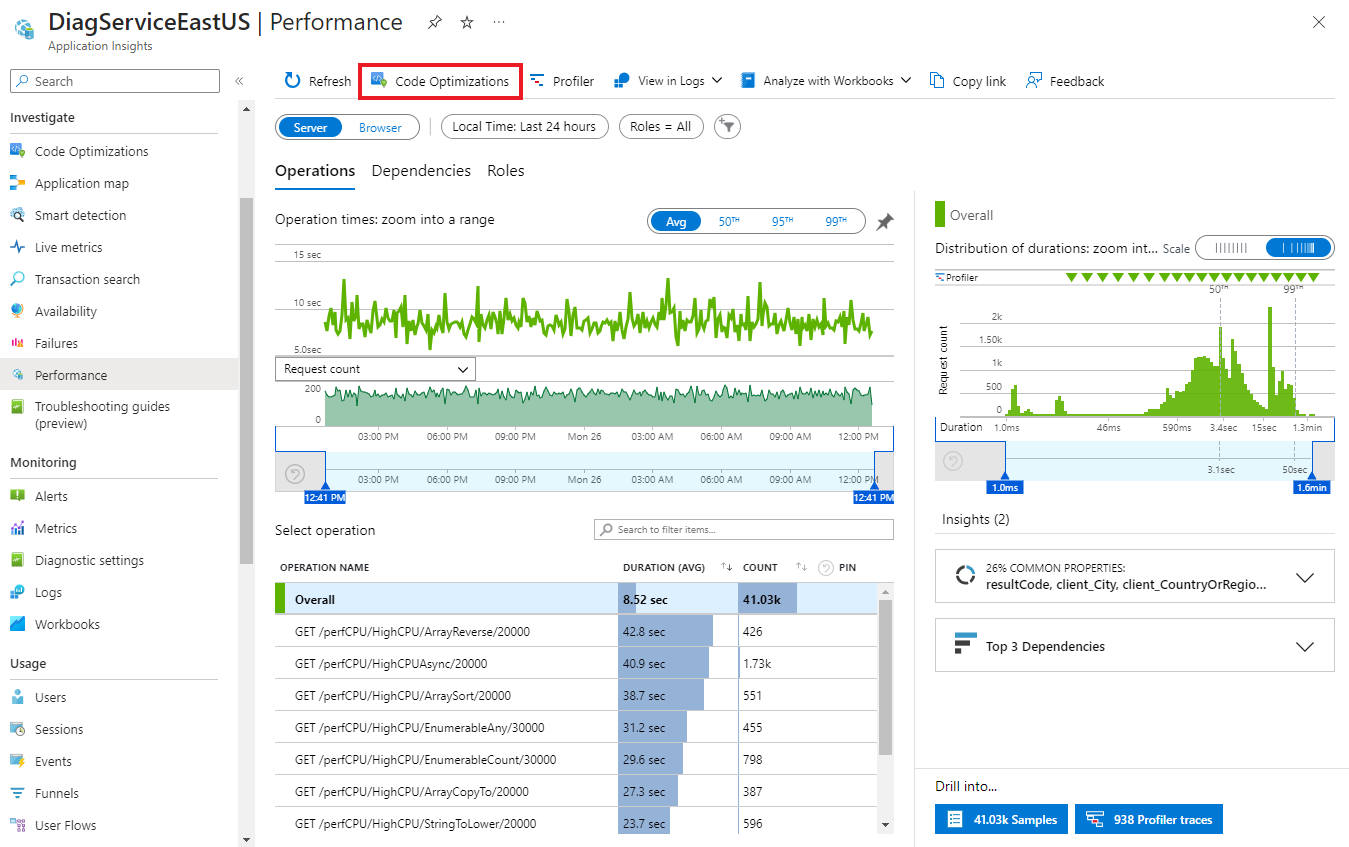
Select Investigate > Performance.
In the Performance page, select Code Optimizations in the top menu.
Create a GitHub issue
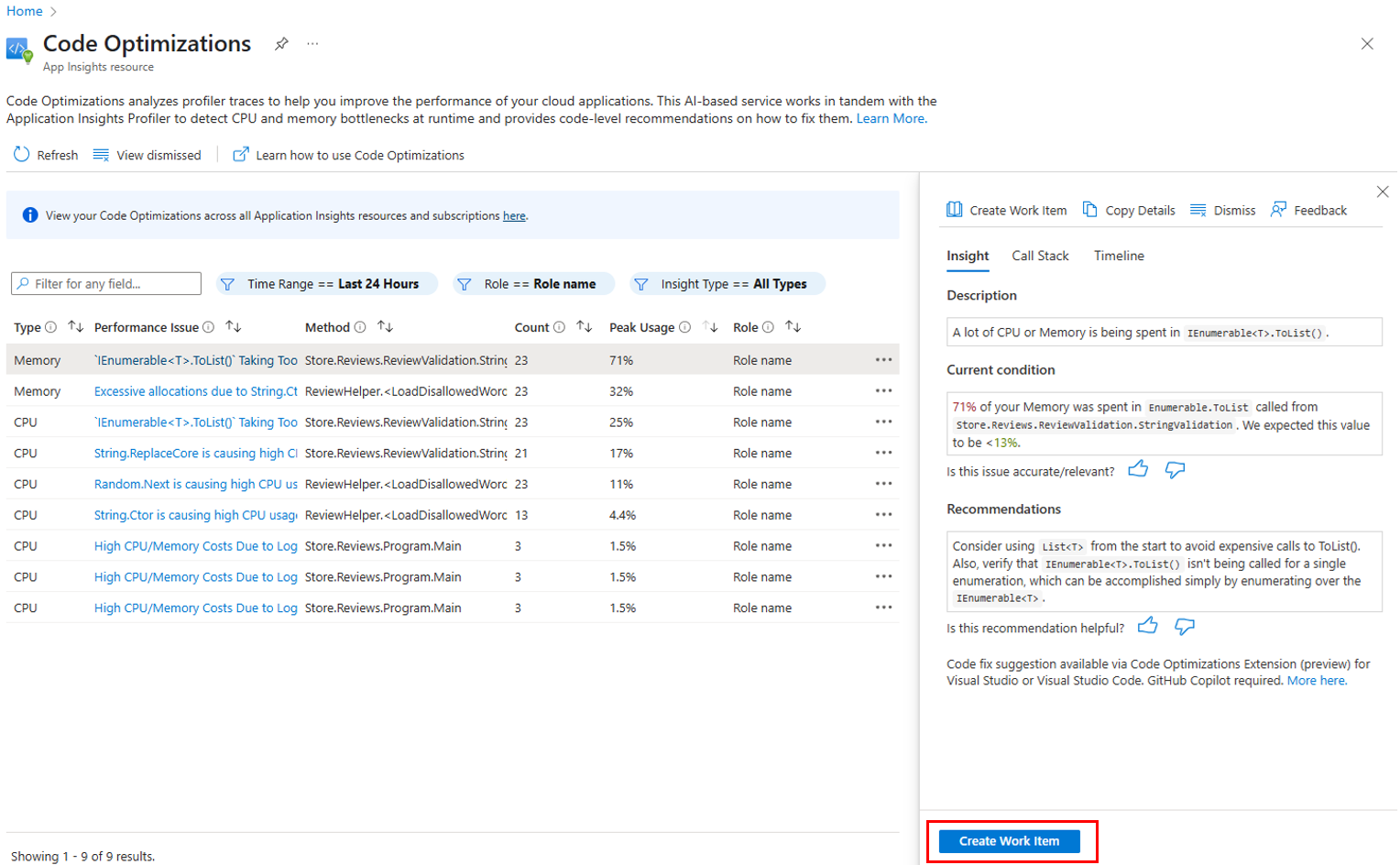
In the Code Optimizations page, select the insight for which you want to create a GitHub issue.
In the insights details pane, select Create Work Item.
In the Create Work Item pane, from Work Item Service, select GitHub.
From the Project menu, select the GitHub repo with GitHub Copilot coding agent (Preview) enabled.
Turn on the Assign to GitHub Copilot (Preview) option.
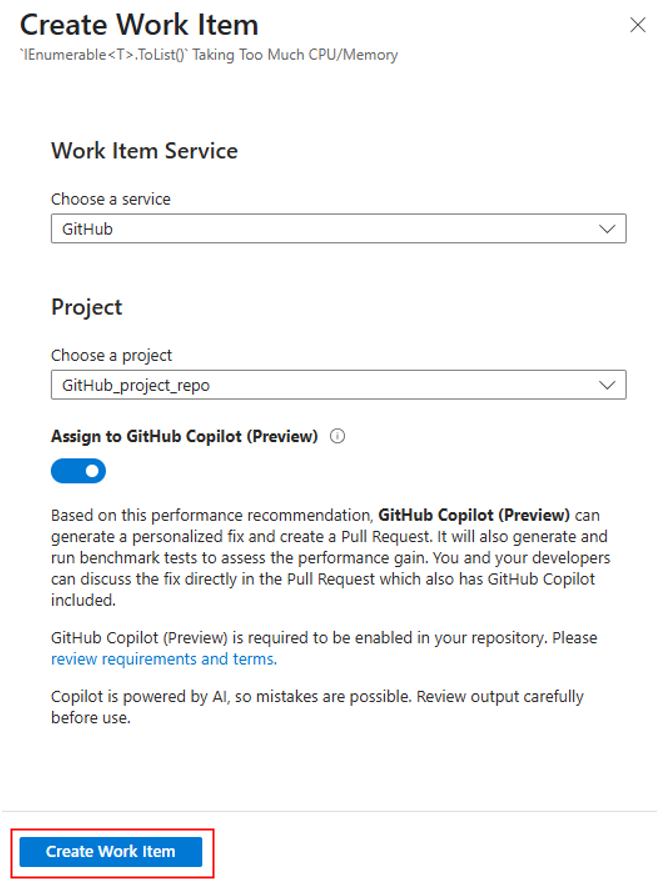
Select Create Work Item.
When prompted with a warning about leaving the Azure portal, select Continue to finish creating the GitHub issue.
Track the pull request opened by GitHub Copilot
After the issue is created in GitHub, GitHub Copilot:
- Responds to the issue with the eyes emoji (👀).
- Opens a pull request as assignee.
The GitHub issue includes special instructions for the Copilot coding agent to fix and validate your specific performance issue.
- Copilot benchmarks your code before and after the performance code suggestion.
- Copilot considers and evaluates multiple alternative solutions.
This process takes a couple minutes to finish. When the process finishes, the Copilot agent updates the pull request details and the title.
To review Copilot's changes, you can:
- Ask Copilot to make changes using pull request comments.
- Check out Copilot's branch and commit changes yourself.
Next step
- Learn more about the GitHub Copilot coding agent.