Note
Access to this page requires authorization. You can try signing in or changing directories.
Access to this page requires authorization. You can try changing directories.
This article explains how to use appliance fallback logging to export and send logs to Microsoft when Azure Local VMs operates in disconnected mode. This process helps you troubleshoot issues when standard log collection isn't available.
Important
This feature is currently in PREVIEW. See the Supplemental Terms of Use for Microsoft Azure Previews.
About fallback logging
Use appliance fallback logging to collect and send logs to Microsoft when the Azure Local disconnected operations appliance virtual machine (VM) is down. Use this method if standard log collection can't start and you need logs to troubleshoot issues.
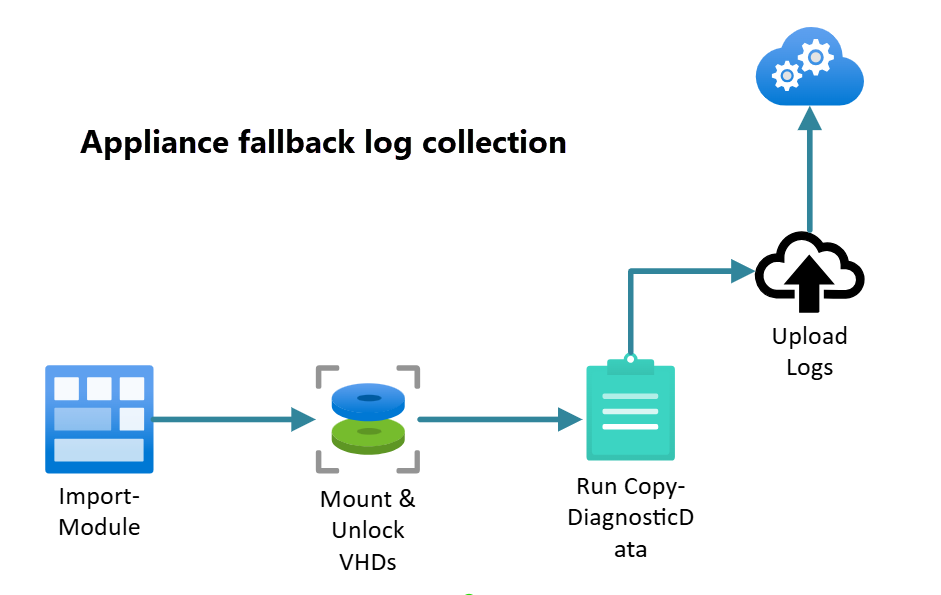
Here's a diagram showing a high-level overview of the appliance fallback log collection process:
Prerequisites
Import the appliance logging module to use the cmdlets in this article.
Import appliance logging
To import appliance logging, run the following command:
Import-Module "<disconnected operations module folder path>" -Force
Export logs via Copy-DiagnosticData
To export logs in the fallback scenario, use the Copy-DiagnosticData cmdlet.
Copy-DiagnosticData command
The Copy-DiagnosticData command is used to copy diagnostic logs from mounted virtual hard disks (VHDs) to a specified folder. This command is part of the operations module and helps you collect diagnostic data from a log volume VHD for analysis.
The fallback logging scenario is used when the Azure Local VM can’t run disconnected operations or when a management endpoint doesn’t work. This cmdlet shuts down the VM. To get the logs, mount and unlock the VHDs, then copy the logs from the mounted VHDs to a local LogsToExport folder inside the folder you specify with DiagnosticLogPath. You can set the time window and roles to collect. If you set the Observability Stamp ID, the cmdlet includes it in the return values.
Make sure this location has enough space for the logs because the Azure Local VM running disconnected VHDs mounts there temporarily during the copy action.
Use these parameters with the Copy-DiagnosticData cmdlet.
DiagnosticLogPath: Required. The destination path contains copied logs and temporarily mounted VHDs.
FilterRoles: The roles required for log collection or diagnostics might vary depending on the scenario. Use the
get-helpcmdlet or work with your support contact to determine the appropriate roles to include.FromDate and ToDate: Optional. Start and end times of logs included in the collection. Logs before the FromDate and after the ToDate are excluded. By default, logs from the last four hours of the current time are collected if you don't provide these parameters.
RecoveryKeySet (BitLocker): Optional. The RecoveryKeySet has relevant ProtectorId and RecoveryPassword pairs for BitLocker encrypted volumes used for log collection retrieval. If recovery keys aren't provided, manual entry of the keys is required during the mount process.
Note
The BitLocker recovery key set is required to unlock the mounted VHDs used for log collection. Get and save these keys after you deploy the appliance using the BitlockerRecoveryKeys endpoint.
Example:
$certPasswordPlainText = "***"
$certPassword = ConvertTo-SecureString $certPasswordPlainText -AsPlainText -Force
$context = Set-DisconnectedOperationsClientContext -ManagementEndpointClientCertificatePath "<Management Endpoint Client Cert Path>" -ManagementEndpointClientCertificatePassword $certPassword -ManagementEndpointIpAddress "<Management Endpoint IP address>"

$recoveryKeys = Get-ApplianceBitlockerRecoveryKeys $context # context can be omitted if context is set.
$recoveryKeys
Example output:
PS G:\azurelocal> $recoveryKeys = Get-ApplianceBitlockerRecoveryKeys $context # context can be omitted if context is set.
>>
>> $recoverykeys.recoveryKeySet | ConvertTo-JSON > c:\recoveryKeySet.json
>>
>> Get-content c:\recoveryKeySet.json
>>
VERBOSE: [2025-08-05 23:10:58Z][Get-ApplianceBitlockerRecoveryKeys] [START] Get bitlocker recovery keys.
VERBOSE: [2025-08-05 23:10:58Z][Invoke-ScriptsWithRetry][Get-ApplianceBitlockerRecoveryKeys] Executing 'Script Block' with timeout 300 seconds ...
VERBOSE: [2025-08-05 23:10:58Z][Invoke-ScriptsWithRetry][Get-ApplianceBitlockerRecoveryKeys] [CHECK][Attempt 0] for task 'Script Block' ...
VERBOSE: [2025-08-05 23:10:58Z][Invoke-ScriptsWithRetry][Get-ApplianceBitlockerRecoveryKeys] Task 'Script Block' succeeded.
VERBOSE: [2025-08-05 23:10:58Z][Get-ApplianceBitlockerRecoveryKeys] [END] Get bitlocker recovery keys.
[
    {
        "protectorid":  "{xxxxxxxx-xxxx-xxxx-xxxx-xxxxxxxxxxxx}",
        "recoverypassword":  "xxxxxx-xxxxxx-xxxxxx-xxxxxx-xxxxxx-xxxxxx-xxxxxx-xxxxxx"
    },
    {
        "protectorid":  "{xxxxxxxx-xxxx-xxxx-xxxx-xxxxxxxxxxxx}",
        "recoverypassword":  "xxxxxx-xxxxxx-xxxxxx-xxxxxx-xxxxxx-xxxxxx-xxxxxx-xxxxxx"
    },
    {
        "protectorid":  "{xxxxxxxx-xxxx-xxxx-xxxx-xxxxxxxxxxxx}",
        "recoverypassword":  "xxxxxx-xxxxxx-xxxxxx-xxxxxx-xxxxxx-xxxxxx-xxxxxx-xxxxxx"
    },
    {
        "protectorid":  "{xxxxxxxx-xxxx-xxxx-xxxx-xxxxxxxxxxxx}",
        "recoverypassword":  "xxxxxx-xxxxxx-xxxxxx-xxxxxx-xxxxxx-xxxxxx-xxxxxx-xxxxxx"
    },
    {
        "protectorid":  "{xxxxxxxx-xxxx-xxxx-xxxx-xxxxxxxxxxxx}",
        "recoverypassword":  "xxxxxx-xxxxxx-xxxxxx-xxxxxx-xxxxxx-xxxxxx-xxxxxx-xxxxxx"
    },
    {
        "protectorid":  "{xxxxxxxx-xxxx-xxxx-xxxx-xxxxxxxxxxxx}",
        "recoverypassword":  "xxxxxx-xxxxxx-xxxxxx-xxxxxx-xxxxxx-xxxxxx-xxxxxx-xxxxxx"
    }
]
To manually create a RecoveryKeySet parameter, use this template:
$recoveryKeySet = @(
[PSCustomObject]@{protectorid = "{<Protector Id>}"; recoverypassword = "<Recovery password>"})
Copy from the Azure Local disconnected operations appliance VM
Here are some examples of how to use the Copy-DiagnosticData cmdlet to get logs from the Azure Local disconnected operations appliance VM.
Copy diagnostic data logs for specific roles
To copy diagnostic data logs for specific roles, run these commands:
Import-Module "<disconnected operations module folder path>" -Force
Copy-DiagnosticData -DiagnosticLogPath "C:/path/to/copied_logs_parent_directory" -FilterRoles @("Agents", "Oplets", "ServiceFabric")
Copy diagnostic data logs for specific roles and time ranges
To copy diagnostic data logs for specific roles with time ranges and recovery keys, if provided, run these commands:
Import-Module "<disconnected operations module folder path>" -Force
$diagnosticLogPath = "C:\path\to\LogsToExport"
$roles = @("Agents", "Oplets", "ServiceFabric")
$fromDate = [datetime]"03/13/2024 12:00:00"
$toDate = [datetime]"03/13/2024 15:00:00"
$recoveryKeySet = @()
Copy-DiagnosticData -DiagnosticLogPath $diagnosticLogPath -FilterRoles $roles -FromDate $fromDate -ToDate $toDate -RecoveryKeySet $recoveryKeySet
Example output:
PS C:\Users\administrator.s46r2004\Documents> Copy-DiagnosticData -DiagnosticLogPath $diagnosticLogPath -RecoveryKeySet $recoveryKeySet
VERBOSE: [2025-03-26 22:10:58Z] [Get-ValidCollectionWindow] $ToDate not provided, set to: 03/26/2025 22:10:58 (current time)
VERBOSE: [2025-03-26 22:10:58Z] [Get-ValidCollectionWindow] #FromDate not provided, set to: 03/26/2025 18:10:58 (4hr collection window)
VERBOSE: [2025-03-26 22:10:58Z] [Copy-DiagnosticData] Collecting logs for range: '03/26/2025 18:10:58' - '03/26/2025 22:10:58'
VERBOSE: [2025-03-26 22:10:58Z] [Copy-DiagnosticData] Collecting logs for FilterRoles: 'Agents', 'Oplets', 'MASLogs', 'ServiceFabric', 'ArcADiagnostics', 'Observability', 'WindowsEventLogs'
VERBOSE: [2025-03-26 22:10:59Z] [Invoke-StopIRVMAndMountVHDs] Stopping the IRVM...
VERBOSE: [2025-03-26 22:11:55Z] [Invoke-StopIRVMAndMountVHDs] Attempting to mount VHD 'C:\ClusterStorage\UserStorage_1\InfraVms\IRVM01\Virtual Hard Disks\OSAndDocker_A.vhdx'...
Example of the Copy-DiagnosticData output:
| DiagnosticLogPath                                       | StampId                                  |
|---------------------------------------------------------|------------------------------------------|
| C:\CopyLogs_20240501T1525097418\LogsToExport            | <Stamp ID>                               |
Note
The Azure Local disconnected operations appliance VM restarts after this operation finishes.
Copy diagnostic data logs to a specific directory path
To copy diagnostic data logs to a specific directory path, run these commands:
Import-Module "<disconnected operations module folder path>" -Force
Copy-DiagnosticData -DiagnosticLogPath "C:/path/to/copied_logs_parent_directory"
Related content
This feature is available only in Azure Local 2506.