Share via

power point font problem

Alexander Musalem-Dissanayake 0 Reputation points
2026-04-09T11:12:52.23+00:00

how do i embed new fonts to office 365 power point from google fonts

Microsoft 365 and Office | PowerPoint | For education | Other
0 comments No comments

2 answers

Sort by: Most helpful
  1. Alina Le 1,065 Reputation points Independent Advisor
    2026-04-09T12:04:10.86+00:00

    Hello @Alexander Musalem-Dissanayake

    About your concern, PowerPoint cannot use Google Fonts directly from the web. You must download and install the font on your computer, then embed it in the presentation.

    1/ Download the font from Google Fonts

    • Go to Google Fonts Website
    • Choose a font you like.
    • Click "Download" family
    • You’ll get a .zip file containing .ttf or .otf files.

    2/ Install the font on your computer

    On Windows

    • Unzip the files
    • Right‑click the font file (.ttf / .otf)
    • Click Install (or Install for all users)
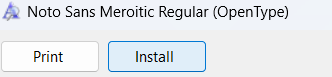
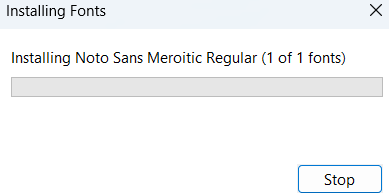
    User's image User's image

    On macOS

    • Double‑click the font file
    • Click Install Font in Font Book
    • Close and reopen PowerPoint after installing the font.

    3/ Use the font in PowerPoint

    • Open PowerPoint (Microsoft 365)
    • Select any text box
    • Choose the new font from Home -> Font dropdown
    • At this point, the font works only on your computer unless you embed it.

    f you still need my assistance, please come back with screenshots or any additional details so I can review it again and see if there’s anything more I can help you with.  

    Have a nice day!  


    If the answer is helpful, please click "Accept Answer" and kindly upvote it. If you have extra questions about this answer, please click "Comment". 

    Note: Please follow the steps in "our documentation" to enable e-mail notifications if you want to receive the related email notification for this thread. 

    0 comments No comments

  2. Q&A Assist
    2026-04-09T11:13:04.9233333+00:00
    AI generated content. This question contains an answer created with AI from Q&A Assist. Learn more

    To use Google Fonts in Microsoft 365 PowerPoint, the fonts must first be installed in the operating system, then (optionally) embedded in the presentation so others see them correctly.

    1. Download the font from Google Fonts to the computer.
    2. If the download is a .zip file, right-click it and select Extract All so the .ttf or .otf font files are visible.
    3. Install the font in the OS:
      • Windows:
        1. Right-click the .ttf/.otf file and select Install.
        2. Optionally confirm installation by pressing the Windows key, typing Fonts, and opening the Fonts control panel to see it listed.
      • macOS:
        1. Double-click the .ttf/.otf file in Finder.
        2. In the preview window, select Install Font. The font is added via Font Book.
    4. Close PowerPoint if it was open, then reopen it. The new font will appear in the Font list on the Home tab and can be applied to text.

    To help ensure others see the same font when the file is shared (Windows PowerPoint):

    1. In PowerPoint, select File > Options.
    2. Select the Save tab.
    3. Under Preserve fidelity when sharing this presentation, enable Embed fonts in the file.
    4. Choose either:
      • Embed only the characters used in the presentation (smaller file, limited editing), or
      • Embed all characters (best for editing by other people).
    5. Select OK, then save the presentation.

    Note:

    • Some third-party fonts may not allow embedding; font licensing determines whether embedding is permitted.
    • If a custom font is not installed or embedded, PowerPoint will substitute another font on other computers.

    References:

    0 comments No comments

Your answer

Answers can be marked as 'Accepted' by the question author and 'Recommended' by moderators, which helps users know the answer solved the author's problem.