Azure Virtual Machines
An Azure service that is used to provision Windows and Linux virtual machines.
This browser is no longer supported.
Upgrade to Microsoft Edge to take advantage of the latest features, security updates, and technical support.
' cx='32' cy='32' r='32' /%3E%3Ctext x='50%25' y='55%25' dominant-baseline='middle' text-anchor='middle' fill='%23FFF' %3E1%3C/text%3E%3C/svg%3E)
We have two Azure Windows 2012 servers which have SQL in it. We have done an in-place upgrade to Windows 2016. I think the upgrade is successful. we are able to see that the VM is up and running, agent status is ready, and resource health is available. But when we are trying to login, we are getting RDP error. Ping is working from other servers to these two servers. Any suggestion will be really helpful. I have attached the screenshots.
For rem4ssql01 i can see screenshot but serial log is not loading for rem4ssql02 boot diagnostics is not enabled.
' cx='32' cy='32' r='32' /%3E%3Ctext x='50%25' y='55%25' dominant-baseline='middle' text-anchor='middle' fill='%23FFF' %3EMD%3C/text%3E%3C/svg%3E)
Hello 17723955
It sounds like you're facing RDP login issues after performing an in-place upgrade from Windows Server 2012 to 2016 on your Azure VMs. Let’s break down your situation and identify some potential solutions.
Troubleshoot using the Azure portal
After each troubleshooting step, try connecting to your VM again. If you still cannot connect, try the next step.
Reset your RDP connection. This troubleshooting step resets the RDP configuration when Remote Connections are disabled or Windows Firewall rules are blocking RDP, for example.
Select your VM in the Azure portal. Scroll down the settings pane to the Help section near bottom of the list. Click the Reset password button. Set the Mode to Reset configuration only and then click the Update button:

Verify Network Security Group rules. Use IP flow verify to confirm if a rule in a Network Security Group is blocking traffic to or from a virtual machine. You can also review effective security group rules to ensure inbound "Allow" NSG rule exists and is prioritized for RDP port(default 3389). For more information, see Using Effective Security Rules to troubleshoot VM traffic flow.
Review VM boot diagnostics. This troubleshooting step reviews the VM console logs to determine if the VM is reporting an issue. Not all VMs have boot diagnostics enabled, so this troubleshooting step may be optional.
Specific troubleshooting steps are beyond the scope of this article, but may indicate a wider problem that is affecting RDP connectivity. For more information on reviewing the console logs and VM screenshot, see Boot Diagnostics for VMs.
Reset the NIC for the VM. For more information, see how to reset NIC for Azure Windows VM.
Check the VM Resource Health. This troubleshooting step verifies there are no known issues with the Azure platform that may impact connectivity to the VM.
Select your VM in the Azure portal. Scroll down the settings pane to the Help section near bottom of the list. Click the Resource health button. A healthy VM reports as being Available:

Reset user credentials. This troubleshooting step resets the password on a local administrator account when you are unsure or have forgotten the credentials. Once you have logged into the VM, you should reset the password for that user.
Select your VM in the Azure portal. Scroll down the settings pane to the Help section near bottom of the list. Click the Reset password button. Make sure the Mode is set to Reset password and then enter your username and a new password. Finally, click the Update button:
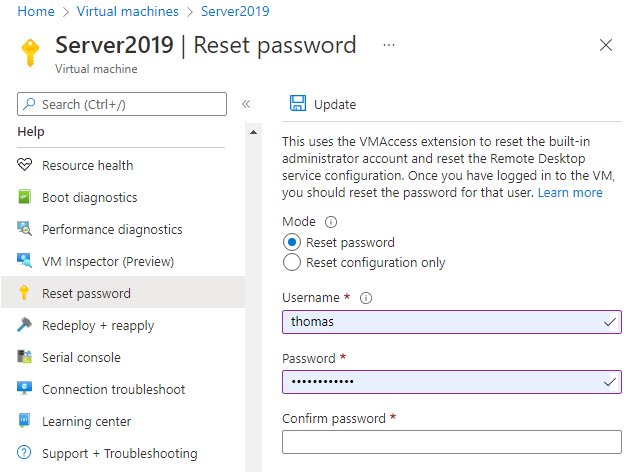
Restart your VM. This troubleshooting step can correct any underlying issues the VM itself is having. Select your VM in the Azure portal and click the Overview tab. Click the Restart button.
Redeploy your VM. This troubleshooting step redeploys your VM to another host within Azure to correct any underlying platform or networking issues.
Select your VM in the Azure portal. Scroll down the settings pane to the Help section near bottom of the list. Click the Redeploy button, and then click Redeploy:

After this operation finishes, ephemeral disk data is lost and dynamic IP addresses that are associated with the VM are updated.
Verify routing. Use Network Watcher's Next hop capability to confirm that a route isn't preventing traffic from being routed to or from a virtual machine. You can also review effective routes to see all effective routes for a network interface. For more information, see Using effective routes to troubleshoot VM traffic flow.
Troubleshoot using Azure PowerShell
The following examples use variables such as myResourceGroup, myVM, and myVMAccessExtension. Replace these variable names and locations with your own values.
After each troubleshooting step, try connecting to your VM again. If you still cannot connect, try the next step.
myVM in the WestUS location and in the resource group named myResourceGroup: PowerShell
   Set-AzVMAccessExtension -ResourceGroupName "myResourceGroup" `
    -VMName "myVM" -Location Westus -Name "myVMAccessExtension"
$rules variable. The following example obtains information about the Network Security Group named myNetworkSecurityGroup in the resource group named myResourceGroup: PowerShell
   $rules = Get-AzNetworkSecurityGroup -ResourceGroupName "myResourceGroup" `
    -Name "myNetworkSecurityGroup"
$rules.SecurityRules
Protocol, DestinationPortRange, Access, and Direction are configured correctly: PowerShell
Name : default-allow-rdp
Id : /subscriptions/guid/resourceGroups/myResourceGroup/providers/Microsoft.Network/networkSecurityGroups/myNetworkSecurityGroup/securityRules/default-allow-rdp Etag : ProvisioningState : Succeeded Description : Protocol : TCP SourcePortRange : * DestinationPortRange : 3389 SourceAddressPrefix : * DestinationAddressPrefix : * Access : Allow Priority : 1000 Direction : Inbound
   If you do not have a rule that allows RDP traffic, [create a Network Security Group rule](https://dori-uw-1.kuma-moon.com/en-us/azure/virtual-machines/windows/nsg-quickstart-powershell). Allow TCP port 3389.

1. **Reset user credentials**. This troubleshooting step resets the password on the local administrator account that you specify when you are unsure of, or have forgotten, the credentials.

   First, specify the username and a new password by assigning credentials to the `$cred` variable as follows:

   PowerShell

   ```sql
   $cred=Get-Credential
Now, update the credentials on your VM. The following example updates the credentials on a VM named myVM in the WestUS location and in the resource group named myResourceGroup:
PowerShell
   Set-AzVMAccessExtension -ResourceGroupName "myResourceGroup" `
    -VMName "myVM" -Location WestUS -Name "myVMAccessExtension" `
    -UserName $cred.GetNetworkCredential().Username `
    -Password $cred.GetNetworkCredential().Password
myVM in the resource group named myResourceGroup: PowerShell
Restart-AzVM -ResourceGroup "myResourceGroup" -Name "myVM"
myVM in the WestUS location and in the resource group named myResourceGroup: PowerShell
Set-AzVM -Redeploy -ResourceGroupName "myResourceGroup" -Name "myVM"
Thanks,
Manish Deshpande.