Dear @Harikanth,
Thank you for posting your question in the Microsoft Q&A forum. We understand you need more email storage after trying archiving. Here are the most effective solutions.
Option 1: Upgrade your subscription
- The most direct solution is to upgrade to a plan with higher mailbox storage.
- For Microsoft 365 Business Basic/Standard: Consider upgrading to Microsoft 365 Business Premium (includes 50 GB mailbox) or Exchange Online Plan 2 (100 GB mailbox).
- Go to the Microsoft 365 Admin Center > Billing > Purchase services, select a higher-tier plan, and follow the upgrade prompts.
Option 2: Utilize Auto-Expanding Archive
If you have an Exchange Online Plan 2 license (included in E3/E5), your Archive Mailbox can be configured to auto-expand up to 1.5 TB. This is the highest available email storage limit in Microsoft 365.
Action for Administrator:
- Sign in to the Exchange admin center (EAC) and navigate to Recipients > Mailboxes.
- In the list of mailboxes, select the user to enable their mailbox for archive.
- In the flyout pane, select Others, and under Mailbox archive, select Manage mailbox archive:
- On the Manage mailbox archive pane, turn on Mailbox archive, and then Save.
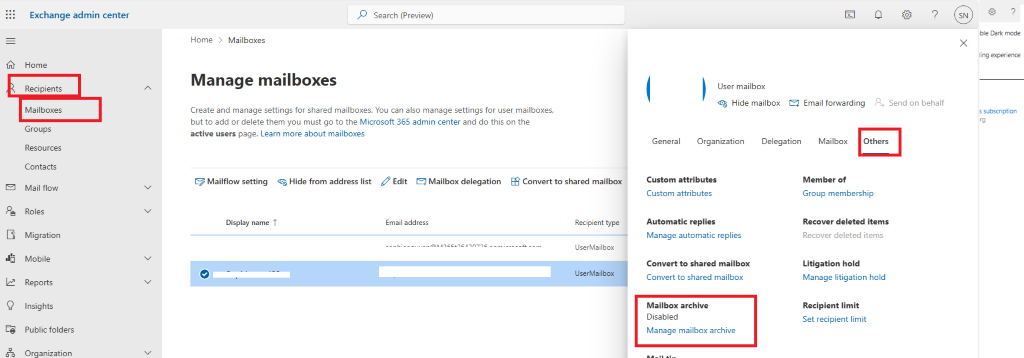
It might take a few moments to create the archive mailbox. When it's created, Active is displayed in the Archive status column for the selected user, although you might need to refresh the page to see the change of status.
The most effective and officially supported method to achieve a higher storage limit is to ensure you have a license that provides a 100 GB primary mailbox and auto-expanding online archive (like Exchange Online Plan 2, included in E3/E5).
For more details, please refer to Microsoft’s official documentation: Enable archive mailboxes for Microsoft 365 | Microsoft Learn
Option 3: Increase Mailbox capacity using PowerShell
Using PowerShell to check and increase a mailbox quota in Microsoft 365/Exchange Online. This is for administrators with the necessary permissions.
- Before you start, install the Exchange Online PowerShell V3 module. Run Windows PowerShell as an Administrator and execute:
Install-Module -Name ExchangeOnlineManagement -Force –AllowClobber
Connect-ExchangeOnline
A modern authentication window will pop up. Sign in with your administrator account (e.g., ******@yourdomain.onmicrosoft.com).
- Test the connection by running a simple command:
Get-EXOMailbox -ResultSize 1 | Format-List DisplayName, UserPrincipalName
This should display one user's details without error.
To see the current size, item count, and limit status for a specific user, run:
Get-MailboxStatistics -Identity "******@yourdomain.com" | Select-Object DisplayName, ItemCount, @{Name="TotalSize(GB)";Expression={[math]::Round(($_.TotalItemSize.Value.ToBytes() / 1GB),2)}}, StorageLimitStatus
Replace "******@yourdomain.com" with the actual user's email address.
*
Interpret the StorageLimitStatus*
This property tells you the user's current state:
BelowLimit: No issues.
IssueWarning: Mailbox is at or above the WarningQuota.
ProhibitSend: Mailbox is at or above the ProhibitSendQuota. The user can receive but not send new emails.
NoChecking or MailboxDisabled: Mailbox is at or above the ProhibitSendReceiveQuota. The user cannot send or receive.
Get-Mailbox -Identity "******@yourdomain.com" | Select-Object ProhibitSendReceiveQuota, ProhibitSendQuota, IssueWarningQuota, UseDatabaseQuotaDefaults
Set-Mailbox -Identity "******@yourdomain.com" -ProhibitSendReceiveQuota 49GB -ProhibitSendQuota 48.5GB -IssueWarningQuota 48GB -UseDatabaseQuotaDefaults $false
Get-Mailbox -Identity "******@yourdomain.com" | Select-Object ProhibitSendReceiveQuota, ProhibitSendQuota, IssueWarningQuota
If the user needs more than 100 GB of primary mailbox storage:
- Enable Online Archive: For supported plans, this adds a separate storage mailbox for older items.
- Enable Auto-Expanding Archiving: For eligible plans (like E3/E5), the archive mailbox can grow beyond its initial size automatically. Use this cmdlet to enable it for a user:
Enable-Mailbox "******@yourdomain.com" -Archive
- Manage Large Items: Find and clean up the largest items in the mailbox:
Get-MailboxFolderStatistics -Identity "******@yourdomain.com" -IncludeAnalysis | Sort-Object FolderAndSubfolderSize -Descending | Select-Object -First 10 Name, FolderAndSubfolderSize, ItemsInFolder
For example,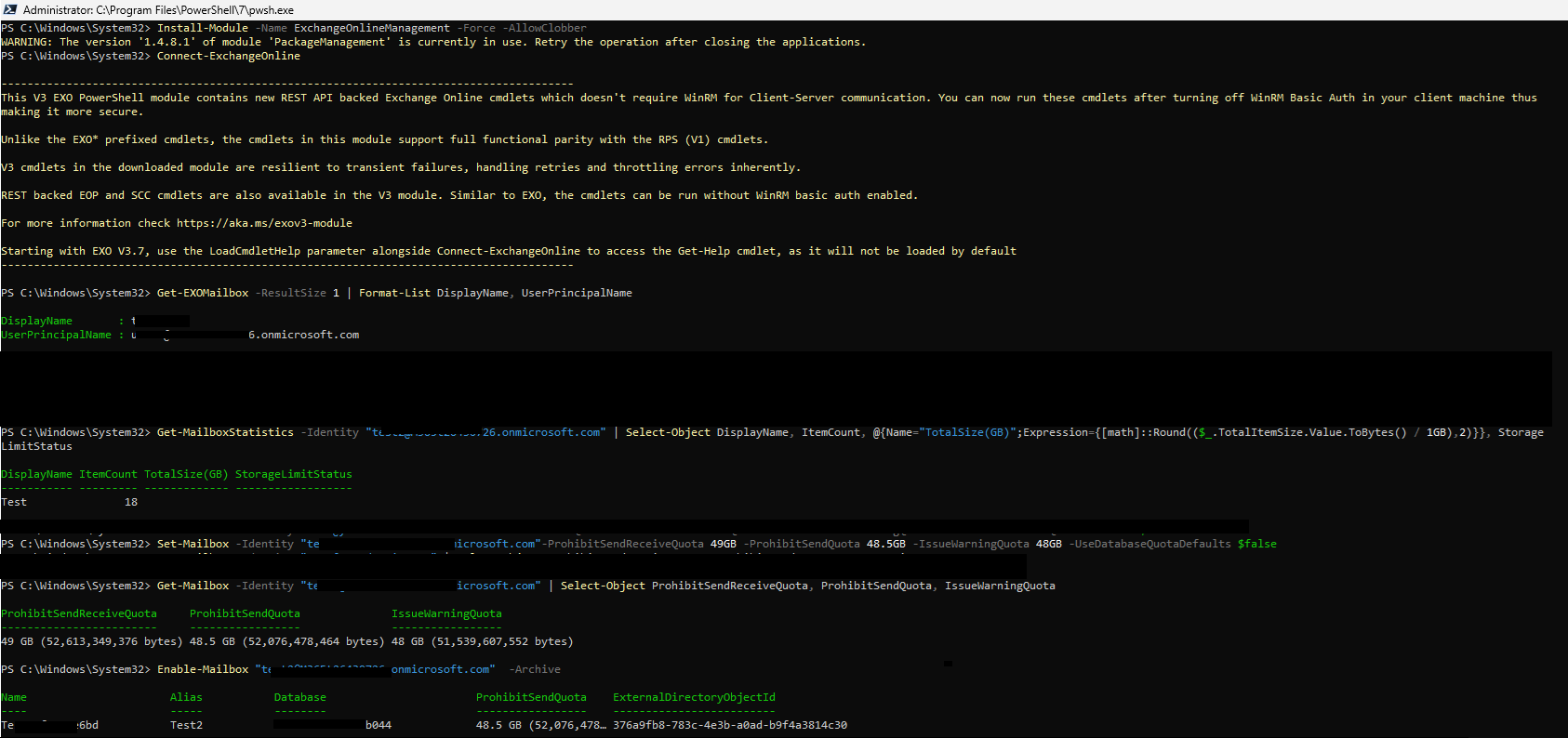

For more details, please refer to Microsoft’s official documentation: You've exceeded the storage limit for your mailbox error - Exchange | Microsoft Learn
Please note that as a forum moderator, I don’t have access to backend tools or internal systems to investigate further, and certain settings or configurations are managed exclusively by your organization’s administrators, so I’m unable to check or make changes on that side. That said, I truly hope these suggestions help you move forward.
Please let me know if you have any further questions or if the problem persists after trying these solutions. Thank you for your patience and cooperation.
If the answer is helpful, please click "Accept Answer" and kindly upvote it. If you have extra questions about this answer, please click "Comment".
Note: Please follow the steps in our documentation to enable e-mail notifications if you want to receive the related email notification for this thread.
' cx='32' cy='32' r='32' /%3E%3Ctext x='50%25' y='55%25' dominant-baseline='middle' text-anchor='middle' fill='%23FFF' %3EH%3C/text%3E%3C/svg%3E)


' cx='32' cy='32' r='32' /%3E%3Ctext x='50%25' y='55%25' dominant-baseline='middle' text-anchor='middle' fill='%23FFF' %3ESN%3C/text%3E%3C/svg%3E)